Project Online Calendar Migration: Three Layers to Move
Project Online calendar migration runs three layers deep: enterprise, project-specific, and resource. Missing any one silently breaks your schedule math.
Here's the pattern. A migration finishes in what looks like good order. The data loads, the projects open, the task names are right. PMs start working in the new tool. Three days in, someone notices that a task scheduled to start the Monday after a bank holiday is opening on that Friday instead, the day before the holiday. Nobody can explain why.
What's happening is a Project Online calendar migration problem that catches almost every team. Project Online builds schedule math from three stacked calendar layers: the Enterprise Global Calendar, the project calendar, and the resource calendar. Most migrations carry two of those three. The one that gets missed is almost always the Enterprise Global Calendar, the layer that holds your organization's holiday definitions. When that layer doesn't migrate, every task scheduled relative to a holiday shifts, quietly, and the first sign of the problem is a PM asking why her timeline looks wrong.
Context: this post is one piece of the master retirement timeline, the consolidated reference covering all three Microsoft Project ecosystem retirements happening in 2026. The comprehensive capacity planning master page covers this topic end-to-end.
TL;DR. Project Online calendar migration covers three layers that each export and migrate differently. The Enterprise Global Calendar is a server-side PWA object that doesn't travel in .mpp exports and must be extracted separately before retirement. Project calendars are embedded in .mpp files but must be verified against the enterprise calendar to catch overrides. Resource calendars contain individual exceptions that accumulate over time and are easy to lose in bulk migrations. Migrate all three layers in order, verify the schedule math on a pilot project before cutover, and run a calendar diff on every project whose resources have non-standard exceptions.
Three calendar layers and why all three matter
Project Online calendar migration requires understanding the dependency chain between the three layers. Each layer inherits from the one above it and can override it.
The Enterprise Global Calendar sits at the top. It defines the organization's standard working week and public holidays. Every project in the tenant inherits from it unless overridden. This calendar is edited through Server Settings > Enterprise Global in PWA and is stored as a server-side object, not in any individual project file.
Project calendars sit in the middle. Each project has its own calendar that can extend or override the enterprise calendar. A project running on a non-standard schedule (say, a construction project with Saturday working hours or a government project with different holiday schedules) uses a project calendar to define those differences. Project calendars travel in the .mpp file.
Resource calendars sit at the bottom. Each resource can have individual calendar exceptions: part-time schedules, extended leave, temporary capacity changes. Resource calendars also travel in the .mpp file, but only for the resources and exceptions defined within that specific project file. Enterprise-level resource calendar data lives in the resource pool.
The diagram below shows how the three layers stack.
The layering matters because missing any level changes schedule behavior. If the Enterprise Global Calendar doesn't migrate, every task that scheduled around a holiday shifts. If a project calendar doesn't migrate, tasks in that specific project may use the wrong working-week definition. If resource calendars don't migrate, individual resource availability changes, shifting assigned tasks.
The Enterprise Global Calendar: the layer most migrations miss
The Enterprise Global Calendar is the most important calendar in your tenant and the hardest to export. It doesn't sit in a .mpp file. It lives in PWA as a server-side template, editable only through Server Settings > Enterprise Global in Project Professional.
To export it, you need to open the Enterprise Global in Project Professional (File > Open > Project Server > Global Template), save it as a local .mpp or .mpt file, and then extract the calendar data from that file. The resulting file holds the base working time and all calendar exceptions (holiday entries, non-working day definitions, modified working day definitions).
Once you have that file, the migration question is: can your destination tool import a calendar definition from a .mpp or .mpt file, or do you need to manually recreate the exceptions? Most modern tools support importing holidays from standard formats (iCal, CSV, or similar), but they don't have a direct pathway from a Project Global Template. That usually means manually recreating the holiday list, which is a 30-to-60 minute exercise for a standard Western holiday calendar and longer for multi-region or custom-exception calendars.
The window for this export closes on September 30, 2026, when Project Online retires. If you haven't exported the Enterprise Global Calendar before that date, it's gone. This is one of the inventory items the Project Online Inventory Checklist surfaces explicitly: export the Enterprise Global Calendar and store it before any other migration work begins.
Project-specific calendars: the most overlooked middle layer
Every project in PWA has a project calendar. For the majority of projects, that calendar is the Standard calendar, identical to the Enterprise Global Calendar. These projects require no special calendar migration treatment.
The projects that require attention are the ones where the project calendar differs from the enterprise default. Common cases: a project with extended Saturday hours for a construction phase; a project following a different regional holiday schedule because the team is based in another country; a project with a compressed four-day work week for the duration of a specific phase.
Finding those projects before migration requires a sweep. In the project resource pool migration guide, we cover how to export the resource pool data, and the same OData approach works for calendar data. Query /_api/ProjectData/Projects and expand calendar properties, or open each project file and check the project calendar name under Project > Project Information. Any project whose calendar name is not "Standard" or whatever your Enterprise Global Calendar is named is a candidate for calendar-specific migration handling.
The risk for projects with non-standard calendars is that the destination tool defaults all imported projects to its own global calendar. A project that ran on a six-day work week in PWA may import with a five-day work week, compressing every duration by roughly 17%, shifting the project finish date forward, and making every task appear to have slack it didn't have.
Resource calendars: where schedule math quietly breaks
Resource calendars carry individual exceptions. A resource on a four-day work week has a resource calendar that overrides the project calendar for their assignments. A resource on parental leave for six weeks has an exception blocking that period. A contractor who works half-time has a 50% availability modification recorded in their resource calendar.
These exceptions accumulate over the life of a project and over the career of a resource in the system. A resource who has been in the tenant for three years may have a resource calendar with 30 or 40 individual exceptions going back through multiple projects.
Resource calendar migration has two components: the enterprise resource pool calendar data (per-resource exceptions across all projects, stored in PWA) and the project-file calendar data (the resource calendar as embedded in each .mpp). The enterprise pool data is the authoritative source for active resources. It's accessible via the PWA resource pool but doesn't export cleanly in .mpp format because it's a tenant-wide object, not a per-project object.
The practical approach for most PMOs: export the resource calendar exceptions from the enterprise pool via OData, import them into the destination tool's resource management module, and verify against the post-import schedule for resources with known exceptions. The Resource Heatmap can surface utilization anomalies that signal a calendar exception gap: if a resource's utilization changes dramatically after migration without a corresponding project change, a missing calendar exception is the most likely cause.
How calendars interact with task dependencies
Calendar migration problems compound with task dependencies. A task with a Finish-to-Start dependency scheduled to start the day after its predecessor finishes will be rescheduled if the calendar changes. If the predecessor finishes on a Friday and the successor is supposed to start on Monday, but the destination calendar marks Monday as a non-working day (because the enterprise calendar exception didn't migrate), the successor gets pushed to Tuesday. That one-day slip then cascades to every dependent task.
In a project with 200 tasks and a tight dependency chain, a single missing calendar exception can shift the project finish date by days or weeks. The problem shows up silently in the task list as changed dates. Without comparing to a pre-migration baseline, it's almost impossible to detect without manually comparing task dates across both systems.
This is why the project online migration checklist treats calendar migration as a pre-requisite for dependency migration, not a parallel activity. Validate the calendar configuration in the destination tool before running the data import. Any dependency-driven date shift that appears after migration is either a calendar problem or a baseline problem: both are cheaper to fix before the cutover than after.
A five-step calendar migration process
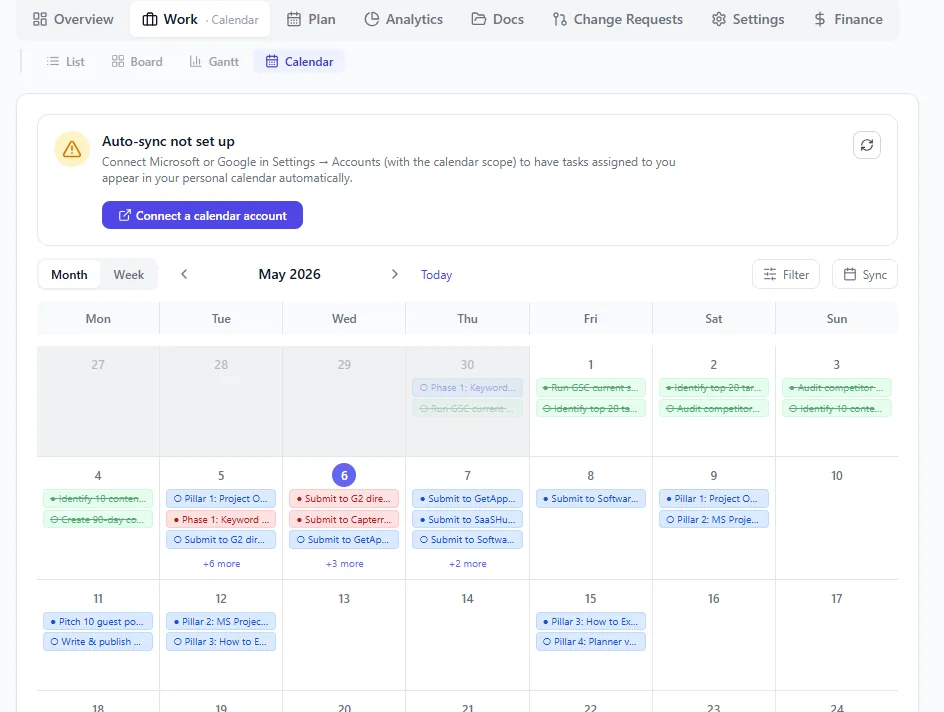
The destination calendar surface: tasks and milestones plotted on a month grid, colour-coded per project, with a next-7-days sidebar. The three calendar layers (enterprise global, project, resource) all feed this view; if any of them migrate wrong, the dates here go wrong by one working day silently.
A repeatable calendar migration process covers the three layers in the right order.
Export and store the Enterprise Global Calendar. Open the Enterprise Global in Project Professional, save as a local .mpt file, and document all non-standard exceptions (any entry that isn't a standard regional public holiday). This file is your calendar source of truth.
Identify non-standard project calendars. Sweep your project list via OData or by opening project files. Any project whose calendar name differs from the enterprise default is a candidate for separate calendar treatment. Document those projects and their calendar configurations.
Export enterprise resource pool calendar exceptions. For each resource with known non-standard availability (part-time, extended leave, temporary modifications), export the exception list via the PWA resource pool. This becomes the input for the destination tool's resource calendar configuration.
Recreate the Enterprise Global Calendar in the destination tool. Import your holiday list and any non-standard working-day definitions. Verify that the resulting calendar matches your exported .mpt file for the current calendar year and the next two years.
Run a pilot project calendar validation. Pick a project with a non-standard project calendar and at least two resources with known calendar exceptions. Import it into the destination tool and compare task start and finish dates against the PWA source. Any date discrepancy points to a specific calendar gap to resolve before the full migration.
Verifying calendars survived the migration
Post-migration calendar verification requires task-level date comparison, not just calendar configuration review. A calendar that looks correct in the settings can still produce wrong dates if its exceptions are subtly different from the source.
The verification test is straightforward: pick five tasks in the destination tool that have dependencies and are scheduled around calendar exceptions (holiday-adjacent tasks or tasks assigned to part-time resources). Compare their start and finish dates against the same tasks in the PWA source. If they match, your calendar migration is clean for those scenarios. If they differ, identify which calendar layer is responsible and correct it before proceeding with the full cutover.
Running the Schedule Health Check after importing your pilot project will surface tasks whose scheduling is inconsistent with the calendar configuration. It catches cases like tasks scheduled to start on a non-working day (a signal that the calendar exception didn't transfer) or resources assigned to work during their exception windows (a signal that the resource calendar didn't migrate correctly).
Run the free Schedule Health Check Upload your post-migration .mpp files and catch calendar anomalies, misaligned task dates, and resource calendar gaps before cutover. No signup required. Open Schedule Health Check
Microsoft Project Online™ is a trademark of Microsoft Corporation. Onplana is not affiliated with Microsoft.
Frequently asked questions
What calendar layers does Project Online use?
Three: the Enterprise Global Calendar (org-wide defaults including working hours and holidays), project calendars (per-project overrides), and resource calendars (individual exceptions for each resource). All three affect schedule math. Missing any layer during migration shifts task dates.
Does a .mpp export include all calendar layers?
The .mpp file includes the project calendar and resource calendar exceptions embedded in that file. The Enterprise Global Calendar is a PWA server-side object and does not travel in the .mpp export. It must be exported separately before the retirement date.
Why do tasks shift dates after a Project Online calendar migration?
Usually because the Enterprise Global Calendar exceptions were not recreated in the destination tool. When public holiday calendars differ between source and destination, tasks scheduled around those holidays move. A task set to start the Monday after a holiday lands on the wrong day if the destination doesn't recognize the holiday.
How do I export the Enterprise Global Calendar from PWA?
PWA does not have a one-click Enterprise Global Calendar export. You access it through Server Settings > Enterprise Global, open it in Project Professional, and save as a local .mpt or .mpp file. Alternatively, query the calendar exceptions via the PWA REST API.
What is the difference between a project calendar and a resource calendar in PWA?
The project calendar defines working days and hours for the project as a whole and is the default used for task scheduling. A resource calendar defines working availability for a specific resource and overrides the project calendar for tasks assigned to that resource.
How do calendar migration problems show up in schedule health checks?
Post-migration health checks typically surface calendar problems as unexpected task start or finish date changes, resources showing unusual utilization spikes, or tasks with no valid working days in their scheduling window. These are symptoms; the root cause is usually a calendar exception gap.
Ready to make the switch?
Start your free Onplana account and import your existing projects in minutes.