Project Online Migration Checklist (2026): 35 Items Admins Miss
A 35-item Project Online migration checklist covering projects, resources, custom fields, workflows, and integrations admins most often missed before retirement.
Microsoft Project Online retired on September 30, 2026, the headline event in Microsoft's 2026 deprecation timeline. Anything that read it live stopped with it; anything already exported or imported did not. The checklist below now works as an audit of what you exported: use it to confirm what you captured before you import it.
In our migration consulting work, inventory gaps consistently outpace tooling issues as the root cause of stalled migrations. Admins budget for the destination tool, the training, the data load. They assume the source inventory is close enough, "we've got around fifty active projects, a few custom fields, nothing weird." A month into the migration the real count is three times higher, the custom fields include a dozen orphaned Enterprise Custom Fields (ECFs) nobody can explain, and a Power BI report that runs the Thursday executive meeting turns out to depend on an OData query nobody documented. The migration slips, sometimes by months.
This post walks through the six inventory categories we consistently see underestimated: projects and schedules, resources, custom fields and lookup tables, views and reports, workflows and governance, and integrations. For each category we cover what to enumerate, the common gaps, and how to turn the findings into a migration plan. There's a companion tool, a free 35-item interactive checklist with PDF export, at the end, but the discipline matters more than the tool you use to capture it.
Two free tools for a Project Online migration
- Step 1, Inventory your scope: Project Online Inventory Checklist · the 35-item interactive version of this post.
- Step 2, Preview the move: Migration Preview · upload a sample .mpp and see which features survive the tool boundary before committing.
Both are free, no signup, run on your real data.
The six areas most migrations forget
The pattern across stalled migrations is the same: the obvious assets get counted, the less obvious ones don't. "Active projects" gets counted; schedules sitting in PDP approval queues don't. Named resources get counted; generic resources defined only as placeholders on cost plans don't. Below is what to enumerate in each of the six categories, in the order they typically bite during a migration.
Projects and schedules, beyond the active list
Most admins start with "we have N active projects." The actual inventory is larger in every direction. You also have draft and in-review schedules sitting in PDP workflow queues, proposal-stage projects that haven't been published yet, templates (both enterprise and personal-level), archived projects the business still references for lessons-learned, and read-only historical schedules used for forecasting similar future work.
The schedule-quality variance is the killer. Some of your 120 schedules will be clean dependency-driven plans that migrate cleanly. Some will be resource-loaded cost plans with no real task dependencies at all. Some will carry hard constraints that were workarounds for MS Project quirks and make no sense in a new tool. You need to know which is which before you pick a destination, because the migration effort per schedule varies by 5-10x across that spectrum, and most schedules carry hidden quality issues that only surface when someone actually runs the numbers. The deeper sub-topics each get their own walkthroughs: task dependencies and lag values, baseline snapshots and named baselines, calendar layers (global, project, resource), and portfolio rollups and prioritisation. Each is a distinct migration risk that the inventory step needs to enumerate before destination selection.
Count them all. Classify by status (active, archived, draft, template, proposal). Tag each with a business owner, a destination (migrate, archive, delete), and a priority. Most tenants end up archiving 30-50% of historical schedules rather than migrating them, which saves substantial labor cost but has to be an explicit decision, not a default.
Resources, the ERP rabbit hole
Enterprise Resource Pool migration is where technical complexity meets organizational sensitivity. The named resources, actual humans, are the easy part if your destination integrates with Entra ID. The hard parts are the generic resources ("Senior Developer," "QA Lead"), which only exist as placeholders on cost plans; the material resources, which most organizations haven't touched in years; and the rate tables A/B/C/D/E, which are HR-sensitive data that nobody on the PMO has the authority to move without approval.
You also need to inventory resource calendars. Organizational base calendars, named exceptions, regional holidays applied as overlays, these are rarely documented outside the Project Online admin's head. They affect how schedules compute working days, which affects every reported finish date.
The ERP rabbit hole is real: many Project Online tenants have downstream integrations that pull resource data out of PWA into SAP, Workday, or a homegrown HR system for timesheet reconciliation. If you disconnect the source without knowing those downstream consumers exist, you break reports and approvals nobody thought to flag.
Custom fields and lookup tables, the silent cost
Enterprise Custom Fields (ECFs) are where migration projects most reliably blow their budget. Key insight: in almost every Project Online tenant we've inventoried, roughly 60% of the ECFs are orphaned, no current owner, no active business use, defined years ago for a one-off report that no longer runs. Another 25% are stale. Only 15% are genuinely in-use.
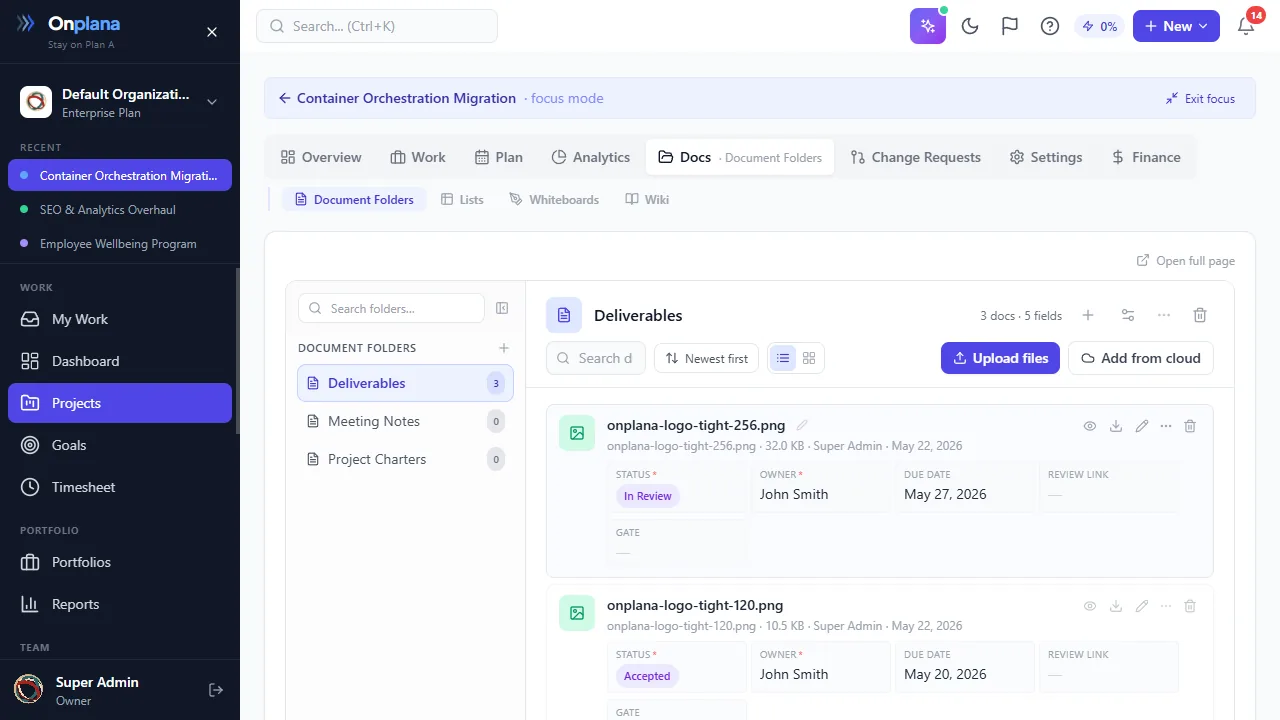
The destination shape: a project workspace with document libraries and custom-field columns. ECF and lookup-table values land here as typed columns, not flattened strings.
If you migrate all 150 fields blindly, you pay to translate each one into the destination tool's data model and you carry forward a mess that makes the new tool harder to adopt. The inventory work is: list every ECF with its type (Text, Number, Date, Flag, Duration, Cost), its attached entity (Project, Task, Resource), its lookup table reference if any, its required/optional flag, its formula if computed, and the business owner. Fields with no identifiable owner after two weeks of outreach are orphaned, flag them for retirement, not migration.
Lookup tables get similar treatment. A 40-item Department dropdown might be the right choice when it was built, but three years of re-orgs later most of the values are obsolete. Inventory the lookup tables, verify each value is still in use, and slim before you migrate. This is also the moment to surface enterprise-wide data standards, field naming conventions, categorization taxonomies, portfolio dimensions, that got implemented inconsistently over years. Migration is the forcing function for cleanup that would otherwise never happen.
Views, reports, dashboards, your stakeholders' daily view
Reports are the category admins under-inventory most consistently, because they live outside the PWA admin's direct control. PWA views themselves (Project Center, Resource Center, custom task views) are one layer. The OData feed is the second. Power BI reports that consume that OData feed are the third. Excel pivot tables pulling from either Power BI or OData directly are the fourth. Teams dashboards embedding any of the above are the fifth.
Each link in the chain needs to be re-pointed at your new tool's export API. The sustained cost here is usually underestimated 3-4x. A single Power BI report consuming the OData feed often represents two to five person-days of redevelopment once you account for column mapping, authentication, visual recreation, and stakeholder acceptance. For the OData side specifically, the Project Online OData export guide covers the entity set, the throttling limits, and the snapshot procedure teams used before the retirement. Anything that read the feed live stopped with Project Online on September 30, 2026.
Run a discovery pass: search the Power BI service for workspaces with datasets referencing ProjectData or your tenant URL. Search the shared Excel estate for .odc files pointing at PWA. Interview the executive assistants who send Monday-morning status reports, they often maintain their own unofficial dashboards that depend on an undocumented export.
Workflows and governance, the rebuild trap
SharePoint 2013 workflows have been on a deprecation path for years. Key insight: they don't migrate, they rebuild. Every PDP approval workflow, every stage gate, every phased governance rule written in SharePoint Designer needs a new implementation in Power Automate, in your destination tool's native automation engine, or in both. Budget accordingly: one to three person-days per workflow depending on complexity, plus a test cycle per workflow before cut-over. The Project Online workflow migration walkthrough covers the four rebuild paths (Power Automate, destination-native, third-party, retire) with a decision framework for matching each workflow to its right path.
Nitro workflows (the third-party replacement some tenants adopted when SharePoint 2013 was first deprecated) are in the same rebuild bucket. Custom PDPs, the SharePoint publishing pages that PWA users fill out during intake, carry field logic that may or may not translate to the new tool's form builder. Inventory each one, screenshot its final state, document its branching logic, and treat each as a rebuild task.
Governance-adjacent items: project site templates, content types, document-library structures, business-rule permissions. These don't follow the project data across migration; they're a parallel rebuild track. Don't discover them on go-live day.
Integrations, what connects to Project Online
Key insight: Power Automate flows are the integration category that surprises people most often. Any user with a Power Automate license can build a flow that reads or writes to Project Online, which means the integration inventory isn't something the PWA admin can build alone. A search across the tenant's Power Automate environments, filtered by the Project Online connector, typically surfaces 20-60% more integrations than the admin knew about.
Other integration surfaces: PSI/CSOM custom code (any on-premises service that reads Project Online via the legacy Project Server Interface or Client-Side Object Model), SharePoint Event Receivers on PWA-derived site collections, REST API consumers from homegrown tools, Teams apps that display project status inline, and SSO or provisioning connectors from Entra ID.
Each integration carries its own cut-over plan, a new endpoint to point at, a new authentication method, possibly a new data shape. Do not discover these the day before cut-over.
A simple way to work through your inventory
We built a structured 35-item pre-migration inventory as a free companion tool. It walks through each of the six categories with checkbox items, a free-text "owner / notes" field per item, progress tracking, and a PDF export so you can share the inventory state with your steering committee. The tool is free, requires no signup, and runs entirely in your browser, nothing is sent to a server.
The format matters because the checklist becomes a living document. You'll revisit it every week as you chase down field owners, unearth shadow integrations, and negotiate archive-versus-migrate decisions. A static document buried in SharePoint gets stale; an interactive checklist you can re-export on demand stays current.
Two areas that always need their own deep-dive
Two parts of any Project Online tenant are dense enough to warrant their own checklist sub-section. If your tenant has more than a handful of either, set aside time for them specifically. Project Online Custom Fields Migration walks through the OData inventory, audit, and field-by-field mapping for enterprise custom fields, lookup tables (including hierarchical ones), and calculated fields. Project Online Resource Pool Migration covers the Enterprise Resource Pool, the five cost-rate tables, generic resources, base + per-resource calendars, and what to do with historical timesheet data. Both are sized at ~12-minute reads and contain copy-paste OData queries for reference.
What to do with your inventory once complete
A complete inventory unlocks three decisions that get made badly without it. First, the archive-versus-migrate line. Most tenants end up archiving 30-50% of historical schedules; the inventory tells you where to draw that line based on business owner responses, not guesses. Second, tool selection, with the inventory in hand you can shortlist honestly. Comparing Planner as a replacement option, reading the detailed Onplana vs Microsoft Project comparison, and reviewing the broader landscape of Microsoft Project alternatives all become concrete exercises once you know what your inventory actually contains, a PMO running 120 dependency-driven schedules with ECFs needs a different tool than one running 30 simple task lists. Third, migration cost estimation. Once you have the numbers (active projects, historical projects, custom fields, confirmed integrations) you can model your 3-year migration cost with meaningful precision; the cost-of-migration breakdown walks through the six categories that matter.
Beyond tool selection, the inventory feeds the technical migration plan itself. You can see what your schedules would look like after migration by running a sample MPP through the free migration preview tool, useful for setting stakeholder expectations before the full project kicks off.
The complete 35-item checklist
Copy-paste this block into your migration tracker. Each item maps to one of the six categories above. The numbering survives the copy; treat each item as a row in your inventory spreadsheet with columns for owner, status, and destination decision (migrate / archive / retire).
PROJECTS AND SCHEDULES
[ ] 1. Active published projects, full list with task counts and last-modified date
[ ] 2. Draft and in-review projects sitting in PDP workflow queues
[ ] 3. Proposal-stage projects (intake) not yet promoted
[ ] 4. Enterprise project templates (EPTs), with the ECFs they reference
[ ] 5. Personal templates saved by individual PMs
[ ] 6. Archived projects the business still references
[ ] 7. Historical schedules used for forecasting analogous future work
[ ] 8. Shadow projects in personal SharePoint sites

RESOURCES AND CALENDARS
[ ] 9. Named resources (Entra ID / AD-mapped users)
[ ] 10. Generic resources (role placeholders on cost plans)
[ ] 11. Material resources (often orphaned, often forgotten)
[ ] 12. Cost resources and rate tables A/B/C/D/E (HR-sensitive, approval-gated)
[ ] 13. Organizational base calendars
[ ] 14. Per-resource calendar exceptions and regional holiday overlays
[ ] 15. Resource departments and skill metadata

CUSTOM FIELDS AND LOOKUP TABLES
[ ] 16. Enterprise Custom Fields (ECFs) at the project level
[ ] 17. Enterprise Custom Fields at the task and resource levels
[ ] 18. Lookup tables backing ECF dropdowns (flat lists)
[ ] 19. Hierarchical lookup tables (parent-child)
[ ] 20. Dependent / cascading lookup tables
[ ] 21. Calculated ECFs with formulas
[ ] 22. ECFs with no identifiable business owner (rename or retire candidates)

VIEWS AND REPORTS
[ ] 23. Custom PWA views per role (PM, executive, resource manager)
[ ] 24. SQL Server Reporting Services (SSRS) reports tied to the Reporting DB
[ ] 25. Power BI reports connecting to /_api/ProjectData
[ ] 26. Excel pivot tables and Power Query feeds against OData
[ ] 27. Custom .NET reporting solutions

WORKFLOWS AND GOVERNANCE
[ ] 28. SharePoint 2013 workflows (deprecation candidates, rebuild scope)
[ ] 29. Approval workflows tied to PDP stages
[ ] 30. Timesheet approval workflow configurations
[ ] 31. Project intake / Project Initiation Document (PID) workflows
[ ] 32. Resource manager approval workflows

INTEGRATIONS
[ ] 33. Power Automate flows referencing Project Online connector
[ ] 34. Teams tabs and apps surfacing PWA data
[ ] 35. Finance / ERP / HR sync integrations (custom-coded or vendor-provided)
Each row that has no clear owner by the end of Phase 1 is a risk. Each row with an owner but no destination decision is a Phase 2 input. Each row with both is migration-ready.
Industry variations: what changes by sector
The 35 items above are the common core. Specific industries layer additional items on top, usually driven by compliance, integration density, or schedule complexity. The table below covers the four sectors that most often skew the inventory.
| Industry | Items that get heavier | What to add |
|---|---|---|
| Healthcare (HIPAA) | Items 12 (rate tables), 33-35 (integrations) | EHR (Epic, Cerner) project links, IRB/clinical-trial workflow gates, HIPAA-audit retention rules for timesheet exports |
| Financial services | Items 12, 28-32 (governance) | SOX-controlled change-management workflows, model-risk-management gate evidence, audit-trail completeness for every project status update |
| Government / public sector | Items 4 (EPTs), 28-32 | FOIA-disclosable project documentation, contract-vehicle alignment per project, GSA / FAR-driven governance stages on the EPT |
| Construction / capital projects | Items 1-2 (projects), 11 (material), 16-22 (custom fields) | P6 interoperability checkpoints, earned-value (EVM) ECF set, change-order workflow per project, contractor-resource calendar overlays |
For each industry, the items in the second column are typically 20-40% of the migration effort and often miss the standard 35-item sweep. If your tenant serves one of these sectors, run the standard 35 first, then a second pass covering the industry-specific additions before closing out Phase 1.
Migration Inventory Scorecard
For PMOs that want a single number to report up, score the inventory on a 100-point scale: 2 points per item complete (with owner, status, and destination decision), 1 point per item partially complete (owner only), 0 if untouched. Above 85 means Phase 2 (tool evaluation) can start; 70-85 means the highest-priority gaps need closing in the next 7 days; below 70 means the team is not yet ready to evaluate destinations. This is a steering-committee metric, not an engineering metric. Score weekly; show the trend.
Conclusion
The fixed date was September 30, 2026, and Project Online retired on it. The flexible part now is how much of the inventory surprise you absorb before the import versus during it. Late-discovered custom fields, shadow Power Automate flows, and un-owned ECFs don't get less painful because you found them after go-live. Check what you exported against the 35 items first; Project Online Data: Import What You Exported covers bringing it in. You can understand the full cost picture before committing and review why Project Online was retired as context for stakeholder conversations, but the work itself is unglamorous and it needs to start now.
Frequently asked questions
When did Project Online officially retire? Project Online retired on September 30, 2026. Anything that read it live stopped with it; anything already exported or imported did not. Files you exported still import, with dependencies, custom fields and costs, and a .mpp or Project XML file imported into a new project brings its baseline as a baseline in Onplana.
Can I still use the Reporting DB after retirement? Project Online never exposed the Reporting DB directly, the supported query surface was OData at /_api/ProjectData. Project Online retired on September 30, 2026, and anything that read it live stopped with it, including Power BI reports or Excel pivot tables built on that OData feed. Point them at the data you exported to a warehouse you control, or rebuild the reports against your new tool's export API.
What happens to SharePoint 2013 workflows? SharePoint 2013 workflows in Project Online are already on borrowed time, Microsoft announced their broader deprecation years ago and they don't carry forward to any modern platform. Treat them as rebuild candidates in Power Automate or your new tool's native automation engine, not as a migration item. Budget one to three person-days per workflow depending on complexity; inventory every running workflow now so rebuild scope is known before the project kicks off.
Which tools should replace Project Online? It depends on how your organization uses Project Online today. Schedule-heavy PMOs running true dependency-driven plans need a tool with real Gantt, critical path, baselines, and MPP import, Onplana is built for that case. Teams that treated Project Online as a roll-up of simple task lists may be fine with Planner or a lighter tool. The correct replacement is the one whose schedule math matches yours. Run the inventory above before shortlisting vendors.
How long does the inventory work typically take? For a mid-size PMO (50 to 150 active projects) we usually see one to three weeks of calendar time with one person spending roughly half their time on it. The inventory itself is straightforward, the time goes into hunting down shadow integrations, classifying historical schedules by business owner, and chasing down the last 10 percent of ECF field owners. Larger estates take longer.
Can I skip workflow items if I don't use SharePoint 2013? If your tenant has zero SharePoint 2013 workflows, confirmed via the SharePoint admin workflow-scan report, not by asking the PMs, yes, skip those line items. Most tenants we inventory still have at least a handful of SP 2013 workflows that someone built years ago and forgot about. Verify by scan, not by memory.
Does this work for hybrid Project Online + Project for the Web tenants? Partially. The checklist covers the Project Online side fully. If you run a hybrid tenant with some projects in Project for the Web (Dataverse-backed), you need a second inventory pass for those, the data model, custom fields, and Power Platform integrations are different. Most hybrid tenants end up consolidating to a single new platform rather than splitting across two, so the hybrid complexity gets resolved as part of the migration decision itself.
Microsoft Project Online™ is a trademark of Microsoft Corporation. Onplana is not affiliated with Microsoft.
Frequently asked questions
When did Project Online officially retire?
Project Online retired on September 30, 2026. Anything that read it live stopped with it; anything already exported or imported did not. Files you exported still import, with dependencies, custom fields and costs, and a .mpp or Project XML file imported into a new project brings its baseline as a baseline in Onplana.
Can I still use the Reporting DB after retirement?
Project Online never exposed the Reporting DB directly, the supported query surface was OData at /_api/ProjectData. Project Online retired on September 30, 2026, and anything that read it live stopped with it, including Power BI reports or Excel pivot tables built on that OData feed. Point them at the data you exported to a warehouse you control, or rebuild the reports against your new tool's export API.
What happens to SharePoint 2013 workflows?
SharePoint 2013 workflows in Project Online are already on borrowed time, Microsoft announced their broader deprecation years ago and they don't carry forward to any modern platform. Treat them as rebuild candidates in Power Automate or your new tool's native automation engine, not as a migration item. Budget one to three person-days per workflow depending on complexity; inventory every running workflow now so rebuild scope is known before the project kicks off.
Which tools should replace Project Online?
It depends on how your organization uses Project Online today. Schedule-heavy PMOs running true dependency-driven plans need a tool with real Gantt, critical path, baselines, and MPP import, Onplana is built for that case. Teams that treated Project Online as a roll-up of simple task lists may be fine with Planner or a lighter tool. The correct replacement is the one whose schedule math matches yours. Run the inventory below before shortlisting vendors, a lot of shortlists get revised once PMs realize they have 120 active schedules with custom fields, not 30.
How long does the inventory work typically take?
For a mid-size PMO (50 to 150 active projects) we usually see one to three weeks of calendar time with one person spending roughly half their time on it. The inventory itself is straightforward, the time goes into hunting down shadow integrations, classifying historical schedules by business owner, and chasing down the last 10 percent of ECF field owners. Larger estates or federated tenants take longer. Starting early is the single biggest predictor of a calm migration.
Can I skip workflow items if I don't use SharePoint 2013?
If your tenant has zero SharePoint 2013 workflows, confirmed via the SharePoint admin workflow-scan report, not by asking the PMs, yes, skip those line items. Most tenants we inventory still have at least a handful of SP 2013 workflows that someone built years ago and forgot about, which surface as blocking issues only when the first approval request fails post-cutover. Verify by scan, not by memory.
Does this work for hybrid Project Online + Project for the Web tenants?
Partially. The checklist covers the Project Online side fully. If you run a hybrid tenant with some projects in Project for the Web (Dataverse-backed), you need a second inventory pass for those, the data model, custom fields, and Power Platform integrations are different. For the migration itself, most hybrid tenants end up consolidating to a single new platform rather than splitting across two, so the hybrid complexity gets resolved as part of the migration decision rather than preserved.
Ready to make the switch?
Start your free Onplana account and import your existing projects in minutes.