7 Hidden Killers in Your MS Project Schedule: Find Them
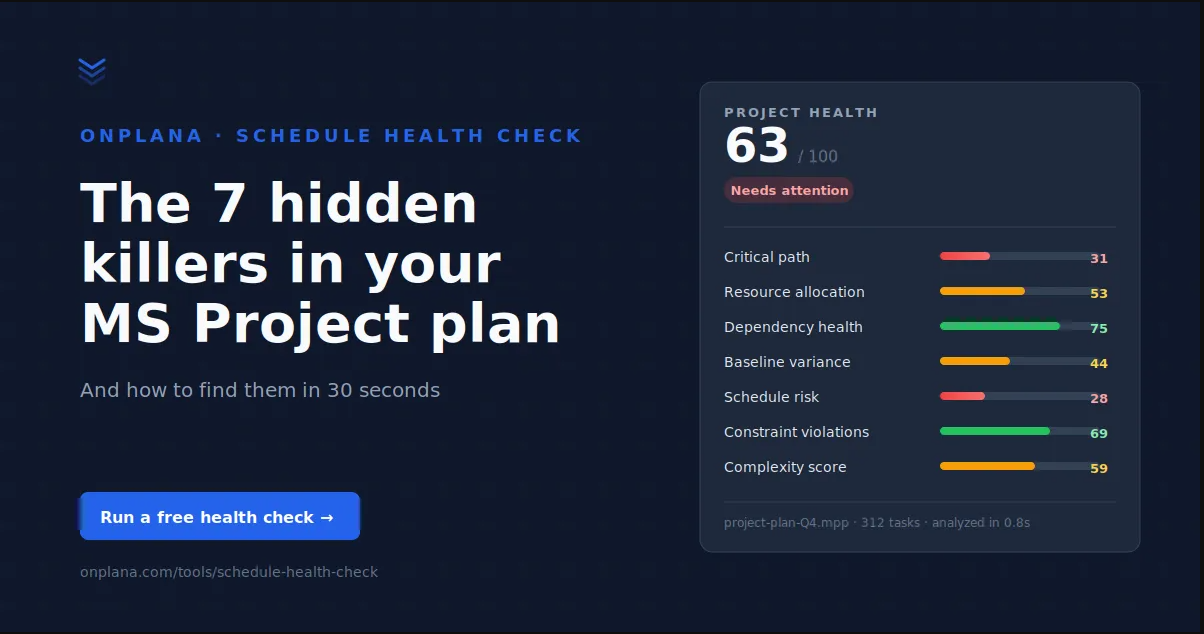
Most MS Project schedules have hidden issues that status reports miss. Here are the 7 most common killers and how to find them in 30 seconds.
Here's the uncomfortable pattern. A project tracks green for months. Status reports come in on time, the PM briefs the steering committee that milestones are on track, the team is executing. Six weeks later the delivery slips. Five more weeks in, the sponsor escalates. The post-mortem reads like every post-mortem before it: the schedule was optimistic, scope crept, two resources left.
Most of the time the schedule wasn't optimistic. It was broken. The math inside the MPP file had been broken for weeks or months and nobody did the work to surface it.
Status reports summarize a PM's opinion about the schedule. They do not summarize the schedule itself. The schedule has its own internal math: dependencies, constraints, baselines, float, resource loading. That math tells you whether the plan can actually work. And the math almost never makes it into the weekly update because running it is tedious, the tools make it hard, and nobody asks for it.
Why status reports hide reality
The core disconnect is this: status reports describe what the PM believes, and MS Project describes what the file contains. The two drift apart because adding a dependency late does not trigger a warning. Changing a constraint does not trigger a warning. Over-assigning a resource does not trigger a warning. The math silently adjusts, and the schedule math silently breaks.
A status update says tasks are on track. The actual schedule might have twelve tasks flagged critical that are not actually on the critical path. It might have a resource assigned to 180 hours of work in a 40-hour week. It might have a hard constraint inside a dependency chain that contradicts its predecessor's finish date. These things do not show up as red on any PM dashboard. They show up as schedule slips later, when the dependencies resolve and the math has to play out in calendar time.
The seven killers below are the specific ways this math breaks. They show up most often when someone actually runs the numbers against real MPP files. If any of them describe a project you're running, you probably already know something's off without being able to name it.
Killer 1: A broken critical path
The critical path is the longest sequence of dependent tasks in your project. Any slip on a critical-path task delays the whole project. That's the textbook. (If you want the fundamentals refreshed, the critical path method explained walks through it end to end.)
What actually happens in practice is that the critical path displayed in MS Project and the real critical path in the math diverge. A task gets flagged as critical because of legacy constraints from a previous baseline, while another task, with no critical flag at all, is actually the longest dependent sequence in the current plan. The PM manages the flagged one. The unflagged one slips and takes the whole project with it.
How to spot it: look at the tasks currently shown as critical and compare their finish dates to project finish. If slipping one of them by three days does not move the project finish, that task isn't really critical. Conversely, if there's a task with 0 days of total float that isn't flagged critical, something is wrong with the flag logic.
A 30-second schedule health check surfaces this by computing the real critical path from the dependency graph and comparing it against whatever MS Project is displaying.
Killer 2: Silent resource overallocation
The same resource assigned to three overlapping tasks at 100% utilization for all three. One resource assigned 60 hours of work during a 40-hour week. MS Project accepts the assignments, the schedule computes normally, and nothing warns you that the resource cannot physically deliver the work.
This shows up differently than you'd expect. You don't see the overallocation warning as an obvious red error. You see it when the resource inevitably misses deadlines on one or more overlapping tasks, which then cascades through their dependencies.
The dangerous case is when the overallocated resource is working on parallel tasks that all converge on a single critical-path successor. Three tasks scheduled in parallel, all assigned to the same person, all feeding a common milestone. The math says everything completes Monday. Reality delivers one on Monday and two two weeks late. The parallel convergence silently becomes a sequence that runs three times longer than the plan says.
How to spot it: resource usage view, filter by peak over 100%, check whether any of those tasks fall on or near the critical path.
Killer 3: Dependency chain bombs
Dependencies are how MS Project knows what's parallel, what's sequential, and what has to wait. Wrong dependencies produce wrong schedules. The common failure modes:
Circular dependencies, where task A waits on B and B waits on A. Modern versions catch some of these on save. Older versions silently schedule both indefinitely.
Orphan tasks with no predecessors and no successors. The task schedules as if it runs day one, even if logically it has to come after something else.
Excessive predecessors. A single task with twenty-plus predecessor links. The logic might be right, but a single broken link in that chain invalidates a big part of the plan and nothing flags it.
Mismatched lag. A 5-day Finish-to-Start lag on a dependency where the real delay is 5 hours. Or the reverse. Compounded across a schedule, the cumulative error shifts the finish by weeks.
How to spot it: use Task Inspector on the tasks currently sitting on your critical path. Look for predecessor counts that surprise you (why does this task have fourteen predecessors?) and lag values you don't recognize.
Killer 4: Baseline drift nobody tracks
A baseline is MS Project's snapshot of the schedule at plan approval. Every subsequent change measures against it: variance in days, variance in cost, variance in work. The baseline is what lets you say "we're 8 days behind plan" with precision instead of hand-waving.
What happens in practice: the PM sets a baseline at project start. Six weeks in, scope changes. The PM updates the current plan but doesn't update the baseline, because everyone is busy and the admin feels low-value. Three months in, the schedule has drifted by weeks from baseline, but nobody's looking at the variance because the variance numbers feel stale and misleading. The baseline becomes a thing that's always wrong instead of the anchor it was supposed to be.
The worse case is when no baseline was ever set. Nothing to drift from. Every status update becomes "we're on track against the current plan," which tells you nothing about whether the plan is the same as what the sponsor approved.
How to spot it: check whether Baseline Start and Baseline Finish are populated on all tasks. Then compute variance on a handful of samples. If the variance is zero everywhere or wildly different from what you'd expect, the baseline is either missing or meaningless.
Run this audit on your own schedule
The seven killers above are exactly what the free Schedule Health Check looks for. Upload your .mpp or MSPDI XML and get a per-finding breakdown in 30 seconds, no signup, no credit card.
Audit your schedule →Killer 5: Schedule risk blind spots
Schedule risk comes from places you're not looking. Too many tasks on the critical path means too little slack for any one of them to slip. Tasks with durations estimated in round numbers (7, 14, 30 days) are usually placeholders, not calculated. Tasks buried deep in the WBS get less scrutiny than top-level ones.
A specific pattern: a project flagged a 4-week task as critical but the task actually had 6 days of float once you ran the math. Meanwhile, a 10-day task in a neighboring subnet had 0 float and wasn't flagged. The PM was babysitting the wrong task for weeks.
Other blind spots: tasks where the same resource appears multiple times; tasks where the successor's start date equals the predecessor's finish exactly (mathematically valid but operationally fragile, the slightest slip propagates); tasks with suspicious durations relative to surrounding tasks (a 90-day task surrounded by 5-day tasks usually deserves scrutiny).
The Onplana Schedule Health Check runs these risk checks against your MPP in about thirty seconds and flags the specific tasks. No install, no account.
Killer 6: Constraint violations
Constraints in MS Project are your way of telling the schedule "this task has to start or finish by this date regardless of what its dependencies say." They come in eight flavors, and ranked by how much damage each one does, the two that actually override dependency logic outright are Must Start On (MSO) and Must Finish On (MFO); Start No Earlier Than (SNET) and Start No Later Than (SNLT) are one step down but still dangerous.
The failure pattern looks like this. A task has SNET Oct 15. A predecessor that was supposed to finish Oct 12 slips to Oct 20. The MS Project math silently decides the constraint wins over the dependency, and the task still starts Oct 15 anyway, even though its predecessor is still running. The critical path calculation gets confused. The resource loading calculation gets confused. Everything downstream assumes the constrained task ran on its planned window, when in reality there's a gap where the predecessor is still ongoing and the constrained task can't physically begin.
The math gives you a number. The calendar gives you physics. When they disagree, you get surprises.
How to spot it: filter tasks by Constraint Type not equal to "As Soon As Possible." For each result, compare the constraint date to the predecessor's actual finish. If the constraint date is earlier than the predecessor's finish, you have a violation. Most schedules carry at least two or three.
Killer 7: Runaway complexity
Schedules grow. A plan that starts as 200 tasks becomes 1,200 tasks six months later. A WBS that started two levels deep becomes six levels deep. At some point the schedule becomes impossible for a human to reason about completely and impossible for any tool to validate end to end.
The warning signs are recognizable. Total task count over 1,000 for a single project (hard to scan, harder to validate). WBS depth over 5 levels (summary-of-summary tasks lose operational meaning). Summary tasks with different baseline finishes than their child task rollup (someone manually edited the summary, breaking the rollup). Task notes containing TODO, FIXME, or question marks that never got resolved.
At this point the schedule has become a write-once artifact. Nobody maintains it with intent. Status updates get generated from automatic rollups that everyone tacitly knows are partially wrong.
The right move when a schedule reaches this state is to split it. One schedule per deliverable or workstream, linked via cross-project dependencies. Easier to reason about, easier to validate, easier to surface breakage before it propagates.
Why this gets worse in 2026
Microsoft Project Online retired on September 30, 2026. If your organization ran Project Online, the schedules you exported still carry whatever was broken in them. Bringing in what you exported forces every one of the seven killers above to surface whether you planned for them or not.
When you export an MPP file to import it elsewhere, the destination platform has to interpret your dependencies, constraints, resource assignments, and baselines. Any schedule-math problem that was silent in Project Online becomes a visible import error in the new system, or worse, a silent data corruption that shows up later in the new tool. Diagnosing those issues in the source schedule first, before the migration touches them, is what separates a routine cutover from one that drags for weeks.
The migration guide walks through the process. The correct sequencing is to diagnose first, then migrate. Know what's broken in your source before cutover. Cleaning up constraint violations, fixing dependency graphs, and resetting baselines in the source schedule makes the migration routine instead of painful. The companion Project Online migration checklist covers the 35 inventory items admins most commonly miss, and the full cost breakdown for migrating from MS Project Online turns that inventory into a defensible 3-year budget.
If you want the full picture of what a modern PM platform looks like, see Onplana's features. But the more urgent move today is to diagnose the current schedules before they become migration headaches.
The 30-second diagnostic
Running all seven checks manually on a single MPP takes an afternoon. Running them across a portfolio takes weeks. Most PMs don't have the time, so the checks don't happen, and the schedules stay broken until a milestone forces the issue.
The free Onplana Schedule Health Check runs all seven analyzers in about thirty seconds. Upload your MPP binary, MSPDI XML export, or paste the task list. You get a teaser report immediately showing the top findings. Enter your email for the full PDF with every flagged task, severity, and specific recommendations.
These seven are specific to Microsoft Project's own failure modes. Seven checks before you share a plan covers the tool-agnostic version, the pre-share checklist that applies whether the schedule lives in MS Project, Onplana, or something else entirely.
No signup for the teaser. No credit card. Nothing to install.
If the check finds nothing, your schedule is genuinely healthy and you can get back to status reports with more confidence. If it finds something, you will know what's been quietly breaking your timeline before the next milestone review forces you to explain it.
Microsoft Project Online™ is a trademark of Microsoft Corporation. Onplana is not affiliated with Microsoft.
Ready to make the switch?
Start your free Onplana account and import your existing projects in minutes.