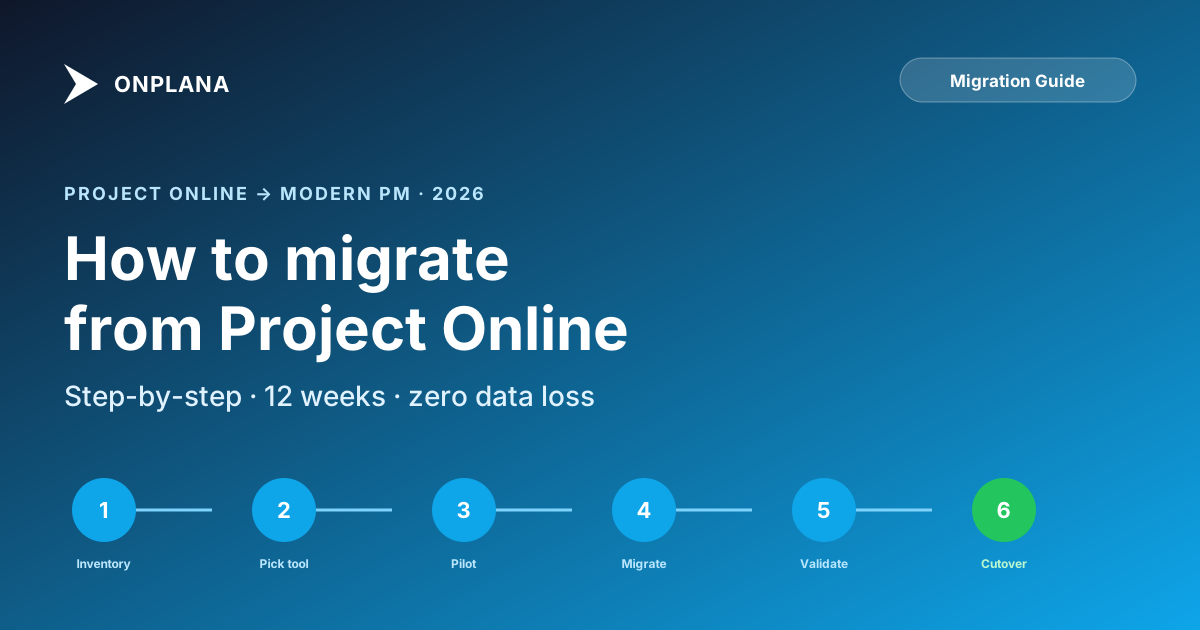
How to Move Off Project Online: The 6-Week Plan
How to move off Project Online, which retired September 30: start from what you exported, pick a tool, pilot fast, validate, and cut over.
Microsoft Project Online retired on September 30, 2026, and the question every PMO director is asking has changed. It used to be which tool to pick. Now it's how to bring in what you exported without losing the dependency lag values, the enterprise custom fields, the resource pool history, and the reports the CFO opens every Monday, on a timeline with no room for a leisurely dry run.
The direct answer: moving off Project Online in six weeks means compressing the same six steps a full migration always needs, inventory, tool selection, pilot, waved migration, validation, cutover, into a tighter schedule, not skipping any of them. Skipping the pilot or the validation pass is the fastest way to turn a tight timeline into a missed deadline. Compress the waves instead of the checks.
Whether you're migrating to Onplana or another platform, the fundamentals are the same: get your data out, map it correctly, and validate that nothing was lost in translation.
Context: this post is one piece of the consolidated retirement timeline, the consolidated reference covering all three Microsoft Project ecosystem retirements in 2026. The comprehensive comprehensive migration pillar covers this topic end-to-end.
TL;DR: The 6-week plan
- Inventory + pick a tool, matched against your inventory, not marketing copy (week 1)
- Pilot one project end-to-end. Catch mapping issues early (week 2)
- Migrate in waves, 5–10 projects per batch, from your exported files (weeks 3–4)
- Validate dates, dependencies, resources, custom fields against source (week 5)
- Cutover: announce date, move all active work to the new tool, redirect logins (week 6)
How to Move Off Project Online in Six Weeks: What Changes
A 12-week migration and a 6-week one run the same steps; a 6-week one just can't afford to run them sequentially with slack between each. Three changes make the compression survivable rather than reckless:
- Inventory and tool selection collapse into the same week. With a full runway you'd inventory first, then evaluate tools against the findings. With six weeks, shortlist candidates in parallel with the inventory using the free Project Online Inventory Checklist, then confirm the choice once the inventory closes.
- The pilot shrinks from two weeks to a few days, not zero. Skipping the pilot entirely is the single biggest reason migrations fail; a compressed pilot on one representative project still catches the lag-value and baseline gaps a feature checklist won't. Don't cut this step, cut its duration.
- Waves run back to back instead of with a validation gap between each. Validate the pilot hard, then trust the pattern for the remaining waves rather than pausing a week between every batch.
Before you start importing, consider running a diagnostic pass on your existing schedules. Migration has a way of surfacing every hidden issue your status reports have been papering over. The 7 hidden killers that most MS Project schedules carry are best discovered on the source side, before they become debugging tickets during cutover.
Before You Start: What You're Migrating
Project Online stored data across multiple systems. Understanding the full scope prevents surprises midway through. The free Project Online Inventory Checklist walks the 35 items most migrations miss (projects, resource pools, custom fields, integrations) and exports the result as a PDF you can hand your migration steering committee.
| Data Type | Where It Lives | Export Method |
|---|---|---|
| Project schedules | Project Online database | .mpp export or OData |
| Task assignments | Project Online database | OData feed |
| Resource pool | Project Online database | OData feed |
| Timesheets | Project Online database | OData feed or Excel export |
| Custom fields | Project Online database | OData feed |
| Documents | SharePoint project sites | SharePoint migration tools |
| Power BI reports | Power BI workspace | Manual recreation |
| Workflows | SharePoint/Power Automate | Manual recreation |
An exported .mpp can be opened and checked without a Project licence in Onplana Schedule, free for Windows and Mac.
Step 1: Gather Your .MPP Exports
Project Online retired on September 30, 2026, so this step now means gathering the .mpp files you exported, not creating new ones. The .mpp file format is the most portable way to move project data. It captures tasks, dependencies, resources, baselines, and custom fields in a single file. Before importing the whole portfolio, run a sample .mpp through the free Migration Preview: it parses the file feature-by-feature and tells you exactly which constructs survive a move into Onplana cleanly versus need manual rework.
How the Files Were Exported
- Open Project Online Desktop Client (Project Professional)
- Connect to your Project Online instance
- Open each project from the server
- Go to File → Save As → Computer
- Choose .mpp format and save locally
What's Captured in .MPP
- Task names, durations, start/finish dates
- Task dependencies (all four types: FS, SS, FF, SF) with lag
- Resource assignments and work hours
- Baseline data (up to 11 baselines)
- Custom fields and their values
- Task notes and constraints
- Calendar exceptions
An import into Onplana does not carry all of this. Costs come across, and a .mpp or Project XML file imported into a new project brings its baseline as a baseline in Onplana. Calendars stay in the file: the project uses your organization's working calendar.
What's NOT in .MPP
- Timesheet submission history
- Resource pool metadata (cost rates, availability calendars)
- Cross-project resource leveling state
- PWA views and page customizations
Pro tip: Put every exported file in one shared folder and name them consistently: ProjectName_YYYYMMDD.mpp. It makes the wave imports and the validation pass much easier.
Step 2: Export Data via OData Feeds
Project Online retired on September 30, 2026. Anything that read it live stopped with it; anything already exported or imported did not. For bulk data extraction, especially resources, timesheets, and cross-project reporting data, OData was the main route, and the steps below show how those extracts were taken so you can check what your archive holds.
Accessing OData
Project Online exposed OData feeds at:
https://your-tenant.sharepoint.com/sites/pwa/_api/ProjectData
Common endpoints:
/Projects: All published projects/Tasks: All tasks across projects/Assignments: Resource assignments/Resources: Enterprise resource pool/Timesheetsand/TimesheetLines: Timesheet data
Exporting with Excel
The simplest approach for small to medium datasets:
- Open Excel
- Go to Data → Get Data → From OData Feed
- Enter your ProjectData URL
- Authenticate with your Microsoft 365 credentials
- Select the tables you need
- Load and save as .xlsx
Exporting with Power Query / Power BI
For larger datasets or automated exports:
- Create a Power BI report connected to Project Online OData
- Use Power Query to pull all relevant tables
- Export each table to CSV via Export data in visuals
- Or use Power Automate to schedule recurring exports
What Onplana Does With These Extracts
Onplana does not connect to Project Online or read its OData feed. It imports files: .mpp (Microsoft Project 2007 to 2024), .mpx, Project XML (MSPDI), Primavera P6 .xer, ProjectLibre .pod, GanttProject .gan, and Excel or CSV, up to 50 MB each. File import is on every plan, including Free.
So bring the schedules in from the .mpp files in Step 1. Keep the OData extracts as your record of resources, timesheets and reporting data. Use them to check the import in Step 5, or bring a table in as Excel or CSV through Option C below.
Step 3: Map Your Data Model
Every PM platform has a slightly different data model. Here's how Project Online concepts map to modern platforms:
Project-Level Mapping
| Project Online | Onplana Equivalent | Notes |
|---|---|---|
| Project | Project | 1:1 mapping |
| Project Site | Workspace | Documents, links, files |
| Program | Portfolio | Group of related projects |
| Enterprise Resource Pool | Organization Members | Org-wide resource management |
| Project Server Permissions | RBAC Roles | Org + project level permissions |
Task-Level Mapping
| Project Online | Onplana Equivalent | Notes |
|---|---|---|
| Task | Task | 1:1 mapping |
| Summary Task | Parent Task (subtask hierarchy) | Nesting preserved |
| Milestone | Milestone | Zero-duration markers |
| Dependency (FS/SS/FF/SF) | Task Dependency | All four types + lag supported |
| Baseline | Project Baseline | Baseline 0 comes across as a baseline when the file is imported into a new project; baseline cost per task comes across too |
| Resource Assignment | Task Assignee | Multiple assignees supported |
| Custom Field | Custom Field | 6 field types available |
| Task Calendar | Working Calendar | Not imported; the project uses the organization's working calendar |
Fields That Need Manual Attention
Some Project Online fields don't have direct equivalents and need human decisions:
- Earned Value fields (BCWS, BCWP, BAC): Most modern tools don't support traditional EVM. Document current EV data in a spreadsheet before migrating.
- Resource cost rates: Table-based rate structures may need simplification. Onplana supports rate cards with date ranges.
- Custom views and filters: These need to be recreated in the new platform.
- Macros and VBA: Not portable. Document what they do and find equivalent features or automations.
Step 4: Execute the Migration
Option A: .MPP Import (Recommended for Most Teams)
Best for: Teams with well-maintained .mpp files who want maximum data fidelity.
- Prepare your files: Gather all .mpp exports from Step 1
- Import sequentially: Start with a pilot project (your simplest, most representative project)
- Validate the import: Check:
- Task count matches
- Dependencies are correct (especially SS/FF/SF types)
- Dates align (watch for calendar/timezone issues)
- Resource assignments mapped to correct team members
- Baseline cost per task present, and the file's baseline on the Baseline tab
- Custom field values present
- Fix any issues: Common problems:
- Date shifts due to calendar differences → adjust working calendar
- Unmapped resources → assign team members manually
- Custom field type mismatches → adjust field definitions
- Repeat for remaining projects: Once your pilot validates cleanly, batch-import the rest
Option B: File Import in Waves (Recommended for Large Organizations)
Best for: Organizations with 20+ projects that need to move the whole portfolio.
- Collect the files: Put every exported .mpp or Project XML file in one folder, named consistently
- Set up people first: Resources are matched to people by email, so invite your team before you import
- Import in waves: Bring in 5 to 10 files per batch, up to 50 MB each
- Check baselines: Each .mpp or Project XML file imported into a new project brings its baseline as a baseline in Onplana; check it on the Baseline tab, and capture one for any project whose file had none
- Validate results: Same checklist as Option A, run on every wave
Option C: CSV/Excel Import (Fallback)
Best for: Non-standard data or when .mpp files aren't available.
- Save the OData extracts you archived as CSV files
- Clean and format the data to match the target platform's import template
- Import via CSV upload
- Manually recreate dependencies and relationships
Step 5: Validate Everything
Migration is only successful when the data in your new platform matches what was in Project Online. Here's a comprehensive validation checklist:
Schedule Validation
- Total number of projects matches
- Each project's task count matches (compare against .mpp)
- Start and finish dates are correct for all tasks
- Dependencies are correct type and direction
- Lag/lead values on dependencies are preserved
- Summary task rollup dates are calculated correctly
- Milestones appear on correct dates
Resource Validation
- All team members are present in the new platform
- Task assignments match the original
- Work hours/effort estimates transferred
- Resource availability/capacity is configured
Baseline Validation
- Baseline cost per task matches the original
- A baseline was captured in Onplana after the import
- Gantt chart shows the baseline overlay correctly
- Original baseline dates are kept in your archived .mpp files
Custom Data Validation
- Custom field values are present and correct type
- Project-level metadata (department, category, etc.) transferred
- Tags or labels applied correctly
Functional Validation
- Critical path calculates correctly
- Gantt chart renders properly
- Team can view and update tasks
- Notifications are configured
- Permissions/access levels are set
Step 6: Train Your Team
Even if the new platform feels similar, your team needs structured onboarding:
For Project Managers
- 60-minute walkthrough of daily workflows: creating tasks, assigning resources, updating progress
- Side-by-side comparison: "In Project Online you did X, here you do Y"
- Hands-on exercise with a real project they manage
For Team Members
- 15-minute quickstart: how to view your tasks, update status, log time
- Focus on what's different, not everything from scratch
For Executives / PMO
- 30-minute demo of portfolio views, dashboards, and reporting
- Show where their current KPIs and reports are in the new platform
Create a Quick-Reference Guide
A one-page cheat sheet mapping old workflows to new ones is worth more than hours of training slides.
Common Pitfalls to Avoid
1. Waiting too long to start Project Online retired on September 30, 2026. If you exported before then, start bringing those files in now, beginning with a sample run through the Migration Preview.
2. Migrating everything at once Start with a pilot of 2-3 projects. Validate thoroughly. Then scale to the full portfolio.
3. Ignoring resource pool setup Project Online's enterprise resource pool needs to be configured in your new platform before importing projects, or resource assignments won't map correctly.
4. Forgetting about integrations If you have Power Automate flows, Power BI reports, or Teams integrations connected to Project Online, document them. Anything that read Project Online live stopped with it, so they need to be rebuilt.
5. Not preserving historical data Even after migration, keep your .mpp exports and OData archives. You may need historical data for audits, legal compliance, or baseline comparisons.
After September 30: Working From Your Exports
Project Online retired on September 30, 2026, so this is now the path for everyone. The steps above still apply, but Step 1 changes. There's no live PWA site to connect to anymore, so you're working from whatever you exported before the cutoff. What's still recoverable after the export deadline covers the recovery order in detail, but the short version: .mpp files you saved locally import through the file import in Step 4, and any OData extracts you archived (even partial ones) can come in as Excel or CSV through Option C. What happens to a tenant after retirement covers what Microsoft still makes available versus what's gone for good. The honest version of this path is that it recovers only what you exported, and the six-week plan above now runs on those files.
Migration Timeline Template
The table below is the full-runway version, useful if you're planning a migration off a different legacy tool with no fixed deadline, or documenting the process for a future audit. If you are moving off Project Online, use the six-week plan at the top of this post instead. Project Online retired on September 30, 2026, so the export weeks below no longer apply to it.
| Week | Activity |
|---|---|
| 1-2 | Audit current usage, document all features used |
| 3-4 | Export all .mpp files and OData data |
| 5-6 | Evaluate and select target platform |
| 7-8 | Pilot migration with 2-3 projects |
| 9-10 | Validate pilot, gather feedback, iterate |
| 11-14 | Full portfolio migration in batches |
| 15-16 | Training, documentation, cutover |
| 17+ | Post-migration support and optimization |
Migrating to Onplana Specifically
If Onplana is your target platform, here's what makes the process smoother:
- Built-in .mpp parser: Drag and drop your .mpp files; tasks, dependencies, resources and costs are imported automatically. Costs come across, and a .mpp or Project XML file imported into a new project brings its baseline as a baseline in Onplana
- Wide file support: .mpp, .mpx, Project XML (MSPDI), Primavera P6 .xer, ProjectLibre .pod, GanttProject .gan, and Excel or CSV, up to 50 MB
- Familiar Gantt chart: Same concepts you're used to: FS/SS/FF/SF dependencies, critical path, baseline overlays
- Free tier: Start migrating right now without budget approval. Import your projects, validate the data, and upgrade when you're confident
- AI assistance: After migration, Onplana's AI can analyze your imported projects for risks, suggest optimizations, and generate status reports
If your destination involves the new Microsoft 365 surfaces: Microsoft Planner (the consolidated app inside Teams), Project for the Web Premium, or Microsoft To Do, Onplana imports from all three directly via Microsoft Graph and Dataverse. See How to Migrate Microsoft Planner to Onplana for the basic-tier import with optional live sync, How to Import Microsoft Project for the Web (Premium) for the Dataverse path that brings dependencies and effort across, and Microsoft To Do Sync With Onplana for per-user mirroring of assigned tasks. Useful if some teams stay on Microsoft surfaces while others move fully to Onplana.
For the two pieces of Project Online that always cause migration pain, enterprise custom fields and the resource pool, we've published deep-dives on each. Project Online Custom Fields Migration covers enterprise custom fields, hierarchical lookup tables, and what to do with calculated fields that don't have an equivalent on the destination side. Project Online Resource Pool Migration walks through migrating the Enterprise Resource Pool, cost rate tables (A through E), per-resource availability calendars, and historical timesheet data without breaking your reports. Run both before importing your first project; they save more time on the back end than they cost on the front end.
Preview the move before you commit to it Upload a real
.mppfile and get a feature-by-feature compatibility report in 30 seconds: what survives the move cleanly, what needs manual rework. No signup required. → Run the Migration Preview
Need help with your migration? Check out our comparison guide or get started free.
Microsoft Project Online™ is a trademark of Microsoft Corporation. Onplana is not affiliated with Microsoft.
Frequently asked questions
How long does a Project Online migration take?
12 weeks end to end for a typical mid-sized PMO (50-500 projects) when you have the runway. Project Online retired on September 30, 2026, so the accelerated track now runs on what you exported: inventory the files and pick a tool in week 1, a short pilot in week 2, waved migration in weeks 3-4, validation in week 5, and cutover in week 6.
What if I'm starting after September 30, 2026?
Move off .mpp exports and the OData feed archive rather than a live tenant. Microsoft's own guidance is that the service becomes unavailable at retirement, so the migration steps below still apply, but Step 1 becomes recovering what you can from an export instead of connecting to a live PWA site.
What's the best way to export data from Project Online?
Project Online retired on September 30, 2026, so the answer now is what you already exported: tabular data from the published OData feed (tasks, resources, assignments, custom fields), .MPP files saved via the Project Desktop client for full schedule fidelity, and SharePoint document libraries pulled via the Migration Manager. Copy-paste from PWA lost dependencies and lag values. Files you exported still import, with dependencies, custom fields and costs, and a .mpp or Project XML file imported into a new project brings its baseline as a baseline in Onplana.
Should I migrate all projects at once or in waves?
In waves. Start with one pilot project (small, well-understood, willing PM), then migrate by program or department in 5–10 project batches. A big-bang cutover always misses something; waves let you correct mapping issues before they multiply.
What gets lost in translation?
Custom workflow approvals (each tool has its own equivalent), Project Server-specific reporting that hits the OData endpoint directly, and any heavily-customized PWA pages. Schedule data, dependencies, resources, custom fields, and timesheets all migrate cleanly with the right tooling.
Do I need to keep Project Online running during migration?
Not any more. Project Online retired on September 30, 2026, so there is no live system to run in parallel. Validate the new platform against the files you exported instead: compare task counts, dates and dependencies with each .mpp. Cutover happens after the new tool is provably correct on real data.
Ready to make the switch?
Start your free Onplana account and import your existing projects in minutes.