How to Import Microsoft Project for the Web (Premium) into Onplana
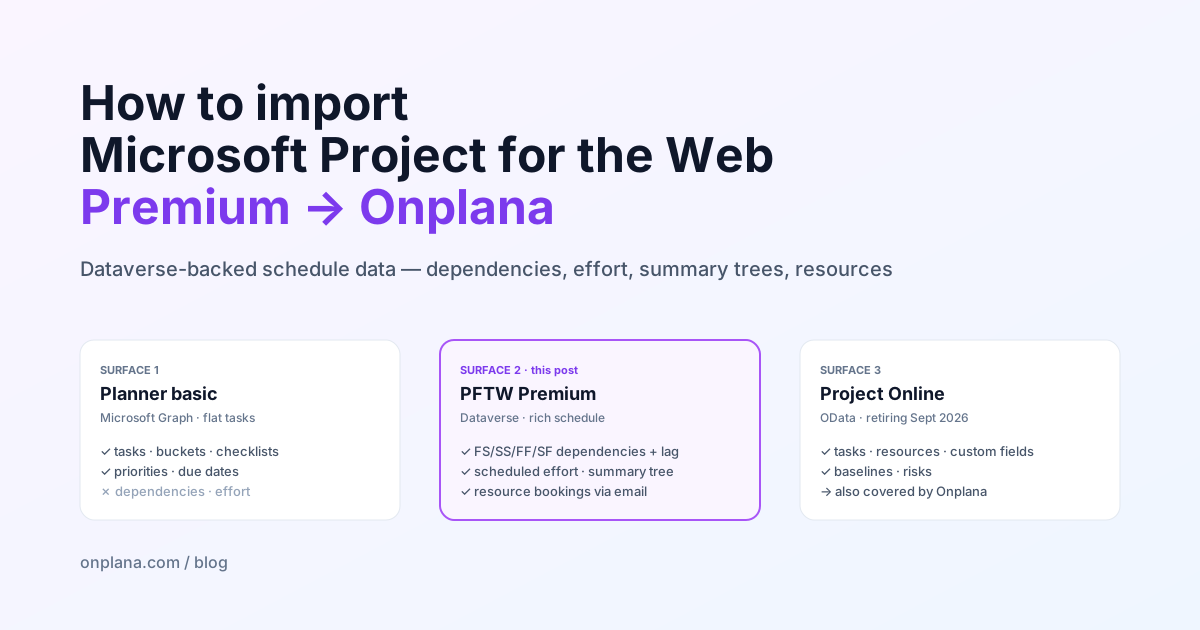
Import Microsoft Project for the Web Premium into Onplana via Dataverse: FS/SS/FF/SF dependencies, summary tasks, and resource assignments Planner can't reach.
Microsoft consolidated To Do, Planner, and Project for the Web into one Planner app inside Teams in 2024. The unified UI hides a real architectural split underneath:
- Basic Planner plans live in Microsoft Graph as flat task collections per group
- Premium plans (Project for the Web with Gantt, dependencies, resources) live in Dataverse, Microsoft's relational database for Power Platform, with a 40+ field schema across multiple tables
If you're paying for the Premium tier and you import via the basic Planner Graph endpoints, you lose every field that justified the upgrade. Onplana ships a separate Premium importer that reads from Dataverse directly, so the dependencies, scheduled effort, and resource assignments come across with the rest of the project.
This post is the step-by-step guide to running that import.
Quick check, do you actually need the Premium importer?
Look at any plan in your Planner app inside Teams. If you can do any of these, you're on Project for the Web Premium and the Premium importer is the right tool:
- Set finish-to-start, start-to-start, finish-to-finish, or start-to-finish dependencies between tasks
- Enter scheduled effort in hours/days, not just a due date
- See a Gantt chart with critical path
- Assign multiple bookable resources to one task with allocation percentages
- Define custom fields via the Power Platform admin center
If your plans are flat task lists with buckets and you can't do the above, that's basic Planner, and the basic Planner importer is the right tool.
In the Onplana plan picker (Migrate → Microsoft Planner) every plan carries a tier badge, basic or premium, based on a single sample-task probe. If the badge says premium, switch to the Project for the Web tile in the wizard.
What gets imported (the field-by-field translation)
The Premium importer reads from five Dataverse tables in parallel and assembles them into a single Onplana project:
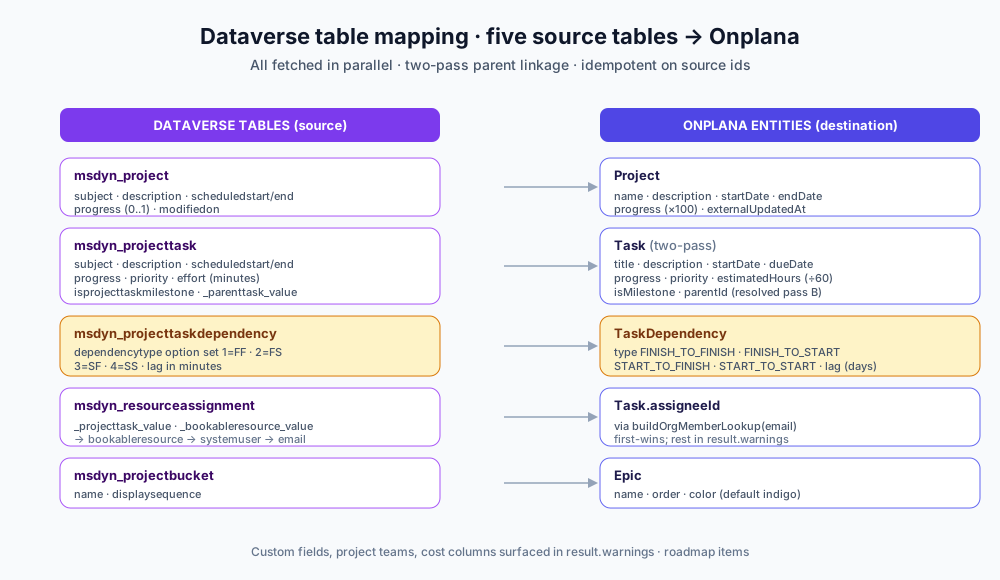
The mappings worth flagging:
msdyn_progressis a 0..1 decimal in Dataverse, multiplied by 100 in Onplana. A 47% complete task appears asprogress: 47after import.msdyn_effortis in minutes, divided by 60 and rounded to 2dp for Onplana'sestimatedHours. Null/zero stays null; Onplana doesn't fabricate an estimate when Dataverse didn't have one.- Priority option set values map:
0=Low,1=Medium,2=High,3=Urgent→LOW / MEDIUM / HIGH / CRITICAL. Anything ≥3 clamps toCRITICAL(some installs add custom values up to 9). - Dependency type uses Microsoft's option-set encoding:
1=FF,2=FS,3=SF,4=SS. Note the off-by-one:FS(the most common type) is value 2, not 1, because Microsoft sorted alphabetically rather than by frequency. The importer's mapping table handles this so you don't have to. - Lag converts minutes to days. Dataverse stores lag in minutes; Onplana stores in fractional days. A 4-hour lag becomes
0.17days. - Parent task linkage runs in two passes. Pass A creates every task with
parentId = nulland builds a Dataverse-id → Onplana-id map. Pass B walks the tasks and sets parentId from the map. This avoids forward-reference problems when child tasks appear in the response before parents. - Status is inferred from progress, not stored directly.
progress >= 99.9%→ DONE,progress > 0→ IN_PROGRESS, otherwise → TODO. Microsoft'smsdyn_completedontimestamp isn't separately mirrored; the progress signal is enough.
The consent prerequisite, and why it's separate
Project for the Web Premium needs one extra consent step beyond the Microsoft connection that powers basic Planner import. Here's why.
AAD access tokens are scoped to a resource. The Microsoft connection that backs Planner has a token whose audience is https://graph.microsoft.com. If you call Dataverse with that token, Microsoft 401s; you'd need a token whose audience is https://contoso.crm.dynamics.com.
Onplana solves this without a second OAuth round-trip per user. The trick:
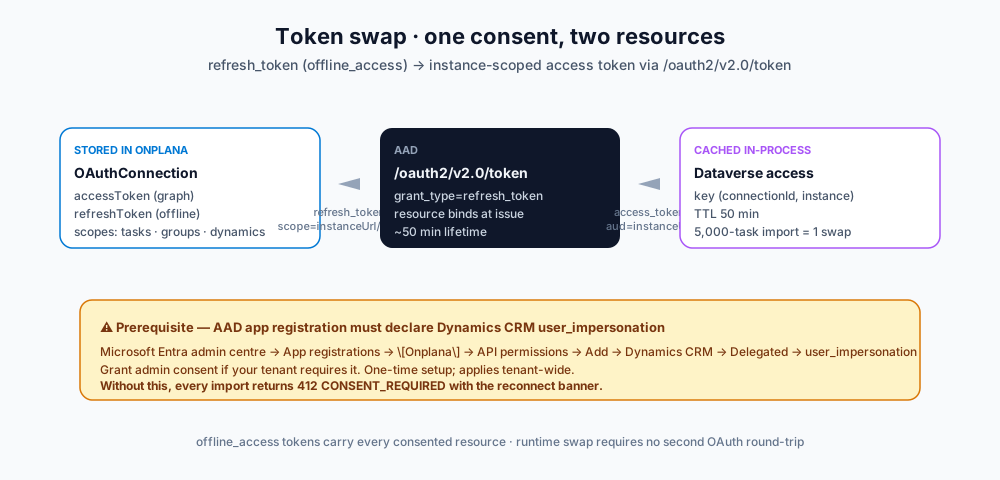
The flow:
- User connects Microsoft (one time) with the Dynamics scope ticked alongside Tasks/Groups
- AAD records the consent and issues an
offline_accessrefresh_token that carries access to every resource the user consented to - When you click Import in the wizard, Onplana swaps that refresh_token at the AAD
/oauth2/v2.0/tokenendpoint, requesting${instanceUrl}/.default - AAD returns a Dataverse-scoped access token valid for ~60 minutes
- Onplana caches the token in-process, keyed by
(connection-id, instance-url), with a 50-minute TTL
A 5,000-task import burns one token swap, not 5,000. The cache survives across imports against the same instance.
The catch: the AAD app registration that powers Onplana's social sign-in must declare Dynamics CRM → user_impersonation as a delegated permission. Microsoft requires this be enabled on the AAD app side; user-level consent on its own isn't sufficient. If the consent is missing, the import returns a 412 CONSENT_REQUIRED and the wizard banners "Reconnect Microsoft with the Dataverse permission" with a link to Settings → Integrations.
If you're an AAD admin reading this:
- Microsoft Entra admin center → App registrations → [the AAD app you registered for Onplana] → API permissions
- Add a permission → Dynamics CRM → Delegated → user_impersonation
- Grant admin consent if your tenant requires it for org-wide access
One-time setup, applies tenant-wide. Without it, even users who tick the dynamics scope at consent get a 412 because the underlying permission isn't enabled.
Step-by-step import
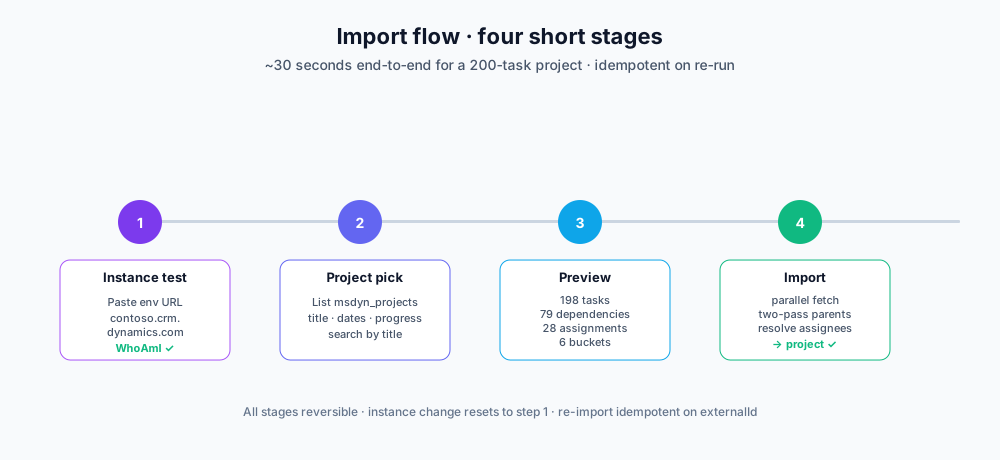
Once consent is in place, the user-facing flow is four short stages:
1. Instance verification
Open Migrate → Project for the Web (Premium). Paste your Dataverse environment URL; find it in the Power Platform admin center under Environments. Examples:
contoso.crm.dynamics.comcontoso.crm5.dynamics.com(sovereign-cloud regional suffix)https://contoso.crm.dynamics.com/
Onplana normalizes the input (adds https://, strips trailing slash) and runs a WhoAmI call to verify the token works against the instance. The response includes the organization's friendly name; the breadcrumb at the top of the wizard renders contoso.crm.dynamics.com (Acme Corp) for confirmation.
If the test fails, the banner tells you why with a stable error code:
| Code | Meaning |
|---|---|
CONSENT_REQUIRED |
AAD app missing user_impersonation; reconnect with dynamics scope |
UNAUTHORIZED |
Token rejected; user lacks access to this environment |
FORBIDDEN |
User authenticated but no read on this environment |
INVALID_INSTANCE |
URL doesn't parse as a Dataverse host |
2. Project pick
Onplana enumerates every msdyn_project row the user can read. The picker shows:
- Project title
- Last modified date (Dataverse
modifiedon) - Scheduled start → end window
- Progress percentage (calculated from the project header, not aggregated)
Search by title. Click to advance.
3. Preview
The preview screen shows counts that justify the Premium import:
- Tasks, total tasks across the project (not just leaf tasks; summary rows are imported too)
- Dependencies, how many
msdyn_projecttaskdependencyrows - Buckets, how many
msdyn_projectbucketrows (these become epics) - Assignments, how many
msdyn_resourceassignmentrows (these resolve to assignees)
Plus the first 5 task titles, so you can verify it's the right project.
4. Import
One click runs the full pipeline. For a 200-task project with 80 dependencies and 30 resource assignments, this typically completes in 25–35 seconds. The wizard shows a "Importing project. This may take a minute for large projects with many dependencies…" spinner and navigates to the imported project on success.
The import response includes:
{
  "projectId": "ckxyz...",
  "taskCount": 198,
  "bucketCount": 6,
  "dependencyCount": 79,
  "assignmentCount": 28,
  "unresolvedAssignees": 2,
  "warnings": ["2 resource assignment(s) could not be matched to an Onplana member..."]
}
unresolvedAssignees > 0 is normal on the first import. Invite the missing users to Onplana, then re-run the import (idempotent reconciliation will fill them in).
Idempotency
Same pattern as the basic Planner importer. Every imported project carries externalSource='PROJECT_SERVICE' + externalId=<dataverse-project-id>. Re-running finds the existing project and reconciles in place: same project id, updated tasks. New tasks added in Project for the Web appear; deleted tasks are removed; modified tasks update fields and dependencies.
Same idempotency holds at the Task level: each imported task carries externalSource='PROJECT_SERVICE' + externalId=<dataverse-task-id>. Re-imports update by id, not by title or position.
What still falls back to manual
A few items the importer surfaces in result.warnings rather than carrying across automatically:
- Custom fields defined via solution components. Project for the Web Premium supports admin-defined attributes via the Power Platform solution layer. Onplana's importer doesn't auto-create matching CustomFieldDefinition rows yet; it surfaces the column names in warnings. We'd rather not silently drop fields without telling you. If your project has 10 custom fields it'd map to 10 warnings; you'd then create equivalent Onplana custom fields manually and (if needed) re-run the import after a future enhancement that fills them in.
- Cost / actual-cost columns. Premium has cost fields (
msdyn_plannedcost,msdyn_actualcost). Onplana's finance is rate-card × hours, not raw cost columns. The mismatch is intentional: we surface budget through actuals, not through pre-loaded cost fields. If you need to mirror raw cost data, capture it as a custom field for now. - Project teams. Premium lets you assemble a
msdyn_projectteamdistinct from per-task assignees. Onplana doesn't surface a separate team-membership concept beyond the existing org-member relationship; team membership is captured implicitly via assignee resolution at the task level.
These are the documented gaps as of April 2026. The roadmap covers all three; the importer surfaces them visibly so customers know what they're missing rather than wondering why a field disappeared.
Pairing this with the rest of the integration story
Project for the Web Premium import is the third leg of Onplana's Microsoft 365 deep integration:
| Surface | Onplana entry point | Direction |
|---|---|---|
| Microsoft Planner basic | Plan import + optional live sync | One-way mirror or one-shot |
| Microsoft Project for the Web Premium | This importer | One-shot (idempotent re-imports) |
| Microsoft To Do | Bi-directional sync | Two-way per-user |
| Microsoft Teams | Native app + SSO | Embed |
If your team uses more than one of these surfaces (common for orgs that have both a PMO running Project for the Web Premium and individual contributors managing their day in Microsoft To Do), all four integrations stack. PMs work in the rich Onplana surface; ICs see their slice in To Do; the team continues meeting in Teams.
When it's time to test
Pick a non-critical project (internal tooling, a maintenance plan, anything not a Q3 commitment) and run the importer end to end. Free tier covers 2 projects with full Premium import, no upgrade needed for the test.
If the dependencies and resource assignments look right after the import, that's the signal. Run it on production projects next, and if your AAD admin needs the user_impersonation permission added, send them the section above. It's a one-time setup, and our migration guide has the full prerequisite list for the integration.
→ Create a free Onplana account · What's new in integrations
Related reading:
- Migrate Microsoft Planner to Onplana, basic-tier importer if your plans don't need Premium fields
- Microsoft To Do Sync With Onplana, pair the import with mobile sync for assignees
- Microsoft Project Online vs. the New Microsoft Planner, context for the consolidated Microsoft PM surface
- How to Migrate from Microsoft Project Online, full Project Online → Onplana playbook
- Critical Path Method (CPM) Explained, the scheduling fundamentals your Premium plan already encodes
- What Is a Gantt Chart?, how Onplana renders the schedule once it's imported
- How AI Actually Runs Project Management Inside Onplana, the AI features that activate against your imported project
Microsoft Project Online™ is a trademark of Microsoft Corporation. Onplana is not affiliated with Microsoft.
Frequently asked questions
What's the difference between Microsoft Planner and Project for the Web Premium?
Microsoft Planner Basic stores a flat task list per plan in Microsoft Graph, fine for simple tracking. Project for the Web Premium (also called Project Service) stores the same plan in a Dataverse environment with a much richer schema: FS/SS/FF/SF dependencies with lag, scheduled effort in minutes, hierarchical summary tasks, resource assignments via bookable resources, custom field values via solution components. Onplana ships separate importers because the data surfaces are completely different; basic Planner import drops the schedule data Premium customers paid for.
What do I need to import a Project for the Web Premium project?
Three things. (1) A Microsoft account connected to Onplana with the Tasks, Groups, and Dynamics scopes. The Dynamics scope (Dynamics CRM user_impersonation) needs to be declared as a delegated permission on the AAD app registration; your AAD admin enables this once per tenant. (2) Read access to the Dataverse environment that hosts your Project for the Web data, granted via Power Platform security roles like Project Operations / Project Manager. (3) The environment URL, e.g. contoso.crm.dynamics.com; find it in the Power Platform admin center under Environments.
What's mapped from Project for the Web to Onplana?
msdyn_project → Onplana Project (name, description, dates, percent complete). msdyn_projecttask → Task (title, description, scheduled start/end, progress, priority, effort in hours, milestone flag, parent linkage in a two-pass importer). msdyn_projecttaskdependency → TaskDependency (FS/SS/FF/SF + lag converted from minutes to days). msdyn_resourceassignment → Task.assigneeId via bookable-resource → systemuser.email lookup. msdyn_projectbucket → Epic. Custom fields and project-team membership are surfaced as warnings for now and tracked as future work.
Why does Project for the Web Premium need a separate consent step?
Because Dataverse is its own resource, distinct from Microsoft Graph, and AAD access tokens are scoped to a single resource at a time. The Microsoft connection that powers Planner basic import has a Graph-scoped access token; Dataverse calls would 401. Onplana solves this by exchanging the user's stored offline_access refresh_token at runtime for an instance-scoped Dataverse access token via the AAD /oauth2/v2.0/token endpoint, which works as long as the AAD app declares Dynamics CRM user_impersonation as a delegated permission and the user has consented to it once. The consent screen surfaces a 'Reconnect with the Dataverse permission' banner when this is missing.
How long does a Project for the Web Premium import take?
For a 200-task project with 80 dependencies and 30 resource assignments, typically under 30 seconds. Onplana issues paginated Dataverse OData queries (5,000 rows per page) and resolves the bookable-resource → email lookup in chunked batches of 50 ids. Token swap happens once per import via an in-process cache with a 50-minute TTL, so a 5,000-task import burns one token swap, not 5,000. Re-imports are idempotent on the source project id at the Project level and on each task's source id at the Task level.
Can I keep my Project for the Web project mirrored after import?
Not yet. Onplana's Project Service importer is one-shot today. The Microsoft Planner integration ships with optional live-sync via Graph webhooks; the Dataverse-backed Project for the Web equivalent uses a different change-tracking mechanism (Dataverse change tracking + retention APIs) that we're scoping for a future release. For now, re-import any time to reconcile; it's idempotent and only takes 30 seconds for a typical project.
Ready to make the switch?
Start your free Onplana account and import your existing projects in minutes.