What Is a Gantt Chart? The Litmus Test for Real Schedules
A Gantt chart maps a project schedule as horizontal bars. Definition, anatomy, dependency types, and the 5-check Gantt Litmus Test for real schedules.
A Gantt chart is a horizontal bar chart that shows a project schedule over time. Each bar represents a task: its position shows when it starts and ends, its length shows duration, and the lines between bars show dependencies. At a glance, you can see what needs to happen, when, and in what order.
Named after Henry Gantt, who popularised the format around 1910, the Gantt chart is the most widely used project scheduling tool in the world. From construction projects to software launches to marketing campaigns, it remains the universal visual language of project timelines.
The 30-Second Summary
- What it is: a horizontal bar chart of a project schedule.
- What it shows: task durations, parallel work, dependencies, milestones, the critical path, and progress.
- When to use it: projects with deadlines, ordered work, and 15+ tasks.
- When to skip it: fast-iterating Agile work or tiny task lists.
- What separates good tools from bad ones: all four dependency types (FS/SS/FF/SF), automatic critical path, and baseline tracking.
- The catch: many "Gantt charts" are drawings, not schedules. The 5-check Gantt Litmus Test below tells you which one you have.
Why Gantt Charts Matter
Gantt charts solve a fundamental project management problem: how do you communicate a complex schedule so everyone understands it?
A task list tells you what needs to be done. A Gantt chart tells you what needs to be done, when, in what order, and how everything connects. That visual context is what makes them powerful.
What You Can See at a Glance
- Project timeline: total duration from start to finish
- Task durations: how long each piece of work takes
- Parallel work: which tasks happen simultaneously
- Dependencies: which tasks must finish before others can start
- Critical path: the longest chain of dependent tasks that determines the project's minimum duration
- Progress: how far along each task is, shown as a filled portion of the bar
- Milestones: key dates or deliverables, shown as diamond markers
- Resource assignments: who's responsible for each task
Anatomy of a Gantt Chart
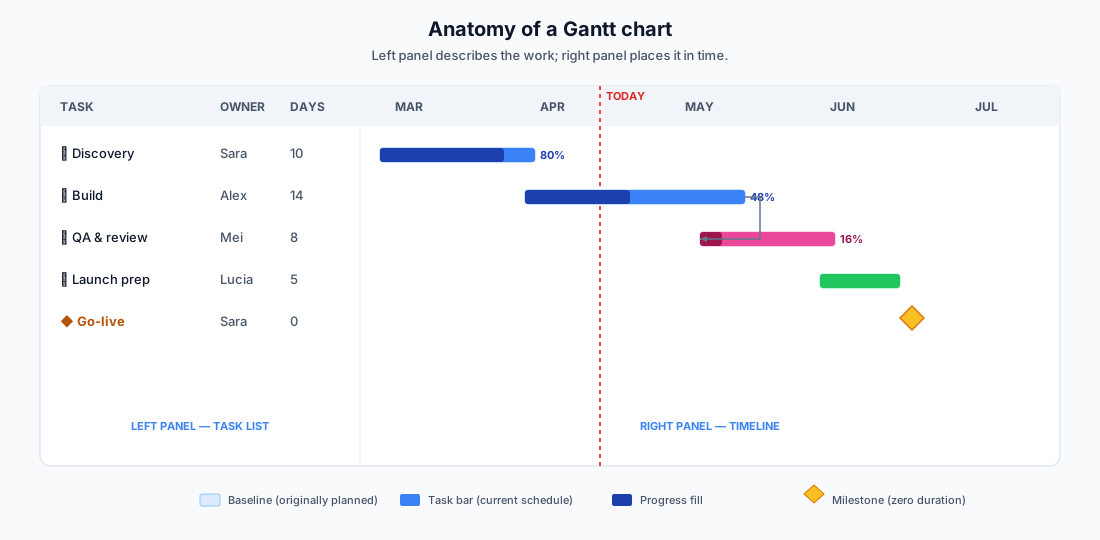
A typical Gantt chart has two panels working together.
The Left Panel (Task List)
A structured list of tasks, often organised hierarchically:
- Summary tasks (parent): group related tasks together
- Work tasks (child): the actual work items
- Milestones: zero-duration markers for key dates or deliverables
Each row also shows metadata: assigned resources, start/end dates, duration, percent complete.
The Right Panel (Timeline)
A horizontal timeline with:
- Time scale: days, weeks, or months across the top
- Task bars: horizontal bars showing each task's duration
- Progress fill: a darker fill inside each bar showing completion percentage
- Dependency arrows: lines connecting related tasks
- Today line: a vertical line marking the current date
- Baseline bars: lighter bars behind the actual bars showing the original planned schedule (when baselines are set)
The Four Dependency Types
Dependencies are the arrows between tasks. There are four kinds; FS, SS, FF, and SF covers when each one is the right choice and the schedule errors that show up when it isn't.
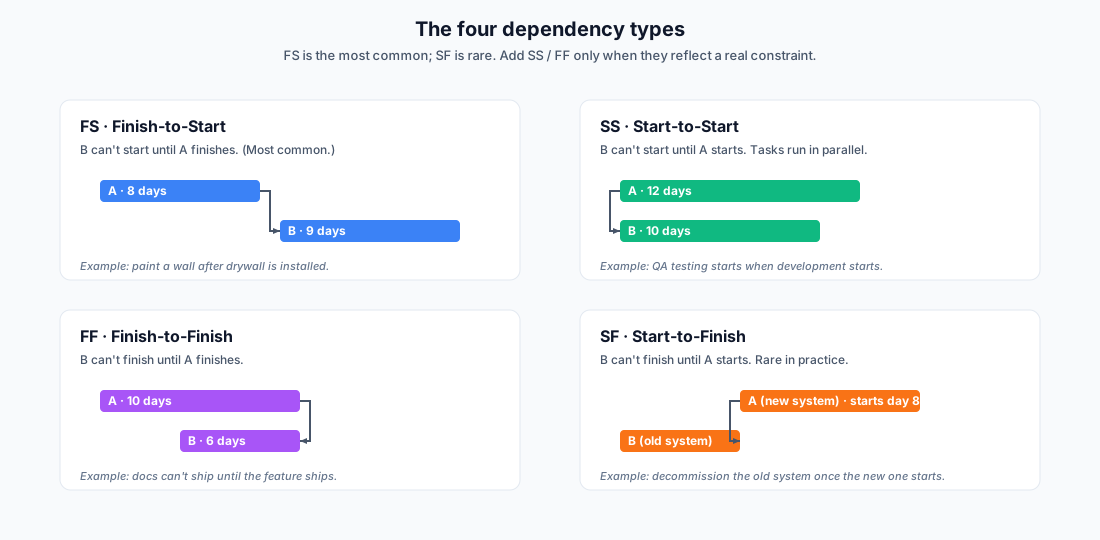
Finish-to-Start (FS): the most common. Task B can't start until Task A finishes. Example: you can't start painting until the drywall is installed.
Start-to-Start (SS): Task B can't start until Task A starts. Example: quality testing starts when development starts (runs in parallel, but can't begin earlier).
Finish-to-Finish (FF): Task B can't finish until Task A finishes. Example: documentation can't be finalised until the feature it describes is complete.
Start-to-Finish (SF): Task B can't finish until Task A starts. Rare in practice. Example: the old security system can't be decommissioned until the new one is activated.
Lag and Lead
- Lag: a delay between linked tasks. FS + 2 days means Task B starts 2 days after Task A finishes.
- Lead: an overlap. FS − 3 days means Task B starts 3 days before Task A finishes.
When to Use a Gantt Chart
Gantt charts aren't the right tool for every situation. Here's when they shine and when to consider alternatives.
Use a Gantt Chart When
- You have a defined timeline: projects with clear start dates, end dates, and deadlines benefit most from Gantt charts.
- Tasks have dependencies: if the order of work matters (and it usually does), Gantt charts visualise those relationships.
- You need to communicate schedules: Gantt charts are universally understood. Stakeholders, executives, and clients can read them without training.
- You're managing resources across tasks: seeing who's working on what, and when, helps prevent overallocation.
- The project has 15+ tasks: below that, a simple task list might suffice.
Consider Alternatives When
- Work is highly iterative: Agile sprints with rapidly changing priorities are better served by Kanban boards.
- You have 5–10 simple tasks: a checklist or task board is faster to set up and maintain.
- Everything is parallel with no dependencies: if tasks are independent, a Gantt chart adds complexity without value.
- Requirements are undefined: if you don't know what the tasks are yet, you can't schedule them.
The Hybrid Approach
Many modern teams use Gantt charts for planning and high-level tracking, and Kanban boards for daily execution. This gives you the best of both: a structured timeline for stakeholders and a flexible task flow for the team.
Onplana supports this natively: switch between Gantt, Kanban, Calendar, and List views without losing any data.
The Gantt Litmus Test: Schedule or Drawing?
Here is the distinction most Gantt guides never make: a chart that looks like a Gantt is not necessarily a schedule. Many "Gantt charts", in slide decks, in spreadsheets, and in lightweight PM tools, are drawings: hand-placed bars that show what someone believed the timeline was on the day they drew it. Nothing connects the bars. Nothing recalculates. When reality changes, someone has to notice and manually redraw.
The difference matters because a drawing fails silently. When we audited 500 real project schedules, 83% contained dangling tasks (no predecessor, no successor, or neither), which means large parts of those "schedules" were disconnected bars that no dependency logic could protect. Only 27% had a baseline set. Most of those files looked like schedules. Functionally, they were pictures.
Five binary checks tell you which one you have. Run them on your own chart:
Check 1, the drag test, is the one that matters most. Grab any mid-project task and move it three days. In a real schedule, every dependent task shifts, the critical path recomputes, and the end date answers honestly. In a drawing, one bar moves and the rest sit exactly where they were, which means every date downstream of your change is now wrong and nothing will tell you.
Checks 2 and 3 are the payoff of passing check 1: a computed critical path and per-task float are only possible when dependencies actually drive dates. Check 4 is what turns the chart from a plan into a tracking instrument; without the baseline shadow, "are we ahead or behind" has no answer. Check 5 catches the failure the other four miss: a schedule can be logically perfect and still impossible because it quietly books one person into two full-time tasks in the same week; the overallocation math explains why this is invisible until it isn't.
The test is tool-agnostic. Microsoft Project passes all five. So do Onplana and a handful of serious scheduling tools. Most lightweight "Gantt views" bolted onto task managers pass zero to two, which is fine for a roadmap slide and dangerous for anything with a deadline. If you inherit a chart and want the answer in 30 seconds, upload the .mpp to the free Schedule Health Check; it runs the dependency-integrity and baseline checks directly and shows you where the drawing is hiding inside the schedule.
How to Create a Gantt Chart: Step by Step
Step 1: Define Your Tasks
Start with a Work Breakdown Structure (WBS): break the project into phases, then break phases into deliverables, then break deliverables into tasks.
Rule of thumb: tasks should be 1–10 days in duration. Anything longer should be broken into subtasks. Anything shorter is usually too granular for the Gantt view and belongs on a checklist.
Step 2: Estimate Durations
For each task, estimate how long it will take. Use:
- Historical data: how long did similar tasks take in past projects?
- Expert judgment: ask the person who'll do the work.
- Three-point estimation: (optimistic + 4 × most likely + pessimistic) ÷ 6. Accounts for uncertainty more honestly than a single number.
Don't confuse effort (work hours) with duration (calendar days). A 16-hour task assigned to someone working 50% on your project has a duration of 4–5 days.
Step 3: Identify Dependencies
For each task, ask: "What must be done before this can start?" and "What can't finish until this is done?"
Map out the FS, SS, FF, and SF relationships. Most will be Finish-to-Start.
Common mistake: over-constraining the schedule. Not everything needs a dependency. If two tasks are truly independent, don't link them just because they happen to be sequential in your list.
Step 4: Assign Resources
Assign team members to tasks. Watch for:
- Overallocation: one person assigned to too many concurrent tasks
- Single points of failure: critical tasks with only one possible assignee
- Availability gaps: vacations, part-time schedules, shared resources
Step 5: Set Milestones
Mark key dates: phase completions, deliverable due dates, stakeholder reviews, go-live dates. Milestones are zero-duration tasks that appear as diamond markers on the Gantt chart.
Step 6: Establish a Baseline
Before work begins, save a baseline. This captures the planned start/end dates and effort for every task. As the project progresses, you can compare actual vs. planned to measure schedule health. Without a baseline, you can't tell whether you're ahead or behind: only what date the chart currently shows.
Step 7: Track and Update
As work progresses:
- Update task completion percentages
- Record actual start/finish dates
- Add new tasks or adjust estimates as scope evolves
- Monitor the critical path for slippage
Understanding the Critical Path
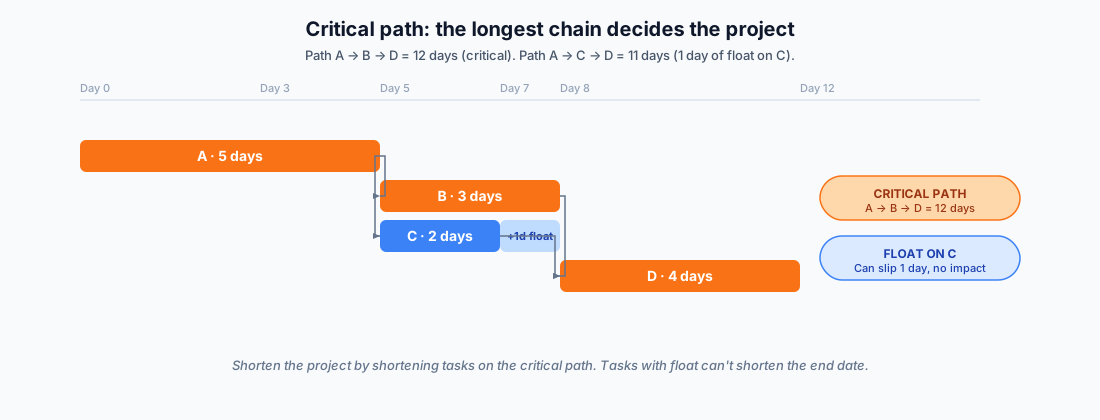
The critical path is the longest sequence of dependent tasks from project start to project finish. It determines the minimum possible project duration.
Why it matters:
- Any delay on a critical path task delays the entire project.
- Tasks not on the critical path have float: they can slip without affecting the end date.
- If you need to shorten the project, you must shorten critical path tasks. Anything else is wasted effort.
Worked example:
Path A → B → D :  5 + 3 + 4 = 12 days  (CRITICAL PATH)
Path A → C → D :  5 + 2 + 4 = 11 days  (1 day of float on Task C)
Shortening Task C doesn't help: the project still takes 12 days because path A → B → D is longer.
Modern Gantt chart tools highlight the critical path automatically, usually in red or orange. This is one of the most valuable features to look for when choosing a PM tool. See our deep dive on the Critical Path Method for the algorithm behind it. To see what the critical path actually looks like in your own schedule, the free Schedule Health Check parses any .mpp and computes the path from the dependency graph directly. That's useful for catching the cases where Project's displayed critical path is wrong.
If your Gantt arrived as a Microsoft Project file, how to read, edit and share a Microsoft Project Gantt chart covers opening it without a licence.
Gantt Chart Best Practices
Keep It Readable
- Limit to 50–100 visible tasks. Use summary tasks to collapse sections. A 500-row Gantt chart is unreadable.
- Use color coding. Different colors for phases, teams, or priority levels.
- Show the right time scale. Weeks for multi-month projects, days for short sprints, months for multi-year programs.
Keep It Accurate
- Update weekly. A Gantt chart that's not current is worse than no Gantt chart; it creates false confidence.
- Don't pad estimates. If you add buffer to every task, your timeline becomes fiction. Use explicit buffer tasks or management reserve instead.
- Track against baselines. Without baselines, you can't tell if you're ahead or behind.
Keep It Useful
- Share it. A Gantt chart locked in one person's desktop tool is worthless. Use a collaborative platform where the team can see and update it.
- Review it in meetings. Walk through the Gantt chart in weekly status meetings. It becomes the single source of truth for the schedule.
- Use it for decisions. When someone asks "can we add this feature?", show the impact on the Gantt chart. Visual impact is more persuasive than "it'll take longer."
Gantt Chart Tools in 2026
The tool landscape has evolved significantly, especially since Microsoft Project Online retired in September 2026. Here's what to look for.
Must-Have Features
- All four dependency types (FS, SS, FF, SF) with lag and lead
- Critical path highlighting
- Baseline comparison
- Resource assignments and workload views
- Drag-and-drop task editing
- Real-time collaboration (multiple users, live updates)
Nice-to-Have Features
- AI-powered scheduling suggestions
- Multiple views (Gantt + Kanban + Calendar + List)
- Sprint / Agile integration
.mppand Project XML import- Mobile access for field updates
Tool Quick Comparison
| Tool | Dependency Types | Critical Path | Baselines | Starting Price |
|---|---|---|---|---|
| Onplana | FS, SS, FF, SF + lag | ✅ | ✅ | $0 (free plan) |
| Microsoft Project Desktop | FS, SS, FF, SF + lag | ✅ | ✅ | $30 / user / mo |
| Smartsheet | FS, FF | ✅ | ❌ | $9 / user / mo |
| Monday.com | FS only | ❌ | ❌ | $9 / seat / mo |
| Asana (Timeline) | FS only | ❌ | ❌ | $11 / user / mo |
Prices are for the tier where the Gantt capability in this table actually lands. Onplana's free tier is the Gantt tier: free covers the Gantt timeline with critical path and baseline overlay, all four dependency types, milestones, .mpp import, and Kanban and calendar on 2 projects. For the tools that are free forever rather than free to start, see the free Gantt alternatives to MS Project.
Create a free Onplana account →
Choosing a tool is easier once you know which features sit behind a paid tier; the best Gantt chart software 2026 comparison lists the plan each one needs for dependencies, critical path and baselines.
Common Gantt Chart Mistakes
- Too much detail. A Gantt chart with 300 tasks is a maintenance nightmare. Summarise, group, and only detail the current phase.
- Ignoring the critical path. If you don't know your critical path, you're guessing about what matters. Every Gantt chart should highlight it.
- No baselines. Without a baseline, you can't measure schedule performance. Set one before work starts.
- Treating it as static. A Gantt chart is a living document. If you create it once and never update it, it's art, not a management tool.
- Overcomplicating dependencies. Start with FS dependencies. Add SS, FF, and SF only when they genuinely reflect real-world constraints. Unnecessary dependencies over-constrain the schedule and create false critical paths.
Audit your existing Gantt schedule in 30 seconds Upload an
.mppto the free Schedule Health Check and see the real critical path, dangling tasks, broken dependencies, and per-finding severity. No signup, no credit card. → Run the Schedule Health Check
Onplana offers full-featured Gantt charts with all four dependency types, critical path analysis, baseline tracking, and AI-powered scheduling on every plan, including the free plan, which carries them with .mpp import and AI on 2 projects, so teams leaving Microsoft Project Online can land a real schedule and work it on the timeline view without paying. Start free →
Related reading: How to Create a Project Plan · Critical Path Method Explained · Work Breakdown Structure Guide · the Project Online retirement timeline
Microsoft Project Online™ is a trademark of Microsoft Corporation. Onplana is not affiliated with Microsoft.
Frequently asked questions
What is a Gantt chart in simple terms?
A Gantt chart is a horizontal bar chart that shows a project schedule. Each row is a task. The position of the bar shows when the task starts and ends, the length shows how long it takes, and the lines between bars show which tasks depend on which. It lets you see the whole timeline at a glance: what happens, when, and in what order.
What are the four types of Gantt chart dependencies?
Finish-to-Start (FS: the most common; task B can't start until A finishes), Start-to-Start (SS: B can't start until A starts, often used for parallel work), Finish-to-Finish (FF: B can't finish until A finishes, like docs that ship with a feature), and Start-to-Finish (SF: B can't finish until A starts, rare in practice). Lag and lead modify any of these (FS+2 = 2-day delay; FS−3 = 3-day overlap).
What is the critical path on a Gantt chart?
The critical path is the longest sequence of dependent tasks from project start to project finish. It sets the minimum possible duration of the project. Any delay on a critical path task delays the whole project. Tasks not on the critical path have float; they can slip without moving the end date. Modern Gantt tools highlight the critical path automatically, usually in red or orange.
When should you NOT use a Gantt chart?
Avoid Gantt charts when work is highly iterative (Agile sprints with rapidly shifting priorities are better on Kanban), when you have only 5–10 simple tasks (a checklist is faster), when tasks have no real dependencies (parallel checklists fit better), or when requirements aren't defined yet (you can't schedule what you can't describe). Many teams pair a Gantt for stakeholder timelines with a Kanban board for daily execution.
What's the difference between a Gantt chart and a project plan?
A project plan is the broader document: scope, deliverables, resources, budget, risks, and schedule. The Gantt chart is the visual representation of the schedule portion of that plan. Every Gantt chart implies a project plan beneath it; not every project plan needs a Gantt (small ones can run on a checklist).
What's the best free Gantt chart software in 2026?
Most free tools cap at one of: dependency types, critical path, baselines, or team size, so the real question is which cap you can live with. Be clear about Onplana here: its free tier is a free Gantt. Free covers the Gantt timeline with critical path highlighting and baseline overlay, all four dependency types (FS/SS/FF/SF with lag), milestones, .mpp import, and Kanban and calendar views, on 5 members and 2 projects. If you want a desktop Gantt at zero cost instead, GanttProject and ProjectLibre are the options. Smartsheet, Monday.com, and Asana have free tiers but limit the dependency types or omit baselines.
How often should you update a Gantt chart?
Weekly at minimum, ideally tied to a fixed ritual (Friday end-of-week status update). A Gantt chart that hasn't been updated in three weeks isn't a tracking artifact; it's a souvenir. Stakeholders stop trusting it, decisions get made on vibes, and the next surprise is a missed deadline nobody saw coming.
What is the Gantt Litmus Test?
Five binary checks that tell you whether a Gantt chart is a real schedule or just a drawing of one: (1) the drag test, moving one task moves its successors; (2) the critical path is computed from the dependency network, not hand-colored; (3) float is queryable per task; (4) a baseline shadow exists to compare against; (5) overallocation is visible when two bars claim the same person. A chart that fails the drag test is a picture: the bars are hand-placed, nothing recalculates, and every plan change means manually redrawing the timeline.
Ready to make the switch?
Start your free Onplana account and import your existing projects in minutes.