Migrate Microsoft Planner to Onplana, With Live Sync
Import a Microsoft Planner plan into Onplana (buckets, tasks, checklists, priorities, due dates, assignees), plus live-sync via Microsoft Graph webhooks.
If your team uses Microsoft Planner today and you're evaluating whether to move work somewhere with more PM depth (Gantt, dependencies, governance, AI risk detection), there's a friction tax: getting your existing plans across without retyping them.
Onplana's Planner integration removes that tax. One click reads your plan tree from Microsoft Graph and produces a fully populated Onplana project. Optionally, a second click keeps it mirrored, so any change in Planner replicates in Onplana within seconds.
This post walks the import flow end to end, lists what does and doesn't carry across, and covers the operational details, permissions, live sync, idempotency, so you know what you're signing up for before you click.
Side-by-side comparison: see the side-by-side Onplana vs Microsoft Planner comparison for a direct feature-by-feature breakdown.
Context: this post is one piece of the 2026 retirement window, the consolidated reference covering all three Microsoft Project ecosystem retirements happening in 2026. For the upstream SKU decision (which Microsoft Project license you should be on in 2026), see the Microsoft Project SKU map for 2026.
When to migrate, when to sync, when to do both
Three meaningful patterns. Pick by what your team is doing today, not by what feels safest.
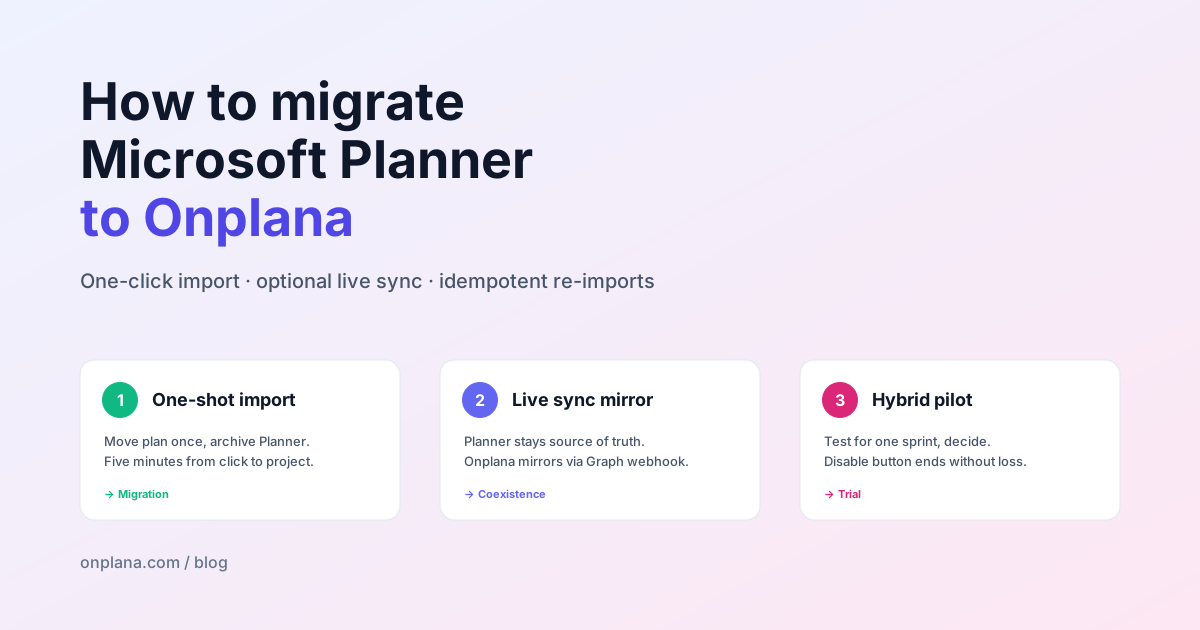
- One-shot import, use when you're done with Planner and moving everything to Onplana. Run the import once, archive the Planner plan, never look back. Five minutes.
- Live sync mirror, use when part of your org is staying on Planner (e.g. a Teams-heavy department) but you want execs/PMs working in Onplana with the richer surface. Onplana stays read-mirror; edits happen in Planner.
- Hybrid, use when you're piloting Onplana on one project before committing the full team. Import the plan, work in Onplana for a sprint, decide. The Disable button on the sync banner ends the experiment without losing data.
The same UI handles all three. The only difference is whether you tick Enable live sync on the import screen.
Step 1, connect Microsoft (one-time)
Open Settings → Integrations in Onplana, click Connect Microsoft, and pick the Tasks and Groups scopes. Microsoft's consent screen will ask for Tasks.ReadWrite (read your tasks) and Group.Read.All (enumerate plans across your Teams groups). Both are delegated permissions; Onplana never sees other users' data.
If your AAD admin has restricted user consent for third-party apps, the consent will redirect to a "needs admin approval" screen. Send your admin the URL; one approval covers everyone in the tenant.
Step 2, pick a plan
Open Migrate → Microsoft Planner. Onplana enumerates every plan in every Microsoft 365 group you have read access to. The picker shows:
- Plan title and group name (e.g. "Q3 Marketing Campaign · Acme Marketing Group")
- Created-on date
- Task count
- Tier badge, basic for a free Planner plan, premium if Onplana detects Project Service signals (richer fields, dependencies). Premium plans go through a separate, richer importer covered in our Project for the Web Premium guide.
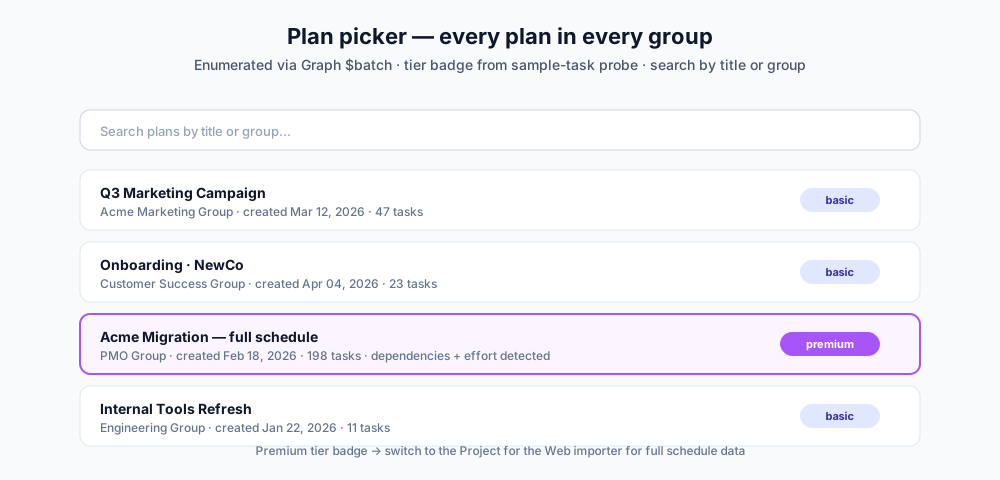
Search by plan title or group name. Click a plan to advance to preview.
Step 3, preview before committing
The preview screen surfaces:
- Bucket count: Planner buckets become epics by default (use the buckets as sprints toggle to convert them to time-boxed sprints instead)
- Task count, total tasks across the plan, including subtasks
- Tag count, unique applied categories across all tasks
- Sample task titles, the first 5 task titles, so you can verify you've picked the right plan
You'll also see options for the destination project:
- Project name, defaults to the plan title; editable
- Buckets as Sprints, off by default (most basic Planner buckets are phases / categories); flip on if your team uses Planner buckets for sprint planning
- Enable live sync, off by default; the next section covers when to flip it
Step 4, what gets imported
The import maps Microsoft Graph fields to Onplana fields like this:
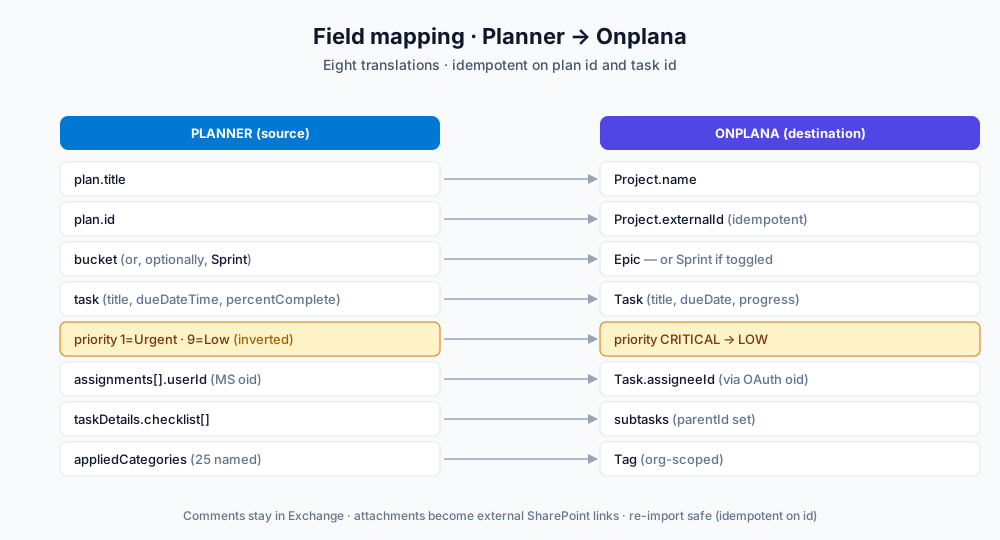
The translations worth flagging:
- Priority numbering is inverted. Planner uses 1=Urgent, 9=Low. Onplana uses LOW/MEDIUM/HIGH/CRITICAL. The mapping table inside the importer handles the inversion so a Planner Urgent task lands as CRITICAL, not LOW.
- Assignees resolve by Microsoft user oid. Onplana stores the
oid(Microsoft's stable user identifier) on every member who's signed in via Microsoft. The importer matches Planner assignments against that table. Unmatched assignees are listed inresult.warnings; the typical pattern is to invite them to Onplana, then re-run the import (it's idempotent). - Categories become org-scoped tags. Planner's 25 named categories per plan map to Onplana tags. Already have a tag named
urgent? The category namedurgentreuses it instead of creating a duplicate. - Checklist items become subtasks. Each checklist item on a Planner task becomes a child Onplana task with the parent linkage set.
- Task descriptions come from
taskDetails.description(a separate Graph endpoint), not the task itself; Planner stores them separately. The importer batches the detail fetches via Graph$batchso a 200-task plan completes in one extra round-trip, not 200.
Step 5, live sync (optional)
Tick Enable live sync on the import screen and Onplana registers a Microsoft Graph subscription on the source plan as soon as the import succeeds. The webhook URL points at Onplana's public ingress; a 32-byte clientState secret authenticates every notification.
After that:
- Any change in Planner, task created, edited, completed, deleted, assignee added, due date changed, fires a webhook
- Onplana receives the notification, verifies
clientState, and acks within 30 seconds (Graph's hard timeout) - The actual reconciliation runs as a fire-and-forget re-import, idempotent on the plan id, so the project ends up reflecting the current state of Planner without duplicating work
A purple banner sits at the top of the project page once sync is active:
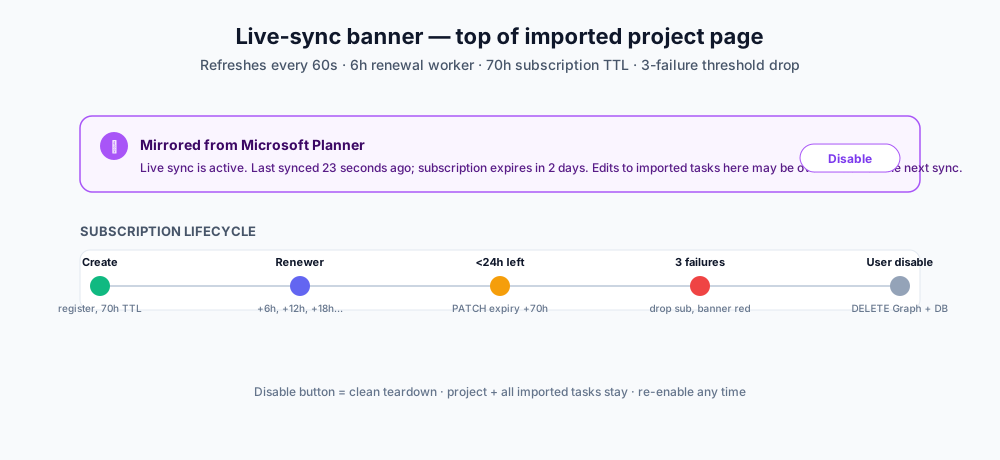
The banner shows the last successful sync (refreshed every 60 seconds in the UI) and the subscription expiry. Microsoft caps Graph subscriptions at ~3 days; Onplana's renewal worker patches the expiry every 6 hours, well before the cap, so notifications keep flowing without interruption.
If renewal fails (token revoked, plan deleted, network outage that exceeds the 3-failure threshold), the subscription is dropped and the banner switches to a red Sync stopped, reconnect state. The project keeps its data; only the live mirror stops.
What stays out of sync
A few things by design:
- Onplana edits don't propagate back to Planner. The mirror is one-way. If you edit an imported task in Onplana, the next Graph notification from Planner may overwrite your change. There's a warning on the project page when sync is active: "Edits to imported tasks here may be overwritten on the next sync." This is conservative and intentional; Microsoft's surface is the source of truth while sync is on.
- Comments don't sync. Planner conversations live in Exchange and aren't exposable via Graph in a useful shape. Comments you add in Onplana stay in Onplana.
- Attachments are linked, not copied. Files attached to Planner tasks point at SharePoint URLs. Onplana stores them as external links (
linkedMode='LINK') in the workspace. Click-through opens the file in SharePoint, where the user's existing M365 permissions apply.
Idempotency: re-imports are safe
Every Onplana project imported from Planner carries externalSource='PLANNER' and externalId=<plan-id>. Re-running the import for the same plan id finds the existing project and reconciles in place, same project id, updated tasks. New tasks added to Planner appear; deleted tasks are removed; modified tasks update fields. Your Onplana edits to non-imported tasks (ones you added natively) stay untouched.
The same idempotency holds at the task level: each imported task carries externalSource='PLANNER' and externalId=<task-id>, so re-imports update by id rather than by title or position.
Disabling sync (without losing data)
The Disable button on the purple sync banner does two things, in order:
- Issues a Graph DELETE on the subscription so Microsoft stops sending notifications
- Drops the local
PlannerSubscriptionrow so the renewal worker stops trying to extend a dead subscription
Everything else stays. The project, all tasks, all assignees, all tags, fully intact. The project becomes a regular Onplana project at that point, fully editable.
If you want to re-enable sync later, run the import again; the idempotent reconciliation finds the existing project, updates from current Planner state, and re-registers the subscription.
When Planner isn't the right level
A coda worth flagging. If your team uses Microsoft Project for the Web, the Premium tier with dependencies, scheduled effort, and resource assignments backed by Dataverse, basic Planner import drops the rich schedule data. The plans look the same in Teams, but the underlying Project Service tables hold extra fields the basic Planner Graph endpoints don't expose.
Onplana ships a separate Project for the Web Premium importer that reads from Dataverse directly to bring across:
- FS/SS/FF/SF dependencies with lag in days
- Scheduled effort in hours per task
- Hierarchical summary tasks (parent/child trees beyond Planner's flat-with-buckets model)
- Resource bookings via the bookable-resource → systemuser → email chain
If your plan shows the premium tier badge in the picker, run the Project for the Web Premium importer instead of the basic Planner one: same plan, much more data carried across.
Pairing with Microsoft To Do sync
For users whose daily work happens on their phone or watch, the Planner import pairs well with Onplana's Microsoft To Do bi-directional sync. Tasks assigned to a user mirror into their personal Onplana, <org> list in To Do, with title, due date, and completion status flowing both ways. We covered the To Do side in our Microsoft To Do sync guide.
The two integrations stack: import the plan, optionally turn on live sync to keep the source mirrored, and let assignees toggle on To Do sync from Settings → Accounts to surface their personal slice in their phone. Three layers, one consent flow.
Try it on a non-critical plan first
The fastest way to evaluate the Planner integration is to run it on a real plan with low blast radius, a maintenance plan, a personal project, anything that's not your Q3 launch readiness. Onplana's free tier includes 2 projects with full Planner import, so you don't need to upgrade to test the flow end to end.
If the import looks right, repeat for production plans with the live-sync toggle on. If something's off, the What's New page has the full integration changelog and our team responds to support requests within one business day.
→ Create a free Onplana account · See all imports we support
Related reading:
- Import Microsoft Project for the Web (Premium) into Onplana, the Dataverse importer for premium plans
- Microsoft To Do Sync With Onplana, pair Planner imports with per-user mobile mirroring
- Microsoft Project Online vs. the New Microsoft Planner, what changed across Microsoft's PM line
- Microsoft Project Online End-of-Life in 2026, September 30, 2026 timeline + impact
- Project Online Retirement Countdown: 90-Day Migration Plan, six-phase plan if you're a PMO
- Best Microsoft Project Alternatives in 2026, broader market roundup
- How AI Actually Runs Project Management Inside Onplana, what your Planner-imported project gets when it lands in Onplana
Microsoft Project Online™ is a trademark of Microsoft Corporation. Onplana is not affiliated with Microsoft.
Frequently asked questions
How do I migrate a Microsoft Planner plan to Onplana?
Connect your Microsoft account in Settings → Integrations with the Tasks and Groups permissions, then open Migrate → Microsoft Planner, pick your plan from the list (Onplana enumerates every plan in every group you can read), preview the counts, and click Import. The full plan, buckets, tasks, checklists, priorities, due dates, and assignees, lands in a new Onplana project in under a minute. Re-importing the same plan is idempotent: it reconciles instead of duplicating.
Does Onplana keep my Planner plan in sync after import?
Yes, if you tick 'Enable live sync' on the import screen. Onplana registers a Microsoft Graph subscription on the source plan and mirrors changes back via webhook within seconds, task created, edited, completed, or deleted. A purple banner on the imported project page shows the last sync time and lets the project owner disable mirroring without deleting the project. Subscriptions auto-renew every 24 hours via a background worker; ~3-day Microsoft caps don't break the sync.
What gets imported from Planner, and what doesn't?
Imported: plan title (→ project name), buckets (→ epics or sprints), tasks (→ Onplana tasks with title, description from task details, priority via Planner's 1=Urgent → CRITICAL mapping, due date, percent complete), checklist items (→ subtasks), assignees (resolved by Microsoft user oid → Onplana member), categories (→ org-scoped tags). Not imported: Planner conversation threads (stored in Exchange, hard to expose), Group file attachments (point at SharePoint where Onplana doesn't have access), the 'show on board' UI toggle. The omissions are documented in the result.warnings array on every import.
Do I need to be a Microsoft 365 admin to import a Planner plan?
No. Each user authorises their own Microsoft account with the Tasks.ReadWrite + Group.Read.All scopes the first time they hit the importer. The AAD app registration that powers Onplana's social sign-in is reused, so no separate admin enrolment is required for basic import. The optional live-sync feature uses the same scopes, no extra consent. Project for the Web Premium import (richer schedule data via Dataverse) is the one path that needs an additional admin-consented scope; basic Planner does not.
Is Microsoft Planner being retired like Project Online?
No. Project Online retires September 30, 2026. Microsoft Planner remains as the consolidated planning surface in Microsoft 365, Microsoft has merged To Do: Planner, and Project for the Web into a single Planner app inside Teams, which is the migration path Microsoft itself recommends for Project Online customers. Onplana imports from all three tiers (Planner: To Do, Project for the Web Basic and Premium) so customers can move work to Onplana on their own schedule, regardless of which Microsoft surface their plans currently live in.
Can I disable Planner sync without losing my imported project?
Yes. The Disable button on the project's purple sync banner cancels the Graph subscription and stops mirroring, but every imported task, bucket, assignee, and tag stays exactly as it was. The project becomes a regular Onplana project at that point, fully editable, no longer linked. Re-importing the same plan reconciles into the same project (idempotent on Microsoft's plan id), so you can re-enable sync later if you change your mind.
Ready to make the switch?
Start your free Onplana account and import your existing projects in minutes.