The Export Deadline, and What If You Missed It
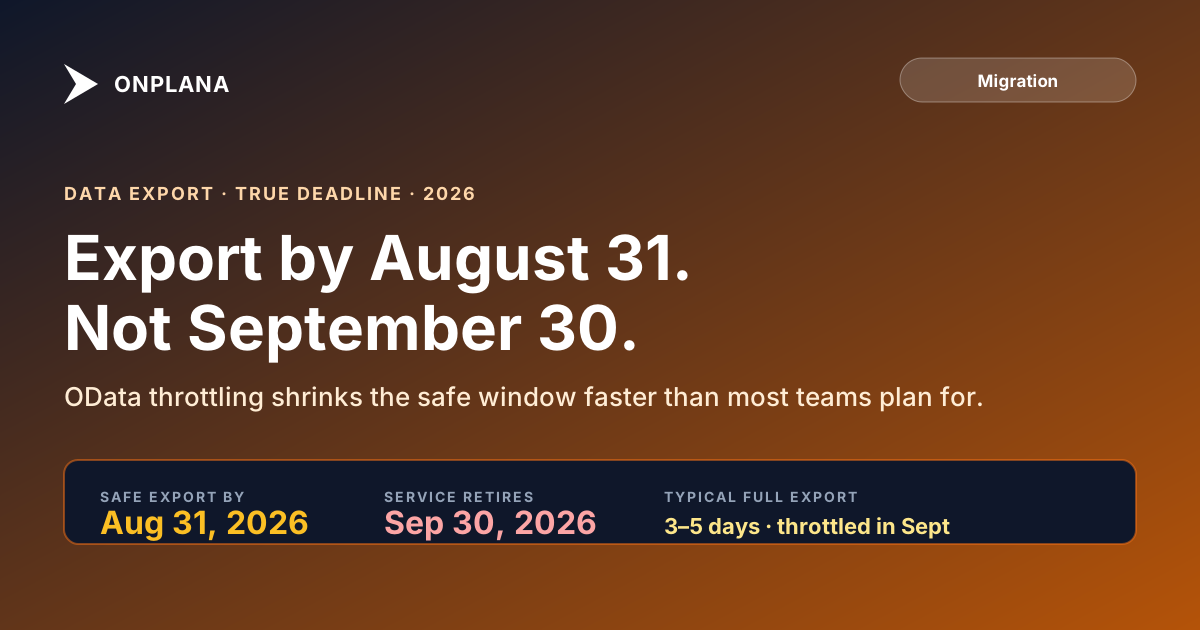
Project Online export after deadline: what's still recoverable, what's gone, and the order to try it in. The safe export window closed August 31, 2026.
If you're attempting a Project Online export after deadline: the safe window closed August 31, 2026, but the service itself doesn't stop until September 30. You have until then to attempt a recovery export, and it will not go smoothly. Run the .mpp path first (it's faster per project and less exposed to server load), then attempt OData for whatever .mpp can't capture, and expect throttling, partial failures, and no guarantee the full dataset comes across in time. What's recoverable and the order to attempt it are covered below.
The most dangerous misconception in every Project Online migration plan is a simple one: that September 30, 2026 (the headline date in the full retirement timeline) is the Project Online data export deadline. It isn't. September 30 is the date the service stops. The effective window to export your data reliably (at predictable speed, without server-side throttling, and with time to validate and re-run) closed a month earlier, on August 31.
The teams that set August 31 as their internal export deadline finished migrations calmly. The teams still exporting now, past that date, are working against throttled APIs, batch failures they can't recover from before the cutover, and no time to validate that what they pulled actually matches what was in the source system. Both situations are covered in this post: what a clean export looked like before August 31, and what a recovery export looks like now.
Pillar reference: the comprehensive step-by-step Project Online data export guide covers this topic end-to-end; this post zooms in on one aspect.
Your real Project Online data export deadline is August 31, 2026, not September 30. A full tenant OData export takes 3 to 5 days of elapsed time under normal conditions. In September, server load from thousands of concurrent exports makes that window unpredictable. .mpp files miss timesheet history, portfolio metadata, and ECF definitions; use OData for those. Some data has no export path at all; document it manually now.
The diagram below shows the effective export window versus the official retirement date, and where the high-risk zone begins.
The 30-day gap between August 31 and September 30 is not extra export time. It's the buffer you need to validate that your export matched the source, re-run any batches that throttled or failed, and confirm your destination platform has everything before you commit to the cutover.
Why the Effective Project Online Data Export Deadline Is August, Not September
The official retirement date and the practical export deadline are not the same thing, and treating them as equivalent is one of the most reliable ways to have a crisis migration in September 2026.
Here is the concrete math. A mid-size PMO with 100 to 200 active projects, a 150-field enterprise custom field schema, a resource pool with 400 named resources, and three years of timesheet history takes approximately 3 to 5 days of elapsed time to export via OData under normal operating conditions. That assumes batched requests, proper pagination, authenticated access, and a team member monitoring for throttled responses and re-queuing them.
That 3-to-5 day window assumes normal server load. In September 2026, Microsoft's Project Online infrastructure will be under the heaviest concurrent read load it has ever seen. Every organization that has not yet migrated (and that will be a substantial number) will attempt to export in the final weeks of September. OData requests that respond in 2 seconds in June might time out or be throttled to 429 responses in September. Batch jobs that complete overnight in July might take 72 hours in September, if they complete without partial failures.
The final two weeks of September are when export jobs fail. Not because the API stops working, but because the queue of concurrent requests from thousands of tenants overwhelms the system's capacity to respond in time. You don't know your export failed until you try to import the data and discover the last 40% of your resource pool is missing.
Finishing your export by August 31 eliminates this risk entirely. You have full API access, predictable response times, and a month to validate before the retirement date.
Your Two Main Export Paths: .mpp Files and OData
Project Online provides two primary mechanisms for getting your data out, and they capture different things. Most PMOs need both.
The .mpp export path works through the Project Online Desktop Client. You open each project in the client, use the "Save As" dialog to save a local .mpp copy, and repeat for every project in your tenant. A .mpp file preserves: task hierarchy, task names and durations, dependencies (all four types), baselines (up to 11 per project if used), resource assignments with hours, and the project calendar.
What the .mpp file does not preserve: timesheet history, the enterprise custom field values stored at the project level but not embedded in the schedule, portfolio metadata (EPTs, stage gate status), lookup table definitions, and resource cost rates from the ERP. A .mpp export is a schedule file: it gives you the scheduling data but not the project management infrastructure around it.
The OData path is more comprehensive but requires more technical setup. The OData API at /_api/ProjectData exposes the full Project Online data model: projects, tasks, assignments, resources, time sheets, custom fields and their values, lookup tables, baselines, enterprise project types, stage gates, and portfolio metadata. With the right query set, you can pull everything that lives in Project Online's database.
The OData path requires authentication (SharePoint Online / Entra ID credentials with the right permissions), paginated requests for large datasets, and handling of OData throttling (429 responses with Retry-After headers). PowerShell, Python, or any HTTP client can do this. The migration preview tool can pull a sample of your OData data to validate field mappings before you run a full export.
The practical recommendation: run the OData export first to get a complete structured backup of everything, then use .mpp exports as a validation layer for the most critical active schedules.
OData Throttling: The Hidden Constraint That Slows Bulk Exports
OData throttling is the technical constraint that converts a "we have until September 30" plan into a missed deadline.
Project Online's OData endpoint uses SharePoint's throttling framework. When your application sends requests faster than the server is configured to handle, it returns HTTP 429 (Too Many Requests) with a Retry-After header indicating how many seconds to wait before retrying. Microsoft documents SharePoint Online throttling behavior and retry guidance for developers building against these APIs. A well-behaved client respects this header and backs off. A poorly-written export script ignores it and keeps hammering, accumulating request failures and incomplete data.
Three specific throttling behaviors to understand before you start:
Per-user request limits. Project Online's OData endpoint imposes limits on concurrent requests per user identity. If you're exporting with a single service account, you're limited to that account's request quota. Distributing the export across multiple service accounts (one per portfolio or department) can significantly increase your effective throughput.
Large dataset pagination. OData responses are paginated at 100 to 200 items by default. Exporting 10,000 timesheet entries requires 50 to 100 paginated requests. Each page request counts against your quota. Batching requests using $batch endpoint calls reduces the number of round trips but adds implementation complexity.
TimePhasedData endpoints. Timesheet actual hours and resource-assigned work-phased data are stored in separate TimePhasedData collections. These are often the most throttle-prone entities in the schema because of the row volume: a 3-year timesheet history for 400 resources can contain millions of rows. Export these collections in tight time windows (e.g., one year per batch) rather than attempting a single full-history query.
A practical export sequence that works well for mid-size tenants: projects and tasks first (fast), then custom field values (medium), then resource pool and assignments (medium), then timesheet TimePhasedData (slow, do this in nightly batch windows over several days). The Project Online migration checklist has a section on OData inventory that covers which entities to query in which order.
.mpp Export Limits and What They Don't Capture
Even if you export every project as a .mpp file, you will be missing significant categories of data. This is not a deficiency of the .mpp format; it's a format designed to capture scheduling data, not the full project management system that PWA builds on top of it.
Baseline history is partially preserved. Project Online stores up to 11 baselines per project (Baseline, Baseline 1 through Baseline 10). The .mpp export preserves whichever baselines are saved in the project file, but only if the Desktop Client has loaded them from the server. Projects that haven't been opened recently in the Desktop Client may have stale local copies that don't reflect the server-side baseline data. Always check a project out from the server, allow it to fully sync, and then save the local copy.
Enterprise custom field values at task level are included; project-level ECF values may not be. Task-level custom fields that are directly embedded in the task schedule (like custom cost or duration fields used in schedule calculations) round-trip through .mpp cleanly. Project-level custom fields used for portfolio metadata (risk tier, strategic alignment, budget category) are typically stored in Project Online's database, not in the .mpp structure. You need OData to capture those.
Resource pool connection is lost. When you open a .mpp file locally, it retains the resource names and assignments but disconnects from the enterprise resource pool. Cost rates, calendar exceptions, and generic resource definitions that exist only in the ERP won't round-trip into a local .mpp. This is data you need to export via OData separately.
Project site links break. The association between a .mpp file and its SharePoint project site (the risk register, issues list, document library) exists as a metadata relationship in Project Online. That relationship doesn't travel in the .mpp export. In your destination platform, you'll need to re-establish those links or consolidate project-related SharePoint content through a separate migration track.
The Data With No Supported Export Path
Some Project Online data has no official API export mechanism. You need to document or capture it manually before the retirement date.
PWA view definitions. The column layouts, groupings, filters, and saved views that your team has configured inside Project Center, Resource Center, and the task grid are stored in PWA configuration tables. There is no API that returns a structured export of these view definitions. Screenshot each custom view, document its filter and grouping logic, and treat each as a rebuild task in your destination platform.
Workflow process history. Stage gate approvals, decision logs, and reviewer comments accumulated through Project Online's governance workflows are stored in workflow history tables. These tables are not exposed through the OData public API. If your audit requirements include documented project governance decisions (who approved a gate, on what date, with what comment), you need to export this data via SharePoint workflow history lists (which may capture some of this) or document it manually by reviewing PWA before the cutover.
SharePoint 2013 workflow audit trails. Organizations that built governance workflows using SharePoint Designer's 2013 workflow engine have workflow audit logs stored in SharePoint list history. These don't export cleanly from the OData endpoint. If your compliance scope includes workflow audit trails, export them through SharePoint's list export mechanisms before the PWA site collection is decommissioned.
Building an Export Plan That Actually Works
A practical export plan treats data differently based on migration priority, risk, and export complexity.
Phase 1: Insurance snapshot (do this this week). Run a complete OData pull of your active project catalog (just the project and task entities, not TimePhasedData) and save it to a location you control. This is your backup. Even if everything else in your migration goes wrong, you have the project structure data. It takes 2 to 4 hours for most mid-size tenants and can be done by a single person with SharePoint admin rights and a PowerShell script.
Phase 2: Full structured export (June to July). Execute the complete export: all OData entities including resources, assignments, custom field values, and timephased actuals. Run this in batches, by portfolio or department, over 2 to 3 weeks. Validate the output against source counts (project count, task count, resource count, timesheet row count) before moving on.
Phase 3: .mpp exports for active migration projects (rolling, May to August). As each project migrates to your destination platform, pull a fresh .mpp export of that project from Project Online on the day you migrate it. This gives you the most current schedule state at migration time and a rollback file if the import has issues.
Phase 4: Final validation export (August 15 to August 31). Re-run the full OData export one final time. Compare against Phase 2 to identify projects that changed significantly in the interim. Re-export any .mpp files for projects that had active scheduling work between June and August.
This four-phase structure gives you three complete copies of the data at different points in time, which is the minimum for a defensible audit record and a realistic chance of catching any export failure before you're on the clock.
The Project Online inventory checklist tool includes export tracking fields for each asset category so you can monitor export completion status as you work through the phases. After your exports are complete, the migration preview tool lets you validate that your exported data maps cleanly to the destination platform before the full load.
Project Online Export After Deadline: What's Still Recoverable
If August 31 has already passed and you're starting an export now, you're not out of options, but you are out of margin. The service accepts requests until September 30, and everything below still works in principle. What changes is reliability: the same OData query that returned in 2 seconds in June might throttle, time out, or return a partial page now, because every tenant that didn't finish in August is hitting the same endpoints in the same final weeks.
Still recoverable, in the order to attempt it:
- .mpp exports of any project still open in the Desktop Client. This is the fastest path per project and the least exposed to bulk-endpoint throttling, since it's a single-project pull rather than a tenant-wide query. Start with your highest-priority active schedules.
- OData for projects and tasks (not TimePhasedData yet). The lightest bulk query, and the one most likely to complete even under heavy load. This gets you the schedule skeleton even if the heavier collections below fail partway through.
- OData for resources, assignments, and custom field values. Medium weight. Run this in small batches (by portfolio or department) rather than one tenant-wide call, since a single large request is more likely to throttle to nothing than several small ones are to all fail.
- TimePhasedData (timesheet actuals). The heaviest and most throttle-prone collection, covered above. If you're going to lose something to a failed export, this is statistically the most likely candidate; attempt it last and in the smallest batches you can.
Likely gone once the service stops responding on September 30: anything in the four categories above you didn't manage to pull, plus the categories that never had a supported export path at all (PWA view definitions, workflow process history, SharePoint 2013 workflow audit trails), which needed manual documentation before the cutover and have no post-retirement recovery mechanism once the tenant is decommissioned. There is no API to query after the service stops; what actually happens after Project Online retires covers the read-only window, if any, and what a fully decommissioned tenant does and doesn't still expose. For data you did manage to export before the cutover but need to work with later, accessing archived Project Online data after retirement covers the format-by-format reality of what still opens without a live tenant behind it.
The practical takeaway for anyone in this position: don't try to run the full four-phase plan below from scratch at this point. Triage. Pull the highest-value projects first with the lightest, fastest method (.mpp), then spend whatever time is left on the heavier OData collections in priority order, and accept that a late export is a rescue operation for your migration, not a repeat of the clean process outlined next.
After the Export: Validating and Archiving Your Data
Exported data that you haven't validated is not a backup; it's an untested file you hope contains what you think it contains.
Validation means comparing record counts between source and export. Your OData query for projects returned 147 rows: does your Project Online tenant have 147 active and archived projects? Run the count in PWA and confirm. Your resource pool query returned 312 named resources: does the ERP show 312? Your timesheet export for FY2025 returned 284,000 rows: does the PWA timesheet reporting show that row volume for that period?
Record count validation catches truncation failures, pagination errors, and authentication timeouts that caused partial exports. It doesn't catch data corruption within individual records, but that's a second-order risk compared to missing large categories of data entirely.
Archiving your exports: structured formats last longer than application-specific formats. A CSV or Parquet export of your timesheet data will be readable in 10 years. An .mpp file requires a specific version of Microsoft Project to open. For compliance retention, archive the raw OData output (which is JSON or XML) alongside a derived CSV version for human readability. Store both in a location with documented access controls and a documented retention policy.
The Project Online migration checklist has specific guidance on what to validate in each of the six inventory categories. Run through that list after your Phase 2 export to confirm you've captured everything before committing to a retirement date.
Microsoft Project Online™ is a trademark of Microsoft Corporation. Onplana is not affiliated with Microsoft.
Frequently asked questions
What if you missed the Project Online export deadline?
You can still attempt a recovery export until September 30, 2026, when the service stops responding entirely. The safe window with predictable throughput closed August 31; after that, expect throttling, partial failures, and no guarantee the full dataset comes across before the tenant goes dark.
Can you still export Project Online data after August 31, 2026?
Yes, through September 30, but not reliably. Server load from every other tenant exporting in the same final weeks makes OData requests slow, throttle, or time out. Run the .mpp path first since it's faster per project, then attempt OData for anything .mpp can't capture.
What Project Online data is unrecoverable after September 30, 2026?
Anything you haven't exported by the time the service stops responding: live OData access, the PWA interface, workflow history tables, and any project you never opened for a .mpp save. There is no post-retirement API to pull from once the tenant is decommissioned.
When is the real deadline for exporting Project Online data?
August 31, 2026, not September 30. Completing exports in August leaves a month of buffer before the official retirement date and avoids server-side throttling as other organizations rush to export in September.
What are the two main ways to export Project Online data?
Project Online Desktop Client .mpp export for individual project schedules, and OData API queries for bulk data including custom fields, resource pool, timesheet history, and portfolio metadata.
Does OData throttling affect large Project Online exports?
Yes. Under normal load, a full tenant export via OData takes 3 to 5 days of elapsed time. In September 2026, with thousands of tenants exporting simultaneously, that window extends unpredictably. Export in August to avoid it.
What does .mpp export miss compared to OData?
.mpp files preserve task schedules, dependencies, baselines, and resource assignments, but do not contain timesheet history, portfolio metadata, enterprise custom field definitions, lookup tables, or cross-project resource pool data. Use OData to capture what .mpp misses.
What Project Online data has no supported export path?
PWA view definitions (column layouts, filters, groupings), workflow process history (who approved what and when), and some SharePoint 2013 workflow audit trails have no official export API. Document these manually or via screenshots before retirement.
What should I do with exported Project Online data after the migration?
Archive to structured long-term storage (Azure Blob, S3, or internal document management) in CSV, Parquet, or XML format. Tag with project ID, export date, and data type. Retain for the same period as your audit or compliance requirements.
Ready to make the switch?
Start your free Onplana account and import your existing projects in minutes.