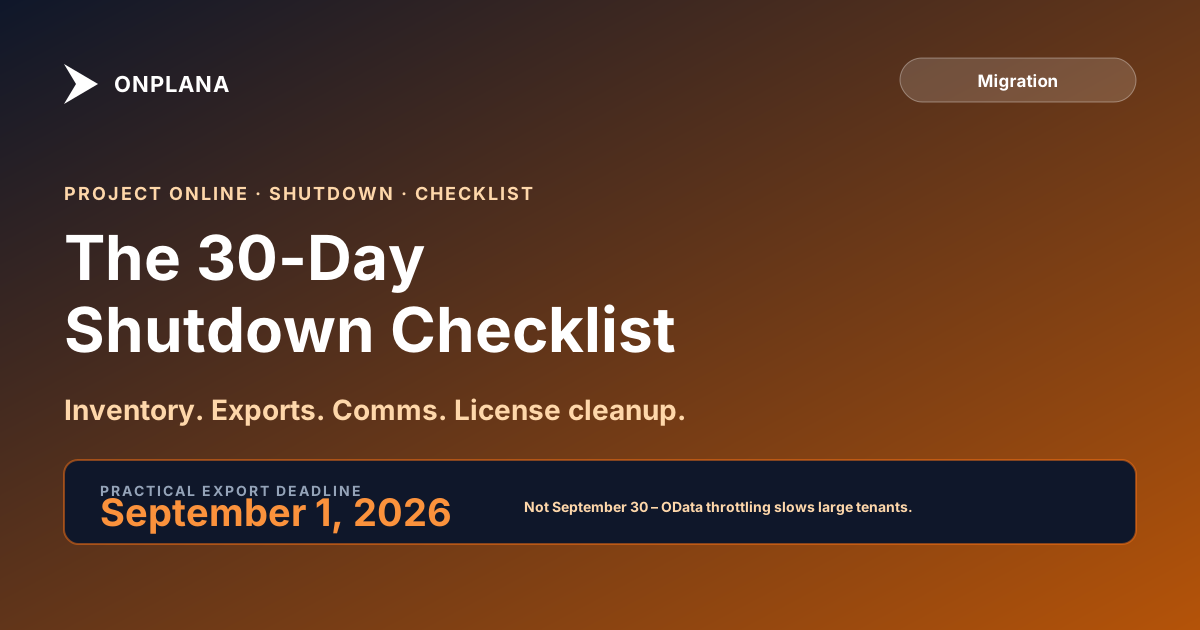
The 30-Day Project Online Shutdown Checklist
The final 30 days before Project Online shutdown on September 30, 2026 are the ones that go wrong. Here is the week-by-week checklist that prevents that.
The 30 days before the Project Online shutdown on September 30, 2026 (the headline date in the full 2026 retirement timeline) will be the most operationally stressful period your PMO has faced in years. Not because of anything unexpected, but because of everything that gets deferred until it is not deferrable anymore. Open timesheets, Power BI reports that someone set up three years ago, Power Automate flows nobody remembers building, Project Plan 5 licenses on autopay since 2019. All of it surfaces in the final month.
This checklist is the plan for those 30 days. Run it now so that the last weeks of September are calm instead of chaotic.
The final 30 days break into four phases: final inventory audit (days 30 to 21), complete data exports (days 20 to 11), communicate and close dependencies (days 10 to 4), and final 72-hour lockdown. After September 30, license cancellation and M365 cleanup need to happen within 30 days to avoid surprise charges. The practical export deadline is September 1, not September 30, because OData throttling slows large tenants significantly in the final weeks of service.
The diagram below shows the four shutdown phases across the final 30 days before the Project Online shutdown date.
The T-30 Lockdown Protocol
The cadence in this checklist has a name: the T-30 Lockdown Protocol. Four phases, each defined by a window measured backward from the September 30, 2026 shutdown: T-30 to T-21 (inventory), T-20 to T-11 (exports), T-10 to T-4 (communicate and close), T-3 to T-0 (final 72 hours). Each phase has a single dominant activity and a hard gate before the next phase opens.
The protocol exists because retirement weekends fail in a predictable shape: tenant exports compete for OData bandwidth with every other org doing the same thing, last-minute Power BI redirects break harder than the originals, and at least one open timesheet period surfaces in the final week with no PM available to close it. Naming the phases and walking them in order forces the discovery work earlier, where it can still be fixed. Treat any drift back into a previous phase ("we are at T-12 but our inventory is still incomplete") as a structural alarm, not a minor slip. The fix is to compress the current phase and reach the next gate, not to absorb the slip into the final 72 hours.
Why the Final 30 Days Go Wrong for Most PMOs
Most PMOs treat the retirement date as the export deadline. It is not. OData is throttled at roughly 100 requests per minute. A tenant with 150 projects, each with hundreds of tasks and resource assignments, can take 8 to 12 hours to fully snapshot through OData. When that same snapshot runs in the last two weeks of September alongside every other organization doing the same thing, service degradation is predictable.
The practical export deadline is September 1, 2026. That is the date by which your complete OData snapshot, .mpp exports, and timesheet history extracts should be confirmed and stored. The final 30 days before September 30 are for cleanup, communication, and license management, not for last-minute data pulls.
Two other patterns cause late-stage chaos. First, unknown consumers: Power BI reports, Power Automate flows, and Teams apps hitting the OData endpoint that nobody thought to audit until they start failing. Second, deferred timesheet work: open timesheet periods that project managers kept putting off, which suddenly become urgent when the service is about to shut down.
For context on exactly what breaks on shutdown day, see the post-retirement service sequence for Project Online. That post covers the technical shutdown sequence in detail.
Days 30 to 21: Run Your Final Tenant Inventory
This phase is about knowing exactly what you have before you try to move it. Surprises at export time are expensive; surprises at shutdown time are worse.
- Pull a complete project inventory from OData. Use the Projects entity to list every project, its status (active, inactive, template), last modified date, and project manager. This is your export manifest. Flag projects with no updates in the past 18 months as archive candidates.
- List all Enterprise Custom Fields. Export the custom field definitions (name, field type, formula, lookup table) from the PWA Server Settings. These definitions need to be recreated or mapped in your destination platform.
- Inventory Enterprise Resource Pool members. Export the full resource list with skill types, calendar assignments, cost rates, and department assignments. The ERP is often the most complex piece to migrate and the most frequently overlooked.
- Audit OData consumers. Search your Power BI tenant, SharePoint sites, and Power Automate flows for any connection using
/_api/ProjectData. Catalog every report and flow; these all need remediation before September 30. - List all open timesheet periods. A PWA admin can view open and in-flight timesheet periods from the Timesheet Period settings page. Get a count and notify project managers to close out any periods they intend to finalize.
Run the free Project Online Inventory Checklist to walk through this audit systematically. It generates a structured export plan that your migration team can hand off directly.
Days 20 to 11: Complete All Data Exports
With a confirmed inventory in hand, this phase executes the actual data extractions. Do them in this order, from highest to lowest data-loss risk.
- OData full snapshot. Pull the complete OData entity set: Projects, Tasks, Assignments, Resources, Timesheets, CustomFields, Baselines. Store the output in a durable location (Azure Blob Storage, SharePoint document library, or on-premises NAS). Date-stamp the export folder.
- .mpp file export for every active project. From PWA, use File > Save As to download each project as an .mpp file. For tenants with more than 30 projects, write a PowerShell script using the CSOM API to automate the downloads. Verify that each .mpp opens correctly in Microsoft Project Desktop before moving on.
- Timesheet history extract. Export completed and approved timesheet data to CSV or Parquet. Your finance and HR teams may need this for multi-year audit trails. Define a retention period before extracting: most compliance frameworks require 5 to 7 years.
- Report definitions export. Download all Project Online report definitions from the Report Library in PWA. These define the structure of your existing reporting; they are reference artifacts even if you rebuild the reports on a new platform.
- Custom field lookup tables. Export lookup table values for every custom field. These are separate from the field definitions and often get missed.
- Baseline data per project. PWA stores up to 11 baselines per project. If your PMO uses baseline comparisons for variance reporting, verify that your .mpp exports contain all baseline sets, not just the active one.
Confirm each export is readable in isolation before treating it as complete. A 0-byte OData file or a corrupt .mpp is not a backup.
Days 10 to 4: Communicate and Close Out Dependencies
With exports confirmed, this phase winds down the live service gracefully.
- Notify all project managers. Send a formal communication listing the shutdown date, the status of their project exports, and any open timesheets they need to close. Give them a named point of contact for questions. Do this no later than day 10 so there is time to respond.
- Close or lock all open timesheet periods. Lock every timesheet period that will not be finalized before September 30. This prevents partially approved timesheets from creating compliance gaps in the historical record.
- Redirect Power BI reports. For every OData-connected report you cataloged in Phase 1, update the data source connection to either a static export or a connection to your destination platform's API. Test each report after the redirect.
- Deactivate Power Automate flows. Turn off every flow that connects to the Project Online connector or the OData endpoint. Flows that fail silently after shutdown create harder-to-diagnose problems than flows that are cleanly deactivated.
- Remove Teams integrations. If any Teams tabs or apps surface PWA data, remove or replace them. Users will see blank or error states after shutdown if these are left in place.
- Notify downstream report consumers. If other teams (finance, portfolio governance, executive dashboards) consume Project Online data, brief them on the shutdown timeline and confirm they have a replacement data source plan.
The Final 72 Hours
The last three days before September 30, 2026 are for confirmation, not action. If you have followed the phases above, there should be nothing urgent left to do.
- Verify all exports are retrievable. Open a sample .mpp file in Project Desktop. Run a query against your OData snapshot. Confirm that the timesheet CSV is readable. Spot-check at least 5 percent of exported files.
- Confirm active platform is ready. Your destination platform should already have completed a test migration of at least 5 to 10 representative projects. The final 72 hours is not the time to start a migration; it is the time to confirm that the one in progress is on track.
- Send a final shutdown notification to stakeholders. One clean email: what stops working September 30, what continues (SharePoint project sites), and who to contact with questions. Keep it factual and brief.
- Confirm the person on call for September 30. Someone should be monitoring the tenant on the shutdown date, able to verify the retirement sequence and respond to stakeholder questions. This does not need to be an all-hands event; one designated PMO contact is sufficient.
Project Online License Cancellation and M365 Cleanup
Project Online licenses do not auto-cancel when the service retires. If you have Project Plan 3 or Project Plan 5 subscriptions on autopay, they will continue billing until you cancel them manually.
To cancel in the Microsoft 365 admin center:
- Go to Billing > Your Products.
- Select your Project Plan 3 or Project Plan 5 subscription.
- Choose Cancel subscription.
- Confirm the cancellation effective date. Choose the end of the current billing period to avoid partial-month charges.
Do this within 30 days of shutdown to limit the exposure to one billing cycle. Review all related subscriptions at the same time: Project Online Desktop Client licenses, any additional PWA provisioning SKUs, and any Power BI Premium capacity that was dedicated to Project Online reporting.
After licenses are cancelled, check the M365 admin center for any remaining orphaned PWA site collections. Microsoft will likely clean these up as part of the retirement process, but confirm your IT team's records match the expected state.
For organizations that want a full picture of the license cost implications before and after migration, the Migration Cost Calculator provides a structured cost comparison including current Project Online spend versus destination platform licensing.
After the Project Online Shutdown: What to Expect
The retirement date is a hard cutover, not a gradual wind-down. On September 30, 2026, PWA stops serving pages and the OData API returns 410 Gone. There may be an informal read-only window of approximately 90 days after retirement, based on Microsoft's historical behavior with other SaaS retirements, but Microsoft has not guaranteed this for Project Online.
Plan your migration on the assumption that September 30, 2026 is the final day of any data access. If an informal read-only window materializes, treat it as a bonus, not a deadline.
After shutdown, keep your exported data in durable storage for at least the length of your compliance retention requirement. For most regulated industries, that means a minimum of five to seven years. Name the archive clearly with the export date and tenant name so that a future audit can identify the source without ambiguity.
The post-retirement service sequence guide covers the full technical shutdown timeline, including which services break first and what the M365 admin sees when the retirement occurs.
The one-page emergency runbook
Copy this into your steering committee channel on day T-30. It is what the on-call PMO contact reads at 09:00 on September 30, 2026.
PROJECT ONLINE SHUTDOWN RUNBOOK
Tenant: [Tenant URL]
Shutdown date: 2026-09-30
On-call PMO contact: [Name, mobile, email]
Escalation: [Sponsor name, mobile]

T-30 to T-21: FINAL INVENTORY (gate: written sign-off from PMO lead)
[ ] Complete project inventory pulled from OData, exported to durable storage
[ ] All ECF definitions and lookup tables exported
[ ] Enterprise Resource Pool roster confirmed against HR
[ ] OData consumer audit complete (Power BI, Power Automate, Teams, custom)
[ ] Open timesheet periods listed with owner per period

T-20 to T-11: COMPLETE EXPORTS (gate: every artifact verified readable)
[ ] OData full snapshot stored, date-stamped, verified
[ ] .mpp export per active project, each opened in Project Desktop OK
[ ] Timesheet history CSV/Parquet, retention period set
[ ] Report definitions downloaded
[ ] Custom field lookup table values exported (separate from definitions)
[ ] Baseline data per project, all sets included

T-10 to T-4: COMMUNICATE + CLOSE (gate: zero open critical dependencies)
[ ] Project manager notification sent (named contact for questions)
[ ] All open timesheet periods locked or closed
[ ] Power BI reports redirected to new data source, each tested
[ ] Power Automate flows deactivated (no silent failures post-shutdown)
[ ] Teams integrations removed or replaced
[ ] Downstream report consumers briefed and confirmed

T-3 to T-0: FINAL 72 HOURS (gate: confirmation only, no new work)
[ ] Sample .mpp opens in Project Desktop
[ ] OData snapshot query returns expected rows
[ ] Timesheet CSV readable, spot-check 5% of files
[ ] Destination platform test migration confirmed on track
[ ] Final stakeholder email sent (what stops, what continues, who to contact)
[ ] On-call PMO contact confirmed for 2026-09-30

POST-SHUTDOWN (within 30 days)
[ ] Project Plan 3 / 5 subscriptions cancelled in M365 admin center
[ ] Project Online Desktop Client licenses reviewed
[ ] Power BI Premium capacity (if dedicated to Project Online) reviewed
[ ] Orphaned PWA site collections cleaned up
[ ] Exported data confirmed in long-term archive (5-7 year retention)

ROLLBACK / EMERGENCY CONTACTS
- Microsoft Support: [ticket URL, premier support number if applicable]
- Migration vendor: [name, account manager, on-call]
- Internal sysadmin escalation: [name, mobile]
Print it. Pin it. Trade the screen for paper on September 30 if the network is congested.
Run the free Project Online Inventory Checklist Walk through your tenant in about 10 minutes and get a structured export plan you can hand to your migration team. No signup required. → Open the checklist
Microsoft Project Online™ is a trademark of Microsoft Corporation. Onplana is not affiliated with Microsoft.
Frequently asked questions
What happens during Project Online shutdown on September 30, 2026?
Project Web App stops serving pages, the OData API returns 410 Gone, the enterprise resource pool becomes unreachable, and timesheet workflows stop. SharePoint project sites are unaffected.
How do I cancel Project Online licenses before the retirement date?
In the Microsoft 365 admin center, go to Billing > Your Products, select the Project Plan 3 or Plan 5 subscription, and cancel it. Licenses do not auto-cancel on September 30, 2026.
What should I export from Project Online before shutdown?
Export every project as an .mpp file, take a full OData snapshot of schedule and resource data, extract timesheet history to CSV, download all custom field definitions, and save report definitions before shutdown.
How long does Project Online data export take?
A tenant with 100 projects typically requires 4 to 8 hours for a complete export, including OData snapshots and .mpp files. OData is throttled at roughly 100 requests per minute, so batch exports for large tenants can take longer.
What Power BI reports break when Project Online shuts down?
Any Power BI report connecting to the /_api/ProjectData OData endpoint will return errors immediately after shutdown. Identify and redirect all such reports before the retirement date.
What is the deadline for exporting Project Online data?
Plan to complete all exports by September 1, 2026. The formal retirement is September 30, but OData throttling and the risk of service degradation in the weeks before cutover make September 1 the practical safe deadline.
Ready to make the switch?
Start your free Onplana account and import your existing projects in minutes.