Project Online Training: A 4-Week Curriculum for PMs Moving to a New Tool
Project Online training that defers to go-live week always fails. A 4-week curriculum designed for PMOs replacing Project Online before the 2026 retirement.
Here is the Project Online training plan that does not work. The PMO schedules a one-hour overview of the new tool on the Monday of go-live week. Attendees come in with a full day of normal project updates already on their plate. The session covers the interface, the key shortcuts, where dependencies live, and how to set a baseline. It runs forty-five minutes because the presenter knows the room is restless. PMs leave with a handout and a link to the user guide.
By Tuesday, half the PMs are back in Project Online, updating their schedules there and manually copying the changes to the new tool. By Thursday, three PMs have raised tickets saying the new tool is missing features they rely on. One of those three features exists in the new tool but in a different menu location. By the following Monday, the PMO lead is managing two parallel tool estates instead of one, and the migration that was supposed to simplify the PMO has tripled its maintenance burden.
This failure mode is documented in why Project Online migrations fail as one of the seven consistent anti-patterns. Microsoft's Project Online retirement announcement confirms September 30, 2026 as the hard deadline, which means there is no grace period to recover from a failed go-live caused by inadequate training. Deferring training to the week of go-live is not a timing mistake; it is a structural one. PMs absorb a new scheduling tool through weeks of practice, not an hour of presentation. A training plan that starts at go-live is not a training plan. It is a handover note.
TL;DR: Project Online training must start four weeks before the main portfolio cutover, not the week of go-live. The four-week curriculum below gives PMs the orientation, scheduling motion, reporting workflow, and power-user patterns they need to be independent users on day one. Start with a cohort of five to ten power users during the pilot phase; by cutover they become your internal training resource. Exit criteria for each PM: independently create tasks with all four dependency types, set a baseline, view the critical path, and generate a status report in a timed sandbox exercise.
Why Project Online Training Fails When It Starts at Go-Live
The mechanism is simple. PMs are not free to focus on training the week of go-live. They are simultaneously doing their normal Monday-morning project updates, validating that their migrated project matches the Project Online source, attending handover briefings from IT, and managing any ad-hoc issues that emerge from the cutover weekend. Adding a tool-training session to that calendar competes for attention at the worst possible moment.
More fundamentally, learning to use a new scheduling tool requires practice with real projects, not guided walkthroughs. The moment of understanding for a PM learning a new dependency editor is not when the instructor explains it. It is the third or fourth time the PM does it themselves and the schedule recalculates the way they expected. That repetition takes time. An hour-long session can introduce a concept; it cannot build the muscle memory that makes a PM confident and fast.
A secondary effect: go-live-week training produces the "revert to spreadsheets" failure. PMs who are not confident in the new tool fall back to whatever tool they know, which is usually Excel or, if Project Online is still accessible in read-only mode, the old system. The migration team then inherits a portfolio where some PMs are in the new tool, some are in spreadsheets, and the data is out of sync within two weeks of go-live. Getting those PMs back into the new tool requires re-training plus a data remediation effort.
The fix is to start training before cutover, with enough runway for PMs to practice on a real project before their live projects depend on their proficiency. The Migration Preview tool gives PMs a no-risk way to round-trip a real .mpp file and see exactly what survives the import before they are accountable for the result. It removes one category of uncertainty before training starts.
What Changes When You Leave Project Online
Before the curriculum, it helps to understand which specific behaviors are changing. The shifts that most frequently produce training confusion:
| Capability | Project Online behavior | Modern tool behavior |
|---|---|---|
| Schedule editing | Desktop client, locally cached, file-save model | Web-based, real-time, auto-save |
| Dependency creation | Gantt drag-and-drop or Predecessors column in table | In-cell editing or Gantt linking, always live |
| Baseline management | Up to 11 named baselines, set from ribbon | Named baselines, set from task panel or toolbar |
| Resource assignment | Global Enterprise Resource Pool, lookup by name | Team members added to project, assigned from pool |
| Critical path view | Calculated automatically, shown in Gantt | Same behavior; rendering varies by tool |
| Status reporting | Manual or PWA status reports | Often AI-assisted or template-driven |
| Custom fields | Enterprise Custom Fields, lookup tables | Custom fields per project or at organization level |
The biggest behavioral shift is the move from a desktop client with a file-save model to a web-based tool with real-time updates. PMs who have used Project Online for years have an instinct to close the tool when they are done and "save" before exiting. In a web-based tool, that instinct produces confusion: there is no save button, changes are immediate, and closing the browser does not discard work. This sounds trivial but is the number-one source of first-day anxiety and first-week support tickets.
The second biggest shift is the dependency editing motion. Project Online PMs who schedule primarily in the Gantt chart by dragging bars develop a muscle-memory workflow that does not map to most modern tools. Week 2 of the curriculum below addresses this directly.
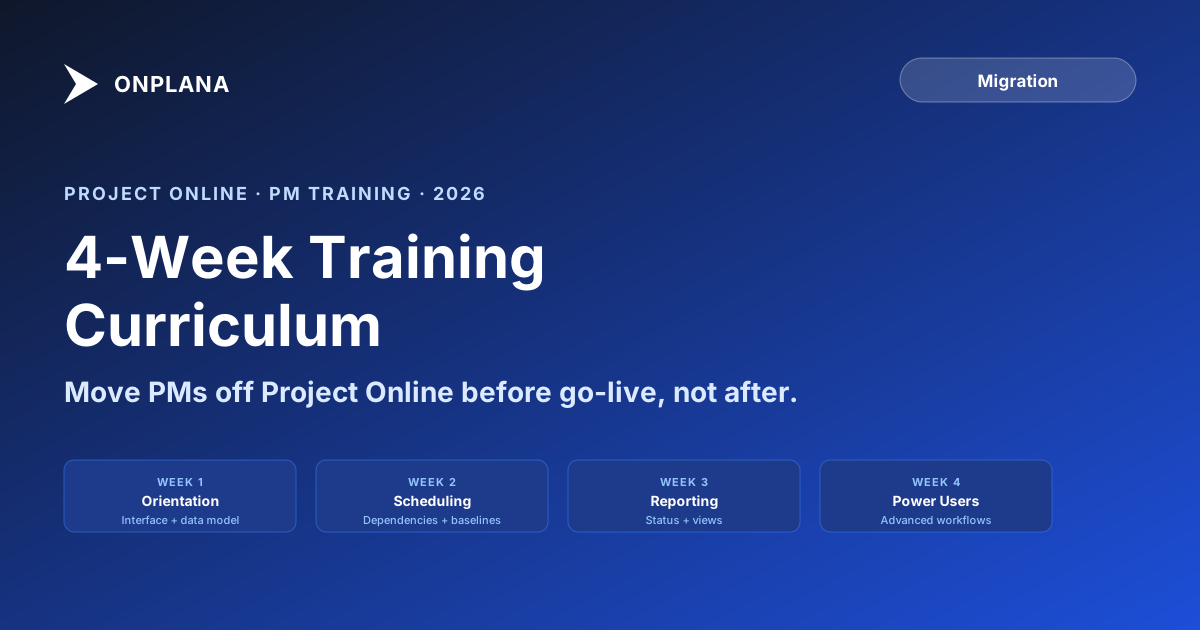
The diagram below illustrates the four-week curriculum structure. Each week builds on the previous, moving from orientation through to power-user workflows that require genuine proficiency.
The 4-Week Training Curriculum
The following curriculum assumes four to six hours of PM time per week: a mix of guided instruction (recorded walkthroughs or live sessions) and self-directed sandbox practice. The sandbox is a practice environment with one or two representative projects from the pilot phase, not live portfolio data.
Week 1: Orientation and Core Concepts
The goal of week one is orientation, not proficiency. PMs should be able to navigate the new tool without getting lost, understand how projects are organized, and see their migrated data in the new context.
Day 1 to 2 (asynchronous): Welcome and access setup. PMs access the sandbox environment and find their practice project (a copy of a real project migrated during the pilot). Guided walkthrough of the interface: where the project list lives, how to open a project, how to navigate between Gantt, task table, and resource views.
Day 3 to 4 (asynchronous): Understanding the data model. How tasks, resources, and dependencies are represented. A side-by-side comparison of one familiar project as it looked in Project Online and how it looks in the new tool. PMs should identify three things that look different and two things that look the same. This exercise surfaces individual confusion points before they become support tickets.
Day 5 (synchronous, optional): 30-minute Q&A session. Open forum for questions from week one orientation. Common questions: "Where is the Resource Sheet?", "How do I set the project calendar?", "Why does my critical path look different?"
Exit check for week one: a PM can open a project, find a specific task by name, and identify whether it is on the critical path. That is the entire bar.
Week 2: Scheduling Motion
Week two is the hardest week. PMs are learning to build and edit schedules in a new environment, which conflicts with habits built over years in Project Online.
Day 1 to 2: Task creation and linking. PMs create a 20-task practice schedule from scratch, adding all four dependency types (FS, SS, FF, SF) with lag values. The goal is not speed. It is accuracy. A PM who can correctly enter a Finish-to-Start dependency with a 3-day lag, and verify the critical path shifted as expected, has passed the core competency check for this section.
Day 3: Baseline setting and tracking. PMs set a baseline on their practice project, advance a few tasks, and compare the current schedule to the baseline in the Gantt view. They identify the variance on two tasks and explain why the variance exists. This exercise is essential for PMOs where baseline fidelity is a governance requirement.
Day 4: Duration and work editing. PMs edit task durations and resource assignments and observe how the schedule recalculates. The key lesson: understanding whether the tool uses fixed-duration, fixed-work, or fixed-units as its default, and how to change that for a specific task.
Day 5 (synchronous): 45-minute live session on dependency editing. Dependency editing benefits from live demonstration because the common mistakes (entering the wrong dependency type, setting negative lag by accident, creating a dependency cycle) are easier to diagnose in real time than through a recording. This is the one session worth running live even for a distributed team.
Exit check for week two: a PM creates a 20-task schedule with all four dependency types, sets a baseline, advances three tasks to introduce variance, and reads the critical path correctly. Timed: 45 minutes for all of the above.
Week 3: Reporting and Status Workflows
Week three shifts from scheduling mechanics to the reporting and communication workflows that constitute most PMs' weekly routine.
Day 1 to 2: Status reporting. PMs generate a status report from their practice project using the new tool's reporting features. They compare the output to what they would have written in a Project Online PWA status report. Identify two pieces of information that required manual work in Project Online and are now automated, and two that require different manual work in the new tool.
Day 3: Filters, views, and sorting. PMs set up two custom views they use regularly (for example, "show only tasks due this week" and "show all tasks assigned to a specific resource") and save them as named views. This is a practical session: every PM uses a different subset of views, and getting each PM to set up their own standard views means they arrive at cutover with their environment already configured.
Day 4: Progress updates. PMs enter percent complete on ten tasks, update a resource's actual work hours, and review the effect on forecast completion. The goal is the weekly update workflow: the sequence of actions a PM will do every Monday morning after cutover.
Day 5 (asynchronous): Review recording covering common reporting questions. Where to find schedule health indicators, how to export data for downstream reporting, and how to configure email notifications for task updates.
Exit check for week three: a PM completes a simulated Monday-morning update in under 20 minutes: percent complete on all open tasks, one status report generated, one custom view set. That 20-minute target is calibrated against what the same workflow takes in Project Online for a PM who knows the tool well.
Week 4: Power-User Workflows and Edge Cases
Week four is for PMs who will become internal trainers, administrators, or heavy users. It is optional for PMs whose weekly workflow was covered in weeks two and three.
Day 1 to 2: Bulk editing and template management. PMs practice bulk-assigning resources across multiple tasks, applying a project template, and adjusting the project calendar. These operations are less frequent but produce the highest support-ticket volume when PMs encounter them unprepared at cutover.
Day 3: Integration workflows. How the new tool connects to the rest of the stack: Power BI data refresh, Microsoft To Do sync (if applicable), and how to export data to Excel for offline use. PMs who relied on Project Online's OData feed for custom reports need to know what the equivalent data surface is in the new tool and how to point their reports at it.
Day 4: Troubleshooting and escalation. A structured session on the most common problems PMs will hit in week one post-cutover and how to self-diagnose. Common issues: dependencies that appear to have the wrong type after import, baselines that look collapsed, resource assignments that show over-allocation on a task the PM thought was resolved. For each issue: what it looks like, why it happens, and how to fix it without raising a support ticket.
Day 5 (synchronous): 60-minute power-user Q&A. Open-ended session where power users can bring edge cases from their practice projects. The goal is to surface the one-in-ten problems that a curriculum cannot anticipate.
Exit check for week four: a PM applies a project template to a new project, imports resource assignments from the Enterprise Resource Pool equivalent, and produces a portfolio-level view showing all active projects sorted by due date.
Delivering Training Asynchronously for Distributed Teams
Most PMOs replacing Project Online in 2026 have PMs in multiple locations or time zones. A training curriculum built around five live sessions a week is not viable. The following adjustments make the four-week curriculum work asynchronously:
Replace live sessions with recorded walkthroughs. Record the Week 2 dependency-editing session even if a live version is run for some PMs; recording it means PMs in other time zones get the same content. Use a tool with chapter markers so PMs can navigate to the specific technique they need to revisit.
Replace synchronous Q&A with an async help channel. A dedicated Slack channel or Teams thread monitored by the power-user cohort gives PMs a place to ask questions and get same-day answers without scheduling a meeting. The cohort members are faster than a formal help desk because they are in the same tool, doing the same work, and often know the answer immediately.
Track sandbox activity rather than attendance. You cannot track whether a PM watched a recording. You can track whether they completed the sandbox exercises. Build completion tracking into the exercises: a PM who has entered all four dependency types in the sandbox has done something verifiable.
Building the Power-User Cohort First
The most important structural decision in a Project Online training plan is the order of training. Most PMOs train everyone simultaneously in the two weeks before cutover. This produces a uniform knowledge level that is also uniformly low: PMs who trained once two weeks ago, on a sandbox, with a curriculum they did not retain, facing real projects on cutover Monday.
The alternative is a cohort-first approach. Identify five to ten PMs whose projects are in the pilot phase, starting roughly eight weeks before the main portfolio cutover. Those PMs get access to the new tool during the pilot phase and use it as their daily driver for four to six weeks before anyone else goes live. By the time the main portfolio migrates, those PMs have genuine proficiency and can answer questions from their peers in real time.
The cohort members become the migration team's force multiplier. A migration team of three people cannot field questions from fifty PMs on cutover week. A cohort of ten PMs who are already confident users can. For each cohort member to be an effective internal trainer, they need one additional piece of preparation: a session in week four covering how to explain the most confusing concepts to someone who has not used the tool yet. The techniques that made sense to them may not be the techniques that work for a PM who schedules differently.
If you are beginning the Project Online migration process and have not yet selected a destination tool, running the pilot with a cohort of five PMs before finalizing tool selection gives you training signal alongside migration signal: a tool that the power users struggle to learn in two weeks will be harder to roll out to the full portfolio.
Exit Criteria for the Training Phase
The training phase ends not when the calendar says it ends, but when PMs can demonstrate proficiency on four core tasks in a timed sandbox exercise:
- Create a 20-task schedule with all four dependency types and at least two lag values.
- Set a named baseline and identify the schedule variance on three specified tasks.
- View the critical path and name the tasks on it.
- Generate a status report in the new tool's reporting format.
A PM who completes all four in 45 minutes is ready. A PM who cannot complete them in 60 minutes needs additional time in the sandbox before the live portfolio cutover proceeds. The exit criteria exist to give the migration team an objective signal rather than a subjective judgment about whether the team "seems ready."
The training phase can overlap with the final validation phase. PMs validating their migrated projects are effectively doing structured practice on real data. That validation work counts toward the sandbox hours in the curriculum above. A PM who has spent two weeks validating their migrated project line by line has done more useful training than a PM who watched four hours of recorded walkthroughs.
Preview import fidelity before training starts The free Migration Preview round-trips your .mpp file through the import process and flags dependency-type support, baseline preservation, and custom field fidelity. Know what survives before you ask PMs to validate it. Open Migration Preview
Microsoft Project Online™ is a trademark of Microsoft Corporation. Onplana is not affiliated with Microsoft.
Ready to make the switch?
Start your free Onplana account and import your existing projects in minutes.