MS Project File Migration: 9 Compatibility Checks Nobody Runs
Most MS Project files don't migrate cleanly. The 9 compatibility issues that cause post-migration rework, and how to audit your .mpp file before cutover.
Here's a pattern we've seen enough times to name. An organization decides to migrate off Microsoft Project Online, which retired on September 30, 2026. They pick a destination tool, run a small pilot, and everything looks fine. Real migration starts. Three weeks in, a senior PM reports that the schedule they just migrated "doesn't look right." Investigation reveals half the resource assignments lost their calendar exceptions, three projects had Must-Finish-On constraints that silently converted to regular due dates (breaking the critical path), and a governance-reporting custom field that the steering committee relied on is missing. The destination tool did exactly what its documentation said it would, but the documentation described the 80%, not the specific 20% your files happened to sit in.
The rework takes six weeks. Nobody budgeted for it. The migration retrospective includes the line "we should have audited the source files more carefully up front."
This post is the audit. Nine specific compatibility checks to run against your .mpp files before you commit to a destination tool. Each check names what you're looking for, why it matters, and what to do if you find it. At the end there's a link to a free Migration Preview tool that runs all nine checks automatically, but the value is in understanding the checks themselves, because that's what lets you read any vendor's documentation and know whether they're giving you the full picture. (If you also want a structural integrity pass before the migration audit, dangling tasks, missing baselines, constraint abuse, the free schedule health check runs seven of those checks in 30 seconds.) You can run several of these checks on your own machine first: open the .mpp in Onplana Schedule, free for Windows and Mac, and choose Plan, Schedule quality for the DCMA 14-point assessment.
Context: this post is one piece of the canonical 2026 retirement timeline, the consolidated reference covering all three Microsoft Project ecosystem retirements in 2026.
Check 1: Hard constraints
MS Project supports eight constraint types. "As Soon As Possible" is the default and migrates trivially. The other seven (Start No Earlier Than, Finish No Earlier Than, Start No Later Than, Finish No Later Than, Must Start On, Must Finish On, As Late As Possible) vary in how they survive a migration.
The high-risk ones are Must Start On and Must Finish On, the two of the eight constraint types that actually override dependency logic rather than just leaning on it. These are hard constraints, MS Project treats them as non-negotiable pins that the schedule engine will violate other rules to honor. Most destination tools don't have a direct equivalent; they convert to a soft deadline (a date field) and silently lose the "must" semantics. The visible result is the same initially, but the first time the predecessor task slips, MS Project would flag a conflict and the destination tool quietly lets the date drift.
What to look for in the XML: <ConstraintType> elements with values other than 0 (ASAP) or 1 (ALAP). Specifically: 2, 3 (SNET, SNLT), 4, 5 (FNET, FNLT), 6, 7 (MSO, MFO).
What to do if you find them: Enumerate every hard constraint before migrating. Decide per-task whether the date really needs to be pinned (in which case the destination tool needs to preserve the constraint or you need to flag a manual re-creation in the migration plan) or whether a soft deadline is acceptable.
Check 2: Baselines, specifically Baseline 1 through 10
MS Project supports 11 baselines per project. Most teams only use Baseline (the primary). Mature PMOs use Baseline 1 through 10 to snapshot the schedule at major replanning events, rebaseline after an approved scope change, preserve the original for earned-value calculations, compare across milestones.
Migration tools almost universally preserve Baseline. They vary dramatically on Baseline 1-10.
What to look for in the XML: <Baseline> blocks with <Number> values 1-10. If you only have <Number>0</Number>, you're fine; if you have higher numbers, your destination tool's multi-baseline support is non-negotiable.
What to do if you find them: Get the destination vendor's multi-baseline behavior in writing. If they preserve only one baseline, you'll need to either manually re-create historical snapshots (tedious) or accept the loss of earned-value history (usually acceptable for small portfolios, problematic for regulated programs).
Check 3: Custom fields, specifically formulas
MS Project lets you define up to 30 custom fields per entity (Task, Resource, Assignment) across five types: Text, Number, Date, Duration, and Flag. Additionally, any custom field can be a Formula field, a computed value that re-evaluates based on other field values, using MS Project's own formula syntax (similar to Excel formulas but with project-specific functions).
Text / Number / Date / Flag custom fields migrate cleanly to most destination tools' custom-attribute systems. Formulas don't. The formula syntax is MS Project-specific. No destination tool executes MS Project formulas natively; they all require manual recreation in the destination's formula engine (if it has one) or elimination (if it doesn't).
What to look for in the XML: <ExtendedAttribute> definitions with <Formula> child elements. Search for <Formula> and count matches.
What to do if you find them: Enumerate each formula. For each one, decide: is this still needed post-migration? (Many PMOs accumulate formulas over years, and half of them are no longer referenced.) For the ones that are still needed, plan 15-45 minutes per formula to recreate in the destination's syntax.
Check 4: Resource calendars with exceptions
A resource calendar defines when a specific resource is available. By default, resources inherit the project calendar. But MS Project allows per-resource calendars with exceptions, holidays specific to that resource's location, vacation time, recurring part-time schedules, anything.
If your critical path math depends on a senior resource's specific leave dates, calendar fidelity is a migration blocker. Generic resource-level calendar migration is common; exception-level fidelity (specific day ranges marked unavailable) is not.
What to look for in the XML: <Calendar> blocks inside <Resources> with <Exceptions> child elements. Count resources with non-empty exceptions.
What to do if you find them: Document each exception. Post-migration, verify that each one was preserved. If not, re-enter manually: tedious but critical for schedules where the math already assumed that leave.
Check 5: Sub-projects and cross-project links
Enterprise MS Project deployments often use sub-projects: a master schedule that links to individual project files via <SubProject> references. Each linked project is a separate .mpp file. Cross-project links between tasks in different files are common.
Migration tools generally cannot handle sub-project links. Each linked .mpp needs to be migrated individually, and the cross-project dependencies need to be re-established in the destination tool's cross-project dependency feature (if it has one).
What to look for in the XML: <SubProject> blocks or task dependencies with predecessor IDs that don't exist in the current file's task list (indicating a cross-project reference).
What to do if you find them: Map the full network of linked files. Migrate them in dependency order (leaves first, root last). Re-create the cross-project dependencies manually post-migration. This is one of the most underestimated migration-scope items; budget conservatively.
Check 6: Assignment-level baseline and actual values
Most baselines exist at the task level. But MS Project also stores baseline Work, Start, and Finish at the assignment level: which resource was supposed to do what, and when. This granularity matters for earned-value calculations and for post-project analysis.
What to look for in the XML: <AssignmentBaseline> blocks inside <Assignment> elements.
What to do if you find them: Confirm destination support explicitly. Assignment-baseline migration is rarer than task-baseline migration.
Check 7: Cost rate tables and cost resources
MS Project supports up to five cost rate tables per resource (A, B, C, D, E) and a "cost resource" type, a resource whose only value is a flat cost per assignment, not an hourly rate. Both features are used less often than they should be but, when used, are central to accurate budget modeling.
Destination tools vary: most support a single rate per resource. Many support overtime rates. Few support the five-rate-table model. Cost resources are a MS-Project-specific concept; most destinations model this as a line-item cost field, which loses the per-assignment granularity.
What to look for in the XML: <Resource> elements with multiple <Rates> blocks (table A through E), or <Type>2</Type> indicating a cost-type resource.
What to do if you find them: If you use rate tables to model shift differentials or time-of-day pricing, confirm destination support or plan a simplification (blended rate). If you use cost resources, confirm modeling; usually these become project-level expense line items in the destination, which changes how budgets roll up.
Check 8: Task types, effort-driven, and manual scheduling
MS Project tasks have three types (Fixed Units, Fixed Duration, Fixed Work) that determine how the scheduling engine re-calculates when an input changes. Tasks are also flagged "effort-driven" (adding a resource reduces duration) or not, and can be manually scheduled (exempt from engine recalculation entirely) or auto-scheduled.
The combination produces behavior that varies across destinations. A Fixed-Duration, effort-driven, auto-scheduled task behaves very differently from a Fixed-Work, non-effort-driven, manually-scheduled task, but most destination tools have their own scheduling model that doesn't preserve the full 3x2x2 matrix. The effort-driven vs fixed-work deep dive explains what each combination actually does to the schedule math and which behaviors your PMs are silently relying on.
What to look for in the XML: <Type> (0=Fixed Units, 1=Fixed Duration, 2=Fixed Work), <EffortDriven> (0 or 1), <Manual> (0 or 1).
What to do if you find them: Run a sample of tasks from each combination through the destination tool's import and spot-check behavior. Mismatches are hard to predict in the abstract.
Check 9: Notes, hyperlinks, and embedded content
Tasks and resources can have notes, free-form rich-text fields that PMs use for status updates, context, decisions, anything. Notes in MS Project can contain formatting, hyperlinks, and embedded files (OLE objects). Hyperlinks also exist as a first-class field (<HyperlinkAddress>).
Plain-text notes migrate cleanly. Rich-text formatting usually survives. Embedded OLE objects almost never do; they're an MS-Project-specific binary embedding mechanism. Hyperlinks usually survive as text but may need re-activation in the destination.
What to look for in the XML: <Notes> elements with non-empty values; specifically scan for HTML/RTF tags inside them. <HyperlinkAddress> elements on tasks/resources.
What to do if you find them: Decide which notes matter. Most PMs have hundreds of per-task notes accumulated over a project's lifetime. Not all of them need to migrate. Prioritize notes on active-critical-path tasks and recent-status notes; archive the rest.
Running the audit
Manually, running all nine checks against a 500-task file takes 45-90 minutes for someone who knows the MSPDI XML schema. That's assuming you have the file, the XML export, and the patience to grep through it.
Our Migration Preview tool runs all nine checks in about 30 seconds. Upload the .mpp (or paste the MSPDI XML), and you get a compatibility score plus a list of the specific features in your file that fall into each risk category. No account. No email capture. No sales rep follow-up.
The value isn't the compatibility score; it's the specific list of what's in your file. That list is what you take into a destination-tool evaluation meeting, the thing that lets you ask concrete questions instead of generic ones. "Does your tool preserve Must-Finish-On constraints?" is a better question than "how good is your MS Project import?"
What to do with the audit results
Once you have the list, use it three ways:
To negotiate with destination vendors. Every vendor claims "full MS Project import." Ask about the specific features your file contains. If they have to get back to you, they don't really know. If the answer is "we handle that differently," understand the difference before signing.
To budget the migration. Features that don't migrate cleanly become line items in the migration labor estimate. Our Migration Cost Calculator takes a rough count of non-clean features and produces a 3-year cost projection, useful for CFO conversations.
To build the post-migration validation plan. For each feature in the audit, specify how you'll verify it survived migration. "All Must-Finish-On constraints preserved" becomes a test case. "All formula fields re-created" becomes a checklist item. Without a pre-migration audit, post-migration validation is "spot-check and hope," which is how organizations end up three weeks in with a senior PM saying "this doesn't look right."
Migration is mostly about avoiding preventable rework. A 30-minute audit prevents weeks of rework. That's the entire value proposition.
Microsoft Project Online™ is a trademark of Microsoft Corporation. Onplana is not affiliated with Microsoft.
Frequently asked questions
Why can't I just import my .mpp and see what happens?
You can, but you lose leverage. Once the data is in the new tool, fidelity loss becomes the new tool's problem to describe, and most vendors describe it optimistically. A pre-import compatibility audit surfaces issues while you still have the leverage to pick a different destination or negotiate scope. Post-import, your options are 'accept the loss' or 'redo the migration somewhere else,' and the second option is always more expensive than a careful evaluation.
Which features transfer cleanly across most tools?
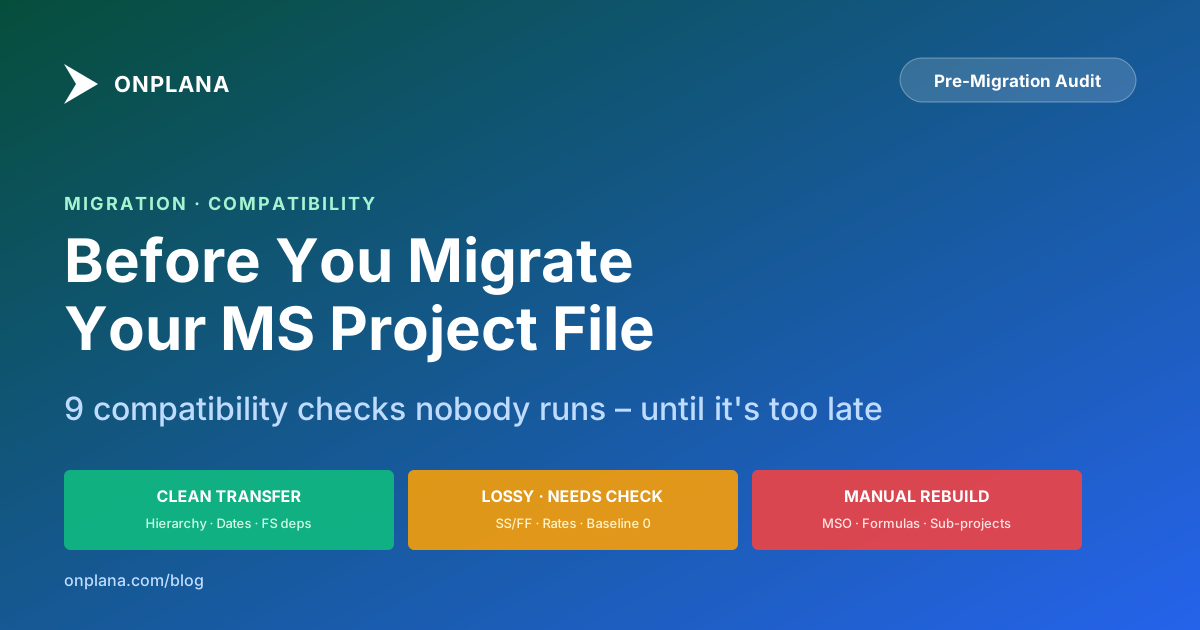
Task hierarchy (WBS), start and finish dates, durations, percent complete: Finish-to-Start dependencies with zero lag, basic resource names, and task notes. These are the MPXJ-compatible fields, meaning anything that can read the .mpp binary or MSPDI XML at a technical level can handle them. Where tools differ is in the fidelity they preserve beyond that set: custom fields, secondary baselines, constraint types, formulas, sub-project links, and the 50+ optional fields MS Project allows on each task.
What's the difference between .mpp and .xml for migration?
The .mpp binary is the proprietary MS Project file format, complete but opaque. MSPDI .xml is the XML schema Microsoft published for MS Project data exchange, readable, but a subset of what's in the .mpp. For migration, .xml is easier to parse (any tool can read it) but can lose data like resource photos, embedded OLE objects, and certain view definitions. .mpp preserves everything but requires a tool with MPXJ-level parsing (which most modern migration tools have). If your destination supports both, use .mpp; it's the truer source.
How do I audit a file without uploading it anywhere?
Open the file in MS Project, go to File → Save As → select 'Project XML Format (*.xml).' The XML is human-readable. Search for the feature you're worried about: <ExtendedAttribute> for custom fields, <Constraint> (or more precisely <ConstraintType> elements where the value isn't 0) for hard constraints, <Baseline> for baselines, <SubProject> for sub-project links. If the element appears in the XML, your destination tool needs to handle it. If you don't want to spelunk the XML manually, our Migration Preview does the same audit in ~30 seconds.
What happens to custom fields during migration?
It depends on the field type and the destination tool. Text: Number, Date, and Flag custom fields usually map to the destination's custom-attribute system, 1-to-1 migration, low risk. Formula fields (which compute a value from other field values at runtime) don't migrate directly; they require manual recreation in the destination's formula engine, which will have a different syntax. Lookup tables (predefined value lists) also need recreating. If your file has 20+ formula fields or complex lookup tables, plan for a full day of formula rework per project.
Can I migrate project baselines?
One baseline reliably; multiple baselines are destination-dependent. MS Project supports up to 11 baselines per project (Baseline, Baseline1 through Baseline10). Most migration tools preserve the primary Baseline. Baselines 1-10, which experienced PMOs use to track snapshots across major replanning events, often get dropped or require a manual re-baseline in the destination tool. If you have multi-baseline history that matters (e.g. for earned-value calculation), confirm baseline-migration behavior in writing before committing to a destination.
What about resource calendars and working-time exceptions?
This is where tools diverge most. MS Project lets each resource have their own calendar with exceptions (holidays, vacation, part-time hours). Some destination tools preserve the full calendar-per-resource model; others assume a single project calendar and lose the per-resource variance. If your schedule's critical path depends on a single senior resource's specific leave dates, calendar fidelity matters. Audit before you migrate.
Ready to make the switch?
Start your free Onplana account and import your existing projects in minutes.