Project Online Workflows: Rebuild, Migrate, or Retire
Project Online workflows can't migrate directly. Rebuild in Power Automate, rebuild in your destination tool, or retire: the three-path decision framework.
The governance processes that ran for years without incident stopped on April 2, 2026. Project proposals stopped routing for approval. Stage transitions stopped advancing automatically. Escalation notifications stopped sending. The Project Online workflows that enforced your delivery methodology were built on the SharePoint 2013 workflow engine, and that engine was retired on April 2, 2026.
For teams that ran on Project Online, the question is no longer how to restore those workflows. The engine they ran on is gone (workflow retirement was the first of three Microsoft retirements cascading through 2026; the second and third hit in July and September). The September 30, 2026 Project Online retirement then closed the tenant. The question is which workflows to rebuild, in which system, and which ones to let go entirely.
The post that covers what broke in April and why the engine stopped is separate reading. This post is about the forward-looking decision: for each Project Online workflow your PMO runs, pick a path.
TL;DR Project Online workflows cannot be migrated directly. The SharePoint Workflow Foundation they ran on is retired. For each workflow, choose one of three paths: rebuild in Power Automate (keep it in the Microsoft 365 ecosystem), rebuild in your destination PM tool's native automation engine (simpler long-term), or retire the workflow and replace with a documented manual process. Inventory all workflows first, then route each one through the decision framework below.
Why Project Online Workflows Can't Be Migrated Directly
PWA workflows are built on SharePoint Workflow Foundation, a workflow engine that lives in SharePoint rather than inside Project Online's data layer. When you export project data via OData or .mpp, workflows are not included. There is no export format for workflow definitions that carries them intact into another system.
This means workflow migration is always a rebuild from a specification, not a data transfer. You start with documentation of what the workflow does (the business logic, approval steps, routing rules, triggered actions) and recreate that logic in the target environment using the target environment's tools. The rebuild requires someone who understands both the original workflow's business purpose and the target system's automation model.
The rebuild scope is often underestimated. A Project Online tenant that has been running since 2016 typically carries 10 to 30 workflow definitions across demand management, stage-gate transitions, and notification chains. Not all of them are active. Not all of them need to move. The inventory step, which most migration plans skip, is what separates a focused two-week rebuild from a two-month sprawl.
Inventory: What PWA Workflows Does Your PMO Actually Use?
Before assigning any workflow to a path, document what exists. The inventory has two parts: what workflows are defined in the system, and which ones are actually executed in practice.
Finding defined workflows. In Project Online, governance workflows were defined in two places: as Enterprise Project Types (EPTs) which bundle a workflow with a project stage definition, and as SharePoint workflows attached to the PWA site. PWA Admin > Enterprise Data > Enterprise Project Types showed your EPTs and which workflow was assigned to each. With the tenant retired, work from what you exported or documented: EPT lists, workflow diagrams, assessment reports, and the process owners' own notes.
Identifying active workflows. A workflow definition existing did not mean it was being used. Use any execution reports you saved for the last six months the engine ran. Any workflow that has zero executions is a candidate for retirement. Any workflow with fewer than five executions deserves a conversation with the process owner before you commit rebuild effort to it.
For each active workflow, record: workflow name, business purpose, trigger condition, approval steps, routing logic, integration points (does it read from or write to any external system?), and the names of stakeholders who own the process it enforces. This documentation is what you hand to the developer who does the rebuild.
Option 1: Rebuild in Power Automate
Power Automate is the Microsoft-recommended replacement for SharePoint Workflow Foundation. It runs in the Microsoft 365 ecosystem, connects natively to SharePoint, Teams, Outlook, and Microsoft Project for the Web, and has a visual designer that PMO administrators can maintain without developer involvement for simple flows.
Rebuild in Power Automate when:
- The workflow connects to Microsoft 365 data sources (Teams channels, Outlook approvals, SharePoint lists, Planner tasks)
- The workflow requires integration with M365-specific services (e.g., sending an approval request via Teams Adaptive Cards)
- Your IT department has invested in Power Platform governance and has a framework for managing flows
- The approval participants primarily work in Teams or Outlook
The rebuild complexity scales with the workflow's logic. A single-step approval that routes a project proposal to one approver and sends a notification on completion takes one to three days in Power Automate. A multi-stage demand management workflow with conditional routing, parallel approval tracks, and automatic stage transitions based on scoring thresholds takes two to four weeks including stakeholder testing.
The limitation to watch: Power Automate flows live outside your destination PM tool. If your PMO moves to a new tool, your approval flows remain in Power Automate. That is fine as long as the connection between the two systems is reliable. If the destination tool has native approvals that meet your needs, rebuilding in Power Automate adds a dependency that may not be necessary.
Option 2: Rebuild in the Destination PM Tool
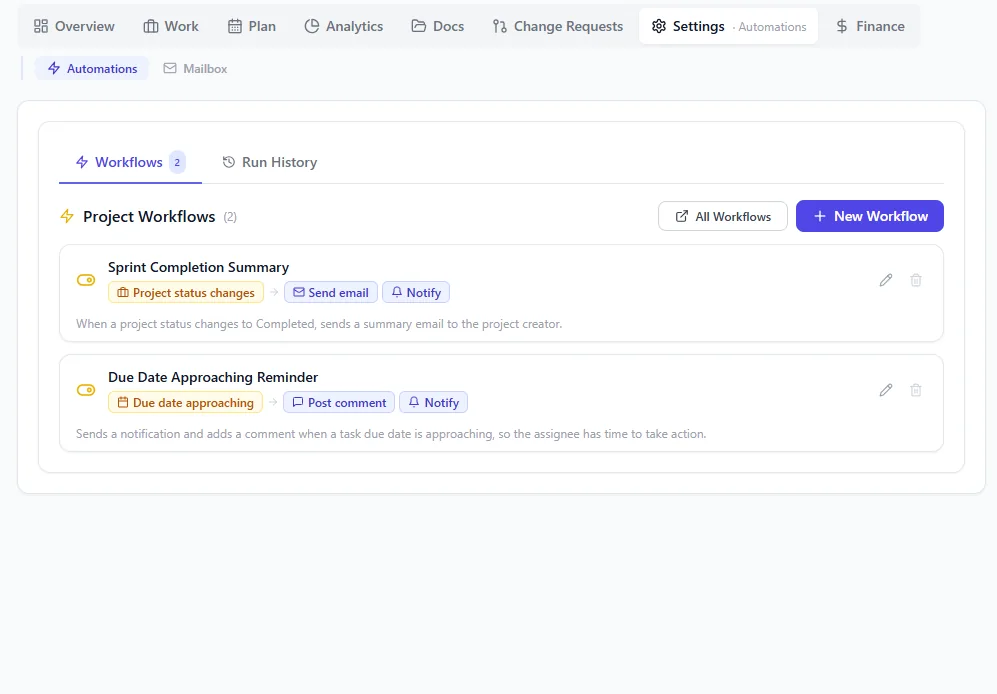
The destination automation engine: a no-code trigger-and-action builder for the rules a PWA workflow used to enforce. Approval routing, status automations, notification rules, each toggleable per rule.
Modern PM tools increasingly ship with native automation engines: rule-based triggers, approval workflows, status automations, and notification routing. If your destination tool supports the business logic your PWA workflow enforces, rebuilding there is often the cleaner long-term choice.
Rebuild in the destination tool when:
- The workflow enforces project-internal logic (move project to next stage when all gate criteria are met)
- The workflow routes approvals within the project management context rather than to external approvers
- Your destination tool's automation engine handles the required routing complexity
- You want to simplify the technology footprint by keeping workflow logic inside one system
The primary advantage is maintenance: one system to update when the process changes, one place to debug when something breaks, and no dependency on a separate Power Automate license tier. The primary risk is capability gaps: not every destination tool's automation engine can replicate every Project Online workflow pattern. Evaluate your most complex workflows against the destination tool's feature set before committing to this path.
Option 3: Retire the Workflow
The retirement path is underused. PMOs default to "we need to rebuild this" for every workflow without asking whether the workflow still reflects an active business process.
Retire a workflow when:
- The workflow had fewer than five executions in its last six months of running
- The process it enforced was driven by a project or organizational structure that no longer exists
- The approval step it manages is now handled informally (email or Teams) and formalizing it again creates more friction than value
- The workflow was added to solve a specific problem in 2018 that was resolved organizationally years ago
Retiring a workflow means the process it enforced either goes away or reverts to a manual equivalent: a checklist, an email template, a Teams channel post. This is not a failure. Governance processes should be periodically reviewed for relevance, and a major migration is the natural moment to do that review.
When you retire a workflow, document the decision explicitly. Record the workflow name, what it did, why it was retired, and who approved the retirement. If someone asks for it back in three months, you have the answer ready.
The Decision Framework: Matching Each Workflow to Its Path
The diagram below shows the decision logic for routing each workflow to the right path.
The key judgment call is at the second decision point: whether the destination PM tool's automation engine can handle the logic. If it can, rebuilding there avoids adding a Power Automate dependency. If it cannot, Power Automate is the correct path. For genuinely complex demand management workflows with multi-stage conditional routing, Power Automate has the depth that most PM tool automation engines do not yet match.
Sequencing the Workflow Rebuild in Your Migration Timeline
Workflow rebuild effort needs to be a named line item in your migration schedule. Three mistakes are common.
Starting too late. Workflow rebuilds that start after data migration is complete add six to eight weeks to the tail of the migration project. Resource managers discover they cannot run their intake process on the new tool. The PMO runs in parallel mode longer than planned. Start workflow inventory and design in week two or three of the migration, not at the end.
Underestimating testing time. A workflow can look correct in configuration and fail in production when real approvers, with real notification settings, in real time zones, follow an atypical path. Build two to three weeks of stakeholder testing into every complex workflow rebuild. Simple notification workflows need one week. Multi-stage demand management workflows need three to four.
Forgetting edge cases. The approval path for a standard project proposal is well-documented. The approval path for a project that gets rejected at stage two and resubmitted six months later is usually not. Map the rejection and exception paths explicitly before starting the rebuild. They represent 20 percent of executions but 80 percent of the production support tickets.
Use the Migration Preview to map your current workflow architecture against what is supported in the destination tool, so the capability gaps are visible before you build the rebuild schedule, not after.
Keep the workflow rebuild milestones in your overall Project Online migration checklist so the work stays on the critical path. Workflow rebuilds that slip past their deadline delay go-live for every team that depends on the governance process.
Your Onplana features page describes the native automation capabilities available in the destination tool for stage-gate management and approval routing.
Preview your workflow migration readiness The free Migration Preview analyzes your Project Online setup and shows which workflows your destination tool supports natively and which ones need Power Automate. No signup required. Open Migration Preview
Microsoft Project Online™ is a trademark of Microsoft Corporation. Onplana is not affiliated with Microsoft.
Frequently asked questions
Can Project Online workflows be migrated directly to a new tool?
No. PWA workflows built on SharePoint Workflow Foundation cannot be exported or imported as a unit. Each workflow must be evaluated and either rebuilt in Power Automate, rebuilt in the destination PM tool's automation engine, or retired entirely.
What are the three options for handling Project Online workflows during migration?
Rebuild in Power Automate (keeps Microsoft 365 ecosystem alignment), rebuild in the destination PM tool's native automation (simplifies long-term maintenance), or retire the workflow if the process it enforced is no longer active or needed.
How long does it take to rebuild a Project Online approval workflow in Power Automate?
A single-step approval takes one to three days. A multi-stage demand management workflow with conditional routing typically takes two to four weeks including stakeholder testing and integration validation.
Which Project Online workflows should I inventory before migration?
Focus on three categories: demand management (project intake and approval), stage-gate transitions (which define your delivery methodology), and notification workflows (status reminders, escalation alerts). These are the workflows PMOs break most often by migrating without a plan.
What if I retire a workflow instead of rebuilding it?
Retiring a workflow means the process it enforced reverts to a manual, email-based equivalent. This is acceptable for low-volume workflows or ones never consistently used. Document the decision and communicate the manual process to affected stakeholders before cutover.
Is Power Automate the only alternative to rebuilding in the destination tool?
No. Modern PM tools increasingly have built-in automation engines that can handle approval flows, status triggers, and notification routing. If your destination tool supports the logic natively, rebuilding there avoids a separate Power Automate dependency and simplifies maintenance.
Did SharePoint 2013 workflows already stop working in Project Online?
Yes. Microsoft retired the SharePoint 2013 workflow engine on April 2, 2026. Any Project Online governance workflows built on that engine stopped executing on that date. Project Online itself retired on September 30, 2026, so the remaining question is what to replace them with in your destination tool.
Ready to make the switch?
Start your free Onplana account and import your existing projects in minutes.