Project Online Permissions: Mapping PWA Categories to RBAC
Project Online permissions don't map 1:1 to modern RBAC. Translate PWA security categories to role-based access control without breaking your PMO's governance.
Here is the pattern that shows up two weeks after cutover. A PM opens a project in the new tool. She is listed as the project manager. She tries to add a task. Access denied. Project Online permissions did not map directly to the new tool's role model, and the migration team used a default bulk mapping instead of auditing the actual access patterns.
She escalates to the PMO coordinator, who escalates to IT. IT looks at the permission model and finds that the destination tool's default "Member" role was assigned to every user who was listed as a "Team Member" in PWA. Nobody realized that "Team Member" in Project Online includes both contributors who can edit tasks and status reporters who should only view them. Half the project managers got the wrong role.
Undoing this takes longer than getting it right the first time. Bulk role reassignments in a live system touch notifications, audit logs, and open task assignments. The PMO director explains to the executive team that the migration hit a snag. The explanation is accurate. The snag was avoidable.
With Project Online retiring on September 30, 2026 as the headline event in Microsoft's broader 2026 retirement calendar, PMOs that skip the permissions audit are compressing an already tight timeline with remediation work that belongs in the planning phase.
TL;DR Project Online permissions use a category-based model that is fundamentally different from the role-based access control used by modern PM tools. Before migrating, inventory every PWA security category, document which users belong to each, and map each category to its closest modern role equivalent. The translation is not 1:1. Validate permissions with a test account for each role type before any PM logs in to the production system.
How Project Online Permissions Work: The Category Model
Project Online's permission system is built around security categories, not simple roles. A category groups users by their relationship to a project or the PMO and attaches a set of allowed actions to that group.
The default categories in a standard PWA installation include Project Managers, Team Members, Resource Managers, Portfolio Managers, Team Leads, Executives, and Administrators. Each category comes with a security template that defines which actions members can take: create projects, edit tasks, view all resources, approve timesheets, run reports.
What makes PWA categories different from modern RBAC is that category membership can be dynamic. A user can automatically inherit Project Manager permissions on any project where they are listed as the project's manager, Team Member permissions on projects where they have task assignments, and read-only Portfolio Manager access based on their department assignment. The same user simultaneously holds three different permission levels depending on which project is in scope.
Modern PM tools assign one role per user, or one role per project in project-scoped models. They do not have dynamic relationship-to-project permission inheritance. That gap is where migrations go wrong.
Why PWA Categories Don't Map to Modern Roles
The translation problem has three specific failure modes.
The relationship-permission collapse. In PWA, being a Project Manager on project A gives you full edit access. Being a Team Member on project B gives you task-update access. Being listed as a resource on project C gives you timesheet-only access. In the destination tool, all three can collapse into the same role unless you map them intentionally. A bulk mapping of "every PWA user becomes a Member" produces project managers who cannot create tasks and resource managers who cannot see utilization data.
The scope mismatch. PWA has system-level permissions (can this user see the Project Center at all?) and project-level permissions (can this user edit tasks in this specific project?). Modern tools divide the same concerns differently: org-level roles control product access, project-level roles control what you can do inside a project. PWA's scoping does not map cleanly onto either layer without explicit translation decisions.
The custom category problem. Most mature Project Online tenants add custom categories beyond the defaults: department-specific categories, vendor access categories, external stakeholder categories with unusual permission combinations. These rarely map to a standard destination role without individual review. Bulk mapping fails here consistently.
Translating PWA Categories to Modern Roles
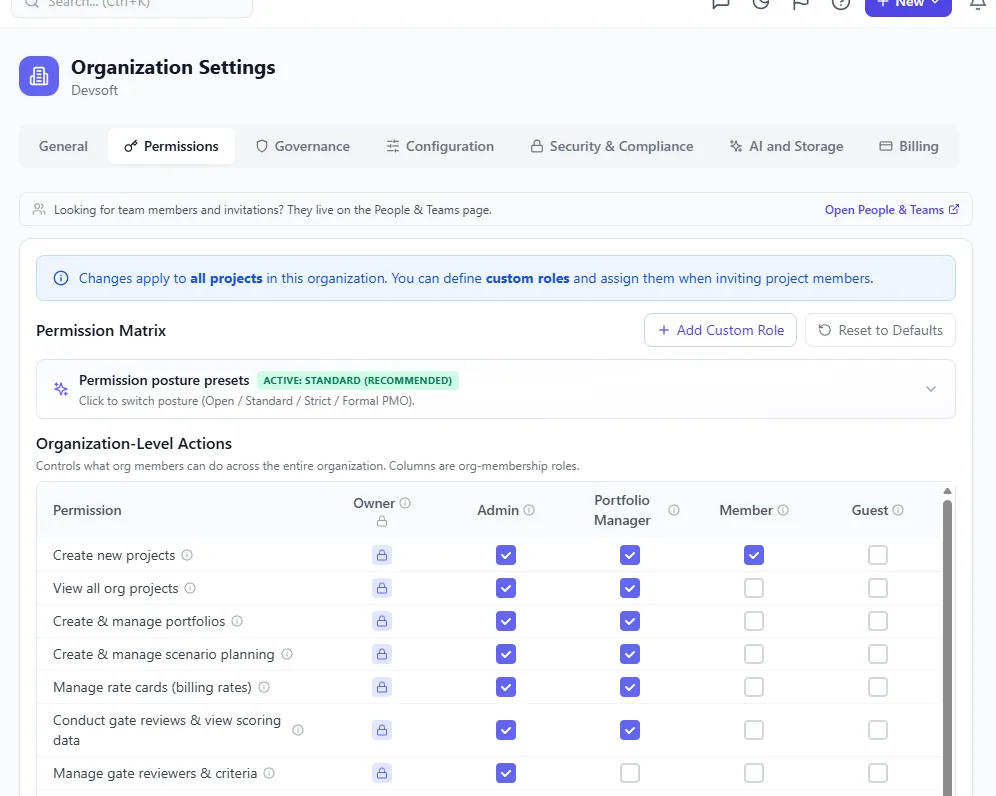
The permission posture matrix: every role versus every capability, with the actual grant state shown per cell. The matrix is what an auditor reads in 30 seconds; the PWA category model needed a 30-minute walkthrough to show the same thing.
The diagram below shows the common translation path from the five most common PWA category types to the three or four roles that modern PM tools typically support.
Note the Portfolio Manager and Resource Manager both mapping to Portfolio Viewer in many tools. This is the most common surprise in the translation: two distinct categories with different intent collapse into one role because modern tools do not have a separate resource-management access level. If your Resource Managers need to edit the resource pool, not just view it, your destination tool needs a cross-project resource role. Verify this before migration, not after.
Worked Examples for Typical PMO Setups
Enterprise PMO with 100-plus active projects across multiple departments. The standard mapping: Project Managers become Project Admins on their own projects. Team Members who edit tasks become Project Members. Resource Managers become org-level Resource Managers if the destination tool supports that role, or Portfolio Viewers if it does not. Department executives get Portfolio Viewer access scoped to their department. External vendors who used PWA for status reporting get Read-only project access.
Program management office with portfolio prioritization. These PMOs typically have a Portfolio Manager category with custom permissions: ability to see all projects, run scenario models, override priority scores. In modern tools, this often requires an org-level Admin role or a custom Portfolio Manager role that may need to be created. Flag this for individual configuration review; it rarely maps to a default role without adjustment.
IT operations PMO with compliance or audit requirements. IT PMOs often carry a category for auditors or compliance officers who need read-only access to all projects without being listed as project members. Most modern tools handle this with an Org Viewer or Report Viewer role. Verify that the destination tool's audit-log access matches the PMO's compliance requirements before go-live. This is where the security and compliance documentation for your destination platform becomes load-bearing.
The Security Implications of Getting Permissions Wrong
Misconfigured permissions after migration create two distinct failure modes.
Under-permission: PMs cannot perform actions they need. They escalate, IT makes bulk changes, audit logs fill with unexplained modifications, and the PMO loses confidence in the tool. This is the most common and most visible failure mode.
Over-permission: Users gain access they should not have. A status reporter who should only see their own task list can now see every project in the portfolio. A vendor with scoped PWA access now has org-wide read access in the new tool. This failure mode is less visible and more dangerous, because it may not surface until a security review or a data-handling audit catches it.
Both failure modes are preventable with a pre-cutover permission validation session. Before go-live, log in to the destination tool as test accounts representing each role level and verify that each account sees exactly what it should see. Fifteen minutes of user-impersonation testing before cutover typically prevents weeks of post-cutover remediation.
How to Validate Permissions Before Cutover
The validation process follows a consistent structure regardless of the destination tool.
- Create a test account for each distinct role type in your mapped permission model.
- For each test account, confirm the user can access what they should: open their assigned projects, view dashboards they are entitled to, edit tasks in the correct scope.
- For each test account, confirm the user cannot access what they should not: projects outside their scope, org-wide reports if they are project-level only, admin settings if they are contributors.
- Test the edge cases: a PM who is also a team member on a project managed by a colleague, an executive who is also a project sponsor on one specific project.
- Document the validation results and get sign-off from the PMO lead before announcing go-live.
Include permission validation as a named go/no-go gate in your Project Online migration checklist. Teams that treat it as optional often skip it under schedule pressure and pay the cost post-cutover.
The Admin Proliferation Problem
One permissions pattern causes problems in almost every migration: too many system administrators.
In a mature PWA installation, the admin list grows over years. Someone needs to create a new view. Someone needs to update a lookup table. Someone needs to reset a resource calendar. Each request ends with a temporary admin grant that is never revoked. By migration time, a tenant that should have two or three administrators often has fifteen or twenty.
Before migrating permissions to the new tool, open PWA Admin > Security > Manage Users, filter by the Administrators group, and enforce a principle of least privilege before replicating the list. Do not carry administrative bloat from Project Online into the new platform. This is one of the most valuable security hygiene actions the migration enables, and it is often skipped because it involves conversations about who "needs" admin access.
The Migration Preview helps model your permission structure before you commit to a mapping, surfacing common gaps between PWA categories and the destination tool's role model before they become post-cutover support tickets.
Preview your migration permission structure The free Migration Preview walks through your Project Online setup and shows how your permission model translates to the destination tool before you move a single project. No signup required. Open Migration Preview
Microsoft Project Online™ is a trademark of Microsoft Corporation. Onplana is not affiliated with Microsoft.
Ready to make the switch?
Start your free Onplana account and import your existing projects in minutes.