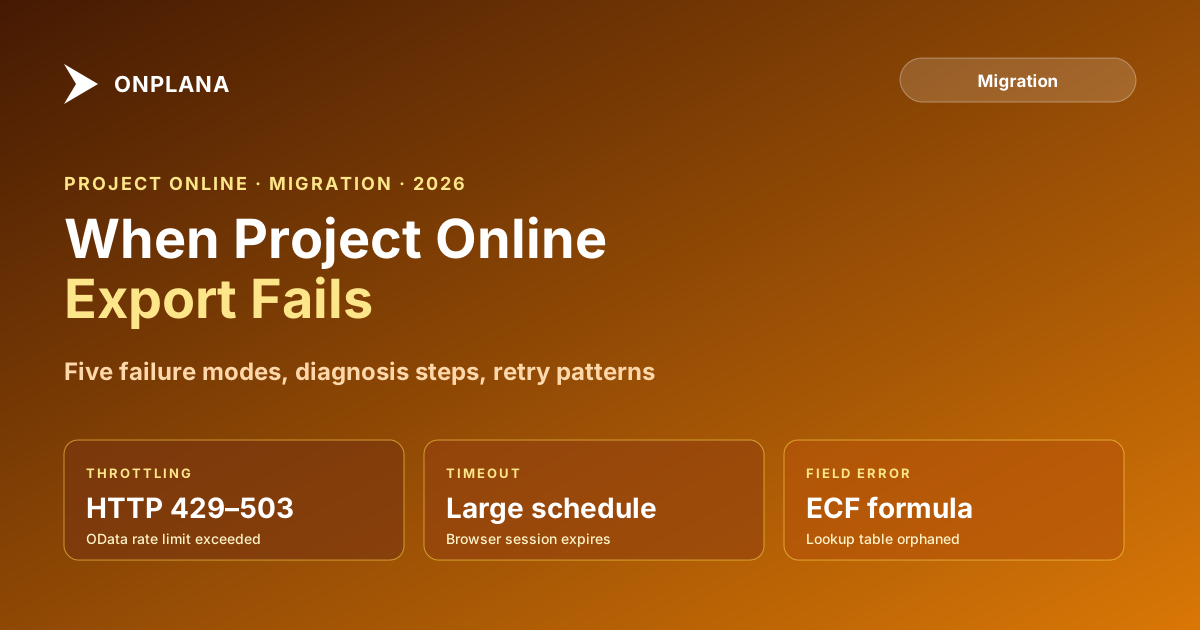
When Project Online Export Fails: A Troubleshooting Guide
Project Online export fails stop migrations cold. Five failure modes from OData throttling to custom field errors, with diagnosis steps and retry patterns.
Here is the test teams ran before the retirement. Start a batch export of your Project Online schedules and come back in an hour. Count how many completed without an error, a timeout, or an empty file. Most teams running this for the first time found between five and twelve failures in the first batch, with no explanation of what went wrong.
Project Online export failed differently from most software errors. There was rarely a clear message. There was often a partial file, a silent timeout, or a non-zero exit code with nothing in the log to interpret. That ambiguity turned a straightforward migration task into a multi-day debugging session at the worst possible moment: the months before the September 30, 2026 retirement. The same failure modes now tell you which of the files you exported to check before you import.
TL;DR. Project Online export fails are caused by five things: OData throttling, large schedule size, custom field errors, authentication scope problems, and connectivity interruptions during batch runs. Each has a specific HTTP signature and a specific fix. The sections below work through all five in the order they are most commonly encountered, with a batch retry pattern at the end that handles each one.
Why Project Online export fails when you least expect it
Microsoft confirmed September 30, 2026 as the Project Online retirement date. Project Online retired on that date. Anything that read it live stopped with it; anything already exported or imported did not. Export failures caught during a test run in spring left time to fix them. Failures caught in late August did not.
The core complexity is that Project Online export is not a single operation. Depending on your path, you invoke different platform layers with different reliability profiles:
- PWA File menu export: browser-initiated, session-dependent, subject to client-side timeout
- OData API export: programmatic, subject to SharePoint throttling, depends on the project publish queue
- MSPDI XML export: more robust for large schedules, but still requires correct authentication scope
The diagram below shows the risk level of each failure mode across the three export paths.
Start your diagnosis by identifying which export path produced the failure, then read the HTTP status code. Each status maps directly to one of the five failure modes below.
Failure mode 1: OData throttling (HTTP 429 and 503)
OData throttling is the most common cause of Project Online export fails in any automated or batch export. When your script sends requests faster than SharePoint Online allows, it receives HTTP 429 (Too Many Requests) or 503 (Server Too Busy). A correctly written script reads the Retry-After response header, waits the specified number of seconds, and retries. A poorly written script either ignores the header and keeps firing, extending the throttle window, or crashes with an unhandled exception and leaves nothing useful in the log.
Microsoft documents SharePoint Online throttling behavior and retry guidance for developers building against these APIs. The per-tenant resource unit cap runs in 5-minute windows. For a tenant under 1,000 licenses, the cap is 18,750 resource units per window. A batch export that hits this cap mid-run receives 429 responses until the window resets. Ignoring the Retry-After header and hammering the endpoint during that window burns more quota and extends the throttle.
How to diagnose: Add explicit HTTP response logging to your export script. Log the status code and the Retry-After value for every API call. Seeing 429 responses with Retry-After values between 30 and 120 seconds confirms throttling.
How to fix:
- Implement exponential backoff: on a 429 or 503, wait the
Retry-Aftervalue (minimum 30 seconds), then double the wait on each consecutive failure until success or five attempts. - Schedule batch exports during off-peak hours: nights and weekends in your tenant's regional time zone have significantly lower resource unit consumption.
- Reduce concurrency: run exports sequentially, one project at a time, rather than in parallel.
- For tenants above 1,000 licenses, higher caps apply automatically, but the same retry logic still protects against intra-window spikes.
Failure mode 2: Large schedule timeouts
The PWA File menu export is a browser-initiated, session-dependent operation. Schedules with more than 1,500 tasks, dense resource loading, or many baseline sets regularly time out before the download completes. The browser either shows a generic error or delivers a partially-written .mpp file that fails to open.
The root cause: large schedule generation is CPU-bound server work that runs synchronously inside the browser session. If the session times out before the file is ready, the operation fails without a clear error code. You see a blank page or a downloaded file with zero bytes.
How to diagnose: Export a small, known-clean schedule (under 200 tasks) from the same tenant. If it succeeds while the large schedule fails, the failure is size-related, not a platform or permission issue.
How to fix:
- Switch to the OData or MSPDI XML export path for large schedules. Both paths are asynchronous and independent of browser session state. The Project Online OData export guide covers the authentication and query patterns in detail.
- Break large schedules into logical sub-projects before exporting: export two 1,000-task sub-projects separately, then merge in the destination tool after import.
- Export during low-load periods, early morning or weekends, to give the PWA application tier more processing headroom.
Failure mode 3: Custom field errors (HTTP 500)
Enterprise Custom Fields (ECFs) with formula errors, circular references, or orphaned lookup table values can prevent a schedule from exporting entirely. The failure typically appears as HTTP 500 during an OData export or as a corrupt, incomplete file from the PWA menu path.
When Project Online serializes a project for export, it resolves all ECF formulas and lookup references as part of building the output. An ECF that references a lookup value that no longer exists, or a calculated field whose formula references a deleted field, causes the serialization to fail at the server layer. The error surfaces as a generic HTTP 500, not as a specific ECF validation message, making it difficult to trace back to the cause without a systematic audit.
This failure mode is one of the most common findings in pre-migration inventories. Running the Project Online Inventory Checklist before batch exports surfaces ECF problems at the source rather than during a migration weekend.
How to diagnose: Identify which project fails consistently across multiple export attempts while others in the same tenant succeed. Open it in Project Online, navigate to Server Settings, and review each ECF attached to the project: check that its lookup table reference is still intact and that any formula is syntactically valid.
How to fix:
- Audit all ECFs before the batch export run: list every field, its formula if computed, and its lookup table reference. Flag any with missing or modified lookup tables.
- For projects with ECF errors, resolve the formula or clear the orphaned lookup reference before exporting. In many cases the field can be set to an empty value if the data is not needed in the migration.
- If you need the raw ECF value despite the broken formula, extract it via OData first: query
/_api/ProjectData/Projectsand pull the current value before clearing the field.
Failure mode 4: Authentication and permission failures (HTTP 403 and 401)
Batch export scripts fail with HTTP 403 (Forbidden) when the service account lacks read access to a specific project. They fail with HTTP 401 (Unauthorized) when the OAuth token has expired mid-run or when the app registration lacks the required SharePoint API permissions.
A common pattern in tenants that have run for several years: a project created with unique permissions (a PWA administrator applied project-level permission overrides in response to a one-off request) returns 403 even for site collection admins. These permission overrides accumulate silently and nobody documents them. The export script runs fine for 200 projects and then stalls on project 201.
How to diagnose: Test the export against a known accessible project. If that succeeds while specific projects return 403, the problem is project-level permission overrides rather than the service account configuration itself.
How to fix:
- For OAuth token expiry: implement token refresh logic. Request a new token when the current one is within 5 minutes of expiry. Do not attempt to reuse expired tokens.
- For project-level permission overrides: a SharePoint site collection admin can restore default permission inheritance on the affected project site. Do this during pre-migration cleanup, not during the export run itself.
- For broad read access without project-by-project remediation: ensure the export service account has Site Collection Administrator access on the PWA site collection. This access level bypasses project-level permission overrides for read operations.
Failure mode 5: Connectivity interruptions in long batch runs
Multi-hour batch exports running on local infrastructure are vulnerable to network interruptions, VPN session timeouts, and infrastructure maintenance windows that terminate the process mid-run. The result: a partially exported portfolio where some projects have clean output files, others have empty files, and the progress log may not accurately reflect which completed.
This failure mode is most common when the export script runs on a workstation or on-premises server. Cloud-hosted scripts running in Azure Functions or Azure VMs co-located with the Project Online tenant are far less vulnerable because the network path to the OData endpoint is minimal and session continuity is higher.
How to diagnose: Compare the list of project GUIDs the script expected to export against the actual output files. Any GUID present in the expected list but absent from the output, or with a zero-byte output file, is a gap that requires re-export.
How to fix:
- Build idempotency into the script: before exporting a project, check whether an output file for that GUID already exists with a non-zero file size. Skip if it does.
- Run export scripts on cloud infrastructure in the same Azure region as the Project Online tenant to reduce network interruption risk.
- Write a checkpoint entry after each successful export so the script can resume from the last completed project on interruption, rather than re-exporting from the beginning.
A batch retry pattern that handles all five failure modes
The pseudocode below addresses throttling, transient server errors, and connectivity interruptions in a single loop. Adapt it to whichever language your export uses.
for each project_guid in project_list:
  if file_already_exported(project_guid):
    continue   # idempotent skip

  attempt = 0
  backoff_seconds = 30

  while attempt < 5:
    response = export_project(project_guid)

    if response.status == 200:
      save_file(project_guid, response.body)
      log_success(project_guid)
      break

    if response.status in [429, 503]:
      wait = max(backoff_seconds, response.headers.retry_after)
      sleep(wait)
      backoff_seconds = backoff_seconds * 2
      attempt += 1
      continue

    if response.status in [401, 403]:
      log_permission_error(project_guid)
      break   # retries cannot fix permission problems

    if response.status >= 500:
      sleep(backoff_seconds)
      backoff_seconds = min(backoff_seconds * 2, 300)
      attempt += 1
      continue

    log_unexpected_error(project_guid, response.status)
    break

  if attempt >= 5:
    log_exhausted_retries(project_guid)
Key behaviors: idempotency prevents duplicate exports on restart, exponential backoff respects throttle windows, permission failures break immediately since retries cannot fix them, and server errors get capped backoff to prevent multi-hour stalls on a single project.
Check what you exported before you import
Project Online retired on September 30, 2026, so the files you exported are what you have. Files you exported still import, with dependencies, custom fields and costs, and a .mpp or Project XML file imported into a new project brings its baseline as a baseline in Onplana. Project Online Data: Import What You Exported covers bringing them in.
Use the Project Online Inventory Checklist to list the projects that had ECF issues, permission anomalies, or task counts above 1,500. Those are the exports most likely to be partial. Catching them before the import is far less disruptive than finding them at 2 AM on a migration weekend.
After exporting, validate each file before committing to the import. The free Migration Preview uploads your .mpp files and reports on dependency fidelity, custom field carryover, and the baselines each file holds before you import into a new tool. A broken export discovered in the preview is fixable. A broken export discovered in the destination tool after cutover is not.
Run the free Migration Preview Upload your exported .mpp files and get a dependency-fidelity and baseline report in 30 seconds. No signup required. → Open Migration Preview
Microsoft Project Online™ is a trademark of Microsoft Corporation. Onplana is not affiliated with Microsoft.
Frequently asked questions
Why does my Project Online export fail with no error message?
Most silent failures are OData throttling: the request exceeds the rate limit and SharePoint returns HTTP 429, but a poorly-written script logs nothing useful. Add explicit HTTP status logging to see what the server is actually returning.
What is the maximum file size for a Project Online mpp export?
Microsoft does not publish a hard cap, but schedules with more than 1,500 tasks regularly time out during the PWA File menu export. Switch to the OData or MSPDI XML export path for large schedules.
Can a custom field cause a Project Online export to fail?
Yes. Custom fields with formula errors or orphaned lookup table references cause server-side serialization to fail, producing a 500 error or a corrupt output file. Audit Enterprise Custom Fields before running batch exports.
Why does my batch export script time out halfway through?
Scripts without exponential backoff fire repeated requests during the same throttling window, burning through quota and extending the throttle. Implement exponential backoff with a 30-second minimum wait on each 429 response.
What should I check first when a Project Online export fails?
Check the HTTP status code: 429 means throttling, 403 means a permissions problem, 404 means the project is not published, and 500 or 503 is a transient server error. The status code determines which fix to apply.
How do I export large Project Online schedules without timing out?
Switch from the PWA File menu to the OData or MSPDI XML path for schedules over 1,500 tasks. Both paths are asynchronous and do not depend on browser session persistence.
What happens to Project Online exports after September 30, 2026?
Project Online retired on September 30, 2026. Anything that read it live stopped with it; anything already exported or imported did not. Files you exported still import, with dependencies, custom fields and costs, and a .mpp or Project XML file imported into a new project brings its baseline as a baseline in Onplana.
Ready to make the switch?
Start your free Onplana account and import your existing projects in minutes.