Resource Leveling After Project Online: Tools and Approaches
Project Online's resource leveling tool retired with the service on September 30, 2026. What modern PM tools offer instead, when AI-assisted leveling works, and when to level manually.
Ask your PMs how often they actually use Project Online's resource leveling button. The honest answer from most PMOs: almost never.
The leveling engine has been there since the first versions of Microsoft Project. It runs automatically when you tell it to or on every project open (if someone turned that setting on years ago and nobody turned it off). It produces a schedule where, theoretically, no resource exceeds 100% utilization in any given time period. And yet most PMs ignore the output, manually adjust a few assignments, and move on.
This matters because when teams migrate off Project Online, they often list "auto-leveling" as a capability they need to replicate. Spend five minutes with them and you usually discover they weren't using it, or they were using it and then undoing most of what it did, or they were using it at the wrong granularity (daily instead of weekly) and producing a schedule nobody trusted.
The migration question isn't "does my new tool have auto-leveling?" It's "what's the leveling workflow that will actually get used?"
TL;DR: Project Online's resource leveling engine works but has significant limitations: it levels within a single project and doesn't account for cross-project overallocation. Modern PM tools offer three replacement patterns: automatic leveling (better cross-project handling, still requires tuning), AI-assisted workload recommendations (newer but increasingly useful for redistribution), and structured manual leveling using a resource heatmap as the starting point. For most PMOs, the third approach produces the best results because it preserves human judgment about which delays are acceptable.
What Project Online's Resource Leveling Actually Does
Project Online retired September 30, 2026, confirmed in Microsoft's official Project service description. That retirement took the leveling engine with it. The leveling algorithm in Project Online and the Project Desktop client works by applying a set of priority rules to decide which tasks should delay when resources are overallocated. The default rules, in order: project priority (higher-priority projects keep their dates), task priority within a project, task IDs (earlier tasks go first), and start dates (earlier-starting tasks go first).
When a leveling pass runs, the algorithm finds overallocations, selects which task to delay based on those rules, shifts the task to after the overallocation clears, and recalculates downstream dates. The result is a schedule where no resource exceeds their MaxUnits value in any given day (or week, depending on granularity).
What this does not handle:
Cross-project overallocation. Each .mpp file's leveling pass only knows about the assignments in that file. If Sarah is assigned to 60% in Project A and 70% in Project B, Project A's leveling pass sees Sarah at 60% and considers her fine. Project B's leveling pass sees her at 70% and also considers her fine. The 130% combined load is invisible to both passes. Portfolio-level leveling requires all projects to share a resource pool and be open simultaneously in the Project Desktop client, a workflow few PMOs maintain consistently.
External commitments. The algorithm has no knowledge of meetings, ad-hoc requests, support rotations, vacation not entered in the resource calendar, or any other claim on a resource's time that isn't represented as a task assignment. This is a structural limitation: the model can only level what it knows about.
Business priority. The priority rules are crude. A task with a hard external deadline that can't move has the same standing as one with internal flexibility, unless someone has manually set the task priority to 1000 (which almost nobody does routinely).
Despite these limitations, the leveling engine is useful in a specific scenario: early-stage schedule validation on a single project, before resources have external commitments. This is also the scenario where most migration alternatives perform well.
Why the Leveling Engine Doesn't Port
Project Online's leveling engine is tightly coupled to the .mpp file format and the Project Desktop client's scheduling engine. The algorithm runs against a binary structure that includes specific scheduling fields (Priority, Leveling Delay, Leveling Can Split, Leveling Order) that most modern PM tools don't replicate.
When you migrate a project and set it up in a new tool, those leveling-specific fields are usually not imported or are mapped to rough equivalents that don't drive the same behavior. The leveling algorithm, if the new tool has one, starts fresh with the new tool's scheduling model.
This is not a loss worth mourning. The useful part of leveling in Project Online was the overallocation detection and the visibility into which tasks to resolve. The specific resolution decisions made by the auto-algorithm were frequently overridden anyway.
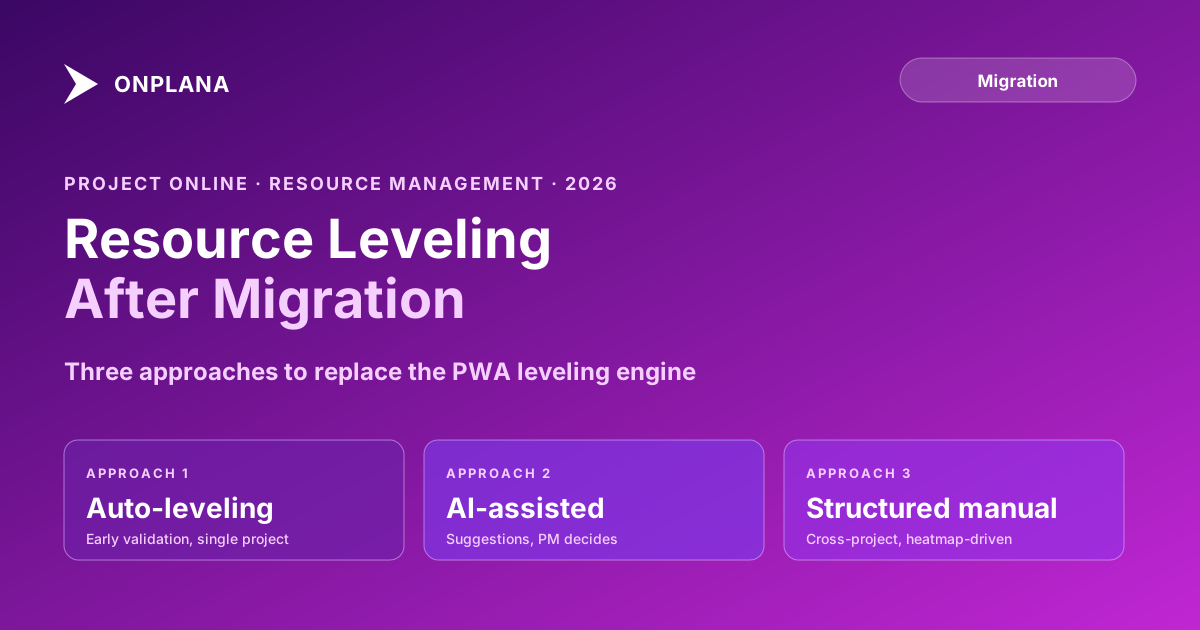
The diagram below shows the three replacement patterns and when each applies.
Approach 1: Automatic Leveling in the Destination Tool
Most modern PM tools include some form of automatic workload balancing. The implementation varies substantially.
Some tools level within a single project, similar to PWA's per-file algorithm. Others level across all projects in a portfolio for resources who appear in multiple project contexts. The cross-project version is more powerful than anything Project Online offered without a formal Portfolio Analyzer session.
When automatic leveling in the new tool works well:
- Early-stage scheduling where you're building a plan from scratch and want to quickly validate whether your resource model is coherent before investing in detailed task dates
- Single-project settings where a resource pool is used exclusively for that project
- Initial capacity checks before bringing work into a formal planning cycle
When it doesn't work well: production schedules with real political constraints, projects with external commitments not modeled in the system, or any situation where the algorithm's priority ordering doesn't reflect actual business priorities.
Before relying on the auto-leveling output in your new tool, understand its resolution order. Most tools default to leveling by task start date (earlier tasks go first) or by some numerical priority field. If that ordering doesn't match how your PMO actually prioritizes work, the auto-leveled result will need to be manually corrected, exactly as it was in Project Online.
Approach 2: AI-Assisted Workload Recommendations
A newer capability in modern PM tools is AI-assisted leveling: rather than automatically moving tasks, the tool surfaces recommendations that a PM reviews and accepts or rejects.
The typical pattern: the tool identifies overallocated resources, generates a set of candidate resolutions (delay task X by Y days, reassign task X to resource Z who has capacity), and presents them as suggestions. The PM reviews the suggestions with full context about political constraints, stakeholder expectations, and resource preferences, then applies the ones that make sense.
This pattern works better than pure auto-leveling for a specific reason: it puts the decision with the person who has context. The algorithm is good at finding overallocations and generating options; the PM is good at knowing which options are acceptable.
For it to work well, the AI needs clean input data. This means:
- Resources with accurate MaxUnits and working calendars in the system
- Task assignments with work hours (not just percent-complete)
- Portfolios with cross-project resource visibility so the AI can see the full load
If your PWA resource data is messy (and most migration assessments find it is), AI recommendations will reflect that messiness. The Resource Heatmap tool lets you upload a .mpp file and immediately see the utilization picture before migration. Run it across your high-priority projects to assess data quality before assuming AI recommendations will be reliable on day one.
Approach 3: Structured Manual Leveling
The approach that produces the best results in most live PMOs: don't auto-level at all. Instead, use a resource heatmap or workload view as the diagnostic, identify the specific overloaded resources and weeks, and resolve each overallocation through a deliberate conversation.
The workflow:
- Run the weekly resource heatmap across all projects sharing the relevant resource pool. Identify which resources are overloaded in which weeks.
- For each overloaded resource, list the tasks contributing to the overload in that week.
- Rank those tasks by how movable they are: fixed external deadlines first (unmovable), sponsor-facing milestones second (hard to move), internal tasks last (most movable).
- Resolve from the bottom: delay the most movable tasks first, see how much overallocation remains, then move up the list only as far as needed.
- Document each resolution decision and the reason for it. This is the leveling decision log, which matters when a PM asks six months later why their task was moved.
This approach takes more time per leveling cycle than clicking "Level Resources." It also produces decisions that don't get immediately undone, because every change was made with business context in view.
The diagram below shows what the structured manual leveling workflow looks like: a weekly heatmap that surfaces the overloaded cells, then a resolution pass that works from most-movable to least-movable tasks.
The critical input is the cross-portfolio heatmap. Without cross-project visibility, you're doing manual leveling blind to the same cross-project conflicts that made Project Online's auto-leveling unreliable. The free Resource Heatmap computes weekly utilization from .mpp uploads. Running it before migration tells you how bad the hidden cross-project overallocation problem actually is in your current portfolio.
Migrating Your Resource Data
The most important migration step for any leveling workflow isn't the algorithm: it's the underlying resource data. You need several things from what you exported before the tenant retired.
MaxUnits values. These define what 100% means for each resource. A half-time contractor has MaxUnits 0.5; a full-time employee has 1.0. If your destination tool doesn't import these correctly, every utilization calculation will be wrong.
Resource calendars. Working days, holidays, and exceptions defined in each resource's calendar affect how assignment work is distributed across days. If these are lost in migration, a resource assigned 8 hours of work on a holiday shows as 100% utilized on a day they're not working.
Assignment work values. Hours of work on each assignment, not just percent-complete. These are the raw material for utilization calculations. Schedules that only track percent-complete can't support meaningful leveling in any tool.
Rate history. Resource cost rate tables are technically separate from leveling but are often used together for cost-loaded schedules. Look for them in your export too.
Review the Migration Preview report for your projects to verify which of these fields survived the import into your destination tool before declaring the resource model migration complete.
Setting Up the New Leveling Cadence
Once you're in the new tool, establish a leveling cadence before the first planning cycle rather than after the first crisis.
A weekly resource review works for most PMOs: look at the next four-to-six week window, identify any emerging overloads, and resolve them before they become critical-path problems. The resource overallocation math works the same way in any tool: overallocations that form through individually-reasonable assignment decisions by different PMs accumulate until someone does the cross-portfolio math.
The difference between a mature leveling workflow and an immature one isn't the tool. It's the cadence, the cross-project visibility, and the discipline to resolve conflicts before they become schedule slips. Migration is a good forcing event to build that discipline, because the new tool usually starts clean.
Set the expectation with your resource managers before migration: the leveling workflow will change in mechanism but not in goal. The goal is the same as it was in Project Online: no resource should carry more work than they can deliver, and when that's not possible, the PM should know about it before the schedule slips rather than after.
Run the free Resource Heatmap Upload your .mpp files and see your actual weekly utilization picture across resources. No signup required. Useful both as a pre-migration diagnostic and as a post-migration cross-check. → Open the Resource Heatmap
Microsoft Project Online™ is a trademark of Microsoft Corporation. Onplana is not affiliated with Microsoft.
Frequently asked questions
What is resource leveling in Project Online?
Resource leveling in PWA automatically delays tasks or extends durations to resolve overallocations, redistributing work so no resource exceeds their maximum units in any given period.
Do modern PM tools have resource leveling?
Most modern PM tools offer some form of automatic leveling or workload balancing, but the implementation varies significantly. Some level within a project only; others handle cross-project leveling. AI-assisted recommendations are increasingly common.
Why is manual resource leveling often better than automatic?
Automatic leveling applies a uniform algorithm that doesn't know which tasks are politically sensitive, which resources have soft capacity limits, or which delays sponsors will accept. Manual leveling preserves those judgment calls.
What is resource leveling alternative when you migrate off Project Online?
The three main alternatives are: automatic leveling in the destination tool, AI-assisted workload recommendations, and structured manual leveling using a resource heatmap to identify overloads before resolving them individually.
How do I find overallocation before leveling in a new PM tool?
Upload your .mpp files to a resource heatmap tool or use the new tool's resource workload view. Overallocation shows as cells exceeding 100% utilization in the weekly view, which is the right granularity for most PMOs.
Does Project Online's leveling engine account for cross-project resource conflicts?
Only if all projects share the same Enterprise Resource Pool and are loaded in the same Portfolio Analyzer session. PWA's per-project leveling misses cross-project overallocation, which is the most common and most damaging type.
What should I migrate now that Project Online has retired?
Start from the resource assignments, MaxUnits values, and resource calendars you exported from PWA before the September 30, 2026 retirement. These are the inputs that leveling algorithms use; without them you rebuild your resource model from scratch in the new tool.
Ready to make the switch?
Start your free Onplana account and import your existing projects in minutes.