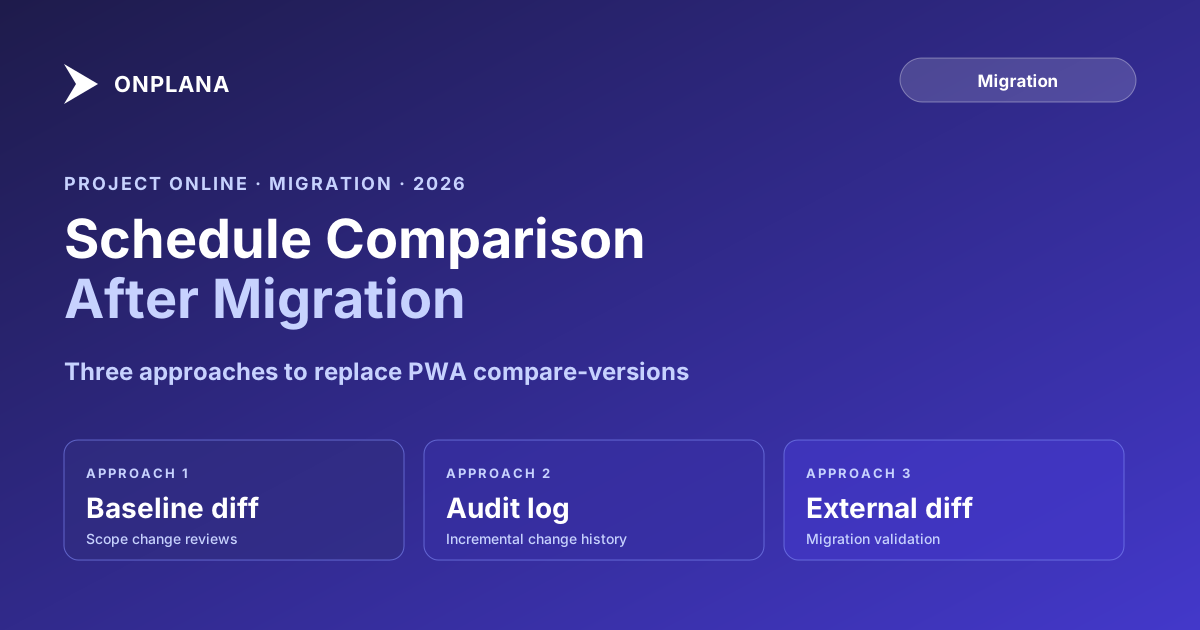
Project Online Schedule Comparison: Three Replacements
Project Online's compare-versions feature doesn't exist in most modern PM tools. Here's the schedule diff workflow that replaces it after migration.
Here's a test. Go to the Project Desktop client connected to your PWA tenant, open a project, and click Projects → Compare Versions. Select your current schedule as the first document and Baseline 1 as the second. In about 10 seconds you have a color-coded overlay of every task that moved, every duration that changed, and every dependency that was added or removed since plan approval.
Now ask yourself: does the tool you're migrating to do anything like this?
Most don't. The compare-versions workflow is one of the quietly useful parts of the Project Desktop ecosystem that migration plans treat as invisible. Teams document timesheets, resource pools, and custom fields with care. They rarely document the diff and audit workflows that governance depends on. Then they cut over, the first major scope change comes in, and they realize they no longer have a reliable way to show a sponsor exactly what the schedule looked like before versus after.
TL;DR: Project Online's compare-versions feature overlays two schedules and flags every difference. Modern PM tools don't replicate this directly. The replacement is three workflows used together: intentional baseline management for scope change reviews, audit log queries for incremental change history, and external schedule diff for migration validation. Each covers a different use case from the original feature.
What Project Online's Compare-Versions Feature Actually Does
The compare feature in the Project Desktop client takes two .mpp files (or a .mpp alongside a PWA-fetched version) and produces a merged view with three visual states: added tasks in green, removed tasks in red, and changed tasks in amber. Each changed task shows the delta across whatever fields you've selected: dates, durations, dependency types, resource assignments, work hours, cost.
For most PMOs this surfaces in three scenarios.
Scope change reviews. A sponsor approves a change request and wants to see precisely what shifted in the schedule. Pull the pre-change baseline and the post-change current plan, run the compare, export the report as a PDF for the change request record.
Audit trail responses. When finance or compliance asks how a project's cost estimate grew from $4.2M to $5.8M over 14 months, the compare view across saved baselines is the evidentiary record. Each snapshot shows the state at a specific approval gate.
Migration validation. After migrating a project to a new tool, comparing the source .mpp against the imported result surfaces any fields that didn't carry through: dependency types flattened from SS to FS, lag values truncated, secondary baselines dropped. This is the most immediately relevant use case for teams currently planning their Project Online exit.
What the compare feature does not do is track incremental daily changes. It compares two point-in-time snapshots. Incremental change tracking is a separate PWA audit log feature, which works differently and carries different retention behavior.
Why Modern PM Tools Don't Replicate This Directly
The compare feature depends on the .mpp file format, which is a proprietary binary structure. Diffing two .mpp files is similar to diffing two Word documents: the application reads both, understands the internal structure, and highlights differences at the semantic level (tasks, not bytes).
Modern PM tools store schedules in relational databases or structured APIs, not as serialized file objects. Comparing two snapshots requires the tool to either serialize the schedule state to a diffable format or store structured change events as they happen. Most tools chose the second option: an audit log that records every field change the moment it occurs.
An audit log is more powerful for incremental change tracking. It tells you exactly who changed what, when, and from which value to which value. But it requires intentional querying to produce the kind of side-by-side diff that compare-versions showed with two clicks. The information is all there; the workflow is different.
A second factor is file-centricity. Compare-versions worked because the Project Desktop client treats the project as a file, and diffing two files is a solved problem with decades of tooling behind it. Modern PM tools treat the project as a database record. "Compare versions" becomes "query the change history," a valid operation with more power and less convenience.
The net result is that most migrations drop this workflow rather than replace it intentionally. This post is about replacing it intentionally.
The Three Replacement Approaches
The diagram below shows the difference between how compare-versions worked in the PWA ecosystem and how the replacement workflows operate in a modern PM tool. The inputs and outputs are similar; the mechanism and discipline required are different.
Approach 1: Baseline Comparison (Replaces Scope Change Reviews)
The closest direct replacement for compare-versions in most modern tools is baseline comparison. A baseline in any PM tool is a frozen snapshot of the schedule at a specific moment: planned dates, durations, work, and cost. A variance view then shows the delta between the current plan and that baseline on each task.
To replicate the compare-versions workflow for scope change reviews:
- Set a baseline at every approval gate, not just at project kickoff. Before each scope change is incorporated into the schedule, freeze the pre-change state as a named baseline.
- After making scope changes, run the variance view filtered to tasks with non-zero schedule variance. This is your diff report.
- Export the variance view as a report to share with the sponsor or attach to the change request.
The critical difference from compare-versions: this requires proactive baseline management. Compare-versions worked even without a baseline set; it compared any two .mpp files you handed it. Baseline comparison only works if you've built the habit of freezing before every significant change.
Before migrating, audit how many baselines your projects actually have populated. The free Schedule Health Check surfaces baseline completeness as one of its findings: which projects have no baseline, which have only Baseline 0, and which have the multi-baseline history that governance-heavy PMOs depend on. Running this check on your exported .mpp files tells you which projects carry baseline history worth preserving. For a detailed look at how to preserve baseline history during the migration itself, see migrating Project Online baselines without losing history.
Approach 2: Audit Log Queries (Replaces Change History)
Modern PM tools record every field change in a structured audit log, which gives you more granularity than compare-versions but requires different access patterns.
A typical audit log entry contains: timestamp, actor (who made the change), field name, old value, new value, and the task or project it applies to. Querying the audit log for a date range on a specific project gives you the incremental change history that compare-versions approximated by diffing two snapshots.
For common queries:
- "What changed this week across my portfolio" → filter by date range, all projects
- "Who moved the Q3 milestone" → filter by field name "Finish Date" on a specific task
- "What did this project look like six weeks ago" → query the change events for that project between two dates
Two practical notes. First, audit logs typically require admin-level read access in most tools. If your PMs or governance leads are the ones running change reviews, verify they have the right permissions at migration setup time. Access issues are much cheaper to fix before cutover than after. Second, audit log retention varies: some tools default to 90 days, others to two years. Match your tool's retention policy to your compliance requirements before you switch off PWA.
Approach 3: External Schedule Diff (Replaces Migration Validation)
For the migration validation use case, neither baseline comparison nor audit logs help. You're comparing the source PWA project against the imported result in a completely different system. For that you need an external diff.
The workflow:
- Export the source project from PWA as an .mpp file.
- Import into the new tool.
- Run a field-by-field comparison between source and destination.
Onplana's Migration Preview handles this comparison and gives you a structured report: which tasks mapped cleanly, which lost data (often dependency types, lag precision, or secondary baselines), and which dependencies didn't survive the import format conversion.
This matters most for:
- Dependency fidelity. Did SS/SF/FF dependency types survive, or were they flattened to FS? A Finish-to-Start and a Start-to-Start are not equivalent, and a schedule that changes all its predecessors to FS will produce different date calculations.
- Lag values. Were fractional-day lags (0.5 days) truncated to whole days? Compounded across a large schedule, the cumulative drift can shift the finish date by weeks.
- Baseline count. Did Baselines 1 through 10 survive, or only Baseline 0? Most .mpp import tools preserve only the primary baseline.
- Custom field values. Did text and cost fields carry through with the right data types?
Run this external diff before declaring the migration complete. A missed dependency that's been in the schedule for two years doesn't announce itself until it breaks a critical-path milestone, often weeks after cutover when the source data is harder to recover.
Onplana Schedule, a free desktop app for Windows and Mac, has this built in: open one version of the plan, then choose Plan, Compare with another version. It matches tasks by their IDs, lists what was added, removed and changed, shows how the finish date moved, names the changed tasks on the path to the finish, and exports the changes as CSV. It reads .mpp, Project XML and Primavera P6 files, and the second file is only read, never changed.
Choosing the Right Approach for the Right Scenario
The three approaches solve different problems. The decision tree below maps each governance scenario to the right replacement workflow.
Before You Cut Over: The Comparison Pre-Flight
Before switching off Project Online, complete these checks against every project in your migration scope.
Audit your baselines. Confirm which projects have meaningful multi-baseline history. For each, verify whether your destination tool will preserve those baselines. If it only preserves Baseline 0, keep the exported .mpp files that hold the others for archival.
Keep your existing comparison reports. Compare-versions reports you exported from PWA are evidence. Project Online retired on September 30, 2026 (confirmed in Microsoft's Project Online service description), so you can't regenerate them from PWA. They are static artifacts in your archive. For new comparisons, compare your exported .mpp files locally, as described below.
Set a migration-day baseline. On cutover day, freeze a baseline in the new tool that represents the schedule state at migration. Label it clearly ("Migrated from PWA, 2026-06-XX"). This becomes the reference point for all future variance calculations. Without it, you have no anchor for "what was the plan when we moved."
Test audit log access. Before decommissioning PWA, verify that your PMs and governance leads can run the queries they need against the new tool's audit log. Do this with a real project, not a demo account.
Run the external diff on a sample. Run the external diff on three or four representative projects: one simple, one complex, one with heavy resource loading. If the diff shows dependency losses or baseline gaps, fix the import process before extending it to the full portfolio.
The Schedule Health Check covers the baseline audit and dependency structure for any .mpp file, no signup required. Run it on your highest-priority projects before migration.
Preserving the Desktop Client as a Backup
One migration option that teams often overlook: the Project Desktop client can compare two local .mpp files without a live PWA connection. If you exported your projects as .mpp files before the tenant retired, you retain the ability to run compare-versions against those archived files indefinitely.
This is worth setting up explicitly for any projects with active audit or compliance obligations. Keep the client installed on at least one machine, point it at your .mpp archive, and document the location so compliance can access it when they need to respond to an audit request two years from now.
The .mpp archive doesn't need to live on a personal workstation. A shared drive or document management system with the files organized by project and date is enough. The key is that someone with a Project Desktop client license can always run the comparison if needed.
Building the Workflow Your Governance Requires
The three approaches are not mutually exclusive. A mature replacement workflow uses all three:
Weekly or as-needed: Audit log monitoring for field changes on critical-path tasks. Some teams build a weekly "what changed this week" report from the audit API or the tool's notification system.
At scope change gates: Freeze a named baseline before incorporating changes, then run the variance view after, and export the comparison for the change request record.
At migration cutover: Run the external diff (Migration Preview or equivalent) on your exported files to validate the import.
Document which approach covers which governance requirement before migration day. If your PMO has a compliance obligation that relied on the compare-versions report format, the reports you produced from PWA before the September 30, 2026 retirement are your archive. For anything newer, compare exported .mpp files in the desktop client.
The schedule comparison workflow is one of those migration details that feels minor until the first sponsor asks to see what changed since the last review. Having the answer ready, in the right format, from the right system, is what separates a migration that feels complete from one that keeps generating cleanup work months after cutover.
Run the free Schedule Health Check Audit baseline completeness, dependency structure, and seven other common schedule problems across your .mpp files before migration. No signup required. → Open the Schedule Health Check
Microsoft Project Online™ is a trademark of Microsoft Corporation. Onplana is not affiliated with Microsoft.
Frequently asked questions
What is Project Online's compare-versions feature?
It's a built-in tool in the Project Desktop client that overlays two versions of a project plan side by side, highlighting added, removed, and changed tasks with color coding. Useful for scope change reviews and audit trail responses.
Do modern PM tools have a compare-versions equivalent?
Most do not replicate it directly. They offer baseline comparison, audit logs, and version history, which together cover the same use cases when used intentionally.
How do I compare my current schedule against a baseline after migrating from Project Online?
Set a baseline before each scope change, then use the variance view in your new tool to surface drift. The key is proactive baseline discipline: the compare feature worked without it, the replacement does not.
What is the difference between a schedule version and a baseline in project management?
A baseline is a frozen snapshot at an approval gate. A version is any saved state of the schedule. You may have dozens of versions but only a handful of meaningful baselines used for governance.
Does Onplana preserve baselines when importing .mpp files?
The active one, yes. Import a .mpp or Project XML file into a new project and its baseline comes across as a baseline in Onplana, with baseline cost per task. Older baselines (1 to 10) do not, so keep the exported .mpp files if you need them for an audit.
What happened to compare-versions data after Project Online retired on September 30, 2026?
The PWA compare feature retired with the service. Anything that read it live stopped with it; anything already exported or imported did not. Comparison reports you exported before that date, and .mpp files you can compare locally, are what remain.
Can I use the Project Desktop client for schedule comparison after the PWA tenant retired?
Yes, if you exported the .mpp files. The desktop client can compare two local .mpp files without a live PWA connection. This is worth preserving for the audit window after retirement.
Ready to make the switch?
Start your free Onplana account and import your existing projects in minutes.