Agile & Scrum in Onplana: Sprints, Epics, Backlog, and Burndown
Sprints, Epics, Backlog, and Burndown in Onplana: lifecycle states, velocity tracking, and how Agile coexists with the Gantt for hybrid teams.
Scrum looks tidy on the whiteboard: sprint, backlog, burndown, retro. Then you run it inside a tool that wasn't built for it, and the velocity number quietly stops meaning anything because the tool conflates sprint scope with project scope. The burndown chart goes rogue when somebody re-estimates a story mid-sprint. The backlog grooms in a board that doesn't talk to your roadmap, so Friday afternoon becomes spreadsheet-reconciliation hour. Onplana's Scrum surface is built so the cadence loop works without that reconciliation tax: a Backlog you can groom, Sprints you can plan and execute, Epics that group thematic work across sprints, and a Burndown that actually separates sprint scope from project scope.
If your organization is hybrid (some teams Agile, some waterfall, all rolling up to the same portfolio), the two methodologies here share the same task model. No mode switch, no separate Agile module. The Gantt and the Sprint board are both views over the same data.
For the wider planning + scheduling tour see Project Planning & Scheduling in Onplana. For the methodology debate see Waterfall vs Agile.
TL;DR: Agile in Onplana
- Sprints: time-boxed iterations with PLANNING → ACTIVE → COMPLETED lifecycle
- Epics: thematic grouping that spans multiple sprints (color-coded, optional)
- Backlog: unassigned tasks grouped by epic, bulk move-to-sprint
- Burndown: per-sprint and project-scope, with ideal vs actual + velocity + projected completion
- Hybrid: same task data feeds Gantt, Kanban, and Sprint board. No mode switch.
- AI: sprint-planning suggestions, retro reports, mid-sprint risk detection
- Plan tier: Sprints + Epics + Backlog gated to PRO+; Burndown available on all plans
Sprints
A Sprint is a time-boxed iteration with a fixed scope and a clear start / end date. In Onplana, sprints are first-class objects on a project. They live in their own model (Sprint) and tasks reference them via sprintId.
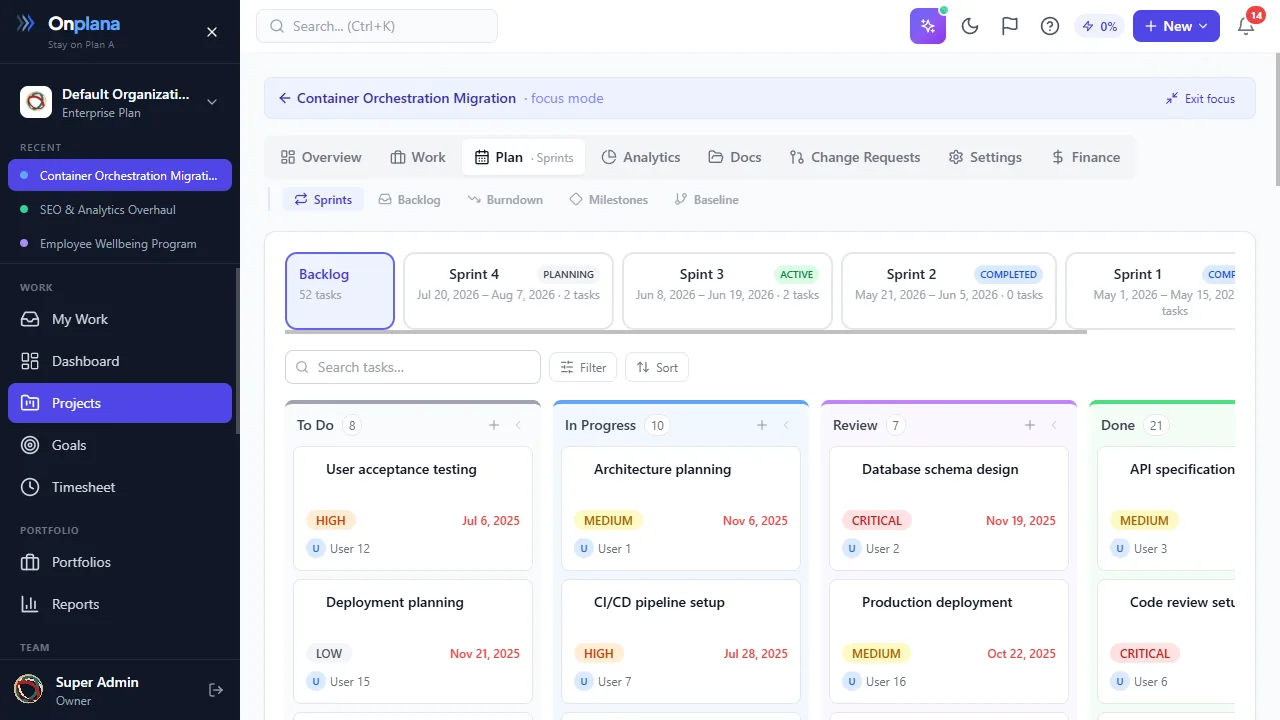
The sprint board: backlog on the left, the active sprint columns on the right. Story-point totals roll up on each column header so the team can see commit-vs-capacity at a glance.
The lifecycle
| State | What it means | What changes |
|---|---|---|
| PLANNING | Sprint exists but hasn't started | Scope is mutable; tasks can be added or removed freely. Burndown shows ideal line only. |
| ACTIVE | Sprint is running | Scope is locked (mid-sprint changes need a deliberate "add to sprint" action). Burndown actual line updates daily. Velocity computes from elapsed days. |
| COMPLETED | Sprint has ended | Scope locked. Velocity contributes to project rolling average. Tasks not done don't auto-move; they get a "Move to next sprint" prompt. |
State transitions are one-click on the Sprint board. There's no DRAFT (an empty PLANNING sprint IS the draft). There's no CANCELLED (close early as COMPLETED with whatever was done; preserves velocity history rather than zeroing it).
Sprint board (per-sprint Kanban)
Click into a sprint and you see a Kanban board scoped to that sprint's tasks. Same drag-and-drop status updates as the project-wide Kanban; just filtered by sprintId. The "From Backlog" panel on the right surfaces unassigned tasks for quick add-during-planning.
Sprint scope and the lock
The mid-sprint scope lock is enforced at the API level. Once a sprint is ACTIVE, adding a new task to it requires the explicit add-to-sprint action (with a confirm dialog citing why mid-sprint scope changes hurt velocity history). This is gentle pressure, not a hard block. If the team genuinely needs to add scope, one click does it.
Epics
An Epic is a thematic grouping of related work that may span multiple sprints. Examples:
- "Q3 Onboarding Redesign" (25 tasks across Sprints 14, 15, 16)
- "Customer Trust Initiative" (40 tasks across Sprints 22-26)
- "Performance Hardening Q4" (12 tasks across Sprints 18-20)
Epics carry:
| Field | Notes |
|---|---|
| Name | The thematic title |
| Color | Hex color for visual grouping (Backlog rows tinted by epic color; Gantt bars optionally tinted) |
| Order | Position within the project's epic list |
| Owner | Optional; the person accountable for the epic outcome |
Tasks reference an epic via optional epicId. A task can be in an epic and a sprint at the same time. The two are orthogonal.
Why epics aren't sprints
Confusion between sprints and epics is the most common Agile-tool friction we see in migrations. The simple test:
| If you're answering... | You want... |
|---|---|
| "What are we doing this iteration?" | A sprint |
| "What's the larger initiative this work belongs to?" | An epic |
| "How long until X ships?" | A milestone |
| "What's the cadence?" | A sprint |
| "What's the theme?" | An epic |
Sprints are about cadence. Epics are about scope grouping. They serve different questions.
Backlog
The Backlog is the ordered list of tasks that aren't yet assigned to a sprint. It's where Sprint Planning happens.
View options
The Backlog view groups tasks in one of three modes (per-user preference, persisted in localStorage):
- By Epic (default): rows tinted by epic color; ungrouped tasks at the top. Easiest for thematic planning.
- By Parent: groups subtasks under their parent task. Easier when refining a deep feature breakdown.
- None: flat list. Easier for bulk operations.
Sprint Planning workflow
- Open the Backlog tab on the project.
- Filter / search for the work being considered for the upcoming sprint.
- Multi-select via checkbox.
- Pick the destination sprint from the dropdown, or "Create new sprint".
- Bulk move-to-sprint applies the
sprintIdto every selected task in one transaction.
The Backlog view's "Add to sprint" affordance respects the destination sprint's lifecycle state. Adding to a PLANNING sprint is silent; adding to an ACTIVE sprint surfaces the mid-sprint scope-change confirm dialog.
Backlog grooming
Beyond move-to-sprint, common Backlog operations:
- Inline-edit estimated hours (refining estimates)
- Inline-edit priority (re-ranking)
- Drag tasks under a parent (to make them subtasks)
- Apply a custom field bulk-update via filtered selection
- Convert a task to a milestone (right-click)
Burndown chart
The Burndown is the single chart that tells the team "are we going to make it." Onplana ships it on every plan tier.
Two scopes, never ambiguous
The Burndown chart has a Project / Sprint selector at the top with a scope subtitle:
- Project: "Showing: All project tasks (47)". Scope is the project's total task count; ideal burndown spans the project's start/end dates.
- Sprint: "Showing: Sprint Phase-2 · 12 of 47 project tasks". Scope is one sprint; ideal burndown spans the sprint's start/end dates.
The subtitle exists because a previous walkthrough caught users distrusting both numbers (project header showing 16 Done, Burndown showing 4 Done) when neither was labeled with its scope. The subtitle makes both trustworthy without requiring users to mentally reconcile.
Lines on the chart
| Line | Meaning |
|---|---|
| Ideal burndown (dashed) | Straight from start scope to zero across sprint/project days. The "perfect-pace" line. |
| Actual burndown (solid) | Step function: per-day count of remaining tasks. Computed from per-day DONE counts. |
| Projected completion (point) | Where the actual line, extrapolated at current velocity, hits zero. |
Stat row
Below the chart:
- Done: total tasks DONE in the current scope
- Remaining: scope total minus Done
- Velocity: tasks/day or hours/day, computed over elapsed days (smart precision:
0.03/dayif low,2.3/dayif high, never the misleading0.0/dayrounding) - Projected: the date the chart will hit zero at current velocity, or
Complete ✓if remaining is 0
When the actual line goes flat
A flat actual line for 3+ days is the AI risk detector's signal that the sprint is going to miss. An automated risk surfaces in the Risks tab with the sprint, the trend, and a suggested intervention. PMs see this 5 days before the end-of-sprint surprise.
Hybrid: Agile + Gantt on the same data
This is the Onplana feature most teams don't realize until they try it. The Sprint board and the Gantt are not separate modes. They're two views over the same task model.
Concrete example
You're running a hybrid team. The portfolio sees:
- "Q3 Onboarding Redesign" project, 25 tasks, 6-week timeline, with a Sept 15 milestone.
- Gantt shows the dependency chain ending at the milestone; critical path highlighted.
- Steering committee reviews the Gantt every two weeks.
The dev team sees:
- Sprint 14 (this iteration): 8 tasks pulled from the Backlog under the "Onboarding Redesign" epic.
- Sprint board for daily standups; Burndown for the team check-in on Wednesdays.
- AI status report at sprint end summarizes what shipped and what slipped.
These are the same 25 tasks. No data duplication. No "sync" between Agile and waterfall views. Updates flow both ways automatically.
AI in the Agile workflow
Three places AI shows up.
Sprint-planning suggestions
Before pulling tasks into a sprint, click "AI suggest scope" with a one-line goal ("ship the new login flow") and the AI proposes which Backlog tasks match, weighted by:
- Velocity history (don't pull more than the team typically completes)
- Estimated hours (sum hits the sprint's capacity ceiling)
- Dependencies (don't pull a task whose blockers aren't done)
- Risk (don't pull a task with an open critical risk)
You see the suggestion as a checklist with reasoning. Accept all, accept some, edit, then commit.
Retro reports at sprint end
When a sprint moves to COMPLETED, "Generate retro" produces a structured summary covering:
- What shipped (DONE tasks with effort breakdown)
- What slipped (incomplete tasks + reasons from comments / AI)
- Where time went (hours by epic / by assignee)
- Trends vs the previous sprint (velocity, scope-change rate, defect carry-over)
Output is markdown ready to paste into Slack / Confluence / a wider stakeholder email.
Mid-sprint risk detection
The AI risk detector watches sprint health continuously. Two triggers that fire automatically:
- Burndown actual line is flat for 3+ consecutive days
- Burndown projected completion is more than 2 days past sprint end
When either fires, a risk surfaces in the Risks tab with the trend, the contributing tasks, and a suggested intervention (descope, swarm, extend). The surfacing happens 5 days before sprint end on average, leaving time to react.
All three are PRO+ for AI core, BUSINESS+ for AI advanced.
Migration: bringing existing Agile work in
If you're moving from Jira, Azure DevOps, or another Agile tool, the data model maps cleanly.
| From | Maps to |
|---|---|
| Jira Sprint | Onplana Sprint (with same start/end + status) |
| Jira Epic | Onplana Epic (color preserved when defined) |
| Jira Issue (Story / Task / Bug) | Onplana Task (with custom-field "Issue Type") |
| Jira Backlog | Onplana Backlog (filter: sprintId = null) |
| Azure DevOps Iteration | Onplana Sprint |
| Azure DevOps Area | Onplana Epic |
| Azure DevOps Work Item | Onplana Task |
For the broader migration story see How to Migrate from Microsoft Project Online; for AI-driven planning during the migration see Day in the Life of an AI Project Manager.
Common patterns
Pattern: 2-week sprint cadence with quarterly epics
Create one epic per planned theme each quarter (e.g. 4 epics for Q3). Run 6 sprints across the quarter, each 2 weeks. Tasks belong to BOTH a sprint AND an epic. Backlog grouped by epic for planning; Sprint board grouped by status for daily execution. Burndown per-sprint for the team; Burndown project-scope for the steering committee.
Pattern: parallel team sprints in one project
Two teams (Frontend, Backend) running on the same project. Create "Sprint 14 FE" and "Sprint 14 BE" with overlapping date ranges. Tasks tagged to either sprint. Each team filters Backlog and Sprint board by their sprint via the dropdown. Velocity tracks separately. Single Gantt shows the combined dependency chain.
Pattern: Scrumban (no time box)
Skip Sprints entirely. Use the Kanban view as the primary execution surface; epics for thematic grouping; Burndown in project scope for the long-running velocity check. Works well for ops teams or maintenance work where iteration boundaries are artificial.
Pattern: hybrid (Agile delivery + waterfall portfolio)
The most common mid-to-large PMO pattern. Dev teams run sprints + backlog grooming on individual projects. Portfolio Manager rolls those projects up into a portfolio with RAG health (BUSINESS+). Steering committee reviews the Gantt + Milestones across the portfolio. AI status reports at the project level feed both audiences.
Get started
Start free →: full Backlog + Burndown on the FREE tier; Sprints + Epics on PRO+ ($10/seat/mo annual).
For a 5-minute tour of how Sprints + Backlog feel in the product, the AI Project Kickstart at /onboarding lets a brand-new project pre-populate with epic structure ready for sprint planning.
Where to go deeper
- Project Planning & Scheduling in Onplana: the parent feature tour
- Onplana vs Microsoft Project Online: Feature-by-Feature Comparison: full product comparison
- Waterfall vs Agile: the methodology debate
- Day in the Life of an AI Project Manager: AI in the Agile loop
- Discipline of Goals, Milestones, and Status Reporting: how Agile feeds wider stakeholder reporting
- How AI Runs Project Management in Onplana: broader AI capability tour
- What Is a Gantt Chart: for the waterfall side of hybrid
Want a guided walkthrough of how your existing Jira / Azure DevOps Agile workflow maps to Onplana? Get in touch, or just start free and the AI Project Kickstart will land a sprint-ready structure in 60 seconds.
Microsoft Project Online™ is a trademark of Microsoft Corporation. Onplana is not affiliated with Microsoft.
Frequently asked questions
Is Onplana an Agile-only tool or a hybrid (waterfall + Agile) tool?
Hybrid by design. Onplana ships Sprints, Epics, Backlog, and a per-sprint Burndown for teams running Scrum, AND Gantt + dependencies + critical path + baselines for teams running waterfall. Most mid-to-large PMOs run both: an Agile cadence for execution teams (engineering, design) and a waterfall view for portfolio reporting and milestone tracking. The same task data feeds both. A task can simultaneously belong to a sprint AND have FS dependencies AND appear on a Gantt with the critical path highlighted. The two methodologies aren't separate modes; they're two views of the same underlying data.
What's the lifecycle of a sprint?
Three explicit states: PLANNING (set scope, assign tasks from Backlog, no work tracked yet), ACTIVE (the sprint is running; burndown updates daily; tasks transition through their statuses), COMPLETED (sprint ends, scope is locked, completed tasks counted toward velocity). Move between states with a single click on the Sprint board; the burndown chart and Backlog filtering adjust automatically. There's no DRAFT state because a Sprint with no scope is just empty PLANNING. There's no CANCELLED state because cancelling a sprint mid-run is rare and is handled by completing it early with whatever was done (preserves velocity history).
How is the Burndown calculated?
Per-day count of remaining tasks (or remaining hours, configurable). Onplana stores a daily snapshot when a task transitions to DONE inside a sprint, then renders the actual line as a step function from 'sprint start scope' down to zero. The ideal burndown is a straight diagonal from start scope to zero across sprint days. Velocity is tasks per day (or hours per day) computed over elapsed days; projected completion extrapolates remaining work at the current velocity. The chart accepts both 'Project mode' (all tasks across sprints) and 'Sprint mode' (one sprint at a time) via the selector at the top, with a scope subtitle so the numbers are never ambiguous.
What's the difference between Sprints and Epics?
Sprints are about cadence (time-boxed; 1-4 weeks; fixed scope); Epics are about thematic grouping (no time box; spans multiple sprints; groups related work). A typical pattern: 'Q3 Onboarding Redesign' is an epic containing 25 tasks; those tasks get distributed across Sprint 14, 15, and 16 over 6 weeks. Tasks have BOTH a sprintId AND an epicId; they're orthogonal. The Backlog view groups by epic (so planning sees the thematic shape); the Sprint board groups by status (so the team sees what's happening this sprint).
Can different teams in the same project run different sprint cadences?
Yes, with caveats. Sprint records are per-project, so a project has one set of sprints. But you can run two sprints in parallel (e.g. 'Frontend Sprint 14' starting Mon and 'Backend Sprint 14' starting Wed) by giving them overlapping date ranges, and assigning tasks to whichever sprint matches the team. The Backlog filter accepts a sprint picker so each team sees only their own. For organizations where teams genuinely run independent cadences, the cleaner pattern is one project per team with a portfolio rolling them up; Onplana's Portfolios feature handles that case.
How does AI fit into the Agile workflow?
Three places. First, AI sprint planning suggestions: paste 'we want to ship feature X this sprint' and the AI proposes which Backlog tasks to pull in based on velocity history + estimated hours. Second, AI status reports at the end of a sprint: one click generates a structured retrospective summary covering what shipped, what slipped, where time went, with 1-2 paragraphs ready for the wider team. Third, AI risk detection on the Sprint board: when the burndown trend suggests the sprint is going to miss, an automated risk surfaces in the Risks tab so the team sees it 5 days before the end-of-sprint surprise. All three are PRO+ for AI core, BUSINESS+ for AI advanced.
Does Onplana support sprint-scoped vs project-scoped reporting?
Yes; both are first-class. The Burndown chart has a Project / Sprint selector at the top with a scope subtitle ('Showing: All project tasks (47)' vs 'Showing: Sprint Phase-2 · 12 of 47 project tasks') so PMs can switch between the sprint view (what the dev team cares about) and the project view (what the steering committee cares about) without confusion. The same applies to Velocity (per-sprint vs project rolling-average), Done counts (per-sprint snapshot vs cumulative), and AI status reports (sprint retro vs project status update).
Ready to make the switch?
Start your free Onplana account and import your existing projects in minutes.