Custom Pages in Onplana: SharePoint-Style Web Part Pages
Compose SharePoint-style web part pages in Onplana from sections, content blocks, and live-data widgets. Publish a team home, overview, or links hub.
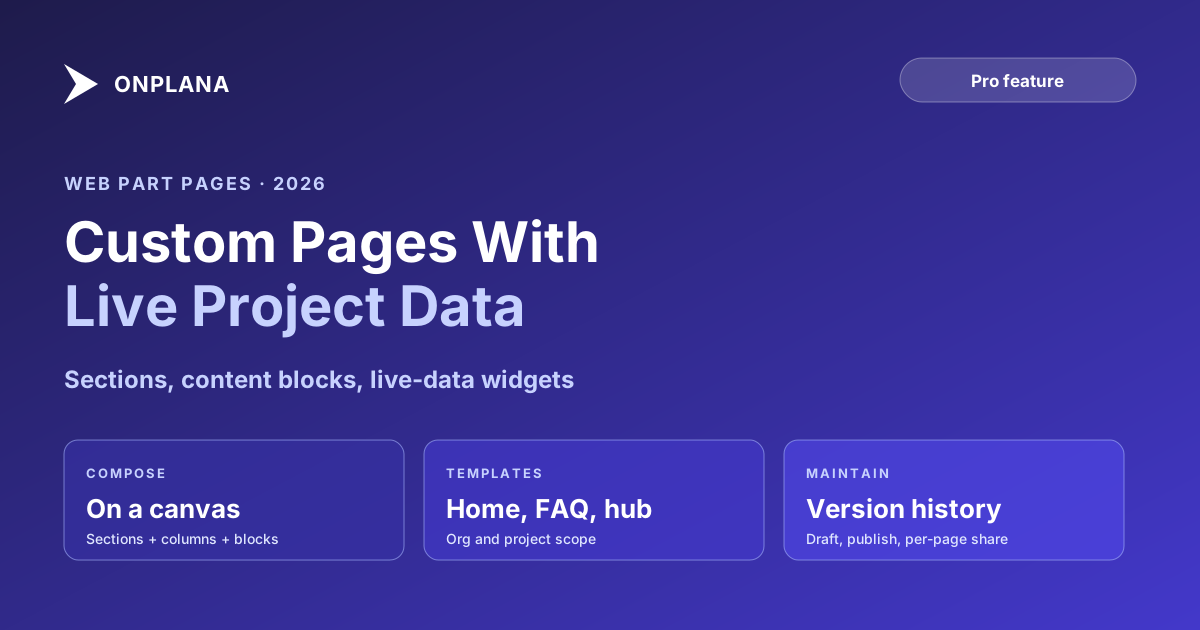
You can now build custom web part pages in Onplana: composable pages you assemble on a visual canvas, the same idea as SharePoint pages. Drop in sections and columns, fill them with content blocks and live-data widgets, and publish the result at the organization or project level.
This turns Onplana from a place where your project data lives into a place where you can also present it. Instead of maintaining a team wiki in one tool and a project dashboard in another and a links list in a third, you build the page you need where the data already is, and it stays live.
What you can put on a page
You build a page by dropping sections and columns onto a canvas, then filling them with:
- Content blocks: headings, text, callouts, images, buttons, quick links, and embeds.
- Live-data widgets: components that pull real project information, so the page reflects current state instead of a snapshot someone has to keep updating.
That mix is the point. A static wiki page goes stale; a page with live-data widgets stays current because it reads from the same project data everything else in Onplana uses.
Where pages live
Pages exist at two scopes:
- Organization level, in the Workspace, for things the whole org reads: a company home page, a portfolio links hub, a policies FAQ.
- Project level, in each project's Docs section, for things a single project's team reads: a project overview, an onboarding page for new members, a stakeholder-facing summary.
Start from a template or a blank canvas
When you create a page you pick a starting point: Blank, Team Home, Project Overview (for project pages), Links Hub, or FAQ. The templates drop in a ready-made layout you can edit, so you are not staring at an empty canvas wondering where to begin.
To create one: open Workspace and select the Pages tab (or, inside a project, the Docs section then Pages), select New page, give it a title, pick a starting point, and the editor opens with the layout rendered and ready to edit.
Built for maintenance, not just creation
The reason most internal pages rot is that nobody can tell whether they are current. Onplana's Pages list answers that at a glance: each page shows its status (Published, Draft, or Published with unpublished edits), when it was last updated and by whom, its version count, and its publish date. Pages support version history, so a bad edit is recoverable, and per-page sharing, so you control who sees each one.
Where pages fit
Pages are a Pro feature, available on every plan from Pro upward at both organization and project scope. They sit alongside Onplana's collaborative wikis and whiteboards as the composed, presentation-oriented surface: wikis for long-form knowledge, whiteboards for thinking visually, and pages for the assembled home, overview, and hub views your team returns to. Paired with customizable navigation, you can build a page and pin it exactly where your team will look for it.
Get started
Custom pages are available on Pro and up. The full walkthrough is in the build web part pages guide, or start free and upgrade to Pro when you are ready to build.
Onplana is not affiliated with Microsoft. SharePoint is a trademark of Microsoft Corporation, referenced here only to describe a familiar page-building pattern.
Frequently asked questions
What are custom pages in Onplana?
Pages are composable web part pages, the same idea as SharePoint pages. You build a page on a visual canvas by dropping in sections and columns, then filling them with content blocks (headings, text, callouts, images, buttons, quick links, embeds) and live-data widgets that pull real project information. Pages live in the Workspace at organization level and in every project's Docs section.
What can I use a custom page for?
Common uses are a team home page, a project overview, a links hub, or an FAQ. Onplana ships starting templates for exactly these (Blank, Team Home, Project Overview, Links Hub, and FAQ) that drop in a ready-made layout you can edit.
Which plans include custom pages?
Pages are a Pro feature, available on every plan from Pro upward, at both organization and project scope.
Do custom pages track versions?
Yes. Each page shows its status (Published, Draft, or Published with unpublished edits), when it was last updated and by whom, its version count, and its publish date. Pages support version history and per-page sharing.
Ready to make the switch?
Start your free Onplana account and import your existing projects in minutes.