Onplana Customize Navigation: Menus That Fit Your Team
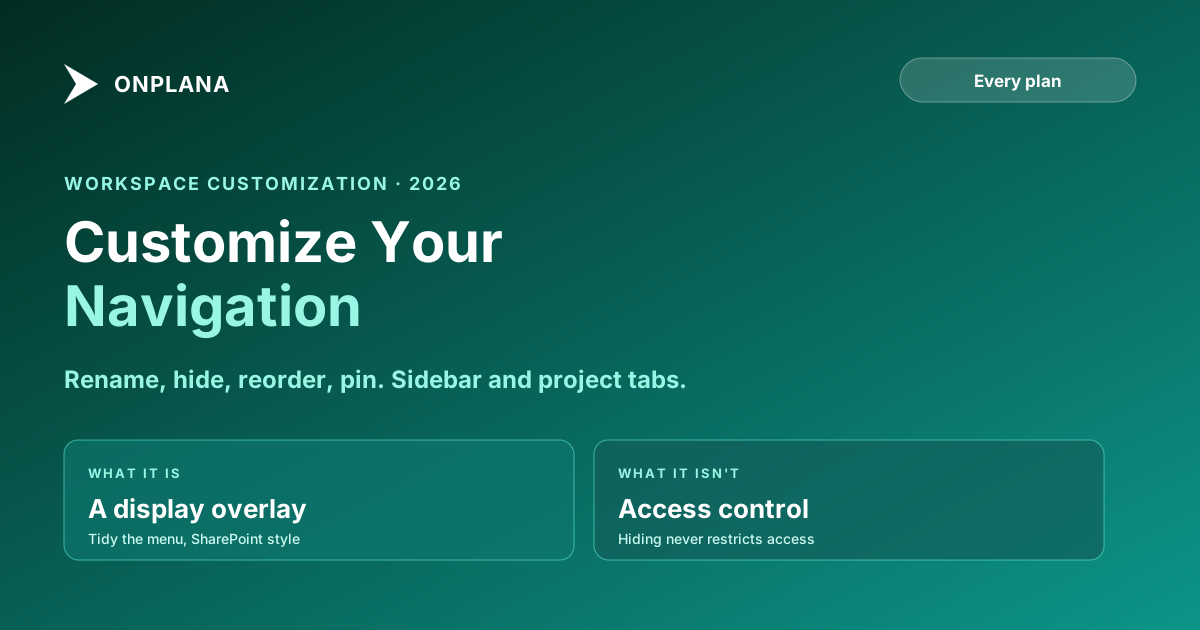
Rename, hide, reorder, and pin custom links in Onplana's sidebar and project tabs, SharePoint style. A display overlay on every plan, not access control.
You can now tailor Onplana's navigation to how your team actually works: rename the default items, hide the ones you never use, drag them into a new order, and pin your own links. It works SharePoint style, at two levels, the organization sidebar and each project's tab bar, and it is available on every plan.
Every team uses a different slice of a project platform. A delivery team lives in Projects and boards; a PMO lead lives in the portfolio dashboard and governance; a resource manager lives in capacity views. A one-size menu makes everyone scroll past what they do not use to reach what they do. Customizing navigation fixes that without anyone losing anything.
What you can change
At both the sidebar and project-tab level, you can:
- Rename the default items to your team's vocabulary.
- Hide items you never use, and add them back whenever you want.
- Reorder items by dragging them into the sequence that matches your workflow.
- Pin custom links to the places your team already goes, so the menu points at your world, not just Onplana's defaults.
A display overlay, not access control
This is the most important thing to understand, and the thing that makes it safe to hand out. Customizing navigation only changes what the menu shows. It is not a permission system.
- Hiding an item never restricts access to its page. The page stays reachable by its URL, by Ctrl+K search, and by any direct link to it. You are tidying the menu, not locking a door.
- A custom link never grants access. The destination page still enforces its own permissions. Pinning a link to something does not let anyone see something they otherwise could not.
If you need to actually control who can reach what, that is the job of roles and the permission matrix, not the menu. Keeping navigation as a pure display layer means an Admin can reorganize the menu freely without any risk of accidentally opening or closing access to anything.
Who can edit navigation
Editing is scoped, so the menu does not become a free-for-all:
- The organization sidebar can be edited by Owners and Admins. This is governed by the
Customize sidebar navigationmatrix permission, so an Owner can grant it to other roles, or to a custom role, in Org Settings, Permissions. - A project's tabs can be edited by the project's Owner or Manager, plus organization Owners, Admins, and Portfolio Managers.
Everyone else sees the customized menu but has no edit control, so the layout stays consistent for the people using it.
Why it matters
Navigation is one of those things nobody notices when it is right and everybody fights when it is wrong. Letting each organization and each project shape its own menu means Onplana can be a deep platform (portfolio, governance, resource management, whiteboards, wikis, pages) without every team having to wade through the parts they do not use. Combined with the ability to build custom web part pages and pin them, a team can assemble a workspace that reads like it was designed for them specifically.
Get started
Navigation customization is live on every plan. The step-by-step is in the customize navigation guide, or start free and reshape your sidebar in a couple of minutes.
Onplana is not affiliated with Microsoft. SharePoint is a trademark of Microsoft Corporation, referenced here only to describe a familiar navigation pattern.
Frequently asked questions
What can I customize in Onplana's navigation?
You can rename the default menu items, hide the ones you never use (and add them back later), drag them into a new order, and pin your own custom links. This works at two levels: the organization sidebar and each project's tab bar. It is available on every plan.
Does hiding a navigation item restrict access to it?
No. Customizing navigation is a display overlay, not access control. Hiding an item only removes it from the menu; the page stays reachable by its URL, by Ctrl+K search, and by direct links. A custom link never grants access either, the destination page still enforces its own permissions.
Who can edit the navigation?
For the organization sidebar: Owners and Admins, controlled by the 'Customize sidebar navigation' matrix permission, which an Owner can grant to other roles or a custom role in Org Settings, Permissions. For project tabs: the project's Owner or Manager, plus organization Owners, Admins, and Portfolio Managers. Everyone else sees the customized menu but cannot edit it.
Is navigation customization available on the free plan?
Yes. It is available on every Onplana plan, at both the organization sidebar level and the project tab level.
Ready to make the switch?
Start your free Onplana account and import your existing projects in minutes.