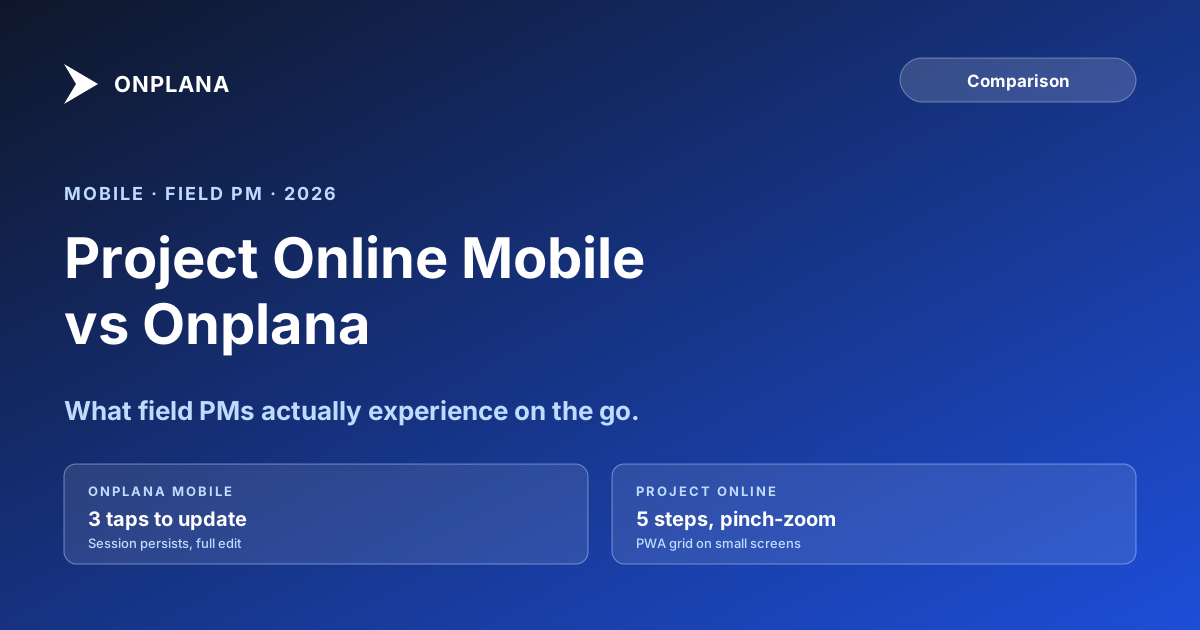
Project Online Mobile vs Onplana: What Field PMs Actually Experience
Project Online mobile is a desktop UI in a phone browser. This comparison shows what field PMs lose and what Onplana's responsive SPA delivers instead.
Here's a test. Pull up Project Online on your phone. Navigate to the task you most recently updated in the desktop client. Try to change its percent-complete. Count how many times you mis-tap, pinch-zoom, or lose your scroll position before you succeed.
If you reach a 30-second update from tap to save, you're doing better than most. The more common outcome is abandoning the attempt and making a note to update it later at a desk.
Project Online's mobile experience is the full Project Web App interface loaded into a mobile browser viewport. The grid views designed for a 27-inch monitor are the same grid views on a 6-inch phone. The navigation menus with four levels of nested items are the same menus. None of it was redesigned for touch, because it was never intended to be used primarily from touch devices.
Project Online mobile is the desktop PWA in a phone browser: no touch optimization, no field-ready workflows, and no dedicated app. Onplana's mobile interface is a first-class responsive SPA with touch-optimized task updates, mobile-specific approval views, and a Gantt chart that pans with swipe gestures. For PMOs where field work is part of the workflow, the gap is large enough to affect data freshness and adoption rates across the team.
Why Project Online was never designed for mobile use
Project Online launched in 2013, when project management was understood as a desk job. The Microsoft Project desktop client was the primary authoring environment. Project Web App was the browser-based companion that let team members submit task updates and view dashboards without installing the full desktop application.
That architecture made sense for its time. The assumption was that team members would access PWA from office computers, and PMs would author from the desktop client. Mobile was an afterthought at best.
When mobile browsers matured and became capable of loading full web applications, PWA became technically accessible from phones. Microsoft did not redesign the interface for mobile. The same table-heavy views, the same dropdown menus sized for mouse hover, and the same multi-column grids are present in the mobile experience because they were never abstracted from their desktop-first implementation.
The PWA grid views are particularly difficult on mobile. Each task row contains dozens of columns, most requiring horizontal scrolling to reach on a phone screen. Updating a percent-complete field means navigating into a grid cell, triggering an edit mode, typing a value, and saving. On a desktop with tab navigation, this takes about five seconds. On a phone with touch input and small targets, it takes closer to a minute per task, and the mis-tap rate on the crowded interface makes it longer.
The result is predictable: field PMs and on-the-go executives stop updating Project Online from mobile. They make notes and update when they return to a desk. The system of record runs four to twenty-four hours behind ground truth whenever the team is in the field.
What field PMs actually need on mobile
The requirements for a mobile PM experience that drives adoption are simpler than the full desktop feature set. Field PMs primarily need four things:
Task status updates. Tapping a task, marking it complete or adjusting percent-complete, and saving. The interaction should take under 30 seconds on a small screen without requiring a horizontal scroll.
Comments and note-taking. Field PMs frequently need to record what they observed during a site visit alongside the task being updated. A comment field that works on mobile, including attachments from the device camera, covers the majority of field documentation needs.
Approval actions. Many PMOs require PM sign-off before team member updates post to the schedule. Mobile approvals need to surface pending requests without requiring navigation to a buried queue.
Gantt chart for reference. PMs reviewing a project during a client call or site walkthrough need to see the schedule without editing. A Gantt that renders correctly on a phone screen and pans horizontally with a swipe gesture lets a PM answer "when is this milestone?" without going back to the office.
Onplana's mobile interface addresses each of these through a responsive single-page application that reflows the UI based on viewport size at the component level, not by scaling down a fixed-width layout. The task list view on mobile surfaces the three fields most commonly updated (status, percent-complete, comment) as first-class touch targets. The Gantt renders as a horizontally-scrollable view with swipe-pan support and a today indicator.
This is the architectural difference: Onplana's mobile view is a separate rendering path designed for small screens. PWA's mobile view is the same page served to a narrower viewport.
Feature comparison: Project Online mobile vs Onplana
The table below covers the dimensions that matter most for field PMs and mobile-primary workflows. The Project Online column reflects the current PWA browser experience; there is no separate Project Online native mobile app.
| Capability | Project Online | Onplana |
|---|---|---|
| Dedicated native app | No | No (responsive SPA) |
| Touch-optimized UI | No (desktop UI scaled down) | Yes (separate mobile rendering path) |
| Task update from phone | Possible but high-friction | Touch-first, under 30 seconds |
| Approval workflow on mobile | Desktop UI, small targets | Mobile-specific approval view |
| Gantt chart on mobile | Requires pinch-zoom, no swipe pan | Swipe-pannable with today indicator |
| Photo attachment from camera | Via file picker, no direct camera | Direct camera integration |
| Mobile navigation pattern | Nested menus sized for mouse hover | Bottom-nav pattern, large touch targets |
| Time to update a single task | 60 to 120 seconds | Under 30 seconds |
The diagram below shows the interaction steps required for the most common mobile action: updating a task's status from the field.
When mobile friction compounds into data quality problems
The step count difference above might look like a minor usability detail. In practice, it compounds across a team and a week.
A field PM who visits four sites per day and has eight task updates per site runs 32 mobile interactions each day. If each interaction takes 90 seconds on Project Online mobile versus 30 seconds on Onplana, that's 48 minutes versus 16 minutes per day on data-entry friction alone. Most field PMs don't absorb that time. They defer updates until they're back at a desk, and the project system runs a full business day behind ground truth.
Deferred mobile updates are the hidden cause of a specific status-report failure pattern: status meetings where the PM reports milestones are on track, but the schedule data in the tool hasn't been updated since the previous meeting. The PM's verbal report is accurate at the time; the tool's data isn't. When stakeholders pull reports directly from the tool between meetings, they see stale data and draw wrong conclusions.
This pattern appears most reliably in three environments:
Construction and facilities portfolios. Site supervisors update tasks from the field, and the field is far from a desk. If the update experience requires a full browser session with a complex UI, the update gets deferred.
Consulting and professional services. PMs travel between client offices. Updates that require a comfortable keyboard experience get batched to end-of-travel-day, which means they reflect the end-of-day picture rather than the moment each event happened.
Healthcare project teams. Clinical environments often prohibit laptops in patient areas. Mobile updates are the only in-workflow option for PMs managing equipment rollouts and IT deployments across healthcare facilities.
How Project Online's mobile limitation connects to the broader retirement picture
The mobile limitation isn't an isolated product decision: it reflects the same underlying architecture that is driving Project Online's retirement in the first place. PWA was built on SharePoint 2010-era infrastructure at a time when responsive design was not yet a standard. The same constraints that prevent a true mobile experience are among the reasons Microsoft is retiring the product entirely on September 30, 2026.
For PMOs planning migration, the mobile experience is worth evaluating directly during the tool-selection phase. A migration that replaces Project Online's desktop capabilities but not its mobile experience creates the same deferred-update problem in the new tool. For more on why migrations fail when tool selection skips hands-on testing, the guide to Project Online migration failures covers the most common anti-patterns.
The compare hub also covers how Onplana positions against a broader set of alternatives if you're evaluating multiple options.
How this affects migration planning and configuration
If your current PMO has low mobile update rates in Project Online, the cause is more likely the tool than team habits. PWA's mobile experience has not been strong enough to develop a field-update habit in most teams. The absence of mobile use is not evidence that your team does not want it.
Migration to a tool with genuine mobile support often reveals latent demand. PMs who never updated Project Online from their phones start updating Onplana from their phones within the first two weeks, because the friction is low enough to change the cost-benefit calculation.
Before finalizing your migration plan, audit your current mobile usage: how many PMs update tasks from mobile at least once per week in Project Online? For those who don't, is the reason that they don't need to, or that the experience is too painful? The answer changes the priority order of configuration work in your migration plan.
Use the free Migration Preview to model your migration scope and identify which projects have the heaviest field-team involvement. Those projects are where mobile adoption rate is most likely to improve post-migration, and where stale-data problems are currently costing you the most.
Practical configuration choices that maximize mobile adoption
Whether you're on Project Online during your migration window or already on Onplana, these configuration decisions drive mobile adoption:
Enable SSO with persistent sessions. The biggest source of mobile friction in PWA is re-authentication on every session. An SSO configuration that maintains mobile sessions for eight-hour windows eliminates the sign-in barrier that causes field PMs to give up before they start.
Create simplified mobile task views. Default project views are designed for wide monitors. Create a simplified view that surfaces the three fields most frequently updated (status, completion percentage, comment) and set it as the default for field-role user groups.
Reserve approval routing for milestone-grade decisions. Approval workflows that require multi-level sign-off before routine task completions post to the schedule create latency in mobile-heavy workflows. Use single-tap approve for routine completions and reserve multi-stage routing for milestone acceptance and scope changes.
Test mobile workflows during migration acceptance. When validating that a migrated project looks right in the new tool, also test it from a phone. Have a pilot-team member complete a full update cycle from their mobile device and capture friction points before you cut over the full portfolio. Mobile friction found during pilot is cheap to address.
Include a mobile walkthrough in training. PMs trained on the desktop interface who are not shown the mobile interface will not discover it on their own. A five-minute mobile walkthrough in your migration training curriculum is enough to drive initial adoption.
Try the Migration Preview See how your Project Online projects will look in Onplana before you commit to migration. The free tool walks through what migrates automatically and where manual configuration is needed. No signup required. Open Migration Preview
Microsoft Project Online™ is a trademark of Microsoft Corporation. Onplana is not affiliated with Microsoft.
Frequently asked questions
Does Project Online have a dedicated mobile app?
No. Project Online's mobile experience is Project Web App accessed in a mobile browser. The interface was not redesigned for touch or small screens.
What can field PMs do in Onplana on mobile?
Update task status, add comments and photos, view the Gantt, check resource assignments, and submit approvals from any modern mobile browser without installing an app.
Why does mobile experience matter for enterprise PMOs?
Field PMs who update tasks away from a desk are the reason project data stays current between status meetings. Poor mobile UX creates data-entry backlogs that make status reports stale.
Is Project Online mobile suitable for field use?
For occasional read-only reference, tolerable. For active data entry or task updates in the field, the PWA interface was designed for mouse-and-keyboard and does not adapt well to touch input.
Do I need to install anything to use Onplana on mobile?
No. Onplana runs as a responsive web app in any modern mobile browser. No separate app installation is required.
How does mobile experience affect Project Online migration planning?
Many teams discover latent mobile demand when they migrate: PMs who never used PWA from a phone start using Onplana from a phone because the friction is low enough to be worthwhile.
Ready to make the switch?
Start your free Onplana account and import your existing projects in minutes.