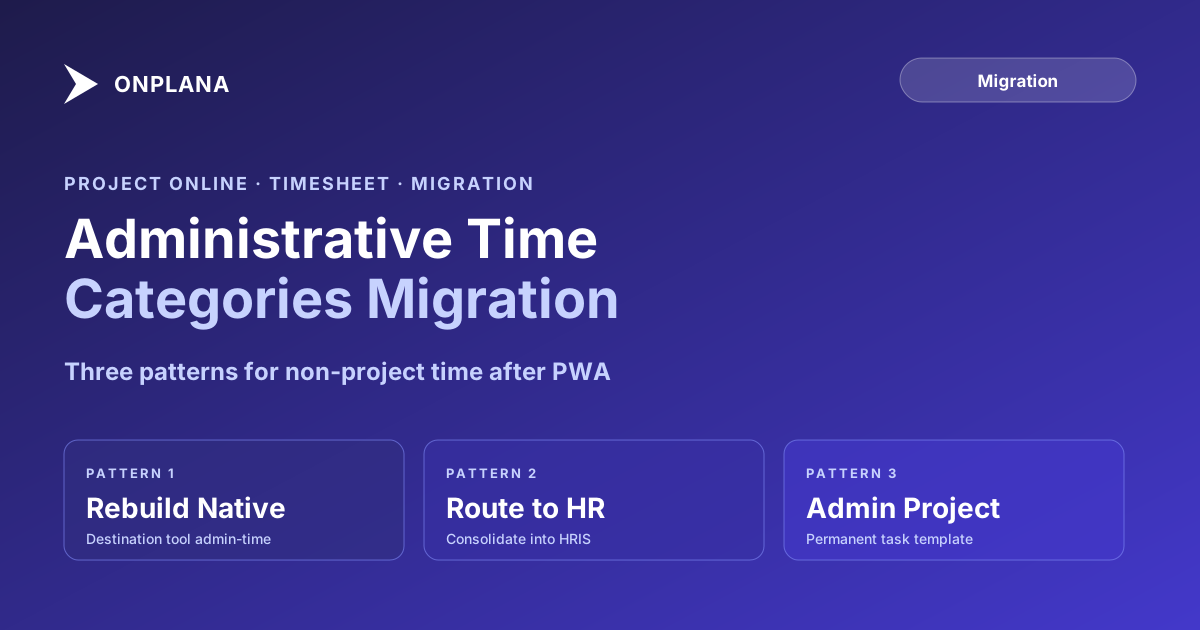
Migrating Project Online Administrative Time Categories
Project Online administrative time categories live in timesheets, not in projects. What migrates, what to archive, and three patterns for your new tool.
Here is the pattern. A Project Online migration completes. Projects exported cleanly, resources landed in the new tool, custom fields mapped, parallel running starts. On the first Monday of the new tool's operation, a team member messages the PMO administrator: "Where do we log vacation time?" The answer is nowhere, because Project Online administrative time categories did not make the migration scope.
Nobody touched administrative time during planning. The .mpp export does not include it. The migration vendor's scope document does not mention it. The discovery happens at go-live, not during scoping. And "we'll figure it out next sprint" is not a plan, especially when team members are already asking.
This is not an edge case. It happens on nearly every Project Online migration because administrative time sits in a part of the platform that is genuinely separate from project data. The same structural separation that makes it useful in PWA (non-project hours stay out of your schedule calculations) is what makes it invisible in every standard export.
TL;DR: Project Online administrative time categories are a timesheet-system artifact, not a project-data artifact. They do not export in .mpp or MSPDI XML files. Before the September 30, 2026 retirement, export the TimeSheetLines and AdminProject OData feeds to preserve historical leave and training records. After migration, choose one of three translation patterns: rebuild in the destination tool's native admin-time feature, route non-project time to an HRIS, or create a permanent administrative project template. Which pattern fits depends on your new tool's capabilities and how tightly non-project time is tied to your capacity reporting.
What Project Online Administrative Time Categories Actually Are
Administrative time in Project Online is a parallel timesheet layer that runs alongside task-based time tracking. When a team member opens their timesheet in PWA, they see two sections: project tasks assigned to them across active projects, and administrative time categories available to the whole organization.
The categories are not attached to any project. They are configured once by the PWA administrator under Server Settings, then Time and Task Management, then Administrative Time (see Microsoft's documentation on setting up non-project work categories). Common configurations include vacation (approved paid leave), sick leave (unplanned absence), training (formal learning, internal or external), bench or overhead (time between assignments), company holidays, jury duty, and bereavement. Each category gets a name, optional description, classification flag for utilization reports, and a setting controlling whether team members can log freely or only with manager approval.
Hours logged against administrative categories flow into timesheet approval workflows, the same approval chain as task-based time. But they do not create actuals on any project schedule. They affect capacity reports, showing how much of a resource's available time went to non-project work in a given period, but they never touch Gantt charts, baselines, or critical path calculations.
This structural separation is both the feature's strength and the source of every migration gap. It keeps your schedule clean; it makes administrative time completely invisible in the standard export.
Why Project Online Administrative Time Doesn't Appear in .mpp Exports
When you export a project from Project Online as a .mpp or MSPDI XML file, you get the schedule document: tasks, summary tasks, dependencies, resource assignments, working calendars, baselines, notes, and custom field values. You do not get any timesheet data.
Administrative time categories live in the PWA database's administration layer, not in the project document model. The Project Server service application stores them separately from project content. No standard export tool reads them. Microsoft's own migration guidance for the retirement addresses .mpp and OData exports; administrative time falls under the OData reporting schema in a namespace that most migration scripts never include.
The two feeds that contain this data are the TimeSheetLines feed (filtered to non-project lines) and the AdminProject feed (which contains the category definitions themselves). If your migration script pulls .mpp files for each project and validates imports, administrative time data will be absent without any error or warning. The exports succeed. The data simply does not appear.
The diagram below shows what a standard .mpp migration captures versus what stays in the timesheet system:
The Three Problems Administrative Time Creates at Migration
Administrative time in a Project Online migration produces three distinct gaps. They are different enough in nature to require different solutions, and the right solution for each depends on your organization's compliance requirements and the capabilities of your destination tool.
Configuration gap. The new tool either has no concept of non-project time or models it differently from PWA. You cannot import the category list. Someone must configure the equivalent structure from scratch before go-live.
Historical data loss. If your organization needs to report historical leave, training, or bench time for compliance, payroll audit, or HR analytics, that data must be exported from PWA before the tenant retires. It will not survive the tenant going dark.
Process disruption. Team members who have filed administrative time every week for years need to know where to go on day one of the new tool. If there is no clear answer ready, they will improvise. The improvisation will be inconsistent. Inconsistent data is worse than no data if it feeds compliance reporting.
The three patterns in the sections below each address all three gaps, but with different tradeoffs. Choose based on whether your new tool has native admin-time support, how closely non-project time is tied to capacity reporting, and how much administrative overhead you want to carry long-term.
Pattern 1: Rebuild in the Destination Tool's Native Admin-Time Feature
If your destination PM tool supports non-project time natively, this is the cleanest option. Your team stays in one tool for all time tracking, and capacity reports continue to account for both project and non-project time in the same place.
The migration path for this pattern:
- Export your PWA administrative time category list via the AdminProject OData feed. This gives you category names, codes, and classification flags.
- Recreate the categories in the destination tool. Map each PWA category to the nearest equivalent. Some consolidation is appropriate: if PWA has twelve leave types, most modern tools need four or five. Combine rarely-used categories rather than importing noise.
- Configure approval workflows in the new tool to match your organization's requirements for leave and training entries.
- Export historical data via the TimeSheetLines feed filtered to administrative lines and import it into the destination tool if it supports historical timesheet imports. If it does not, archive the OData extract as a structured CSV or Parquet file.
- Communicate the new location to team members before go-live.
The constraint with this pattern: not every modern PM tool surfaces admin time in resource utilization views the same way Project Online does. Some tools track leave separately and do not include it in the capacity graph. Before committing to this pattern, verify that your destination tool's admin-time feature shows up in the reports your resource managers actually use.
Pattern 2: Route Non-Project Time to an HR System
Many organizations already have an HRIS, a leave-management platform, or a workforce management system that handles vacation and sick leave. In these cases, administrative time in Project Online was a parallel system doing work that HR already owns.
The migration argument: use the retirement as the moment to consolidate. Stop tracking leave in the PM tool and route it to the system that was always the authoritative source for HR data.
The migration path:
- Separate the administrative time categories into two groups: HR-adjacent categories (vacation, sick leave, holidays, jury duty, bereavement) and PM-adjacent categories (bench time, overhead, internal coordination). HR-adjacent categories go to the HRIS; PM-adjacent categories stay in the PM tool.
- Export historical HR-adjacent data from PWA and load it into the HRIS if that system needs the historical record for compliance.
- For PM-adjacent categories, either configure a simplified version in the new PM tool or fold them into an administrative project template (see Pattern 3 below).
- Update your resource capacity calculation to pull non-project availability from the HRIS rather than the PM tool. This typically requires either a lightweight integration or a manual override field on the destination tool's resource settings.
The constraint: this pattern splits time tracking across two systems. Reporting that combines project time and administrative time requires a join that did not exist before. Build the join logic before go-live, not after someone asks why the utilization numbers look wrong.
Pattern 3: Create an Administrative Project Template
For organizations whose new PM tool does not support non-project time natively and whose HR system is not a practical destination for all leave types, a dedicated administrative project template is the most pragmatic fallback.
The structure: create one non-deliverable project in the new tool with a fixed task list matching your administrative categories. Team members log time against tasks labeled Vacation, Training, Sick Leave, Bench Time, and so on, the same way they log time against project work. The project has no schedule, no baseline, no milestone, no deliverable. It is a named list of administrative categories expressed as permanent tasks.
The migration path:
- Create one "Administrative Time" project in the destination tool (or one project per business unit, if your tool requires separate project spaces for different teams).
- Create tasks matching your PWA category list after consolidation.
- Assign all active team members to the administrative project so they can log time against it.
- Treat the project as permanent. Never archive or close it.
- Configure your portfolio views to filter it out, so it does not appear alongside delivery projects in status roll-ups.
This pattern works in any PM tool that supports task-level time tracking, which covers essentially every modern product. The tradeoff is reporting friction. Administrative time blended into the project list requires consistent filtering. Some tools handle this well with a project type or tag; others require manual exclusion on every report. Decide whether that overhead is acceptable before committing.
What to Archive Before September 30, 2026
Historical administrative time data becomes inaccessible after the Project Online tenant goes dark. If your organization has any of the following requirements, run the export before retirement:
- HR audit compliance: regulated industries typically require three to seven years of leave records
- Payroll reconciliation: if project timesheets were used to validate payroll, administrative entries are part of that record
- Historical capacity analysis: distinguishing project time from non-project time in past periods requires both datasets
- Training compliance: some organizations track training hours per employee for certification or regulatory purposes
The base OData query for administrative timesheet lines:
GET /ProjectData/TimeSheetLines?
  $filter=TimeSheetLineClass eq 2
  &$expand=TimeSheetPeriod,Resource
  &$select=TimeSheetLineId,ResourceName,PeriodName,
           TotalWork,ActualWork,AdminProjectName,Comment,StatusName
Run this in quarterly batches to avoid OData throttling limits. Add the AdminProject feed to capture category definitions alongside the line data, so the archive remains interpretable years after the tenant is gone.
Store the result as a structured CSV or Parquet file with column headers. A Power BI report pointed at these files can answer most historical leave queries without needing to touch PWA again.
The same export run should include your timesheet period configuration and any approval workflow history you need for audit. The Project Online timesheet migration guide covers locked periods and approval workflows alongside administrative time, since all three share the same OData dependency.
Planning the Admin Time Migration Alongside the Broader Move
Administrative time migration works best when it is part of the same export pass as your resource pool and timesheet data, not treated as a separate workstream discovered at go-live. The resource pool migration guide describes the broader OData extraction pattern; administrative time fits into the same script as a filtered addition to the TimeSheetLines pull.
Before choosing your translation pattern, run the free Migration Preview to see what your project and resource data looks like, then follow up with a manual pull of your AdminProject feed to catalog the categories and their usage frequency. Categories with zero entries in the last twelve months are safe to retire. Categories with active entries and compliance obligations need a clear destination and a team member who will configure it before the first day of parallel operation.
The configuration gap is the easiest of the three problems to solve once you have identified it. The historical data gap is irreversible after retirement. Prioritize the export first. Configure the destination second. And communicate the new location to team members before the first timesheet period of the new tool opens.
Run the free Migration Preview See what your Project Online tenant looks like before you migrate: project structure, resource pool, custom fields, and the gaps your migration plan needs to cover. No signup required. → Open the Migration Preview
Microsoft Project Online™ is a trademark of Microsoft Corporation. Onplana is not affiliated with Microsoft.
Frequently asked questions
What are Project Online administrative time categories?
Administrative time categories in Project Online (PWA) are named, non-project buckets, such as vacation, sick leave, training, and bench time, that team members log hours against in the timesheet system. They are configured in Server Settings under Time and Task Management and are separate from project task assignments.
Do administrative time categories migrate when you export Project Online to .mpp?
No. The .mpp and MSPDI XML exports contain schedule data: tasks, dependencies, resources, baselines, and calendars. Administrative time categories are part of the timesheet system and do not appear in any project file export. They require a separate OData extraction.
What OData feed contains Project Online administrative time data?
The TimeSheetLines feed filtered to TimeSheetLineClass equal to 2 (administrative) from the ProjectData OData endpoint. Combine with the AdminProject feed for category definitions and the TimeSheetPeriods feed for period-by-period totals.
What happens to administrative time data after Project Online retires on September 30, 2026?
Once the tenant enters read-only mode and eventually goes dark, all timesheet data including administrative time entries becomes inaccessible. Export the TimeSheetLines and AdminProject feeds before the retirement deadline if you need to retain historical leave or training records.
What are the three patterns for handling non-project time after migrating off Project Online?
Pattern 1: rebuild the same categories in the destination tool's native leave or admin-time feature. Pattern 2: route non-project time to an existing HRIS or leave-management system. Pattern 3: create a permanent administrative project template in the new PM tool and log time against named tasks.
What is the difference between administrative time and project task time in Project Online?
Project task time records hours against specific tasks in a schedule and flows into actuals and baseline comparisons. Administrative time records hours against non-project categories for HR compliance and capacity reporting. The two systems are structurally separate in PWA and require different export paths.
Ready to make the switch?
Start your free Onplana account and import your existing projects in minutes.