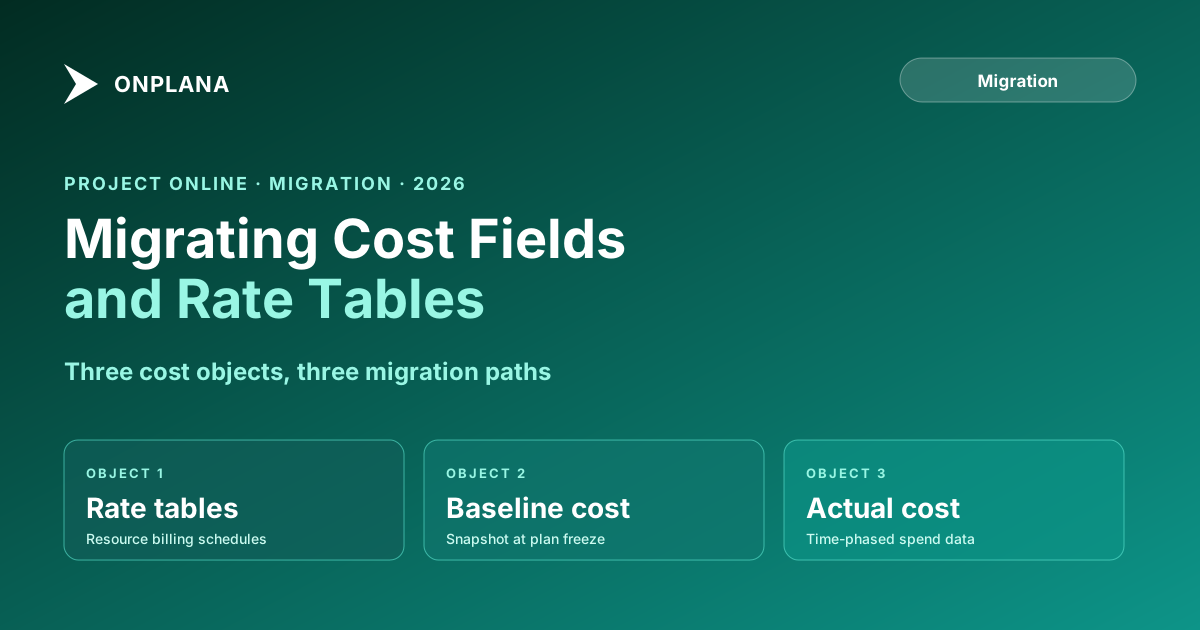
Migrating Project Online Cost Fields and Rate Tables
Project Online cost migration means more than moving numbers. Rate tables, baseline cost fields, and actual cost data each require a different approach.
Here is the pattern that surprises finance teams in every Project Online cost migration. The schedules migrate. The resources migrate. The custom fields migrate. Finance runs the first post-migration cost report. The numbers don't match. Not because the data was lost, but because Project Online's cost model rested on several implicit structures, rate tables, baseline snapshots, actual-cost derivations, and typed cost fields, that each required an explicit decision during migration that nobody made.
The migration team treated cost data as a subset of project data. Finance treated it as the primary output of the tool. The gap between those two perspectives shows up in the report.
Project Online cost migration is not a single data export. It is a sequence of separate decisions: which rate table tiers to preserve, which baseline cost snapshots to carry forward, how to handle actual cost without its timesheet history, and how cost-type Enterprise Custom Fields map to the destination's financial model. This post covers each decision with the reasoning behind the choices.
TL;DR Project Online cost data lives in five separate places: resource cost rate tables, fixed costs on tasks, baseline cost snapshots, actual costs derived from timesheets, and cost-type Enterprise Custom Fields. Each has a different migration path. Rate Table A with date tiers is the highest-value item to preserve. Actual cost without timesheet history should be treated as historical-only data. Plan the migration sequence to land cost data before resource assignments.
What Project Online cost migration actually covers
Cost data in Project Online is distributed across several data structures, not concentrated in a single export. The five main areas are:
Resource cost rate tables. Every work resource in the Enterprise Resource Pool has up to five cost rate tables (A through E), each with date-tiered rates. Rate Table A is the standard billing rate. Tables B through E were introduced for handling overtime, weekend rates, or client-specific billing, though most organizations use only Table A. The rate tables are part of the resource record, not the project file, and do not appear in a .mpp export.
Fixed costs on tasks. Tasks in a Project Online schedule can have a Fixed Cost field containing a dollar amount that contributes to project cost independently of resource assignments. These do appear in .mpp exports and migrate cleanly in most cases.
Baseline cost fields. Project Online supports up to eleven baseline snapshots per project (Baseline Cost, Baseline Cost 1 through 10). Each baseline captures a cost snapshot at a point in time. Baseline Cost is the active baseline; the numbered variants are historical.
Actual cost. In Project Online, actual cost is typically derived from approved timesheet submissions. The ActualCost field on a task reflects the sum of timesheet hours approved against that task multiplied by the resource's rate. It is a calculated value, not a manually entered field in most configurations.
Enterprise Custom Fields of type Cost. ECFs with a Cost data type store dollar values against projects, resources, or tasks independently of the schedule's cost calculations. Common uses include budget line items, approved funding amounts, or contingency reserves.
The Enterprise Resource Pool migration guide covers the resource record structure in detail. This post focuses on the cost-specific fields within that structure and the additional cost data that lives at the project and task levels.
Resource cost rate tables
Rate Table A contains the standard billing rate for each resource, typically expressed as an hourly, daily, or weekly rate. It is the field that drives task cost calculations: hours worked multiplied by rate equals cost. This is the table that must migrate for cost calculations to produce correct numbers in the destination.
Rate Table A can also have date tiers. A resource whose rate changed from $150/hour in 2023 to $175/hour in 2025 has two tiers in their rate table. Project Online uses the tier that matches the task's time period. This is how multi-year projects stay cost-accurate across rate changes without requiring manual cost overrides.
Date tiers are important to preserve for active projects that span a rate change. For completed projects, the actual cost has already been calculated and stored; the tiers are only needed for future projections. The migration decision: preserve tiers for resources on active projects, archive tiers for completed projects.
Rate Tables B through E are used by fewer than 20 percent of tenants. If your organization uses them (check the OData /Resources?$expand=CostRateTables feed), export each as a separate rate-card in the destination, keyed by the table letter. If no projects reference these tables in active assignments, they can be dropped from migration scope.
The resource heatmap tool will help surface which resources have active assignments that are driving current cost calculations, so you can prioritize the rate table exports for those resources first.
Baseline cost fields
Baseline Cost (the active baseline) is the highest-value cost field to migrate. It is the anchor for schedule-cost variance reporting: how much did we expect to spend versus how much are we actually spending? Without it, variance reporting in the destination starts from zero.
Migrate Baseline Cost by ensuring the active baseline is exported correctly with the project file. In .mpp exports, the Baseline Cost field is included in the file structure. After import into the destination, confirm the Baseline Cost values match the source for a sample of projects.
Baseline Cost 1 through 10 are worth migrating selectively. Query your active Power BI reports to identify which baseline numbers they reference. A report that computes "current plan vs Baseline 3" needs Baseline Cost 3 to migrate. A report that only uses Baseline Cost (the active baseline) does not need the numbered variants.
In practice, most PMOs find that fewer than half their tenants' numbered baselines are referenced in any active report. Migrating all eleven baseline cost fields adds work with little return. Migrate only the ones that appear in active reporting.
The Project Online migration checklist includes baseline fields as a review item in the data inventory section. Auditing which baselines are referenced in reports before the migration starts prevents the "we didn't need that" discovery after import.
Actual cost and timesheet data
Actual cost in Project Online is typically a derived value, not a stored one. It is computed from the timesheet submission record: approved hours times the resource's cost rate at the time of work. The ActualCost value on a task changes whenever a timesheet approval runs.
When you export project data, you get a snapshot of ActualCost as a static number. The underlying timesheet records that produced it are in a separate OData feed (/TimesheetLines). This separation creates a migration decision: export only the static number, or export the full timesheet history.
Static number export. Simpler and faster. The actual cost value lands correctly in the destination and cost reports show correct totals. The limitation: the timesheet history is not in the destination. Reports that need to show "hours by resource by week" from historical periods will fail. Audit queries that need to trace a cost back to a specific timesheet approval will fail.
Full timesheet history export. Preserves auditability and full historical granularity. Requires the destination tool to accept timesheet-line-level imports and to compute actual cost from those lines. More complex to execute, but the only correct answer for organizations with audit or compliance requirements on cost data.
Most organizations use a hybrid: export full timesheet history for the current and prior fiscal year, export static ActualCost for everything older. This covers most audit scenarios without requiring a full multi-year timesheet import.
The full cost of this decision, in terms of migration labor and destination storage, feeds into the migration budget model. The migration cost calculator includes a timesheet-history line item that helps quantify this trade-off at your tenant's scale.
Enterprise Custom Fields of type Cost
Cost-type ECFs store dollar values against projects, resources, or tasks that are independent of the schedule's cost engine. Common uses:
- Approved budget amount (set at project approval, static throughout project life)
- Contingency reserve (manually adjusted by the PMO)
- Capitalized cost (a subset of project cost classified for capital accounting)
- Client billing amount (the billable cost, which may differ from internal cost)
These fields migrate like other ECF types: export the field definitions and values with the project data, configure matching fields in the destination, import. The migration challenge specific to cost-type ECFs is that the destination may model these concepts differently.
An "Approved Budget" field in Project Online is a custom cost field. In some modern PM tools, budgets are a first-class feature with their own entity and approval workflow, not a custom field. Forcing a budget value into a generic cost-type custom field in the destination works but loses the budget-specific behavior (amendment tracking, approval history).
Audit each cost-type ECF during the inventory: what concept does it represent, and does the destination have a better native model for it? For ECFs that map to native destination features, use the native feature instead of a custom field. For ECFs that are genuinely custom (organization-specific line items), configure a matching custom field.
How the migration changes finance reporting
Finance reporting built on Project Online's ProjectData OData feed will stop working on September 30, 2026, per Microsoft's official product lifecycle page. The OData endpoint at /_api/ProjectData goes dark when the PWA tenant is decommissioned. Every Power BI report that uses this as a data source will fail to refresh.
The cost reports most likely to break are: earned value cost variance (requires Baseline Cost), budget vs actual (requires both the cost ECF for budget and the ActualCost field), and resource cost by period (requires timesheet history to compute weekly or monthly actuals).
The migration path for finance reports is a separate workstream from the data migration itself. The data migration moves cost data to the destination. The report migration moves the reporting logic from the OData schema to the destination tool's API or export schema.
The correct sequencing: finish the cost data migration before rebuilding cost reports. Reports rebuilt against a partial data migration will contain errors that are difficult to distinguish from correct-but-unexpected values.
For the broader cost of migrating off Project Online, including the labor cost of rebuilding finance reports, see the cost of migrating from MS Project Online in 2026. Finance report rebuilding is one of the most underestimated line items in migration budgets.
The migration sequence for cost data
Cost data has dependencies that determine the order of operations. Migrating in the wrong order produces import errors or requires reprocessing.
The diagram below shows the five steps in dependency order.
The correct sequence:
- Migrate the Enterprise Resource Pool first, including Rate Table A with date tiers for active resources. Cost calculations in the destination depend on rate tables being present before assignments are imported.
- Export project data with cost fields resolved. Fixed Cost, Baseline Cost, and Baseline Cost variants should be included in the .mpp export and validated against source values after import.
- Migrate cost-type ECFs after the project import. These are independent of the schedule calculation and can be imported as a supplemental dataset.
- Import timesheet history (if full history migration is the chosen approach) after the project and resource data is stable. Timesheet lines reference both projects and resources; importing them last reduces the chance of broken references.
- Validate cost totals. After all data is imported, pull a cost summary from the destination for a sample of projects and compare against the same summary from the Project Online OData export. Discrepancies above a small tolerance threshold indicate a migration gap.
The resource pool migration step is covered in full in the Project Online resource pool migration guide. This post focuses on the cost-specific fields within each layer.
Run the free Migration Cost Calculator Model the full cost of your Project Online migration, including data migration labor, parallel-running periods, training, and report rebuilding, before you start. No signup required. Open the Migration Cost Calculator
Microsoft Project Online™ is a trademark of Microsoft Corporation. Onplana is not affiliated with Microsoft.
Frequently asked questions
What cost data exists in Project Online beyond task costs?
Project Online tracks resource cost rate tables (with date tiers and up to five tables per resource), fixed costs per task, baseline cost snapshots, actual costs derived from timesheet submissions, Enterprise Custom Fields of type Cost, and budget resource cost fields. Each requires a different migration path.
Do resource cost rate tables migrate automatically?
No. Rate tables are part of the Enterprise Resource Pool configuration, not the .mpp file. They must be exported via the OData /Resources feed with $expand on rate table fields, then transformed and imported into the destination tool's cost rate configuration.
Which baseline cost fields should I migrate?
Baseline Cost (the active baseline) migrates cleanly and is worth preserving. Baseline Cost 1 through 10 are worth migrating only if your organization actively reports variance against multiple historical baselines. Most teams find that only one or two are actually referenced in reports.
What happens to actual cost in a Project Online migration?
Actual cost in Project Online is derived from approved timesheet entries. In migration, you have two choices: export the actual cost values as static numbers attached to tasks, or rebuild the actual cost from the timesheet history export. Static values are simpler but lose the timesheet audit trail.
How do Enterprise Custom Fields of type Cost migrate?
Cost-type ECFs migrate similarly to other ECF types. Export the values with the project data, configure the matching field in the destination, and import. The challenge is that cost-type ECFs are sometimes used to track budget line items that the destination may model differently.
What changes in finance reporting after leaving Project Online?
Power BI reports built on the ProjectData OData feed stop refreshing after retirement. The cost data those reports consumed must be re-sourced from the new tool's API or export. Reports that relied on rate table B-E data often need to be rebuilt, since those tables are rarely migrated at full fidelity.
When does Project Online retire?
Microsoft Project Online retires on September 30, 2026, per Microsoft's official product lifecycle page. All cost data exports must complete before that date.
Ready to make the switch?
Start your free Onplana account and import your existing projects in minutes.