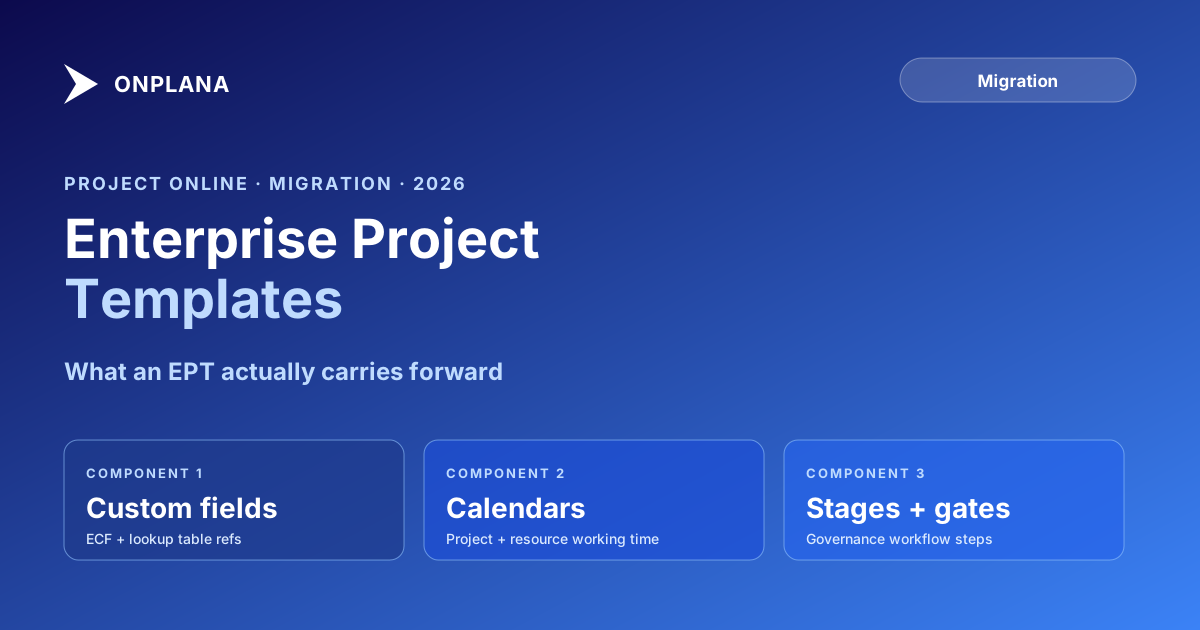
Migrating Project Online Enterprise Project Templates
Enterprise Project Templates encode your PMO's project-creation standards. Migrate them wrong and new projects lose ECFs, calendars, and governance stages.
Here is the uncomfortable pattern with Enterprise Project Templates. A PMO completes an eight-month Project Online migration. The schedules migrate. The Enterprise Resource Pool migrates. Custom fields and lookup tables are accounted for. Power BI reports are rebuilt. The team goes live on the new tool.
Then a PM tries to create a new project. The creation form in the new tool opens to a blank screen. There are no preset custom fields. The departmental calendar is missing. The standard four-phase task structure that every project has started with for six years is not there. The approval workflow that routed new project requests through the PMO director is gone.
The Enterprise Project Templates did not migrate. They almost never do. EPTs are not a file you export and import. They are a bundle of configuration artifacts, task structure, custom field bindings, calendar defaults, PDP layout, and workflow logic, each of which lives in a different layer of the PWA admin configuration and requires a separate migration action.
This post covers what EPTs actually contain, why they require more than a file export to migrate, the three decisions for each template (retire, rebuild, or refactor), and a step-by-step rebuild process.
TL;DR Enterprise Project Templates encode project-creation standards across task structure, custom fields, calendars, and governance workflows. None of these components migrate automatically. For each EPT, decide whether to retire it (no active use), rebuild it (simple or no workflow), or refactor it (complex approval logic). The base .mpp task structure migrates as a file; everything else requires manual configuration in the destination.
What are Enterprise Project Templates?
An Enterprise Project Template is Project Online's mechanism for encoding a PMO's project-type standards. When a user creates a new project in PWA, they select an EPT and the new project opens pre-configured: a task structure already built, specific custom fields already bound to the form, a working calendar already set, and an approval workflow already active.
A typical mid-size PMO has 4 to 12 EPTs: one for software development, one for infrastructure, one for capital projects, one for regulatory compliance programs. Larger enterprise tenants can have 40 or more, often built up incrementally over years as new project types were formalized.
The technical contents of an EPT include:
- A base project plan (.mpp or MSPDI) defining the default WBS and any pre-populated tasks
- A set of associated Enterprise Custom Fields bound to the Project Detail Page layout
- A working calendar specifying the default schedule for this project type
- A Project Detail Page layout defining which fields appear, in which order, in the creation and editing forms
- A project workflow (usually a SharePoint Workflow Foundation workflow) defining stage-gate approval and the life-cycle transitions the project moves through
- Security settings defining which groups are authorized to create projects with this template
Microsoft's product lifecycle page for Project Online confirms the September 30, 2026 retirement date under the Modern Lifecycle Policy. EPT workflows had an earlier deadline: SharePoint Workflow Foundation was retired April 2, 2026, meaning EPT approval workflows were already non-functional before the platform itself retired.
Why EPTs do not migrate as files
The fundamental challenge is that EPTs are a Project Online-specific construct with no direct equivalent in most modern PM tools. A modern tool has project templates, but most of them are simpler than an EPT: a pre-built task list, sometimes with default custom field values, without the integrated approval workflow, PDP layout, or calendar binding that an EPT bundles together.
Three specific EPT components either do not export or require significant redesign:
SharePoint Workflow Foundation workflows. The stage-gate approval logic in an EPT was built on SharePoint Workflow Foundation, which Microsoft retired on April 2, 2026. Even if the workflow XML could be extracted, there is no platform that will run it. The workflow logic must be redesigned. For teams staying in the Microsoft ecosystem, Power Automate is the rebuild target. For teams migrating to a purpose-built PMO tool, the destination tool's native governance pipeline is the rebuild target. This is a design-and-build effort, not an import.
Project Detail Page layouts. PDPs are SharePoint pages with web parts positioned to display specific ECF fields. There is no export format for a PDP layout. The layout must be recreated in the destination tool's project form or custom field configuration interface.
Custom field bindings. The association between an EPT and the set of ECFs that appear when creating a project is metadata in the PWA admin configuration. It does not appear in any file export. Each binding must be re-established manually in the destination.
The one component that migrates as a file is the base task structure: the .mpp file representing the default WBS. This can be exported, imported, and used as the starting point for the destination template. It is the minority of an EPT's value, but it is the part that requires the least rework.
Three paths: retire, rebuild, or refactor
The diagram below shows the three outcomes for each EPT in your inventory.
The retire path applies to roughly 30 to 50 percent of EPTs in most tenants. Active usage drops over time as project types are consolidated or abandoned without anyone formally retiring the template. Dropping these from scope saves meaningful migration effort.
The rebuild path applies to most remaining EPTs. Budget 1 to 2 days per EPT for configuration work, plus testing time.
The refactor path applies to EPTs with complex multi-stage approval workflows. Budget 3 to 5 days per EPT for the workflow redesign alone, before touching the template configuration. The earlier SharePoint 2013 Workflows retirement post covers the workflow redesign decision in detail.
Inventorying your EPTs before migration
The EPT inventory starts in the PWA admin panel at <PWA-URL>/pwa/_layouts/15/pwa/Admin/AdminEPTs.aspx. This lists all templates with name, description, and last-modified date. For each EPT, record:
- Name and project type: what category of project does this template represent?
- Last project created: when was a project last created with this EPT? Templates with no activity in 12 months are retire candidates.
- Active project count: how many currently active (not archived) projects were created with this template? High counts mean the template's field layout still influences running projects, even if new creation has stopped.
- Workflow presence: does this EPT have an associated SharePoint Workflow Foundation workflow? Mark these clearly. They require a separate workflow-redesign workstream.
- Custom field list: which ECFs are bound to this EPT's PDP? Cross-reference against your Enterprise Custom Fields migration plan to confirm those fields are migrated first.
- Base plan: export the base .mpp for each EPT. For a portfolio of more than a handful of templates, batch the export via the PowerShell-CSOM procedure rather than hand-clicking through the Desktop Client. Run each exported file through the free Migration Preview tool to confirm the task structure and any ECF references survive the file boundary.
The Project Online migration checklist covers EPTs under the Workflows and Governance section. If you are working through that checklist, this inventory integrates directly with items in that section.
Rebuilding an EPT in a modern tool
The rebuild sequence follows a specific order: task structure first, then custom fields, then calendar, then governance. Starting with governance and working backward produces configuration gaps that are harder to diagnose.
Import the base task structure. Take the .mpp exported from the EPT and import it into the destination tool. Review the resulting task list and remove any scaffolding tasks (placeholders, instructions to the PM) that are EPT metadata rather than real project work. This gives you the starting WBS.
Configure custom field bindings. Identify which ECFs from the original PDP need to appear on the project form. In the destination, add each field to the project template's form configuration. Set required-vs-optional status. If the destination supports conditional field visibility, configure it here.
Set the default calendar. Assign the working calendar that corresponds to this project type. If you migrated project-specific calendars from Project Online, link the migrated calendar. If the project type uses a standard five-day week, use the destination's default.
Configure governance stages. If the destination has a stage-gate or governance pipeline, create the stages that map to the EPT's former workflow. Onplana's enterprise project governance features include a configurable pipeline with gate reviews, approver assignment, and audit trail. For a four-stage EPT (Initiation, Planning, Execution, Close), create four gates with the appropriate exit criteria.
Run a pilot test. Create a project from the rebuilt template. Have a PM who works with this project type run the creation flow, fill required fields, and push the project through the first gate. Their feedback will surface gaps that the migration team cannot anticipate.
The AI Project Kickstart path in Onplana offers an alternative for EPTs with stale task structures: describe the project type in plain English and let the AI generate a starting plan, which the PMO then saves as the template. For EPTs that have not been updated in several years, this often produces a more useful starting point than direct import. The full walk-through of going from sign-up to a running project appears in the two-minute project creation guide.
Validation before cutover
Three checks confirm an EPT migration is complete.
Create a test project from each rebuilt template. Confirm the task structure loads, required fields enforce validation, and the calendar default is correct. A field that was required in the original EPT but is optional in the new template is a configuration gap that will surface as missing data in reports.
Push a test project through the governance workflow. Trigger the first approval gate and confirm it routes to the correct approver. Confirm the gate records the approval date and approver identity in the project audit log. For Onplana customers, check that the gate history appears correctly in the project timeline view. For EPTs with more than 10 active projects in flight, have two or three PMs from that project type run the creation flow independently: inconsistencies in required-field enforcement and calendar defaults often surface only across multiple testers, not in a single walkthrough by the migration team.
Verify cross-template field consistency. Create test projects from two different EPTs that share a custom field. Confirm the field appears on both forms, accepts values, and stores them correctly. A failure here usually means a field binding was configured on one template but not the other.
Once all three checks pass for all active EPTs, the project-creation layer of the migration is complete. New projects can be created correctly from this point. Existing projects created under the old EPTs retain their original structure and are not affected by the template rebuild.
Run the free Migration Preview Upload a base .mpp from one of your Enterprise Project Templates to confirm the task structure and custom field references survive the file boundary before committing to a rebuild approach. No signup required. Open the Migration Preview
Microsoft Project Online™ is a trademark of Microsoft Corporation. Onplana is not affiliated with Microsoft.
Frequently asked questions
What is an Enterprise Project Template in Project Online?
An EPT is a tenant-level template that pre-configures a new project with a task structure, custom field layout, working calendar, Project Detail Page, and approval workflow. It encodes the PMO's standards for each project type.
Do Enterprise Project Templates export as files?
Only partially. The base task structure exports as a .mpp file. The custom field bindings, PDP layout, and SharePoint workflow logic are metadata in the PWA configuration and do not export as files.
What happens to EPT workflows after Project Online retires?
EPT workflows run on SharePoint Workflow Foundation, which was retired on April 2, 2026, before Project Online itself. Any EPT workflow that was still running stopped on that date and must be rebuilt in Power Automate or the destination tool's native governance engine.
How many EPTs should a PMO migrate?
Only EPTs that have been used to create at least one active project in the last 12 months. EPTs with no recent usage should be retired. Most PMOs find 30 to 50 percent of their EPTs are inactive and can be dropped from migration scope.
Can AI replace EPT-based project creation?
Yes for the initial task structure. Modern tools with AI plan generation can produce a starting WBS from a plain-English description, which the PMO then saves as a template. The governance and approval layer still needs to be configured separately.
What is the difference between an EPT and a regular project template?
A Project Online EPT bundles a task structure, custom field layout, working calendar, and approval workflow into a single creation experience. A simple project template in a modern tool is usually just a reusable task list. The EPT concept encodes more institutional logic than most modern templates.
When does Project Online retire?
Microsoft Project Online retires on September 30, 2026, according to Microsoft's official product lifecycle page. EPT workflows based on SharePoint Workflow Foundation were retired earlier, on April 2, 2026.
Ready to make the switch?
Start your free Onplana account and import your existing projects in minutes.