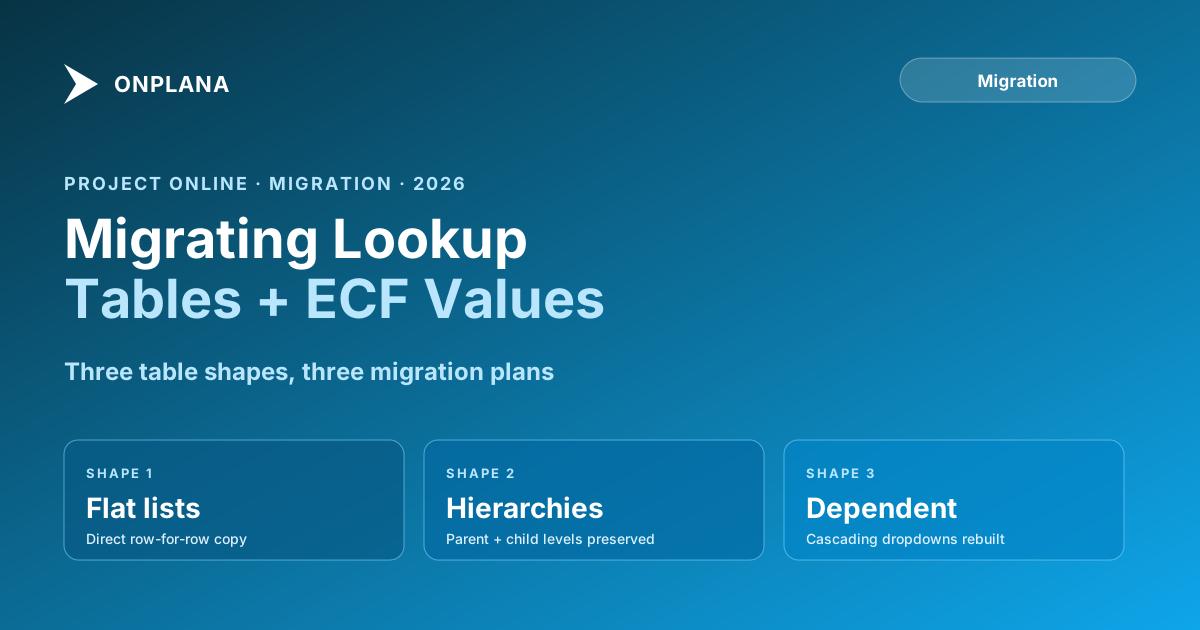
Migrating Project Online Lookup Tables and Custom Field Values
Project Online lookup tables back every dropdown ECF. Migrate them wrong and Power BI loses filters, hierarchies collapse, and field values flatten to text.
Most custom-field migrations treat Project Online lookup tables as an afterthought. The fields appear in the column list and on Project Detail Pages, so admins count them and build a migration plan around them. The lookup tables sit one layer deeper in the Enterprise Global configuration, invisible in most export tools, and absent from most migration checklists.
When the omission surfaces, it looks like this: a portfolio dashboard filter that should show "North," "South," "East," "West" instead shows four GUID strings. A Power BI report that grouped projects by department now has no grouping at all. A project-creation form accepts input, saves, and then displays a raw identifier where the label should be. These are not one-off bugs. They are the predictable result of treating lookup tables as a byproduct of field migration rather than as a separate migration artifact with its own structure and dependencies.
This post covers what Project Online lookup tables are, how they connect to Enterprise Custom Fields, the three migration strategies for handling different table types, and the validation checklist for confirming the migration is actually complete.
TL;DR Project Online lookup tables are separate data entities from the ECFs that reference them. Inventory tables before fields. Choose a migration strategy per table: flatten to text for simple tables, rebuild in the destination for dropdown-constrained fields, or maintain a GUID map for tables that back historical Power BI reports. Validate field values, report filters, and new-record behavior before closing the migration.
What are Project Online lookup tables?
A Project Online lookup table is a tenant-level list of valid values maintained in the Enterprise Global, separate from any individual project or custom field. It has a name, a GUID, and a set of entries. Each entry has its own GUID, a display label, an optional description, and optionally a parent entry GUID for hierarchical tables.
When you create an Enterprise Custom Field (ECF) of type "Lookup," you associate it with one of these tables. The field stores the entry GUID, not the display text. Project Online resolves the GUID to the label at render time. Microsoft's documentation on Enterprise Custom Fields covers how these are defined and accessed via the CSOM API.
The render-time resolution model is what creates the migration challenge. A data export of project records gives you GUIDs in the custom field columns unless your export script explicitly resolves them. Project Online retired on September 30, 2026, and anything that read it live stopped with it, including that resolution step. The resolved text has to come from what you exported, using a two-pass approach: take the lookup table entries from your export to build a GUID-to-text map, then apply that map to your project data exports.
The structural point that matters most: one lookup table can back multiple ECFs. A "Region" table might power a Project-level ECF, a Resource-level ECF, and a Task-level ECF simultaneously. If you migrate each field independently without tracking this shared relationship, you create two or three separate region dropdowns in the destination that start identical and then diverge as admins add values to one without updating the others.
The full context on migrating custom fields lives in the Enterprise Custom Fields migration guide. This post focuses on the lookup table layer: the export path, migration strategy, and validation.
How lookup tables connect to ECFs
The diagram below shows the architecture: one lookup table backing three Enterprise Custom Fields on different entity types.
Because the three fields share a single source table, the correct migration sequence is: export and migrate the lookup table first as a canonical value list, create destination fields pointing at the same source, then import project and resource data with field values already resolved to display text. Inverting this, migrating fields before tables, is the root cause of most lookup-related migration failures.
Three migration strategies
Each lookup table in your tenant needs an explicit migration decision before any data moves. Three factors determine the right strategy: whether the table is hierarchical, whether reports query the entry GUID rather than the display label, and whether the destination supports structured dropdown fields.
Flatten to text. Export the display label for each entry and discard the GUID. Configure the destination field as a free-text or simple-list field with no GUID tracking. This is correct for flat, stable, low-cardinality tables where no report filters on the GUID. It handles roughly 40 to 50 percent of tables in a typical tenant. The tradeoff: the destination has no "valid values only" enforcement once flattened, so new entries can be added freely and inconsistently.
Rebuild in the destination. Create a matching structured custom field with the same allowed value list and a dropdown constraint. This preserves input validation and prevents ad-hoc value creation. Use this when the destination supports typed custom fields (Onplana's typed custom fields handle this pattern), when the value set is small enough to maintain actively, and when the table is flat. This is the right choice for roughly 30 to 40 percent of tables.
Hybrid GUID map. Export the full GUID-to-text mapping to a reference table in your BI warehouse. Migrate the actual project field as flattened text in the destination. Historical Power BI reports that joined on GUID can now join the reference table instead for pre-cutover data; new data uses text values directly. Use this when significant historical reporting joins on GUIDs and those reports cannot be rebuilt before the migration window closes. It is the most labor-intensive path but the least disruptive to existing report consumers.
Before finalizing the strategy for any table, confirm whether the table is actively used. Joining the exported /LookupTables and /CustomFields data surfaces tables with zero referencing fields. These are abandoned and can be dropped from scope entirely, which often removes 20 to 30 percent of the inventory.
Hierarchical lookup tables: the hard case
Hierarchical tables carry parent-child relationships between entries. A "Cost Center" table might have "Finance" as a parent with "Finance.Operations" and "Finance.Strategy" as children. Users select a parent or a specific child. Power BI reports group at the parent level and drill down into children.
Most migration tooling flattens hierarchical tables by default. The export produces a flat list of all entries. The destination receives them at the same depth level. The parent-child relationship is gone. Power BI drill-downs stop working. Portfolio filters that relied on grouping at the department level now return undifferentiated lists.
If your tenant has hierarchical tables backing active reports, the migration requires extra steps:
- Start from the full hierarchy including parent GUIDs, as exported from
/_api/ProjectData/LookupTables?$expand=LookupEntries. Capture depth levels explicitly. - Confirm the destination tool supports hierarchical custom field structures. Onplana supports this via nested category values on typed custom fields.
- Import the hierarchy as a tree, preserving depth and parent references.
- Test drill-down filtering in Power BI before declaring the table migrated.
If the destination does not support hierarchical custom fields, the pragmatic option is to flatten and split: create one field for the parent dimension and one for the child dimension, then update reports to use two separate filters instead of a drill-down. This adds migration work but produces a cleaner data model than embedding hierarchy in a flat value list.
Hierarchical tables are typically 20 to 30 percent of all lookup tables in a tenant but carry 60 to 70 percent of the migration risk because the rebuild is more complex and the validation requires testing reporting behavior, not just data correctness. Identify all hierarchical tables in the inventory step, before any migration tooling runs.
Multi-value lookup fields
Some Enterprise Custom Fields allow multiple lookup values to be selected simultaneously. A "Responsible Teams" project field might hold both "Engineering" and "Design" at the same time. These fields store multiple GUID references against the same field name.
Multi-value fields require destination support for multi-select custom fields. If the destination only supports single values, three options exist:
First value only. Extract the first GUID and resolve it to text, discard the rest. Simple to implement. Loses data silently when secondary values are actually populated. Acceptable only if secondary values are empty for more than 95 percent of active projects.
Concatenate to text. Join all resolved values with a delimiter and store as a single text string. Preserves data. Destroys filterability. Power BI measures that count distinct values or group records by this field stop working correctly.
Split into parallel fields. Create "Responsible Team 1," "Responsible Team 2," and so on. Preserves both data and filter capability. Requires updating every report and view that references the original field name.
None of these is free. The right choice depends on how many projects use secondary values and how many reports reference the field. Audit multi-value fields during the inventory step and flag any that appear in active Power BI reports. Making this decision before migration starts is straightforward; making it after reports have been rebuilt doubles the work.
How to run the inventory
The OData endpoint /_api/ProjectData/LookupTables?$expand=LookupEntries returned every table with its full entry set. Build a working spreadsheet from your export of it before touching any migration tooling. For each table, record:
- Name and GUID: primary identifiers for cross-referencing with ECF exports.
- Entry count: tables with more than 100 entries need extra planning for import tooling.
- Hierarchical indicator: check whether any entries carry a non-null parent GUID.
- Entry type:
0text,1number,2cost,3duration,4date. Non-text types have additional schema considerations in the destination. - Referencing field count: filter the exported
/CustomFieldsdata onLookupTableUID ne nulland group by table GUID. Tables with zero referencing fields are abandoned and can be removed from scope. - Active usage rate: for tables that are referenced by fields, check whether active projects in the last 12 months are actually using non-default values. Tables where 95 percent of records are blank or default can usually be treated as inactive.
Use the free Migration Preview tool to validate that custom field values survive the file boundary before committing to a migration approach. Upload a representative .mpp and confirm the field values arrive in the preview output as display text, not GUIDs. The preview surfaces resolution failures and missing values early, while recovery is still straightforward.
The Project Online migration checklist covers the full six-category inventory across projects, resources, custom fields, views, workflows, and integrations. Lookup tables sit within the custom field category but deserve a separate pass because their dependencies and migration paths are distinct from those of non-lookup ECFs.
Validation after migration
Three checks confirm the lookup table migration is complete and correct.
Dropdown contents match the source. Open each migrated lookup-backed field in the destination configuration. Confirm the allowed value list matches the source entry count. For hierarchical tables, confirm parent-child structure was preserved. Spot-check a few entries against the original GUID-to-text map to confirm the display labels are exact, not truncated or reformatted.
Report filters show labels, not identifiers. Open a Power BI report that filters or groups by a migrated lookup field. Confirm the filter shows human-readable labels. For hierarchical fields, confirm that drill-down still expands from parent to children. If the filter shows GUIDs or shows fewer values than expected, the export transform missed a GUID resolution step.
New records store and retrieve correctly. Create a test project in the destination. Fill every lookup-backed custom field with a valid value. Save, close, and reopen. Confirm the stored value displays the label, not a GUID string. This confirms the destination is writing and reading correctly for new data, not just for migrated historical data.
The most common root cause of failures at this stage is a missing $expand=LookupEntries parameter in the export query. The fix is to rebuild the GUID-to-text map from any export that did include the entries, and re-apply it to the field values in the destination before re-importing.
Run the free Migration Preview Upload a sample .mpp to see exactly how your custom fields and lookup values cross the tool boundary before you commit to a migration approach. No signup required. Open the Migration Preview
Microsoft Project Online™ is a trademark of Microsoft Corporation. Onplana is not affiliated with Microsoft.
Frequently asked questions
What are lookup tables in Project Online?
Lookup tables are tenant-level lists of valid values for Enterprise Custom Fields. Each table has its own GUID and entry set, and one table can serve multiple fields simultaneously.
What is the difference between an ECF and a lookup table?
An Enterprise Custom Field defines the name, type, and scope of the field. A lookup table is a separate data entity that defines the allowed values. Multiple ECFs can reference the same lookup table.
Can I export lookup table values as plain text?
Yes. For flat, stable tables where no report filters by GUID, flattening to text is the fastest migration path. Problems arise when reports depend on GUID resolution or when a hierarchical table's parent-child structure needs to be preserved.
Do hierarchical lookup tables survive migration?
Only with explicit planning. Most migration paths flatten hierarchical tables by default, losing parent-child relationships. If Power BI reports use the hierarchy for drill-down, plan to rebuild it or restructure reports before migrating.
How many lookup tables does a typical Project Online tenant have?
Mid-size PMOs typically have 20 to 40 lookup tables. Enterprise tenants with multiple department configurations can have 80 to 120. Count them from your export of the OData /LookupTables feed before planning.
What happens to multi-value lookup fields during migration?
Multi-value fields require destination support for multi-select custom fields. If the destination only supports single values, options include taking the first value, concatenating to text, or splitting into multiple single-value fields, each with reporting trade-offs.
When did Project Online retire?
Microsoft Project Online retired on September 30, 2026. Anything that read it live stopped with it; anything already exported or imported did not. Lookup table GIDs and display-text mappings now come from what you exported before that date.
Ready to make the switch?
Start your free Onplana account and import your existing projects in minutes.