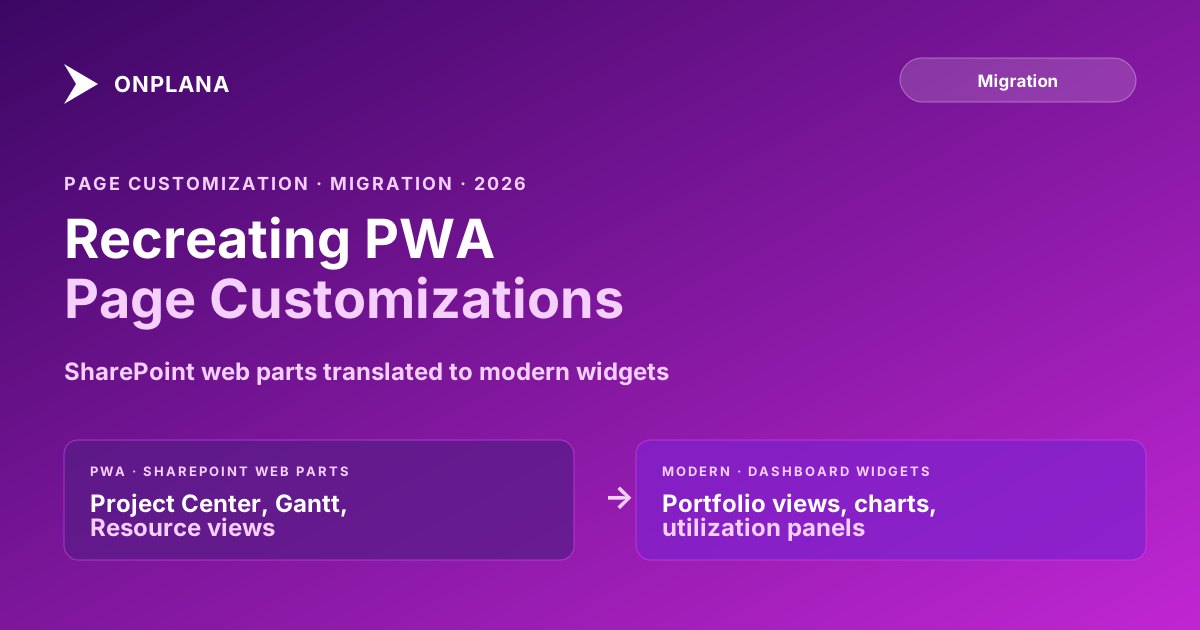
Recreating Project Online Page Customizations in a Modern UI
Project Online page customization relies on SharePoint web parts that do not migrate. A translation guide for PMOs moving to modern dashboard widgets.
Two weeks after a Project Online migration completes, the same question arrives in the PMO administrator's inbox. The PMO director wants to know where the Project Center view went. The one that showed project status grouped by phase, with the resource workload chart on the right side and the milestone summary below. She used it every Monday morning to brief her team. The migration moved the project data and the schedule files. It did not move the Project Online page customizations: the web part arrangements, view configurations, and site page layouts that organized how the data appeared.
In Project Online, those layouts are SharePoint web parts: configurable components that display data from the project server in arrangements the PMO administrator spent time building. They don't exist as exportable objects. They exist as SharePoint page metadata, and they're not in the .mpp export. When the migration completes, every page customization the organization invested in is gone.
This is not a technical failure. It is a scope failure. Most migration checklists treat data migration (projects, tasks, resources, baselines) as the deliverable. Page configuration is perceived as cosmetic, something to rebuild later. "Later" then becomes "never," and the PMO operates for months in a destination tool that shows the right data in the wrong arrangement.
TL;DR: Project Online page customizations live in SharePoint web part configurations, not in project data exports. No standard migration tool captures them. Before cutover, inventory your highest-traffic pages, document the web parts and their configurations, identify the equivalent widgets in the destination tool, and rebuild the priority pages before the first day of parallel operation. The goal is not to recreate everything verbatim but to give stakeholders the views they use most, in a new form that the destination tool supports natively.
What Project Online Page Customizations Actually Are
Project Online runs on a SharePoint site collection. Every PWA page, the Project Center, the Resource Center, individual project sites, the portfolio analysis pages, is a SharePoint page rendered in a browser. The data comes from the Project Server service application. The presentation layer is SharePoint.
SharePoint pages are customized with web parts: modular components that each display a slice of project data. The administrator adds web parts to a page zone, configures each web part (choosing columns, filters, groupings, and display options), and saves the layout. That layout lives in SharePoint's page metadata for the site collection.
Common web parts and what they display:
- Project Center: the primary portfolio view. Shows all projects with status, dates, and custom field values. Configurable columns, grouping, and filtering.
- Gantt view: a visual timeline of tasks for a single project or a program rollup. Column selection and zoom level are configurable.
- Resource Center: shows resource availability, workload, and allocation across projects. Supports time-phased views.
- Milestone rollup: aggregates milestone status across a portfolio. Often appears on PMO home pages.
- Status report summary: shows the latest status reports filed across projects.
- Portfolio analysis views: appear on Portfolio Analyzer pages with custom dimensions and comparison scenarios.
When an administrator spends time configuring these web parts, they're investing in a presentation layer that lives outside the project data. That's why it doesn't migrate.
The SharePoint Architecture That Causes the Gap
The diagram below shows what lives in the .mpp export versus what lives in SharePoint page configurations.
The gap is structural, not a migration tool limitation. The .mpp format was designed to carry schedule data. SharePoint page metadata was never part of the schema. Any migration tool that reads .mpp or MSPDI XML will have the same gap: the data moves; the presentation layer doesn't.
This is why the project views and filters migration guide covers views and filters as a separate migration track from the schedule data migration. Page customizations extend that problem: where the views guide addresses column definitions and filter rules, page customizations address the higher-level question of how those views are surfaced and arranged.
What Modern PM Tool Customization Looks Like
Modern PM tools replace the SharePoint web part model with a widget-based dashboard system. Instead of editing a SharePoint page and adding web part components, administrators work within the PM tool's own dashboard builder to assemble views from a library of pre-built panels.
The capabilities are comparable. Most modern PM tools support:
- Portfolio list views with configurable columns, grouping, and filtering
- Gantt chart views for individual projects and program rollups
- Resource utilization panels showing availability and allocation
- Status and milestone summary dashboards
- Custom metric widgets showing aggregated values across the portfolio
- Per-project home pages with section arrangements
The configuration experience differs significantly. SharePoint web parts are configured through a web part property pane that varies by web part type, and changes affect the site page for everyone. Modern PM tool dashboards are typically configured in a drag-and-drop builder with live preview, and may support both personal and shared views.
The important difference for migration planning: configuration in the destination doesn't transfer from a PWA page configuration file. Even if you export the SharePoint page metadata via PowerShell, the destination has no import path for that format. The rebuild starts from the documented spec, not from an import.
Inventorying Your PWA Page Customizations Before Migration
A page customization inventory doesn't need to be elaborate. What it needs to do is answer three questions for each page: who uses it, what does it show, and how is it arranged.
Step 1: Identify the high-traffic pages. Not all PWA pages receive equal use. The Project Center homepage, the main resource utilization view, and the project-specific home pages for active projects are almost always in use. Custom portfolio pages built for a quarterly review may see heavy traffic twice a year and negligible traffic otherwise. Start with the pages used at least weekly.
Step 2: Document each web part on the high-traffic pages. For each web part, record the web part type, the data source, any configured columns or fields, any applied filters or groupings, and the position on the page. A screenshot with annotations is often the fastest documentation method. The screenshot also becomes the acceptance criteria for the rebuild.
Step 3: Identify the primary audience. A view configured for the PMO director (portfolio-level, grouped by program) differs from a view configured for a resource manager (utilization-focused, grouped by role). Knowing the audience determines the rebuild priority.
Step 4: Add page configurations to the inventory checklist. The Project Online Inventory Checklist captures projects, custom fields, resource pool, and cross-project data. Add a section for high-traffic page configurations so the inventory covers both data migration and presentation migration. Teams that skip this step discover the gap on go-live day.
For a typical PMO, the audit surfaces 8 to 15 page configurations worth documenting. Only 3 to 5 of those will be used frequently enough to require rebuilding before cutover.
Common Web Part Equivalents in Modern PM Tools
The translation from PWA web part to modern widget is not one-to-one, but there are reliable mappings.
| PWA Web Part | Modern PM Tool Equivalent |
|---|---|
| Project Center (portfolio grid) | Portfolio list view with configurable columns and grouping |
| Gantt chart web part | Gantt view with program rollup option |
| Resource Center (availability) | Resource availability or capacity panel |
| Resource Center (workload) | Resource utilization heatmap or workload chart |
| Milestone rollup | Status dashboard with milestone filter |
| Status report summary | Status report feed or recent updates widget |
| Portfolio analysis view | Scenario planning or portfolio comparison view |
| Project home page | Per-project overview page with section layout |
Where Project Online web parts are highly configurable at the data-query level (column selection, custom field inclusion, OData filter syntax), modern PM tools typically offer configuration through a UI-driven settings panel. The end result is visually similar; the configuration path is different.
The Onplana features overview shows what the widget-based dashboard builder produces for common PMO views. For teams evaluating destination tools, asking the vendor to demo the equivalent of the Project Center and the Resource Center views is the fastest way to assess whether the tool can support the configurations your PMO needs.
A Playbook for Translating PWA Pages to Modern Dashboards
A structured rebuild process prevents the situation where PMs are working in the new tool three weeks after cutover and still asking where to find the information they had in PWA.
Phase 1: Pre-migration (3 to 4 weeks before cutover).
Complete the page inventory documented above. Prioritize the list into three tiers: must-have before go-live, nice-to-have in the first 30 days, and low-priority rebuild whenever time allows. Document the must-have configurations in enough detail to rebuild them without referring to the PWA source.
Phase 2: Destination configuration (2 to 3 weeks before cutover).
Build the must-have views in the destination tool using its widget or dashboard builder. Build them against real project data if a pilot import is already loaded, or against sample data if not. Have the primary audience for each view review the result and flag gaps before go-live.
Phase 3: Parallel operation (go-live through the first two weeks).
Run the destination tool alongside Project Online. During parallel operation, PMs work in both systems. When they identify a missing view in the destination, log it against the inventory documentation and schedule a rebuild. The parallel operation window is the most efficient time to catch gaps because PMs are comparing both tools daily.
Phase 4: Post-migration refinement (30 to 60 days after cutover).
Address the nice-to-have views from the tier 2 list. By this point, PMs have been working in the destination tool long enough to know which views they actually need versus which ones they thought they'd need. Some tier 2 views won't be needed at all. Others will need more configuration than the tier 1 builds. Use the 30-to-60 day window to complete the rebuild before the tool feels permanently half-built.
The migration checklist covers the go-live sequence including parallel operation protocols. Adding page configuration rebuild milestones to that checklist, with named owners and acceptance criteria from the inventory documentation, prevents page configuration from slipping off the scope list.
What Gets Lost and What Gets Better
Page customization migration is not a pure loss. SharePoint web parts in Project Online accumulate over years of configuration by different administrators with different goals. Most PWA installations contain views that nobody uses anymore, filters that reference custom fields that have been removed, and page arrangements that made sense in 2019 but don't reflect how the PMO works today.
The migration is an opportunity to rationalize. Instead of rebuilding every page configuration, build only the views that active stakeholders use. Ask each user to describe what they need rather than replicating what existed. In many cases, the destination tool can provide that information in a simpler, faster-loading view that requires less manual configuration than the original.
Modern PM tool dashboards also tend to update in real time, while PWA pages sometimes required a manual refresh to reflect the latest project data. Teams migrating off Project Online often report that their rebuilt views feel faster and more responsive than what they had before, even when the underlying data is the same.
The goal at cutover is not perfect fidelity to the PWA UI. The goal is that the people who depended on specific views have working equivalents in the new tool before they need them.
According to the Microsoft Project Online service description, PWA page customization is a feature of both Project Plan 3 and Project Plan 5. The retirement date is September 30, 2026. After that date, the SharePoint site collection hosting PWA enters read-only mode. Administrators can still view page configurations but cannot export or edit them. Completing the page inventory before retirement is the only reliable way to capture what needs to be rebuilt.
Run the free Migration Preview See your project structure, custom fields, and data volume before committing to a destination tool and layout plan. No signup required. → Open Migration Preview
Microsoft Project Online™ is a trademark of Microsoft Corporation. Onplana is not affiliated with Microsoft.
Frequently asked questions
What are Project Online page customizations?
Project Online PWA pages are SharePoint site collections. Administrators customize them by adding, removing, and arranging SharePoint web parts: pre-built components that display project data in views, charts, timelines, and grids. These customizations exist as SharePoint page metadata, not as exportable project data.
Do page customizations migrate with the .mpp export?
No. The .mpp export contains schedule data: tasks, dependencies, resources, and baselines. SharePoint page configurations are stored as site page metadata and are completely separate from the project file. No migration tool reads or transfers them.
How do I capture existing Project Online page customizations before migration?
Document them manually or through screen capture before cutover. For each key PWA page, record which web parts are present, what data they display, what filters and groupings are applied, and who the primary audience is. This documentation becomes the rebuild specification for the destination tool.
What is the equivalent of a PWA web part in a modern PM tool?
Modern PM tools call them dashboard widgets, panels, or views. Most support chart widgets, list widgets, Gantt views, resource utilization panels, and portfolio rollup views. The feature is present across most modern tools; the configuration approach differs significantly from SharePoint web part settings.
How many Project Online page customizations should I rebuild in the destination?
Rebuild only the ones that active stakeholders use regularly. Most PMOs have 3 to 5 high-traffic pages that matter. Everything else is accumulated configuration that exists because nobody removed it. Use the migration as an opportunity to simplify rather than to replicate everything verbatim.
What web parts are most commonly customized in Project Online?
The Project Center, Resource Center, and individual project home pages see the most customization. Gantt chart views, resource utilization grids, portfolio status dashboards, and milestone summary panels are the web parts administrators adjust most often to match PMO reporting needs.
Can I export SharePoint page configurations before Project Online retires?
SharePoint page configurations can be read via the SharePoint REST API or downloaded using SharePoint PnP PowerShell before September 30, 2026. The export captures the structural metadata but not the rendered layout. It is useful for documentation and audit, not for direct import into a modern PM tool.
Ready to make the switch?
Start your free Onplana account and import your existing projects in minutes.