Resource Conflicts After a Project Online Migration: A Triage Guide
Resource conflicts surface after every Project Online migration: the new tool sees what PWA hid. Here's how to triage the conflict backlog in a day.
The most common reaction when resource conflicts surface after a migration is to blame the migration. The new tool must be calculating something wrong. The import must have doubled assignments. Something broke.
Nothing broke. Resource conflicts migration surfaces were already there. The migration made them visible for the first time.
Project Online stores each project in a separate file. Most PMs managed their .mpp in isolation, which meant the resource pool looked healthy from any single project's vantage point. The same senior engineer could be at 70% utilization in three different project files simultaneously. Each PM would look at their own file and see 70% utilization. Add those three together and you get 210%.
The new tool has one resource pool. It sees all three files at once. The math resolves to 210%, and it flags the conflict immediately.
This post covers why Project Online hid the conflicts, how to classify what the migration surfaced, how to triage the backlog in a single working day, and what the three resolution patterns look like in practice. If you find 40 conflicts on Monday morning after go-live, this is how you turn that into a plan before lunch.
The short version: Resource conflicts surfaced by migration are not a migration problem. They are an honest inventory of your real capacity situation for the first time. The triage question is not "how do we make the tool stop showing these" but "which of these do we need to act on this week."
Why Resource Conflicts Surface in Every Migration
Project Online's architecture was built around the individual .mpp file. The Enterprise Resource Pool shared resource identity across projects, but utilization math ran project-by-project unless a portfolio manager explicitly ran a cross-project resource report. According to Microsoft's Project Online service documentation, the per-project architecture was a deliberate design: each project site maintained its own data boundary. Most PMOs never found a reason to break across that boundary for resource planning. Routine status reviews happened inside a single file.
Three structural patterns made conflicts invisible:
Per-file reporting. The Resource Sheet and Resource Usage view in any .mpp only compute utilization within that file. A resource assigned to 70% of capacity in three separate projects appears at 70% in each file. No warning fires anywhere because no individual file sees the aggregate.
Generic resource placeholders. Many Project Online installations used generic resources (role placeholders like "Business Analyst" or "Senior Developer") to model capacity before named resources were confirmed. Different projects shared the same generic resource without coordinating, because the Enterprise Resource Pool listed the generic as available right up until a named assignment replaced it.
Weekly smoothing. The default reporting view rolled up hours by week, which averaged the overloaded days into numbers that looked manageable. A resource working 60 hours in week 3 and 20 hours in week 5 showed as 95% utilized for the month, which triggered no alert.
The diagram below shows how the same data looks through Project Online's per-file lens versus through a unified tool after migration.
The data did not change. The vantage point did.
The Three Types of Surfaced Conflicts
Not all resource conflicts are equal. Before triaging the list, classify each one into its type:
Type 1: Named-resource cross-project conflicts. One person is assigned to overlapping tasks across two or more projects. These are the most actionable because there is a human to talk to and a specific conversation to have. Severity depends on how much of the critical path that person touches across the portfolio.
Type 2: Generic-resource ambiguity. A role placeholder like "Senior Developer" is assigned across multiple projects at 100% each. There may or may not be a real conflict here. If you staff the role with two separate people, there is no conflict at all: the issue is a data-modeling problem that looks like a capacity problem until you verify the actual headcount. These take a conversation to resolve, not a schedule change.
Type 3: Over-unit assignments within a single project. A resource is assigned to 150% of capacity on tasks within one project, which Project Online accepted silently. This was always a bug, but it was invisible because the per-file view didn't flag it unless you specifically ran the leveling analyzer. It surfaces immediately on import into any tool that validates assignment totals.
Most post-migration backlogs break down roughly 40-50% Type 1, 30-40% Type 2, and 10-20% Type 3. Type 2 conflicts are cheap to resolve once headcount is confirmed; Type 1 conflicts are expensive because they require PM-to-PM coordination across projects.
Reading the Conflict Report
Every modern PM tool generates a resource conflict report on import. The first pass should answer four questions for each flagged item:
When does the conflict happen? A conflict in the past is irrelevant. A conflict in the next two weeks is urgent. A conflict four months out is real but not today's problem. Filter by conflict start date before doing anything else.
How much float does the conflicted task have? Total float is the most useful proxy for urgency. Zero days of float means any slip on that task moves the project finish date. Fourteen days of float means you have two weeks before the conflict becomes critical-path-threatening. Sort the conflict list by float ascending; that is your triage order.
How severe is the overallocation? A resource at 105% for one week is probably a rounding issue that resolves itself. A resource at 180% for three consecutive weeks is a real planning error that requires a decision about scope, schedule, or headcount.
How many projects does the conflict involve? A conflict that touches three projects simultaneously requires coordination between three PMs. That escalates to the resource manager or PMO lead, and that conversation takes a full week to resolve, not an afternoon. Account for that in your triage timeline.
The Resource Heatmap tool computes a weekly utilization view automatically from your .mpp files. It will not give you a cross-project rollup from a single file (that requires the unified pool the new tool provides), but it surfaces Type 3 over-unit conflicts and shows which files have the densest near-term loading. That tells you which projects to hand-audit before cutover.
Triage Protocol: One Working Day
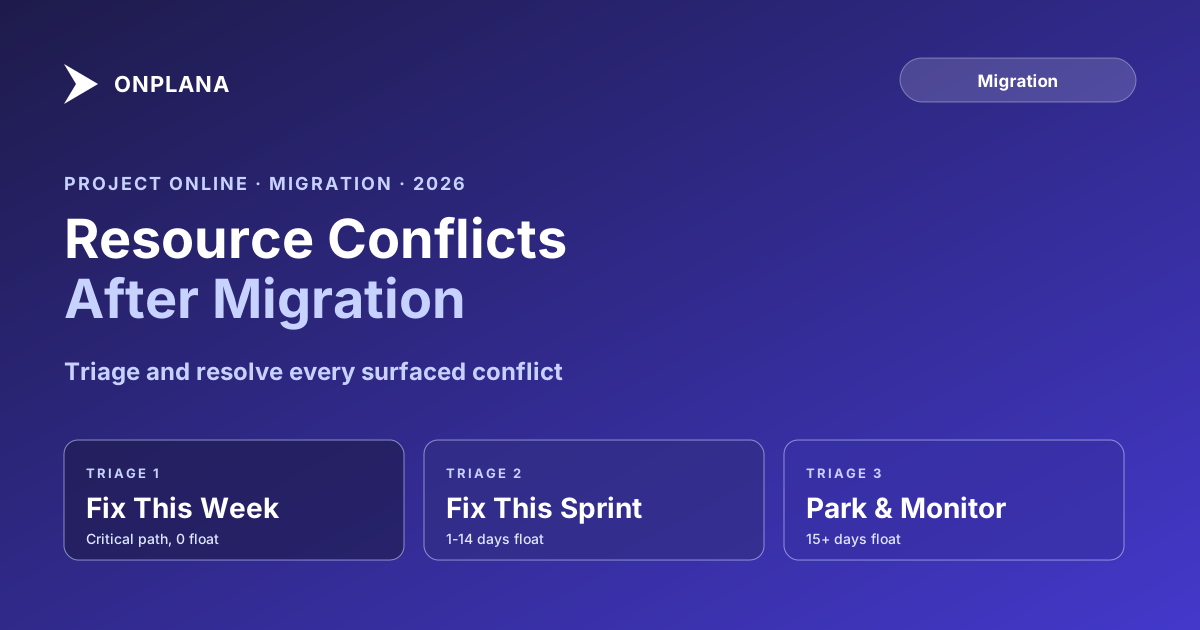
The goal of day-one triage is not to resolve every conflict. It is to classify each item into one of three buckets so the PMO has a working plan before the first post-migration status call.
Work through the list in float-ascending order. A backlog of 40 conflicts typically breaks down to 6-8 items requiring a decision this week, 15-20 items for sprint planning, and the rest parked with a review date. The triage takes about four hours if the conflict report is clean. If the conflict report is messy (common with generic resources), add two hours to verify headcount on the Type 2 items before classifying them.
Type 2 generic-resource conflicts should go directly to "park and monitor" unless the generic also appears on a critical-path task. Verify actual headcount before taking any action.
The Three Resolution Patterns
Once an item moves out of triage and into the "fix" buckets, there are three ways to resolve a named conflict:
Reassign work. Move one of the conflicting tasks to a different resource with matching skills and available capacity. This is the cleanest resolution when under-utilized capacity exists on the team. It requires a re-brief to the new assignee, a schedule update, and a dependency check to confirm the task's position does not shift in a way that creates a new constraint violation.
Adjust assignment units. Reduce the assignment percentage so the resource's combined total stays at or below 100% utilization. The task will take longer as a result because duration depends on the ratio of work to units. Verify that the extended finish date does not violate a downstream constraint before accepting the change. If it does, the downstream constraint needs to be revisited first.
Push the task. When neither of the above options works, accept that one task moves. Identify which conflicting task has more float and delay its start. This is the honest answer when capacity genuinely does not exist: the schedule must reflect reality. Changing the schedule to match the capacity is not failure; continuing to report tasks as on track when they cannot be is.
What you should not do is leave the conflict flagged and report the task as on track anyway. That is the behavior Project Online made easy for years, and every migration is an opportunity to stop it. For the detailed mechanics of each option, the resource overallocation math post walks through each resolution with worked examples and the tradeoffs between them.
What "Fix Later" Actually Means
Every PMO I have talked to after a migration says some version of "we'll fix the resource conflicts in the next sprint." Sometimes they mean it. More often, "fix later" is code for moving the list to a spreadsheet tab called "post-cutover cleanup" that is never opened again.
The problem with deferring is that conflicts compound. A task that is overloaded in week 3 slips to week 5. Its successor, which had two days of float, now has none. That successor's successor is now on the critical path. Four weeks later, a project is late and nobody can explain why, because the root cause was a resource conflict that got parked on migration day.
"Fix later" is acceptable for any conflict with 15 or more days of float. It is not acceptable for anything touching the critical path. The triage protocol exists to keep that distinction clear.
If your PMO does not have a standing resource-conflict review cadence, now is the time to establish one. A biweekly meeting where float-ascending conflicts get reviewed and actioned takes about 30 minutes per session and prevents the backlog from growing back to migration-day size within a quarter. The alternative is discovering the same conflicts again in six months, except this time as escalations.
Running the Audit Before Cutover
The most effective time to address resource conflicts is before migration, while your team still knows the Project Online environment and the source files are still editable.
The Resource Heatmap tool accepts .mpp uploads and surfaces weekly utilization per file. It is not a cross-project rollup (that requires the unified pool the new tool provides), but it surfaces over-unit assignments within each file and shows which files have the densest near-term loading. Files with dense near-term allocation and complex assignment graphs are the ones to audit manually before migration.
The Migration Preview tool completes the picture: it shows exactly how your data will look after import, including any resource assignments that change representation during the import process. Running both before committing to a cutover date is the difference between discovering conflicts on Friday afternoon with time to plan versus Monday morning with none. The full migration failure-mode guide covers the broader sequencing context, including why skipping the pre-migration audit is one of the most reliably painful decisions a PMO makes. For the full picture of what you should inventory before migration starts, the Project Online migration planning guide covers the end-to-end process.
Run the free Resource Heatmap on your .mpp files Upload your schedule and get a weekly utilization view in about 30 seconds. Identify which resources are overloaded before migration consolidates them into one view. No signup required. → Open the Resource Heatmap
Microsoft Project Online™ is a trademark of Microsoft Corporation. Onplana is not affiliated with Microsoft.
Frequently asked questions
Why does migration surface resource conflicts that weren't visible in Project Online?
Project Online stores each project in a separate file. Most PMOs managed one file at a time, so cross-project conflicts were invisible unless someone ran a portfolio-level resource report. The new tool's unified resource pool sees all projects simultaneously.
Is it normal to find resource conflicts after a Project Online migration?
Yes. PMOs migrating 50 or more projects typically surface 15 to 40 distinct resource conflicts they didn't know existed. Most resolve by adjusting assignment units or pushing a task by a week or two.
Should I fix resource conflicts before or after migration cutover?
Fix the load-bearing ones before cutover: any conflict on a critical-path task for an active project. Triage the rest post-cutover; most are minor and can wait for the next resource-planning meeting.
What causes the most resource conflicts in Project Online migrations?
Generic resources used as role placeholders. Two projects both assigned 100 percent of a role like 'Senior Developer' without knowing the other did the same. Named-resource conflicts exist too but are easier to spot.
What is the fastest way to identify which resource conflicts matter?
Filter by critical-path proximity. Conflicts on tasks with zero total float matter today. Conflicts on tasks with ten or more days of float can wait a week. A resource heatmap sorted by near-term utilization makes this triage doable in under an hour.
How do I avoid surfacing this problem at go-live?
Run a portfolio-level resource audit before migration using the Resource Heatmap tool. Upload each .mpp file, identify over-unit assignments in the near-term window, and resolve the critical conflicts before the new tool consolidates everything into one view.
Ready to make the switch?
Start your free Onplana account and import your existing projects in minutes.