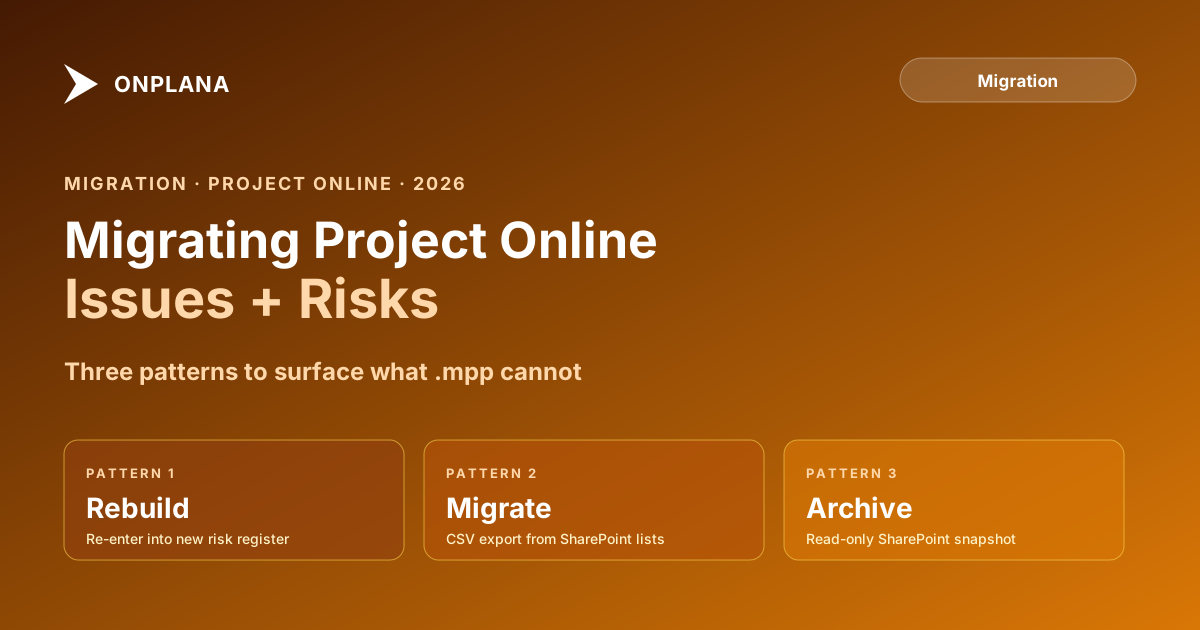
Migrating Project Online Issues and Risks: Three Patterns for PMOs
Project Online issues and risks sit in SharePoint lists, invisible to .mpp exports. Most migrations leave them behind. Here's how to recover and migrate them.
Every Project Online migration brief mentions the .mpp export. Almost none mention the Issues list and the Risks list. Those two lists hold the PMO's active risk register, open compliance issues, escalation history, and mitigation plans for every project in the tenant. They sit in SharePoint, invisible to every .mpp or XML export tool that has ever been pointed at Project Online. Most migrations leave them entirely behind.
The practical consequence usually surfaces in week two or three of parallel running. A project manager asks where the two open supply chain risks went. A sponsor asks about the remediation plan for the compliance issue that was due for review this month. The answer is the same each time: those records were in SharePoint, not in the schedule file, and nobody included them in the migration scope.
TL;DR: Project Online issues and risks live in SharePoint lists inside each project's PWA subsite. They are not included in .mpp exports, MSPDI XML exports, or standard OData migration queries. Before cutover, inventory the Issues and Risks lists across your tenant, classify each record as active or archivable, and choose one of three migration patterns based on whether you are rebuilding in the destination tool, migrating to a structured archive, or preserving in SharePoint. Active records on in-flight projects are the ones that need migration; completed-project records can be archived.
Where Project Online Issues and Risks Live
Each project in Project Online has a SharePoint site collection: the PWA project site. Inside that site, SharePoint automatically creates several lists when the project is provisioned. Two of them are the Issues list and the Risks list.
The Issues list stores open problems that need tracking and resolution: a blocked dependency, a technical defect affecting the schedule, a vendor delay, a compliance finding. Each issue record has fields for title, owner, priority, status, due date, category, and a description. There is also a discussion field for tracking the resolution history.
The Risks list stores potential future problems: likelihood, impact, mitigation plan, contingency plan, probability, and a related-items field that can reference specific tasks in the project schedule. Each risk record is essentially a row in the PMO's risk register for that project.
Both lists are per-project. They belong to the project's SharePoint subsite, not to a central PWA list. A tenant with 80 active projects has up to 160 separate SharePoint lists (one Issues and one Risks list per project) that contain this data. The Microsoft Project Online service description lists "Issue and risk management" as a named feature available in both Project Plan 3 and Project Plan 5.
The diagram below shows the architectural separation between the schedule data and the SharePoint list data.
What the .mpp Export Misses
When you run a .mpp export from the PWA interface or a PowerShell OData export targeting projects and tasks, the SharePoint list data is not in scope. The export format, MSPDI XML or .mpp, has fields for tasks, assignments, calendars, and custom fields defined in the PWA schema. It has no field for SharePoint list rows.
This is not an oversight in the export process. The .mpp format predates Project Online by decades and was designed for schedule portability, not for SharePoint list content. When Microsoft built PWA's Issues and Risks features on top of SharePoint, they made a deliberate choice to store that data in SharePoint lists rather than in the project record. The schedule and the risk register are architecturally separate.
Three migration patterns miss this:
Standard .mpp export. The team exports .mpp files project by project, imports them into the destination, and considers the migration done. No Issues or Risks data ever entered the export.
OData migration query. The migration script targets the standard OData reporting entities: Projects, Tasks, Resources, Assignments, Timesheets. Issues and Risks are in SharePoint lists with a separate REST API endpoint, not in the PWA OData reporting feed. They are not picked up.
Migration tool default export. Many third-party migration tools read the .mpp format or the OData API and have the same gap as the manual methods above. Check your migration tool's documentation explicitly for SharePoint list migration support before assuming it's included.
Inventorying Issues and Risks Before Migration
The inventory has two stages: pull the data, then classify it.
Pulling the data. Use PowerShell with the SharePoint PnP module or CSOM to query the Issues list and Risks list in each project's subsite. The SharePoint REST endpoint for the Issues list in a project named "Project Alpha" follows the pattern: [PWA-URL]/Project Alpha/Lists/Issues/Items. You need to iterate through every project's subsite and pull both lists. For a tenant with 80 projects, a scripted batch pull takes 30 to 60 minutes to complete and produces one CSV per list per project.
The fields to extract from each Issues row: Title, Owner, Status, Priority, Category, DueDate, Description, ResolutionDetail. From each Risks row: Title, Owner, Status, Probability, Impact, Mitigation, Contingency, DueDate, RelatedItems. The RelatedItems field contains a reference to the associated schedule task if one was set.
Classifying the data. Once you have the full export, classify each record into one of three states: active (needs migration to the new tool), historical-closed (archived but accessible), or stale-closed (old enough that no stakeholder is likely to query it).
Active means: Status is Open or In Progress on a project that is still in flight. Historical-closed means: Status is Closed, the project may still be active, but the record may need to be accessible for audit. Stale-closed means: Closed, project is complete, no audit requirement, safe to archive without migration.
Add Issues and Risks as named inventory items in the Project Online Inventory Checklist scope. For larger PMOs, the inventory step surfaces records that the PMO didn't realize had been accumulating: a typical 80-project tenant often has 300 to 600 total issue and risk records, most of them closed.
Three Migration Patterns
Once classified, choose the pattern that fits the record type and the PMO's destination environment.
Pattern 1: Rebuild in the destination PM tool. If the destination tool has native issue tracking and risk registers, import the active records directly. Export the active Issues to a structured CSV with the fields your destination tool expects, map the column headers to the destination's field names, and import via the tool's bulk import feature. Do the same for active Risks.
This is the highest-fidelity pattern. Active issues and risks live in the same tool as the project schedule, are visible in the same dashboards, and are managed by the same team members without switching between systems. The tradeoff is that historical-closed records require a decision: import them as closed (adding clutter to the tool's archive) or leave them in a separate archive.
For a sound baseline on how risk management should work in the destination tool, the project-risk-management-guide covers risk categorization, owner assignment, and the mitigation tracking patterns that apply regardless of which tool you're using.
Pattern 2: Migrate to a structured spreadsheet archive. Export all records, active and closed, to a structured spreadsheet or a shared document repository (SharePoint, OneDrive, Confluence). Keep one file per project or one file per year, with consistent column headers. Active records in the spreadsheet become the reference; the PM updates them manually each week.
This pattern is appropriate for PMOs where the destination PM tool does not have a meaningful risk-register feature, where the team is small enough that a spreadsheet is not a bottleneck, or where the only records that need migration are historical-closed items that need to be accessible for audit but not actively managed.
The limitation: a spreadsheet archive is not integrated with the schedule. Risks linked to schedule tasks in Project Online lose their live link. The PM must manually cross-reference the risk to the corresponding task during status reviews.
Pattern 3: Keep the data in SharePoint. If your organization is staying on SharePoint post-migration (many do, since SharePoint is an M365 component rather than a Project Online component), the simplest pattern for historical-closed records is to leave the Issues and Risks lists in the project's SharePoint subsite and document where they are. Teams can still query them via the SharePoint interface even after Project Online retires.
This pattern applies only to SharePoint-stored data, not to the project schedule. The project's subsite and its lists remain accessible as SharePoint content even after the PWA component of Project Online is decommissioned, though the PWA-specific UI and any project-linked navigation will break. Confirm with your SharePoint administrator whether the project subsites will be preserved post-retirement or whether they will be deleted as part of the PWA tenant cleanup.
Which Pattern Fits Your PMO
| Factor | Pattern 1: Rebuild in New Tool | Pattern 2: Spreadsheet Archive | Pattern 3: Keep in SharePoint |
|---|---|---|---|
| Best for | Active open items on in-flight projects | Historical closed records | Org staying on SharePoint post-migration |
| Level of effort | High (field mapping, import, validation) | Low (CSV export, organize) | Very low (leave in place) |
| Preserves active management | Yes | Manually only | No (view-only) |
| Integrated with schedule | Yes (if tool supports links) | No | No |
| Accessible after Sept 30, 2026 | Yes (in new tool) | Yes (in spreadsheet) | Depends on SharePoint subsite policy |
| Recommended for | Open issues/risks on active projects | Audit archive, closed items | Orgs with SharePoint intranet staying active |
The most common outcome for a PMO migration: Pattern 1 for active records on in-flight projects, Pattern 2 for historical closed records. Pattern 3 is an additional option for organizations where the SharePoint subsite infrastructure stays in place and where stakeholders already know where to look for project-level SharePoint content.
Special Case: Risks Linked to Schedule Tasks
PWA's Risks list includes a Related Items field that can reference one or more tasks in the project schedule. When a risk is triggered by a specific schedule task (for example, a risk that the infrastructure deployment task will overrun), the PM sets the related-item link so the risk appears in the context of that task.
This relationship does not survive migration automatically. When you export the risk record to CSV and import it into the destination tool, the RelatedItems field contains a SharePoint URL or a task identifier from the source system. That identifier is meaningless in the destination tool.
To preserve the task-risk relationship:
- In the risk export CSV, add a column for the related task name (not the SharePoint ID).
- After importing risks into the destination tool, manually search for each task by name and set the task-risk link using the destination tool's mechanism (a custom field, a tag, or a linked-record feature).
- Prioritize this step for active risks where the related task is on or near the critical path.
For closed risks where the related task has already completed, the relationship is historical context. Document it in the risk description ("This risk was linked to the Infrastructure Deployment task; task completed 2026-03-15") and move on.
The September 30, 2026 Window
Microsoft Project Online retires on September 30, 2026. After that date, the PWA interface goes away and the SharePoint project subsites enter a retirement state. Whether SharePoint list data remains queryable after retirement depends on Microsoft's decommissioning process for the project subsites, and that process has not been described in detail in any public announcement.
The conservative approach is to treat September 30, 2026 as the last day you can reliably pull data from the Issues and Risks lists. Run your inventory and export before that date. Any classification or rebuild work that you defer to after retirement requires querying a system that may no longer be accessible.
The Migration Preview tool walks through what your migration looks like step by step and helps identify which data stores require separate export treatment. Issues and Risks are part of the pre-migration data audit that most automated migration tools skip. Add them explicitly to your migration scope checklist before the September deadline.
For a broader view of the full migration process, the project-online-migration-checklist-2026 covers the complete pre-cutover inventory, including the SharePoint-stored data that lives outside the .mpp export path.
Run the free Migration Preview Walk through your Project Online migration step by step and see what your move looks like before committing. Covers schedule data, SharePoint-stored data, and integration dependencies. No signup required. → Open the Migration Preview
Microsoft Project Online™ is a trademark of Microsoft Corporation. Onplana is not affiliated with Microsoft.
Frequently asked questions
Where are issues and risks stored in Project Online?
Issues and risks are stored in SharePoint lists inside each project's PWA subsite, not in the schedule file. The Issues list and Risks list are separate from the .mpp data and require a distinct export process.
Do project issues and risks survive a .mpp export from Project Online?
No. The .mpp and MSPDI XML formats do not include SharePoint list data. Issues, risks, and their history are silently omitted from every .mpp or XML project export.
How do I export issues and risks from Project Online before migration?
Use PowerShell with CSOM, the SharePoint REST API, or the PnP PowerShell module to query the Issues and Risks lists in each project's SharePoint subsite. Export to CSV or JSON, then process in bulk if you have more than 20 projects.
What are the three migration patterns for issues and risks?
Rebuild in the destination PM tool's native risk and issue tracking; migrate to a structured spreadsheet or shared archive; or keep them in SharePoint if your organization is staying on SharePoint. Which pattern fits depends on whether the items are active or historical.
Which issues and risks need to be migrated versus archived?
Active issues (Status: Open, In Progress) and active risks (Probability above zero, not yet mitigated) on in-flight projects need migration. Closed issues and risks on completed projects can be archived without rebuilding in the new tool.
Can risks linked to Project Online schedule tasks be preserved in migration?
The risk record migrates, but its link to the schedule task must be rebuilt manually. PWA's risk list stores a 'Related Items' reference field; after migration, you reconnect each risk to its corresponding task in the destination tool by matching risk description and affected task name.
Ready to make the switch?
Start your free Onplana account and import your existing projects in minutes.