Fixing Permission and Access Issues After a Project Online Cutover
Project Online permission issues surface within 24 hours of every cutover. Here's the diagnostic flowchart and the five access bugs every migration PMO hits.
The Monday after go-live, the first support ticket arrives. "Can't see my projects." Then five more arrive before 10 a.m. By lunchtime there are twenty. By end of day the migration team is running permission fixes manually and the go-live is not going as planned.
This is not a sign that the migration failed. It is the most predictable outcome of a Project Online cutover that did not include a pre-built permission map. Every PMO that moves off Project Online hits some version of this problem, because Project Online's security model does not translate directly to any modern PM tool's RBAC structure. The question is whether you resolve it in two days or two weeks.
The five bugs described below account for approximately 90% of post-cutover Project Online permission issues. Each one is diagnosable in under 30 minutes if you know what to look for. All five are preventable if the permission map is built before users log in on day one.
The short version: Permission bugs after migration are nearly universal and nearly preventable. Build the RBAC map before cutover by documenting your PWA security categories and their members. Pre-configure roles in the new tool before go-live. Reserve two days of hypercare for the access cleanup that will still be needed. Then move on.
Why Project Online Permissions Don't Translate Directly
Project Online uses a category-based permission model. A PWA administrator assigns each user to one or more security categories (Project Managers, Team Members, Portfolio Managers, Administrators, Resource Managers), and each category carries a predefined set of permissions. The permissions themselves are granular: more than 100 individual permission flags control who can update tasks, publish schedules, view portfolios, approve timesheets, and so on.
According to Microsoft's Project Online service documentation, this category architecture was designed to give administrators fine-grained control over access across a complex organizational hierarchy.
Modern PM tools use role-based access control (RBAC). Roles are simpler: Admin, Project Manager, Member, Viewer. Each role carries a bundle of permissions. There is no 100-flag permission matrix; instead, the role determines what you can do.
When users migrate from Project Online to a modern tool, the mapping between PWA security categories and RBAC roles has to be done manually. If it isn't done before go-live, the bulk-import process assigns users to a default role, which is almost always more restrictive than what they had in Project Online. A PM with Project Manager access in PWA lands in the "Member" role and can't publish schedules. A resource manager loses visibility into the resource pool. A portfolio viewer stops seeing cross-project data.
The Five Most Common Permission Bugs
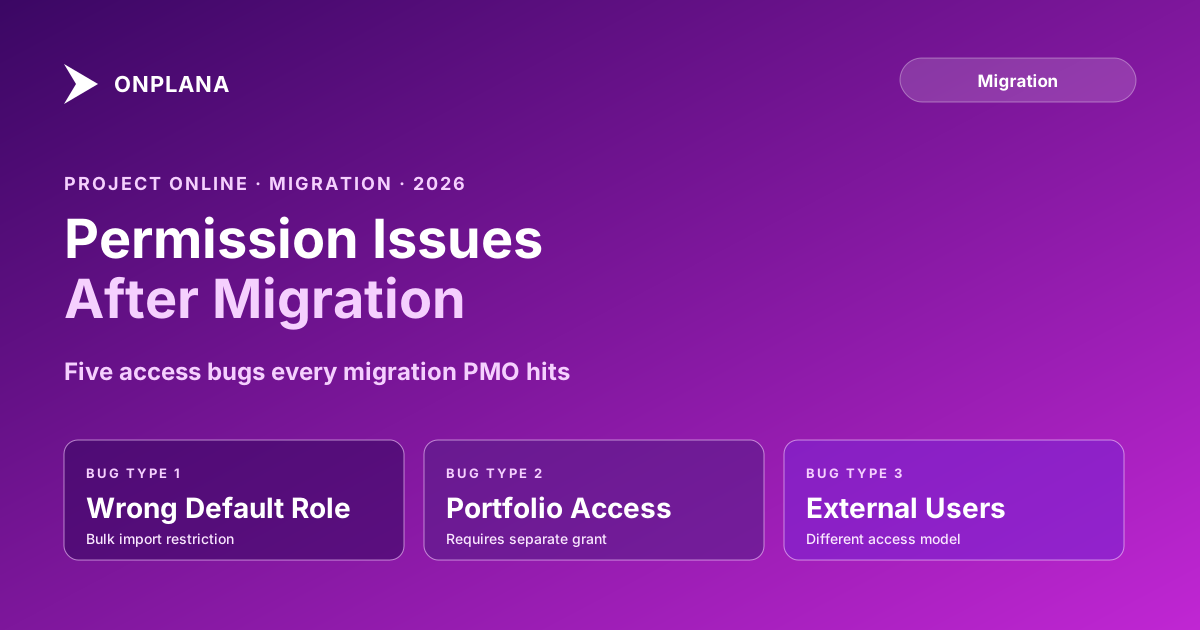
Bug 1: Wrong default role on import. The most common issue. Users are imported in bulk and land in the tool's default role, typically "Member" or "Viewer." Their actual responsibilities required a higher-access role. Fix: export the user list from the new tool, cross-reference against the PWA security category export, and apply the correct role to each user. This is a bulk update in most tools; it should take about two hours with the RBAC map in hand.
Bug 2: Missing portfolio access. In Project Online, portfolio visibility was often controlled by the user's security category membership, not by explicit project-by-project grants. In modern tools, portfolio access may require a separate grant or group assignment. Users who could see all projects in their portfolio via their PWA category now see nothing, because no portfolio-level grant was set. Fix: identify the portfolio access model in the new tool, recreate the category-to-portfolio mapping, and apply.
Bug 3: Cross-project visibility loss. Resource managers and portfolio managers often needed visibility across all projects in Project Online. This was controlled by the resource manager's security category. In the new tool, cross-project read access is often configured separately from project-level membership. Fix: create a "cross-project viewer" group or role in the new tool, assign the relevant users, and verify that the read access extends across all portfolio items.
Bug 4: Admin-only functionality locked down. Some users had elevated permissions in specific areas of PWA (timesheet approval, custom field editing) without being full administrators. These partial-admin permissions usually don't have a direct equivalent in the new tool's role model. Fix: identify which users had partial admin permissions in PWA (check the permission flags, not just the category), and decide whether to elevate them to the admin role or live with the restriction. Most PMOs find that true PWA administrators map cleanly to admin; partial-permission users map to a senior PM role.
Bug 5: External users and guest access. Many Project Online installations gave external stakeholders (clients, vendors, auditors) read-only access via PWA's guest category. Modern tools handle external access differently, often through a dedicated guest or external-user tier. Fix: document all external users in your Project Online tenant before cutover using the Project Online Inventory Checklist, and recreate their access in the new tool's guest or external-user model before go-live. External users who find they cannot log in after cutover escalate to their sponsor, which is a different conversation than an internal PM filing a support ticket.
Permission Mapping: The Translation Guide
The diagram below shows the standard mapping from PWA security categories to modern RBAC roles. Most PMOs land within one role level of these mappings; individual organizations with unusual permission configurations will need to adjust.
The two rows marked with caution (Portfolio Manager and Resource Manager) require additional configuration beyond a simple role assignment. Build these out explicitly before go-live; they are the source of the most escalated access bugs.
Preventing Permission Issues Before Cutover
The most effective intervention is the one that happens before anyone logs in on go-live day. Three actions taken before cutover eliminate most permission bugs:
Step 1: Export the PWA security category membership list. From the PWA Admin Center, export all users with their current security category assignments. This gives you the source data for the RBAC map.
Step 2: Build the translation map. Using the category-to-role guide above, create a spreadsheet with three columns: username, PWA category, and target RBAC role. For users with multiple PWA categories, assign the highest-privilege role that maps. Review the Portfolio Manager and Resource Manager rows carefully and add notes for any users who need additional access grants.
Step 3: Pre-configure roles in the new tool before go-live. Import the translation map into the new tool's user management interface. Most modern PM tools support bulk role assignment via CSV or API. Do this the day before go-live, not the morning of. Running the first login audit after users are in the correct roles gives you a clean baseline.
The Project Online Inventory Checklist guides you through this pre-migration audit, including the permission category export. Running it before migration starts ensures you have the data you need to build the map without having to access a read-only Project Online tenant after cutover.
For the detailed mechanics of the permission model itself, the what transfers when you migrate Project Online metadata covers the technical translation between PWA categories and modern RBAC in depth, including how to handle the edge cases that the standard mapping doesn't cover.
Day-One Hypercare for Access Issues
Even with a perfect pre-built RBAC map, some access bugs will surface on day one. Budget for two days of elevated hypercare focused specifically on access before shifting to normal post-go-live support.
The access triage queue. Set up a dedicated support channel for day-one access issues, separate from the general go-live channel. This keeps access bugs from drowning out other issue types and makes the pattern visible: if 30 tickets arrive saying "can't see Project Alpha," that's a portfolio-access configuration issue, not 30 individual bugs.
The 15-minute fix rule. Most access bugs after migration take less than 15 minutes to fix once diagnosed: change a role, add a portfolio grant, create a group membership. If a fix takes longer than 15 minutes, escalate it to the admin team rather than debugging it inline in the support queue.
Verification after fix. After changing a user's role or access grant, ask them to log out, log back in, and confirm access before closing the ticket. Role changes sometimes require a session refresh; closing a ticket on the admin side without user confirmation is the fastest way to generate a duplicate ticket.
Portfolio-Level Visibility: The Overlooked Layer
Most PMOs focus permission mapping on project-level access and forget the portfolio layer. In Project Online, a Portfolio Manager or Portfolio Viewer category automatically showed the user cross-project data across the entire portfolio. In modern tools, portfolio visibility is often a separate grant.
The result: users who could see the executive portfolio view in PWA log into the new tool and see only the projects they were explicitly assigned to as team members. The portfolio view is empty. This is not a project-access bug; it is a portfolio-access bug, and it tends to surface later than individual project-access bugs because executive and portfolio stakeholders often have a lower frequency of daily logins.
Build a portfolio access matrix as part of the RBAC map. For each portfolio or program in the new tool, list who should have read access, who should have edit access, and who should have no access. Check this matrix against your PWA security category memberships for the Portfolio Manager and Resource Manager categories.
Connecting Access to Compliance and Security Policy
Access control after migration is not just a usability issue; it is a security and compliance issue. The security and compliance overview covers how Onplana's permission model connects to SSO, SCIM provisioning, and audit logging. For regulated industries where who-can-see-what must be documented for auditors, the audit trail for role assignments is as important as the assignments themselves.
If your organization uses SSO and SCIM for user provisioning (and you should, for any PMO above 25 users), the RBAC map becomes the source of truth for your SCIM role-attribute mappings. Group memberships in your identity provider drive role assignments in the PM tool automatically. This eliminates the manual role-assignment step entirely and ensures that new joiners, role changes, and departures all propagate correctly without admin intervention.
For the migration overview and what the full migration process looks like end to end, the Onplana migration hub covers the planning, data, and access layers in sequence.
Run the free Migration Preview before cutover Upload your .mpp files and see exactly how your data will look after import, including which users and permissions require manual attention. Identify access gaps before they become day-one support tickets. No signup required. → Open Migration Preview
Microsoft Project Online™ is a trademark of Microsoft Corporation. Onplana is not affiliated with Microsoft.
Frequently asked questions
Why do users lose access to their projects after a Project Online cutover?
Project Online uses a category-based permission model tied to SharePoint groups. Modern PM tools use role-based access control. The two models don't map one-to-one, so users end up in a default role that gives them less access than their PWA category did.
What is the most common permission bug after a Project Online migration?
Wrong default role assignment. When users are bulk-imported, they land in a generic 'Member' or 'Viewer' role rather than the specific role that matches what they could do in Project Online. A PM with Project Manager access in PWA may end up with read-only access in the new tool.
How long does it take to resolve permission issues after a cutover?
One to two days if you have a pre-built RBAC map. One week if you're building the map reactively from support tickets. Plan for two days of hypercare focused on access, then a cleanup pass at day seven.
Should I build the permission map before or after migration?
Before. The Project Online Inventory Checklist helps you document every PWA security category and its members before cutover. Hand that inventory to the new tool's admin to pre-configure roles before users log in on day one.
Why do some users see projects they shouldn't after migration?
Portfolio-level access in Project Online was often set by group membership, not by explicit project grants. If the new tool defaults to open visibility within a portfolio, users who weren't supposed to see certain projects will see them. Audit portfolio-level permissions separately from project-level permissions.
How do Project Online permission groups translate to modern PM tool roles?
There is no perfect one-to-one mapping. PWA Project Managers map to a PM or Editor role. Team Members map to a Contributor role. Portfolio Managers map to a Viewer or Analyst role with read-only access. The translation table in the RBAC map section below provides the specific mapping.
Ready to make the switch?
Start your free Onplana account and import your existing projects in minutes.