Migrating Project Online Fiscal Year Settings to a New Tool
Project Online fiscal year controls timesheets, earned value, and report rollups. Missing it in migration silently breaks your PMO's financial reporting.
The Project Online fiscal year setting is two fields in Server Settings under Time and Task Management: a start month, and a checkbox for how the year number displays. Most PMO administrators configure those fields during initial tenant setup, run a few reports to verify the period rollups look correct, and never return to that screen. The invisibility is what makes fiscal year migration dangerous. That two-field configuration drives timesheet period labels, budget period rollups, and earned value calculations across the entire tenant. When it doesn't carry forward to the new tool, financial reporting breaks in ways that take days to trace back to a root cause.
The symptom usually appears in the first quarterly review after cutover. The PMO director opens the budget-versus-actual report and the period columns are wrong. The fiscal Q1 that everyone expects to see in the first column shows up split across two calendar months, or the Q4 totals land in the wrong year. The data is there; the aggregation is off. Finance escalates. The PMO scrambles. The root cause is a fiscal year configuration that seemed too minor to include in the migration checklist.
TL;DR: The Project Online fiscal year setting controls how timesheets, earned value metrics, and financial reports roll up to periods. It is not a data field that migrates with the .mpp export. Before cutover, gather the fiscal year configuration you documented before the retirement, verify whether your destination tool supports the same structure, and configure the destination's fiscal calendar before importing any timesheet or baseline data. Configuring fiscal year after the data import means re-running reports or manually reclassifying period data.
What the Project Online Fiscal Year Setting Controls
Project Online's fiscal year configuration has three components: the fiscal year start month, the period structure, and the display convention.
The fiscal year start month sets when the fiscal year begins. A PMO with a July fiscal year start means FY2026 runs from July 2025 through June 2026, not January through December. Every report that rolls up to fiscal periods uses this start month as the anchor.
The period structure defines how fiscal periods are named and subdivided. Project Online supports fiscal years divided into months, quarters, or custom-named periods. Administrators configure the period names in Server Settings, and those names appear in timesheet headers, status report period selectors, and earned value views. A PMO that labels periods "FY26 Q1," "FY26 Q2," and so on has a period structure that differs from a PMO using "H1 FY26" and "H2 FY26."
The display convention determines whether the fiscal year number reflects the starting calendar year or the ending calendar year. A July-to-June fiscal year starting in July 2025 can be called FY2025 (starting year) or FY2026 (ending year). The convention affects all period labels in the tenant.
These settings interact with three functional areas that matter most to migration.
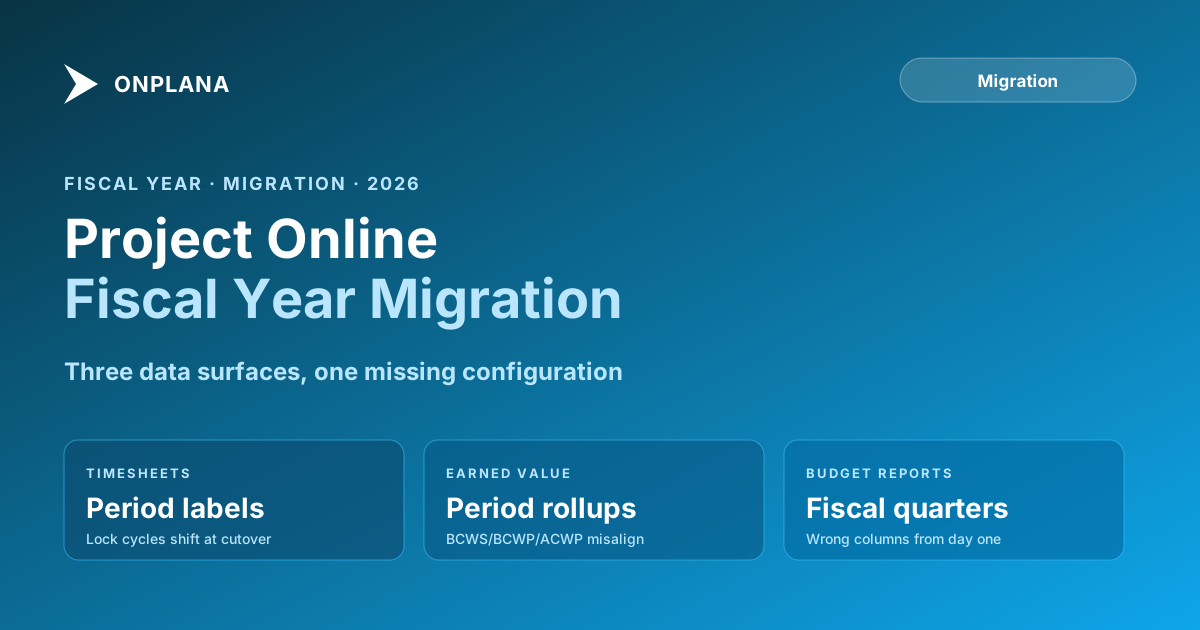
The diagram below shows the flow from fiscal year configuration to the data surfaces it affects.
How Fiscal Year Affects Timesheets
Project Online timesheets are organized into fiscal periods. The timesheet interface shows a calendar of periods derived from the fiscal year configuration, and team members submit hours against those named periods. A PMO with a July fiscal year start sees FY26 Q1 spanning July through September, FY26 Q2 spanning October through December, and so on. Those period labels appear in every timesheet submission and every timesheet approval workflow.
When migration moves timesheet data from Project Online to a destination tool with a different fiscal calendar, three problems can appear.
First: the period headers in the destination don't match the source. If the destination defaults to calendar months (January through December), historical timesheet data lands in the right calendar months but against period labels that differ from the source. Finance reconciliation becomes a manual mapping exercise.
Second: the timesheet approval period boundaries shift. If your PMO locks timesheets at the end of each fiscal period (a common control for revenue recognition), and the destination tool's period boundaries are different from the source, the lock cycles change. Team members who submitted hours right before a period boundary in the source may find their submissions in a different period in the destination.
Third: hours reported by fiscal period no longer match the source reports. A manager running a "hours by fiscal quarter" report against the destination data after migration will see different totals than the same report run against the archived Project Online data, not because hours are missing, but because the period bucketing changed.
The project timesheet migration guide covers the timesheet migration workflow in detail. Fiscal year configuration is a prerequisite for that migration. Set the destination's fiscal calendar before importing timesheet records. If you import first and configure later, you'll need to re-run the import or manually reclassify the periods.
How Fiscal Year Affects Earned Value
Earned value metrics in Project Online include BCWS (Budgeted Cost of Work Scheduled), BCWP (Budgeted Cost of Work Performed), and ACWP (Actual Cost of Work Performed). These metrics are most useful when aggregated to fiscal periods, because PMOs review budget performance against the periods their finance teams track.
The earned value reports in PWA roll up these metrics to the fiscal periods defined in the tenant configuration. A report showing "SPI and CPI by fiscal quarter" requires the fiscal quarter definition to match the one used when the baseline was set.
When fiscal year configuration doesn't transfer to the destination tool, earned value reports against historical data produce two problems.
Period naming mismatch: the destination shows "Q1" meaning January through March, while the historical baseline was set with "Q1" meaning July through September. The metrics are technically correct for the period covered, but the period labels are wrong. Comparing current performance to "Q1" in the destination means comparing to a different three-month window than the source "Q1."
Baseline reference mismatch: baselines in Project Online carry time-phased planned values that accumulate by fiscal period. If the destination tool reframes those values against a different fiscal calendar, the planned cost curve changes. A milestone planned to complete in "FY26 Q2" in the source might appear in "Q2" (calendar) in the destination, but those are different periods.
For PMOs that report earned value to sponsors or executive committees using fiscal period notation, this mismatch is visible in the first reporting cycle after migration. Sponsors who compare a post-migration status report to a pre-migration one will see period labels that don't align, and they'll ask why.
The Schedule Health Check can surface baseline date discrepancies in post-migration imports by comparing scheduled dates against calendar expectations. Running it on your pilot project after setting the fiscal calendar in the destination, before the full import, catches calendar-driven baseline shifts early.
How Fiscal Year Affects Budget Report Rollups
Beyond timesheets and earned value, fiscal year configuration affects any report that aggregates financial data to periods. This includes budget versus actual by fiscal period, resource cost by quarter, and project cost trend charts.
Project Online ships with a set of standard reports that use fiscal period as a grouping dimension. If your PMO has extended those reports in Power BI or built custom OData-driven dashboards, the fiscal period field drives the period column headers. Moving to a destination tool with a different fiscal calendar means those column definitions need to be updated in every report that references them.
The scope of this work depends on how many custom reports your PMO runs. For PMOs that rely entirely on out-of-the-box PWA reports, the rebuild work is limited to configuring the destination tool's fiscal calendar correctly. For PMOs with custom Power BI dashboards connected to OData, the fiscal period column definitions in each report may need updating even after the destination tool is configured correctly.
Start from the period names and date ranges you documented from the fiscal configuration before the retirement. That record becomes the spec for configuring the destination and for verifying every report that uses period groupings. The Project Online Inventory Checklist includes a section for fiscal period configuration, a good place to keep the complete list.
Fiscal Year Migration: Three Common Destination Scenarios
Modern PM tools handle fiscal year configuration in different ways, and the migration approach depends on where the destination falls.
Scenario 1: Full fiscal year configuration support. The destination tool supports a tenant-wide fiscal year start month, custom period names, and the display convention choice. Configuration is straightforward: set the start month and period structure before importing any data. The period labels in the destination will match the source, and reports roll up correctly from day one. This is the ideal scenario. Verify it explicitly during tool evaluation by testing a timesheet and earned value report in a sandbox environment.
Scenario 2: Start month supported, custom period names not. The destination allows setting a fiscal year start month but generates its own period names (Q1, Q2, etc.) from that anchor, without supporting custom names. If your PMO uses standard fiscal quarters from a non-January start, this works. If your PMO uses custom period names (half-year periods, 13-period calendars, or named quarters like "Summer 2026"), the names will differ. The data will be in the right periods; the labels won't match. Decide whether the label difference creates a finance reconciliation problem before committing to the tool.
Scenario 3: Calendar year only. The destination tool supports only calendar-year period groupings. Fiscal period rollups require post-processing, usually via an external BI tool that applies the fiscal calendar mapping. For PMOs with a January fiscal year start, this scenario has no practical impact. For PMOs with non-January fiscal years, this requires building a fiscal period mapping layer between the destination tool's calendar data and the financial reports. Scope that work as part of the migration budget.
Setting Up Fiscal Year in Modern PM Tools
For destinations in Scenario 1 or 2, the setup sequence matters. Configure fiscal year before importing any data, not after.
Gather the fiscal calendar you exported from Project Online. You need the fiscal year start month, period structure, and naming convention from Server Settings (Time and Task Management). If your PMO uses custom period names, you need the full period list including start and end dates, which came from the PWA REST API at
/_api/ProjectServer/FiscalPeriods. Pair it with the .mpp files from the.mppexport procedure so the fiscal-period reference list and the project files describe the same point in time. The export window closed when Project Online retired on September 30, 2026; Project Online Data: Import What You Exported covers bringing the files in.Configure the destination tool's fiscal calendar. Enter the start month and period structure before importing any project data. If the destination supports custom period names, enter the list you exported from Project Online.
Run a pilot report. Create a budget-versus-actual report covering the last fiscal quarter in the destination (after configuring fiscal year) and compare it with the same report saved from Project Online before the retirement. The period totals should match. Any mismatch before the data import indicates a configuration gap.
Import data against the configured calendar. With fiscal year set up correctly, timesheet data and earned value data will aggregate to the right periods on import.
Verify period labels in the first post-import report. Run the same quarterly report again after importing the full dataset. The period labels and totals should match the source.
This sequence prevents the double-work of importing data, discovering a fiscal calendar mismatch, and re-importing or manually reconciling.
The project calendar migration guide covers the related but separate topic of working calendars. Fiscal year configuration is a financial reporting concept; working calendars are a scheduling concept. Both need to be configured in the destination before import, and both are easy to forget because they're in PWA Server Settings rather than in the project files. Adding both to the Project Online migration checklist before starting the import work is the most reliable way to avoid a post-migration reporting surprise.
What Your Fiscal Record Needs
The fiscal year setting in Project Online retired with the service on September 30, 2026. Everything it drove, the period names, the fiscal year boundary dates, the display convention, now has to come from what you documented or exported before that date.
Check that your record covers these five items:
- Fiscal year start month
- Fiscal year numbering convention (starting year or ending year)
- Number of periods per year (12 months, 4 quarters, or custom)
- Custom period names, if any, with exact start and end dates
- The period in which the current fiscal year started (for earned value baseline reference)
These five items fully define what the destination tool needs to reproduce your financial reporting periods. Without them, every financial report in the new tool is at risk of misalignment from the first use.
Run the free Migration Preview Upload your .mpp export to see schedule and configuration gaps before committing to a destination tool. No signup required. → Open Migration Preview
Microsoft Project Online™ is a trademark of Microsoft Corporation. Onplana is not affiliated with Microsoft.
Frequently asked questions
Where is the fiscal year setting in Project Online?
Server Settings, under Time and Task Management, contains the fiscal year configuration. You set the start month and choose whether fiscal year numbers display as the starting year or the ending year. This is a tenant-wide setting that affects timesheets, reports, and earned value calculations across all projects.
What happens to timesheets after a Project Online fiscal year migration?
Timesheets in Project Online are organized into fiscal periods. If the destination tool uses calendar months or a different fiscal year definition, timesheet periods from the source won't align with the destination. Historical timesheet data imports with correct hours but reports against the wrong period labels.
Does fiscal year configuration affect Project Online baselines?
Yes. Earned value metrics, including BCWS, BCWP, and ACWP, roll up to fiscal periods. If the destination tool uses a different fiscal year, earned value comparisons between periods don't map correctly even when the underlying data transfers accurately.
Do modern PM tools support non-calendar fiscal years?
Support varies widely. Some tools allow you to set a fiscal year start month globally. Others require a fiscal calendar configuration per project or per organization. A few tools only support calendar-year reporting. Verify fiscal year support before committing to a destination tool if your PMO runs on a non-January fiscal year.
Where do fiscal year period definitions come from now Project Online has retired?
The fiscal period configuration lived in Server Settings and the PWA REST API at /_api/ProjectServer/FiscalPeriods. Project Online retired on September 30, 2026, and anything that read it live stopped with it. Use the list of period names, start dates, and end dates you documented or exported before that date as the spec for the destination.
Can I migrate historical fiscal period data from Project Online?
The fiscal period labels on historical timesheet and earned value records don't migrate as named fields. The underlying date-stamped data does transfer, but the period labels (FY26 Q1, etc.) need to be regenerated by the destination tool's fiscal calendar configuration after import.
What is the biggest risk of ignoring fiscal year during Project Online migration?
Quarterly and annual financial reports will show the wrong period groupings immediately after cutover. If finance and the PMO are reviewing budget-versus-actual by fiscal quarter, and the destination tool defaults to calendar quarters, the first report after migration will look wrong even though no data is missing.
Ready to make the switch?
Start your free Onplana account and import your existing projects in minutes.