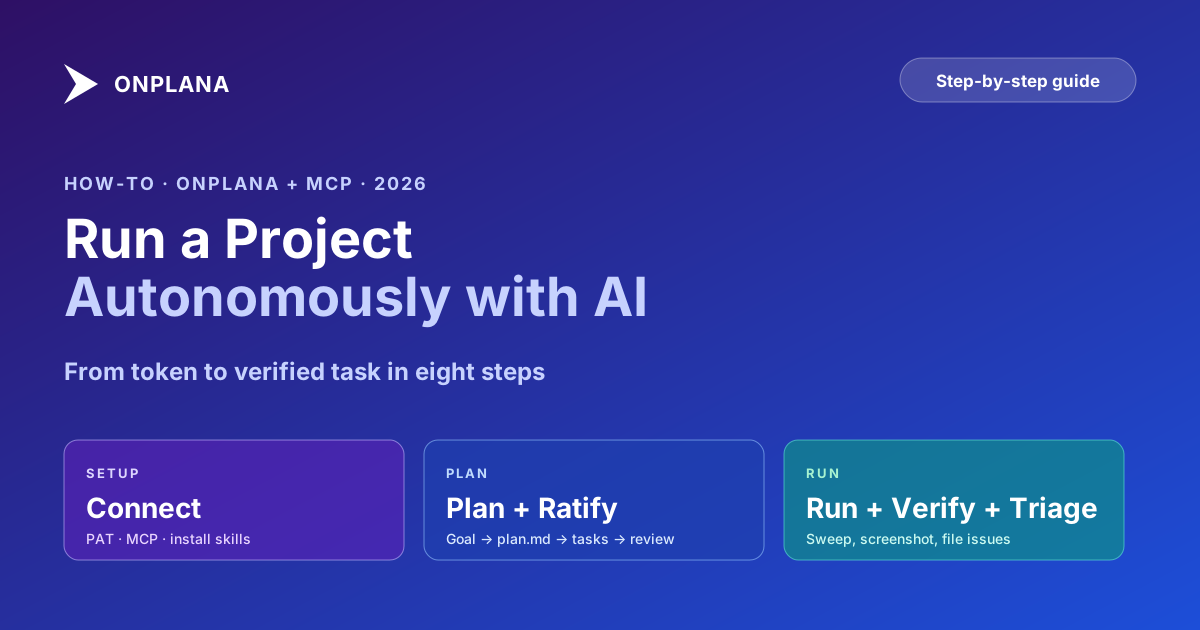
Run a Project Autonomously with an AI Agent (Onplana + MCP)
Run a project autonomously with an AI agent: connect Claude Code, ChatGPT, or claude.ai to Onplana over MCP, plan with one skill, run it with another.
The pitch for an "AI agent in your project tool" usually stops at a chat sidebar. This is the longer pitch, and the walkthrough: connect an MCP-aware client to your Onplana org, install two skill files, ask the agent to plan a project and then run it. From sentence-to-running-work in about five minutes, not counting the work itself.
This guide walks the full setup in order. Steps land verbatim in the frontmatter as a HowTo schema (so search engines render them as a step-by-step result), and the longer prose below explains why each step matters and what to watch for.
(1) Mint a PAT in Settings → Agents → Connect an agent. (2) Point your MCP client at https://mcp.onplana.com/mcp with the PAT. (3) Install onplana-project-planner-skill.md and onplana-autonomous-agent-skill.md from /agent-skill. (4) Ask the planner to plan a project. (5) Review plan.md, ratify proposed assignments. (6) Hand off to the autonomous agent (default sweep, or guided for the cautious week). (7) Watch verify-before-done evidence land on each task. (8) Triage any Issues the agent files. Five minutes to connect, ongoing time saved every day after.
The diagram below shows the path from the first PAT click to a running agent.
Step 1: Mint a personal access token
In Onplana, go to Settings → Agents → Connect an agent. Click Create token, name it for the agent persona (something like Atlas or Project Agent v1), pick the scopes you want this token to grant, and copy the token to a secure store.
A few practical notes:
- Treat the token like a password. It is the agent's identity and authorisation envelope; the agent cannot exceed what the token grants.
- Scope minimally for a first-week trial. Read-only on most resources, write only on a designated test project, no permission to modify org settings. You can mint a wider token later once trust is established.
- One token per agent persona is the cleanest pattern. If three different teams want to run agents against three different projects, mint three tokens. The audit log shows each one separately.
Step 2: Point your MCP client at mcp.onplana.com
The MCP endpoint is https://mcp.onplana.com/mcp and the auth is a bearer token (the PAT from Step 1). The token-mint screen in Onplana prints a ready-to-paste command per client; that screen is the safest source of the exact flags because the syntax differs slightly per release. The shape per client:
- Claude Code: paste the generated
claude mcp add onplana ...command (it embeds your token), or add an HTTP MCP server pointing at the URL with anAuthorization: Bearer <PAT>header. - ChatGPT: add Onplana as an MCP connector (or wire it into a Custom GPT) pointing at the same URL with the bearer PAT.
- Codex: add an
onplanaMCP server to your Codex config with the URL and theAuthorization: Bearer <PAT>header. - claude.ai: Settings → Connectors → add a custom connector with the URL and token.
After the connection lands, the agent should make exactly two calls to orient itself before doing anything else: agent_bootstrap (one round-trip returns identity, a capabilities summary, the entity-name index, and the assigned-task count), and whoami (confirms which org, which role, which project scope the PAT permits). Everything the agent does is bounded by what whoami reports.
The MCP architecture and the engineering decisions behind it are covered in Onplana now speaks MCP; the product MCP overview lives at /mcp, and the protocol-level write-up of how the server was built (OAuth 2.1 + PKCE, Dynamic Client Registration, the audit-log design) is at /mcp/how-we-built-it. The short version: same plan and role gating as the web app, every tool call lands in the audit log, soft deletes only, OAuth 2.1 with Dynamic Client Registration if you prefer that over PATs. About 250 tools total; the autonomous-agent skill only needs around 15 of them in the steady state (cold start, find work, understand, do plus report, file problems, end session).
Step 3: Install the two skill files
Both skills are plain markdown files. Download them from /agent-skill:
- Planner: /onplana-project-planner-skill.md
- Autonomous agent: /onplana-autonomous-agent-skill.md
Drop them into your client's skill or prompt directory:
- Claude Code:
~/.claude/skills/(or.claude/skills/per project) - claude.ai: the project's instructions or a custom GPT-style preset
- ChatGPT or Codex: the project or custom-prompt directory
The client surfaces them as named skills the model can invoke. There is no install step beyond dropping the files in.
Step 4: Ask the planner to plan a project
The full flow this guide walks through, in one take: a one-sentence brief becomes a project plan, ChatGPT writes the copy, Claude builds and publishes the site, and the human approves at the launch gate.
Open a new chat. Address the planner explicitly:
Use the onplana-project-planner skill. Plan a project for migrating
our billing system from v1 to v2, including data migration, API
contract updates, documentation, internal training, and a 2-week
pilot before cutover. Target completion: end of Q3 2026.
The planner runs its pipeline against your live Onplana data:
- Frames the goal as outcomes (testable deliverables, not vague intentions).
- Writes
plan.mdand attaches it to the project so the plan is durable. - Decomposes into a task tree with start and due dates, dependency links, milestones.
- Assigns owners where it can identify the right person; proposes assignments where it cannot.
- Adds test-case subtasks per deliverable.
- Adds tasks for downstream surfaces (docs, tests, API contract, data migration, permission updates, analytics).
- Either hands the whole plan off for review, or runs
instantiate_planfor the one-shot fast path.
If the planner needs clarification, it asks before guessing. "Which of these two existing projects should this attach to?" is a much better question than "I picked one randomly."
Step 5: Review the plan and ratify proposed assignments
The plan is now in your project. Open it in the Onplana UI. Read plan.md end to end. Walk the task tree.
Three things to do in this review:
- Ratify proposed assignments. Where the planner wrote "proposed assignee: Sara (please ratify)" on a task, accept, edit to a different person, or leave unassigned for later. The planner is deliberate about flagging uncertainty rather than committing to a guess.
- Adjust dates and dependencies. The planner sets a reasonable default schedule based on the goal and the dependency graph; the PM knows the calendar reality (holidays, sprint boundaries, vendor windows) and edits accordingly.
- Decide what to delete. The planner errs on the side of including downstream-surface tasks (docs, analytics, permissions). If your team genuinely does not need a docs task this round, delete it. Better to delete a couple of tasks than to discover a missing analytics task at launch.
This is the human-in-the-loop step. The plan is yours from here.
Step 6: Hand off to the autonomous agent
The default autonomy mode is high: the agent acts, reports, and keeps moving, only pausing for the guardrails (irreversible operations, external-facing actions, 402 quota walls, 403 scope walls). For the first week, prefix the run with autonomy: guided and the agent switches to a slower posture, planning and drafting each step then waiting for your go-ahead before committing.
The skill ships with a ready-to-run directive that drives a full project sweep. Paste this verbatim, swap the project name, and the agent takes it from there:
Loop through all the remaining open tasks in <Project name> and work on them
autonomously. Move each task to In Progress, do the work, and verify it (run
the tests/build, and for anything user-visible test it in a browser and
attach a screenshot) before marking it Done. Keep each status up to date.
If you're blocked or have a question, add a comment to the task explaining
what you need and move on to the next task. If you hit a real problem, file
an Issue under the same project and link it to the task. When you've been
through every task, post a summary and end the session.
For guided mode (recommended for week one or regulated workflows):
autonomy: guided

(then the same directive as above)
The agent picks up open tasks (it can use list_assigned_tasks for what is assigned to it, list_tasks for everything in the project, or list_overdue to prioritise), moves each task to IN_PROGRESS before starting, does the work, verifies, comments as it goes, and either closes the task or, if blocked, leaves a comment and moves on. A stuck task does not halt the sweep, the agent files an Issue and continues to the next one.
Step 7: Watch the verify-before-done evidence land
As tasks complete, the evidence the agent attaches is the signal that says "this was actually done":
- Server-side work: test output, build output, type-check output. Real terminal output the agent watched scroll past, not "the diff looks right."
- User-visible work: a six-step browser flow (described below), with a screenshot and a console + network panel summary attached.
- Configuration changes: the resulting config in machine-readable form, plus a comment explaining what was changed and why.
- Data work: the row count, the before/after diff, the warning if any unexpected rows are touched.
The browser verification recipe
Browser-driving is the verify step that catches the bugs nothing else does. Onplana's MCP server does not provide a browser driver; the agent uses its own client's browser tooling, typically Claude for Chrome (the claude-in-chrome tools), a Playwright or Puppeteer MCP server, or a headless browser the agent scripts directly. The six-step recipe for user-visible tasks:
- Navigate to the running app's URL (local dev, staging, or live for a read-only check).
- Sign in with a test account. The agent never types production or personal credentials on a user's behalf; ask for a sandbox login or hand over a pre-authenticated tab.
- Reproduce the exact user flow the task describes, end to end.
- Read the result, not just the screenshot. Pull the page DOM and check the browser console and network panel for errors and failed requests. A green-looking page can still be throwing 500s underneath.
- Defeat stale caches. Service workers, CDNs, and dev tunnels happily serve an old bundle. Hard-reload (or open a fresh tab, or cache-bust the URL) so the agent is testing the new build, not yesterday's.
- Capture evidence and attach it. Screenshot the working result and
upload_task_attachmentit to the task. Paste the console and network summary into acreate_comment. Evidence is what turns DONE into something a human can trust without redoing the work.
If a task moves to DONE without evidence, that is a problem the team should surface as feedback. The agent should not have marked it done. Verify-before-done is the whole point.
What if no browser tooling is available
The agent does not silently mark it done. Either it asks the human to spot-check (with the exact URL and steps), or, if the work is purely backend, it verifies via the API or CLI and says so in the comment trail. Onplana itself is a web app, so when the task is about Onplana's own UI, the same browser flow applies: the agent opens the Onplana web app, signs in, and exercises the feature it changed.
Step 8: Triage any Issues the agent files
Filter the Issues view in Onplana for issues opened by the agent persona. Each one carries:
- What was tried. The sequence of tool calls, the parameters, the order.
- What broke. The exact error, the failing assertion, the unexpected response.
- What evidence was captured at the failure point. Screenshots, logs, the state the system was in when the failure surfaced.
Pick them up like any other inbound issue. The agent has done the discovery work; the human picks up at the decision point.
What to do this week
If your team has never run an autonomous agent against a real PMO project, the cautious path:
- Today: mint a PAT scoped to one test project, install both skills in your preferred MCP client.
- Tomorrow: ask the planner to plan a small real project (a 2-week internal initiative is the right size).
- End of week: put the agent in guided mode and let it run the first three tasks. Look at the evidence. Decide whether to widen the autonomy or narrow it.
- Next week: flip to default mode on the test project. Audit the evidence weekly.
- Within 30 days: widen the token scope and add a second project. The acceptance rate after a week of guided trial is the data that drives the widening decision.
Where to go next
- The product MCP overview: /mcp explains the server, the tool catalog, and the auth model.
- The MCP-for-PM category page: /mcp-project-management frames why MCP belongs in a project tool at all.
- The product surface: /agents shows the suggest-zone surfaces the agent skills operate against.
- The architectural argument: Agent-native project management covers why MCP-connected agents are a different category than chat sidebars.
- The product announcement: Plan and run your projects with an AI agent is the canonical "what are these skills" post.
- The day-in-the-life view: A day in the life of an AI-augmented PM using Onplana walks an hour-by-hour example.
- The cold-start case: From signup to a running project in 2 minutes covers the AI Project Kickstart that complements the planner.
- Running it without your machine on: every step above assumes the agent runs from your own client, which stops when you close the laptop. Hosted AI agents covers the alternative, where the platform holds the connection and dispatches unattended, along with the one credential you hand over to get it.
Get the skills: download both at /agent-skill. See the agent surfaces in the product at /agents. Pricing and the AI token allowance at /pricing.
Microsoft Project Online™ is a trademark of Microsoft Corporation. Onplana is not affiliated with Microsoft.
Frequently asked questions
How long does the full setup take from zero to a running agent?
Five minutes for the connection and skill install, plus whatever you spend writing the goal you want the planner to plan against. The MCP connection itself is two clicks once you have a PAT minted. The skills are plain markdown that you drop into a directory, no install step.
Which AI client should I pick if I don't already have a preference?
Any of Claude Code, ChatGPT or Codex, and claude.ai work today. Claude Code is the most agent-friendly if you also want the agent to read and write code as part of running the work; claude.ai is the lightest if you mostly want planning and orchestration; ChatGPT or Codex sits in between. Whichever client you pick, the skill files are the same.
Does the agent need full admin access to my Onplana org?
No. The agent inherits the scope of the personal access token you mint for it. Grant only the scopes you want the agent to have, the agent cannot exceed them. For a first-week trial, mint a token with read-only scope on most resources and write scope only on a single test project.
How do I tell the planner what to plan?
One sentence is often enough. Ask the planner to plan a project, name the goal in plain English, and let it ask clarifying questions. The plan it produces is a draft you review before any tasks land if you set the planner to draft mode, or instantiated directly if you trust it on the common case.
What happens when the autonomous agent gets stuck?
It files an Issue with the failure mode (what was tried, what broke, what evidence is attached) and moves on to the next open task. Stuck tasks never halt the sweep. Issues are first-class records in Onplana that a human triages with full context.
Can I run the agent in guided mode and step it through each task?
Yes. Set the autonomy mode to guided in the autonomous agent skill and the agent will pause for human go-ahead before each step. This is the recommended mode for the first week, regulated workflows, or any context where surprise is expensive.
Ready to make the switch?
Start your free Onplana account and import your existing projects in minutes.