Deploying Onplana on Google Cloud Platform
Deploy Onplana on GCP: reference architecture covering GKE, Cloud SQL, Cloud KMS, and IAM for teams with Google Cloud data-residency requirements. Full guide.
Most project management SaaS tools list AWS and Azure deployment options. GCP shows up as an afterthought, if at all. Teams running GCP-first infrastructure are told to use the SaaS product or figure out the AWS path and adapt it.
The Onplana GCP deployment is a first-class path. GKE, Cloud SQL, Cloud Storage, Cloud KMS, and Secret Manager are all supported and tested. If your organization runs GCP as its primary cloud, whether because of data analytics infrastructure on BigQuery, media workloads on GCS, or sovereign cloud requirements in a GCP region, your project management tool can live in the same environment as the rest of your data.
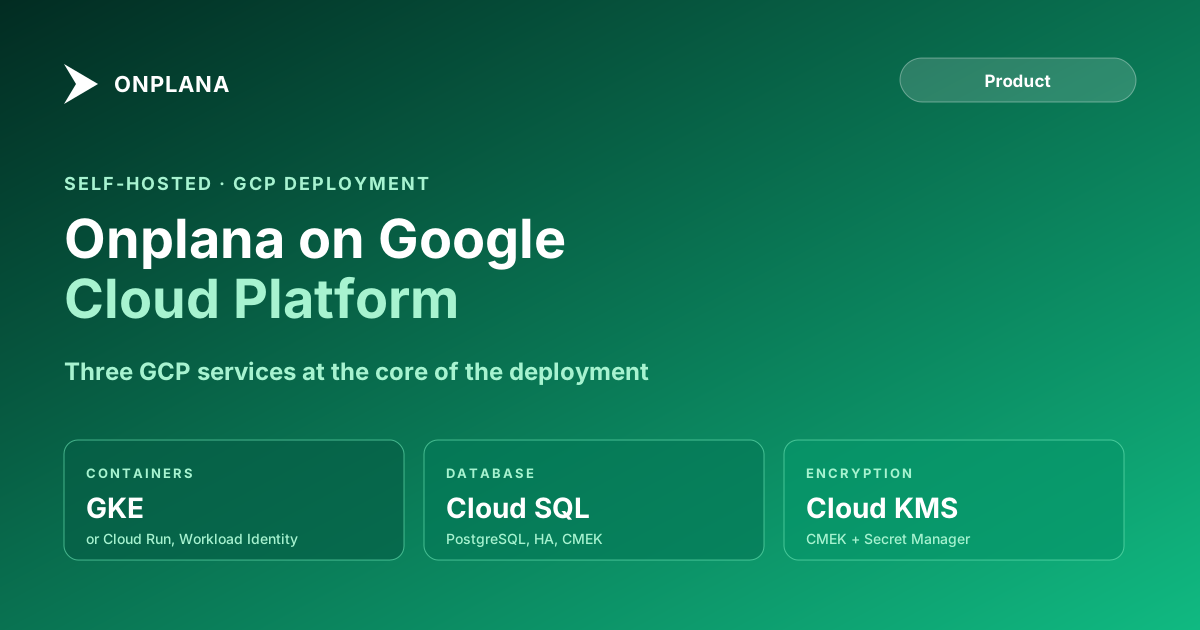
TL;DR Onplana deploys on GCP using GKE or Cloud Run for the application layer, Cloud SQL for PostgreSQL as the database, and Cloud Storage as the object store. Secret Manager holds credentials. Cloud KMS handles encryption. Workload Identity eliminates the need for service account key files in the application container. The deployment takes one to two days for an experienced GCP engineer. All Onplana features, including AI, .mpp import, and governance, work identically in self-hosted mode.
Why GCP Hosting for an Onplana GCP Deployment
GCP self-hosted deployment makes sense in three situations. First: your organization has data-residency requirements that specify GCP regions or require data to stay in GCP infrastructure under your project and billing account. Second: your IT estate is GCP-first and adding a new SaaS cloud vendor means starting a net-new vendor security review; keeping Onplana in GCP extends your existing controls to cover it. Third: your project data needs direct integration with GCP-native analytics tools (BigQuery, Looker, Vertex AI) and a self-hosted deployment in the same VPC is the cleanest integration path.
The same caveat applies here as to any self-hosted path: if you do not have a hard requirement that keeps you off SaaS, the Onplana SaaS tier with region selection is simpler. The self-hosted deployment overview covers the full decision and the ongoing operational overhead before you commit.
If you are evaluating multiple cloud options, the Onplana self-hosted deployment guide covers the general deployment architecture, Docker and Helm setup, and the decision tree between Docker Compose, Kubernetes, and managed container services across all three cloud providers.
Onplana GCP Reference Architecture
The diagram below shows the full architecture inside a GCP VPC. An HTTPS load balancer (Cloud Load Balancing) fronts inbound traffic. GKE pods or a Cloud Run service run the Onplana container in a private subnet with no public IP. Cloud SQL, Cloud Storage, Secret Manager, and Cloud KMS are accessed via Private Service Connect endpoints so no data traffic crosses the public internet inside the VPC.
Four components define the architecture: the container layer, the managed database, object storage, and the Cloud KMS and Secret Manager services for encryption and credential management.
Container Layer: Cloud Run vs GKE
Onplana runs as a single Docker container. GCP offers two managed container services with different operational trade-offs.
Cloud Run is the serverless path. Deploy the Onplana container image to a Cloud Run service, set environment variables referencing Secret Manager secrets, assign a service account, and set minimum instances to 1 to avoid cold starts. Cloud Run handles scaling, availability, and patching. Cost scales to zero when there is no traffic, though for a PMO tool with consistent business-hours usage, minimum instance pricing is predictable. Cloud Run is the right choice for teams that want zero container-infrastructure overhead.
Google Kubernetes Engine is the right path when your organization already runs GKE for other workloads and wants Onplana to share the cluster. Use the Standard tier (not Autopilot) if you need node pool control for compliance reasons, such as dedicated nodes or node taints for workload isolation. Deploy Onplana via a Helm chart with Workload Identity configured on the pod service account.
For new deployments without an existing GKE cluster: start with Cloud Run. The operational simplicity gap is significant. GKE adds cluster management, node upgrades, and control-plane cost that Cloud Run avoids entirely. Move to GKE if your cluster-sharing requirements or workload isolation needs justify the overhead.
Database: Cloud SQL for PostgreSQL
Onplana requires PostgreSQL 14 or later. Cloud SQL for PostgreSQL is the recommended database. As described in the Cloud SQL for PostgreSQL overview, Cloud SQL handles automated backups, replication, and failover while you retain control over the instance configuration and encryption keys.
Enable the high-availability configuration (regional HA) to provision a standby instance in a second zone. Failover is automatic; recovery point and recovery time objectives are under a minute for most workloads.
Enable customer-managed encryption keys (CMEK) using a Cloud KMS key. This lets you audit every decrypt operation in Cloud Audit Logs and revoke the key to cryptographically sever access to the database if needed. Set the key rotation period to automatic annual rotation in Cloud KMS.
For compute sizing: a db-g1-small handles evaluation and very small teams only. For production, start at db-n1-standard-2 (2 vCPU, 7.5 GB RAM) for up to 50 active users. Move to db-n1-standard-4 for 50 to 150 users. Beyond 150 active users, evaluate db-n1-highmem-4 or higher and review connection pool configuration in the Onplana environment settings.
Set automated backup retention to at least 7 days. For compliance deployments, enable point-in-time recovery (PITR) and set retention to 30 days. Test a PITR restore before relying on it.
Object Storage: Cloud Storage
Onplana uses Cloud Storage for file attachments, .mpp import processing, report exports, and static assets. Create a dedicated bucket in the same region as your GKE cluster or Cloud Run service. Set the default storage class to Standard. Enable Object Versioning if your compliance policy requires retention of previous file versions.
Enable CMEK on the bucket using a Cloud KMS key. Onplana serves all file downloads through signed URLs with short expiry windows; no bucket content is ever publicly readable. Set the bucket-level IAM binding to allow only the Onplana service account (or Workload Identity service account) to write and read objects. Deny all other principals at the bucket level.
Grant the Workload Identity-bound service account the roles/storage.objectAdmin role scoped to the specific bucket, not to the full project. For tighter control, create a custom IAM role with only storage.objects.create, storage.objects.get, storage.objects.delete, and storage.objects.list. Scoping permissions to the minimum required limits the blast radius if the service account is ever compromised.
Enable Cloud Audit Logs for data access events on the bucket if your security team needs a record of every object read and write operation.
Identity and Security: IAM, Cloud KMS, Secret Manager
Workload Identity for keyless authentication. Avoid service account key files entirely. Configure Kubernetes Service Account to Google Service Account binding using Workload Identity (for GKE) or Cloud Run service account assignment (for Cloud Run). The pod or service receives short-lived Google identity tokens automatically from the GCP metadata server; no key file is distributed, stored, or rotated manually. This eliminates the most common service account credential leak vector in GCP deployments.
Cloud KMS for encryption governance. Create a key ring and two keys: one for Cloud SQL CMEK and one for Cloud Storage CMEK. Grant the Onplana service account roles/cloudkms.cryptoKeyEncrypterDecrypter on both keys. Cloud Audit Logs captures every encrypt and decrypt operation with the service account principal and timestamp. For compliance-heavy deployments, this log is the evidence trail an auditor uses to verify no unauthorized access occurred.
Secret Manager for application credentials. Store the Anthropic API key (for SaaS AI), SMTP credentials, or any other secrets the application needs as Secret Manager secrets. Reference them in the container's environment variables using the Secret Manager secret environment variable mechanism in Cloud Run, or via the external-secrets-operator Kubernetes integration in GKE. Never embed secret values in the container image or in plaintext environment variable definitions.
For the full application-layer security architecture, including audit logs, SSO, SCIM, and data retention policies, the security and compliance overview covers everything above the infrastructure layer regardless of deployment cloud.
Networking and Private Connectivity
For deployments that require zero internet-boundary data traffic, configure Private Service Connect for all GCP managed services. Private Service Connect creates private endpoints inside your VPC for Cloud SQL, Cloud Storage, Secret Manager, and Cloud KMS. Traffic to these services routes over Google's internal network, never to a public IP.
For Cloud SQL specifically, use the Cloud SQL Auth Proxy sidecar container when connecting from GKE. The Auth Proxy handles authentication and TLS termination for the database connection, replacing a direct TCP connection with a secured IAM-authenticated tunnel. The proxy connects to Cloud SQL via a Private Service Connect endpoint.
GKE private clusters disable the cluster's control-plane public endpoint and restrict node internet access. Enable Cloud NAT on the private subnet if containers need outbound internet access (for Anthropic API calls if using SaaS AI, or for pulling container images from Docker Hub). For fully air-gapped deployments, use Artifact Registry to host the Onplana container image within GCP and disable Cloud NAT.
VPC Service Controls (available in Enterprise plans of GCP security) create a security perimeter around your GCP project that prevents data exfiltration even if a service account is stolen. Define a perimeter that includes Cloud SQL, Cloud Storage, Secret Manager, and Cloud KMS. Any API call that tries to read data from within the perimeter from outside it is blocked at the Google layer.
First Deployment Checklist
Run through each item before routing production traffic to the deployment.
Confirm the healthcheck at
/api/healthreturns 200 with database connectivity confirmed. A Cloud SQL connection failure (wrong instance connection name, missing Auth Proxy, IAM permission error) shows as a 500 on every page; diagnose it here first.Verify Cloud Storage write access with a test upload. Upload a file attachment in the Onplana UI and download it. The Workload Identity binding for Cloud Storage is separate from the Cloud SQL binding; both can have issues independently.
Check Secret Manager access in pod or service logs. A missing
secretsmanager.secretAccessorrole surfaces as a permissions error at container startup. Look for it in Cloud Logging before users report login failures.Confirm Private Service Connect routing. Test connectivity from inside the VPC to the private endpoints for Cloud SQL and Cloud Storage using private DNS hostnames. If private DNS resolution returns a public IP, the Private Service Connect DNS configuration needs adjustment.
Validate Workload Identity binding before go-live. Run a
gcloud auth print-access-tokenfrom inside the pod to confirm the Workload Identity annotation on the Kubernetes Service Account is correctly bound to the Google Service Account. Misconfigured Workload Identity is the most common authentication failure in GKE deployments.Test SSO if applicable. Configure your IdP callback URL and test a full SAML or OIDC authentication flow with a non-admin user before the deployment goes live.
Import a test .mpp file. Confirm dependency types, baseline data, and resource assignments survive the import correctly before migrating production project data from Project Online.
Restore from a Cloud SQL backup. Trigger a point-in-time recovery to a test instance and confirm the application connects and serves data. Backups that have never been tested are a false sense of security.
Review the Onplana features configuration for AI. If AI features are enabled but the API endpoint is unreachable from the VPC, AI calls fail visibly. Confirm AI works or explicitly disable it before users encounter the error.
For compliance documentation specific to a GCP-hosted deployment, including data-processing agreements and control evidence for auditors, reach out via the contact page.
Microsoft Project Online™ is a trademark of Microsoft Corporation. Onplana is not affiliated with Microsoft.
Frequently asked questions
Can Onplana be deployed on Google Cloud Platform?
Yes. Onplana ships as a Docker image and runs on Google Kubernetes Engine (GKE) or Cloud Run. Cloud SQL for PostgreSQL is the recommended database, and Cloud Storage serves as the object store.
What GCP services does an Onplana deployment require?
Core services: GKE or Cloud Run for containers, Cloud SQL for PostgreSQL, Cloud Storage for object storage, Cloud KMS for encryption, and Secret Manager for credential storage.
How does the Onplana GCP deployment handle data residency?
Deploy Cloud SQL, Cloud Storage, and GKE node pools in the GCP region of your choice. Use VPC Service Controls and Private Service Connect to ensure no data traffic crosses regional or internet boundaries.
What IAM roles does the Onplana GKE workload need?
The Workload Identity-bound service account needs roles/cloudsql.client on the Cloud SQL instance, roles/storage.objectAdmin on the Cloud Storage bucket, roles/secretmanager.secretAccessor on the relevant secrets, and roles/cloudkms.cryptoKeyEncrypterDecrypter on the KMS key.
What is the recommended Cloud SQL tier for Onplana on GCP?
A db-g1-small (1 vCPU, 1.7 GB) handles evaluation and very small teams. For production, start at db-n1-standard-2 (2 vCPU, 7.5 GB) and scale to db-n1-standard-4 or db-n1-highmem-4 as active users grow past 100.
Does Onplana on GCP support Private Service Connect for fully private deployments?
Yes. Use Private Service Connect or Private Service Access to connect GKE pods to Cloud SQL without a public IP. Combine with VPC Service Controls to create a security perimeter around all project data.
Can Onplana on GCP run in a fully air-gapped VPC?
Yes, with a GKE private cluster, Cloud NAT disabled or restricted, private endpoints for all GCP services, and a private Cloud Artifact Registry for the container image. AI features need API access unless you configure a self-hosted AI endpoint accessible within the VPC.
Ready to make the switch?
Start your free Onplana account and import your existing projects in minutes.