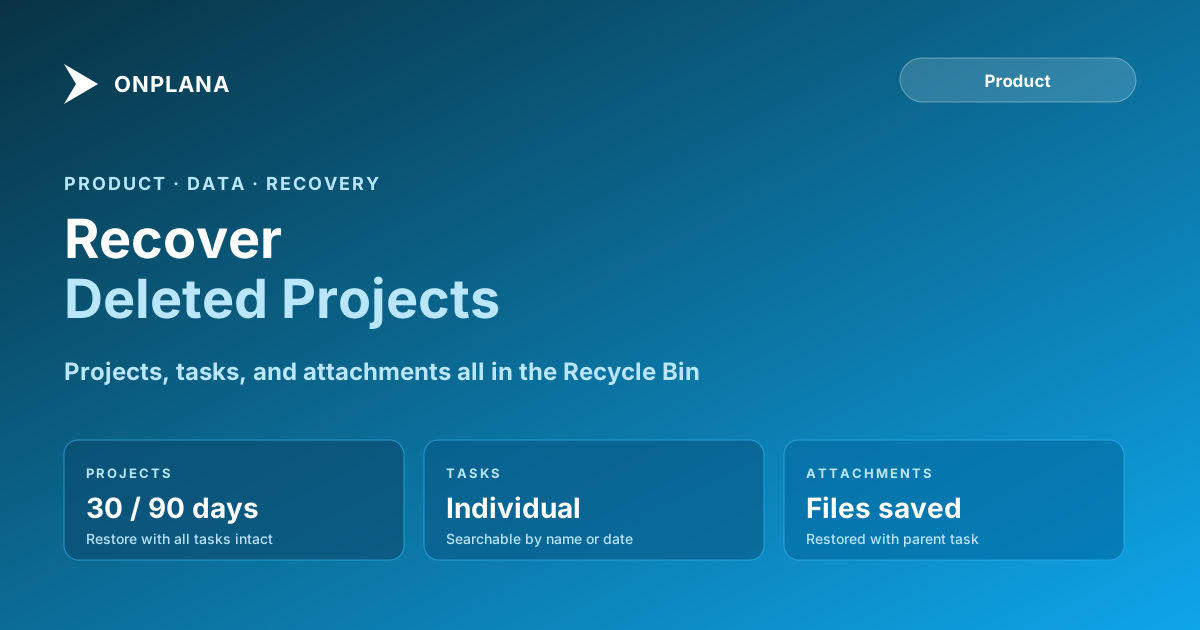
Recovering Deleted Projects and Tasks From Onplana's Recycle Bin
Need to recover a deleted project in Onplana? The Recycle Bin holds items for 30 to 90 days. Here's how recovery works, who has access, and what to restore.
Here's a pattern every PMO hits eventually. A PM archives what they believe is a completed project. A week later, a stakeholder asks why three active tasks disappeared. The PM searches the project list, finds nothing, and opens a support channel before anyone thinks to ask how to recover a deleted project from the recycle bin. That step takes about ten seconds. Knowing where to look and who has permission to look there is the difference between a two-minute fix and a half-day incident.
Onplana uses a soft-delete model for projects, tasks, and most other workspace objects. When you delete a project or task, it does not disappear immediately. It moves to a recycle bin where it stays recoverable during a defined retention window. After that window closes, the item is permanently deleted. The design follows the same pattern that operating systems and cloud storage services use for recoverable deletion: your data is not gone the moment you click Delete; it is held in a recoverable state until either you restore it or the retention period expires.
TL;DR. Deleted projects and tasks in Onplana move to the Recycle Bin, not into permanent deletion. Items stay recoverable for 30 days on Professional plans and 90 days on Enterprise plans. Workspace admins can restore any item in the workspace; project admins can restore items within their projects. Restoring a deleted project brings back all of its tasks, subtasks, milestones, and file attachments in their previous state. After the retention window closes, permanent deletion is irreversible.
How Onplana's Recycle Bin Works
The Recycle Bin is a workspace-level holding area accessible from the left navigation under Settings. Every deleted project, task, milestone, and comment in the workspace appears here, organized by date deleted and filterable by item type, project, and the user who performed the deletion.
The recycle bin entries display the item name, the project it belonged to, who deleted it, and when. For projects, the entry shows the project status and the number of tasks it contained at deletion time. For tasks, the entry shows the task title, its previous assignee, and its priority level.
The timeline of a deleted item's lifecycle is straightforward. The diagram below shows the two paths from deletion to final state.
Workspace admins can also manually trigger permanent deletion from the Recycle Bin at any time before the window closes, which is useful when a project contained sensitive data that should not remain in a recoverable state.
What Gets Soft-Deleted vs Permanently Deleted
Not every deletion action in Onplana goes through the Recycle Bin. Understanding which deletions are recoverable prevents surprises.
Soft-deleted (recoverable within the retention window):
- Projects, including all tasks, subtasks, milestones, and comments within them
- Individual tasks and their subtasks
- Task attachments (files, images, documents)
- Project members' assignment records
- Custom field data on tasks
Permanently deleted immediately (not recoverable from Recycle Bin):
- Individual comments on tasks (deleting a comment is immediate; there is no comment-level recycle bin)
- Workspace-level custom fields that are deleted by a workspace admin
- OAuth tokens and API credentials revoked from the integrations settings
- Webhook logs older than the retention window
For comments specifically: if you need to preserve a conversation record before deleting a task, copy the comments manually or export the task detail before deleting. Once a task is in the Recycle Bin, the task itself is recoverable but any comments deleted before the task was deleted are not part of that restoration.
Retention Windows by Plan
The retention window determines how long you have to restore a deleted item before it is gone permanently. Onplana's retention tiers match the organization's data governance expectations at each plan level:
Professional plans: 30-day retention. A project deleted on June 29 is recoverable through July 29. After that date, permanent deletion runs automatically during the nightly maintenance window.
Enterprise plans: 90-day retention. A project deleted on June 29 is recoverable through September 27. Enterprise's longer retention window accommodates regulatory and audit requirements where teams may need to recover historical project data weeks or months after an accidental deletion.
The retention window starts from the date of deletion, not the date the item enters the Recycle Bin (they are the same). If an item is restored and then deleted again, a new 30- or 90-day window starts from the second deletion.
For organizations with specific data retention requirements under frameworks like GDPR or HIPAA, the 90-day Enterprise window is usually sufficient for operational recovery needs, but compliance-grade retention for longer periods requires a separate data export and archival process. The security and compliance overview covers Onplana's broader data governance architecture, including data residency options and audit log retention.
Who Can Restore Deleted Items
Onplana's Recycle Bin uses a three-level permission model:
Workspace admins have full access to the workspace Recycle Bin. They can view and restore any deleted item from any project in the workspace, regardless of who deleted it. They can also permanently delete items from the Recycle Bin before the retention window closes. This is the role responsible for recovery when a PM has deleted something they should not have.
Project admins have access to a project-scoped Recycle Bin view. They see deleted items from their specific project only and can restore those items. They cannot see deleted items from other projects.
Project members (editors, commenters, viewers) do not have access to the Recycle Bin. If they accidentally delete a task, they need to request recovery from the project admin or workspace admin. For organizations running large PMOs, the 50-project PMO configuration guide covers how to assign project admin roles across a large portfolio so recovery requests route to the right person without going through the workspace admin for every issue.
The audit trail in the Recycle Bin records who deleted an item, not just when. This matters for security reviews: if a project disappears from the workspace, the Recycle Bin entry tells you which user account performed the deletion and at what timestamp, which is the first step in a deletion-incident investigation.
How to Recover a Deleted Project or Task
Recovery takes four steps and about 30 seconds for a typical project.
Open the Recycle Bin. Navigate to Settings in the left sidebar, then select Recycle Bin. Workspace admins see the full workspace view; project admins see a filtered view for their projects.
Find the deleted item. Use the search bar to find by name, or filter by item type (project, task), date range, or the user who performed the deletion. For large workspaces, date filtering is the fastest way to locate a recent accidental deletion.
Select and restore. Click the restore icon next to the item. For a project, Onplana presents a confirmation dialog listing the number of tasks, milestones, and attachments that will be restored. Confirm to proceed.
Verify the restored state. After restoration, navigate to the project or task to verify the restored data. Restored projects appear in the same workspace location with the same status they had at deletion. Restored tasks return to their original project with their previous assignee, priority, status, and attachment list.
If a project is restored but some of its tasks had been individually deleted before the project deletion (for example, a PM cleaned up a project before archiving it and then accidentally deleted the project), those individually deleted tasks restore as well, as long as they were still within their own retention window at the time of the project restoration.
Safe-Deletion Practices That Prevent the Panic
The most reliable way to avoid emergency recovery is to build a deletion review step into your project close-out process. A few practices that reduce accidental deletions significantly:
Archive before deleting. Onplana's Archive feature marks a project as read-only and removes it from active views without deleting any data. For the majority of closed projects, archiving is the right action. Deleting should be reserved for projects that were created in error, contain duplicated data, or are explicitly identified as candidates for permanent removal.
Require a comment on project deletion. In workspace settings, you can configure project deletion to require an admin confirmation with a free-text reason. This adds a single friction step that catches most accidental deletions without blocking intentional ones.
Export before deleting anything with compliance value. If a project contains contract records, financial data, or communications that may be needed for audit purposes, export the project data before deleting. The Recycle Bin's 30- or 90-day window is designed for operational recovery, not long-term compliance archiving. For compliance-grade retention, export and store externally.
Periodic Recycle Bin review. Once a month, workspace admins should scan the Recycle Bin for items approaching their retention window expiry. Items that should be retained and are close to expiry can be restored and then re-archived.
What Happens at the End of the Retention Window
When an item's retention window closes, Onplana's automatic cleanup process permanently deletes it from the Recycle Bin. This process runs during a scheduled nightly maintenance window. Items deleted at the end of their 30th or 90th day may remain in the Recycle Bin until the next maintenance run, so there is a short grace window of up to 24 hours around the expiry date.
After permanent deletion:
- The item and all its content are removed from Onplana's storage
- The item no longer appears in the Recycle Bin
- Workspace audit logs retain a record that the item existed and was deleted (user, timestamp, item name), but the content is not recoverable
- Any external integrations or webhooks that referenced the item's ID receive a 404 response for subsequent calls to that resource
If your organization needs to retain project content beyond the retention window for regulatory, legal, or audit purposes, configure automated project exports or connect Onplana to your data warehouse before deletion occurs. The retention window is not a substitute for an archiving strategy; it is a safety net for operational recovery.
For the full set of Onplana's data management capabilities, including export formats and data portability options, see the features overview.
Frequently asked questions
How do I recover a deleted project in Onplana?
Open your workspace's Recycle Bin from the left navigation. Find the deleted project, click the restore icon, and confirm. The project, all its tasks, and all linked data return to their previous state within a few seconds.
How long does Onplana keep deleted items before permanent deletion?
Onplana retains soft-deleted items in the Recycle Bin for 30 days on Professional plans and 90 days on Enterprise plans. After that window closes, items are permanently deleted and cannot be recovered.
Can I recover deleted tasks in Onplana?
Yes. Deleted tasks appear individually in the Recycle Bin, searchable by task name, project, or date deleted. You can restore individual tasks without restoring the entire project.
Who can access Onplana's recycle bin?
Workspace admins can access the full Recycle Bin and restore any item in the workspace. Project admins can access the Recycle Bin for their specific projects. Regular project members cannot view or restore deleted items.
What happens to file attachments when a task is deleted in Onplana?
File attachments move to the Recycle Bin with their parent task and are restored with it. Attachments are permanently deleted when the 30- or 90-day retention window closes, not before.
Can deleted projects be recovered after the retention window closes?
No. Once the retention window closes, the project, its tasks, and its attachments are permanently deleted. Onplana does not maintain a secondary backup accessible to end users after this point.
Does deleting a project also delete all its tasks?
Yes. Deleting a project soft-deletes all tasks, subtasks, milestones, and attachments within it. They all move to the Recycle Bin together and can be restored as a unit by restoring the project.
Ready to make the switch?
Start your free Onplana account and import your existing projects in minutes.