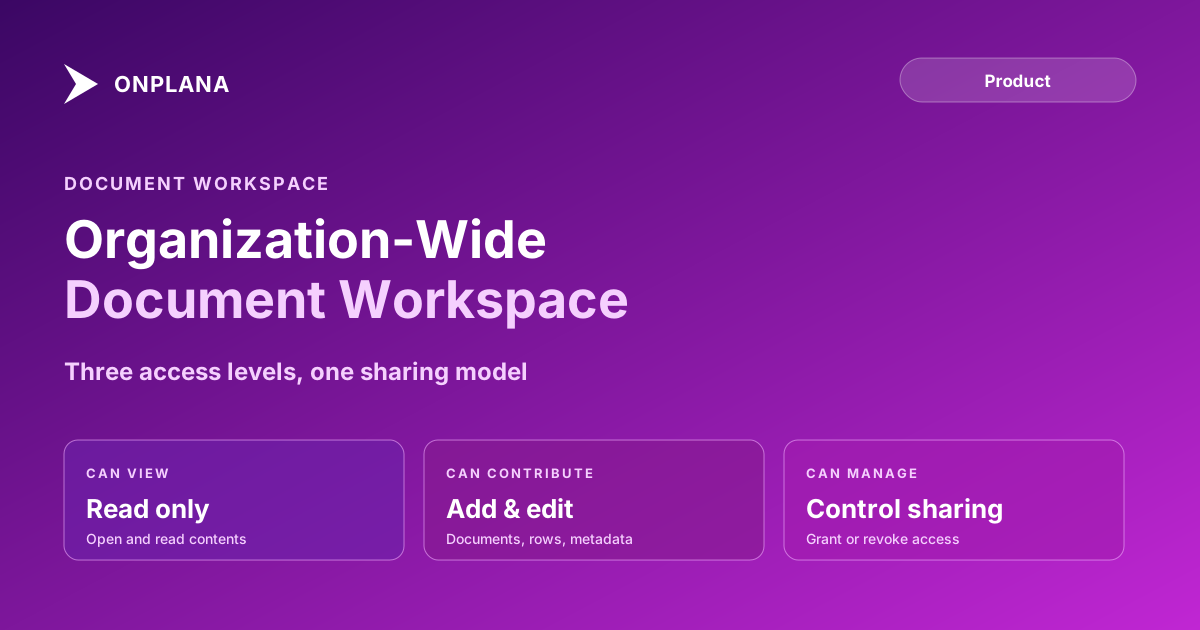
Organization-Wide Document Workspace: How Sharing Works
Onplana's organization-wide document workspace holds company-wide files outside any project, visible by default until you restrict it to named grants.
Most project tools give a document a home inside exactly one project. That works until the document isn't about one project: a hiring policy, a brand asset, a rate card template, a security questionnaire every deal needs. Those files end up pinned in a Slack channel, buried in someone's inbox, or copy-pasted into a new project every time they're needed, because there's no third place for something that belongs to the company rather than to a project.
The direct answer: Onplana's organization-wide document workspace, called the Library, is a tenant-level home for document folders and lists that live outside any project, visible to every member by default, on every plan including Free. Any folder or list in it can be restricted to specific people or teams at a view, contribute, or manage access level, and once restricted it follows those explicit grants instead of the default.
The organization Workspace is the company-wide counterpart to a project's Documents tab: policies, templates, brand assets, onboarding checklists, and shared trackers live there instead of inside one project. It's visible to every member by default, guests excluded, and any folder or list can be locked down to named people or teams at view, contribute, or manage level. Restricting a resource never locks out its creator or an organization Owner or Admin, but it also doesn't hand an admin editing rights they weren't explicitly granted: on a restricted library outside their own projects, an admin gets read-only oversight and the ability to manage sharing, not automatic edit access.
Organization-Wide Document Workspace vs. a Project's Documents Tab
The two aren't the same feature scoped differently; they answer different questions about who a file belongs to.
| Project Documents tab | Organization Workspace | |
|---|---|---|
| Scope | One project | The whole tenant |
| Default visibility | Members of that project | Every organization member |
| Guest access | Yes, if the guest is on the project | Never; guests are project-only |
| Typical contents | Deliverables, project-specific specs, meeting notes | Policies, templates, brand assets, onboarding checklists, shared trackers |
| Who creates it | Any project member with contribute access | Any org member with contribute access to the Library |
| Sharing control | Per-resource restrict and grant | Per-resource restrict and grant |
A rate card template that every new project reuses belongs in the organization Library. A signed statement of work for one specific client engagement belongs in that project's Documents tab. Filing the rate card inside a single project just means the next PM who needs it either doesn't know it exists or copies a stale version. Onplana's documentation describes the Library as "the company-wide counterpart" to a project's Documents tab, which is the distinction that matters when deciding where a new file goes.
How Restrict-Then-Grant Sharing Works
By default, anything in the organization Library is visible to every member. That default is deliberately open, most of what belongs there, an onboarding checklist, a brand guideline, is meant to be found rather than hidden. Some folders and lists genuinely shouldn't be that open: a compensation band reference, a legal hold list, a security audit in progress. For those, restricting the resource switches it from default visibility to explicit grants only.
The diagram below shows the three states a library or list moves through and what each access level actually permits.
Access can be granted to a person or a team, and a team-based grant resolves at access time, so adding someone to the team gives them access without editing the resource itself. Each grant sits at one of three levels: can view opens the folder or list to read its contents; can contribute adds the ability to add and edit documents, rows, and metadata; can manage adds the ability to control sharing on that specific item. Onplana's sharing documentation confirms that once a resource is restricted, it "follows explicit grants only," which is the mechanism the diagram above walks through.
All three grant levels assume the person receiving access is already a member of the organization. Someone outside it entirely, a client who needs one document and nothing else, uses a different mechanism: sharing a single document by email with no account or seat required rather than a restrict-then-grant flow built for people already inside the workspace.
Restricting a Library Doesn't Lock Out Admins, But It Doesn't Hand Them Edit Access Either
Two things are true at once here, and the second one is the part teams usually get wrong when they set this up. First: organization Owners, Admins, and the resource's own creator can never be locked out of content they created or administer. Restricting a library is not a way to hide something from the people running the tenant.
Second, and this is the part worth being precise about: on a restricted resource inside a project an admin isn't a member of, that admin gets read-only oversight. They can see it exists and they can manage sharing on it, grant or revoke access for others, but they don't automatically get to edit the contents. Editing requires the same explicit grant anyone else needs, which in practice means being added to the project first. That split matters for how you write internal policy: "admins can always see everything" is true, "admins can always edit everything" is not, and conflating the two is how a security review ends up citing a capability that doesn't exist.
Where to Start: What Actually Belongs in the Organization Library
Not everything benefits from moving out of a project. A few categories consistently do:
- Templates that outlive any one project. A project charter template, a status report format, a rate card. Filed once, reused every time instead of recreated.
- Policies and compliance documents. Security questionnaires, data handling policies, anything a project team needs to reference but shouldn't be re-editing per project.
- Onboarding material. A new PM or team member's first stop should be one Library folder, not six different projects' Documents tabs.
- Cross-project trackers. A vendor list, an approved-tools list, a risk register template used across the portfolio.
If a document answers "how do we do things here" rather than "what does this specific project need," it belongs in the Library, not in a project.
Coming From a SharePoint-Based Library
Teams running a Project Online migration usually already have this problem solved, badly, with a mix of the Project Online tenant's SharePoint document libraries and whatever else lived in the broader Microsoft 365 tenant. Migrating Project Online document libraries covers the mechanics of getting those files out during the data extraction window without breaking the links other pages and reports point to. Once the files are out, the organization Workspace is where the ones that were never really project-specific, templates, policies, brand assets, should land, rather than getting re-scattered across whichever project happens to import them first.
The organization Library and Onplana's custom pages share the same audience: an org admin building a team home page can pull directly from Library content instead of re-typing policy text into a page block. Setting up the Library first, then building navigation pages on top of it, is the order that avoids doing the same organizing work twice.
See what else shipped this year on What's New, or check the full feature list on Features. The rest of the Onplana blog covers the other collaboration surfaces, wikis, whiteboards, web part pages, that sit alongside the Library.
Microsoft Project Online™ is a trademark of Microsoft Corporation. Onplana is not affiliated with Microsoft.
For the project-level counterpart, project document management sets out folder, version and sharing rules that decide what goes in the Library and what stays in a project.
Frequently asked questions
What is an organization-wide document workspace in Onplana?
It's a tenant-level Library, document folders and lists that belong to the whole organization rather than to any one project. It's visible to every member by default and is meant for policies, templates, brand assets, onboarding checklists, and shared trackers.
Who can see the organization Library by default?
Every member of the organization, but not guests. Guests in Onplana are project-only by design, so the org-wide Library sits outside the scope a guest account ever reaches.
How does restricting a library or list work?
Restricting a resource switches it from role-based default visibility to explicit grants only: you name specific people or teams and give each one a view, contribute, or manage access level, and everyone else loses access until they're granted it.
Does restricting a library lock out organization admins?
No. Organization Owners, Admins, and the resource's creator can never be locked out of their own content, even after it's restricted.
If an org admin isn't a project member, can they edit a restricted project library?
Not automatically. An admin who isn't a member of that project gets read-only oversight and can manage sharing, but editing rights require an explicit grant, the same as anyone else. They'd need to be added to the project first for full access.
What's the difference between Can view, Can contribute, and Can manage?
Can view opens the library or list to read its contents. Can contribute adds the ability to add and edit documents, rows, and metadata. Can manage adds the ability to manage sharing for that specific item.
Is the organization-wide workspace available on the Free plan?
Yes. The organization-wide Workspace and its per-resource sharing controls are available on every Onplana plan, including Free.
Ready to make the switch?
Start your free Onplana account and import your existing projects in minutes.