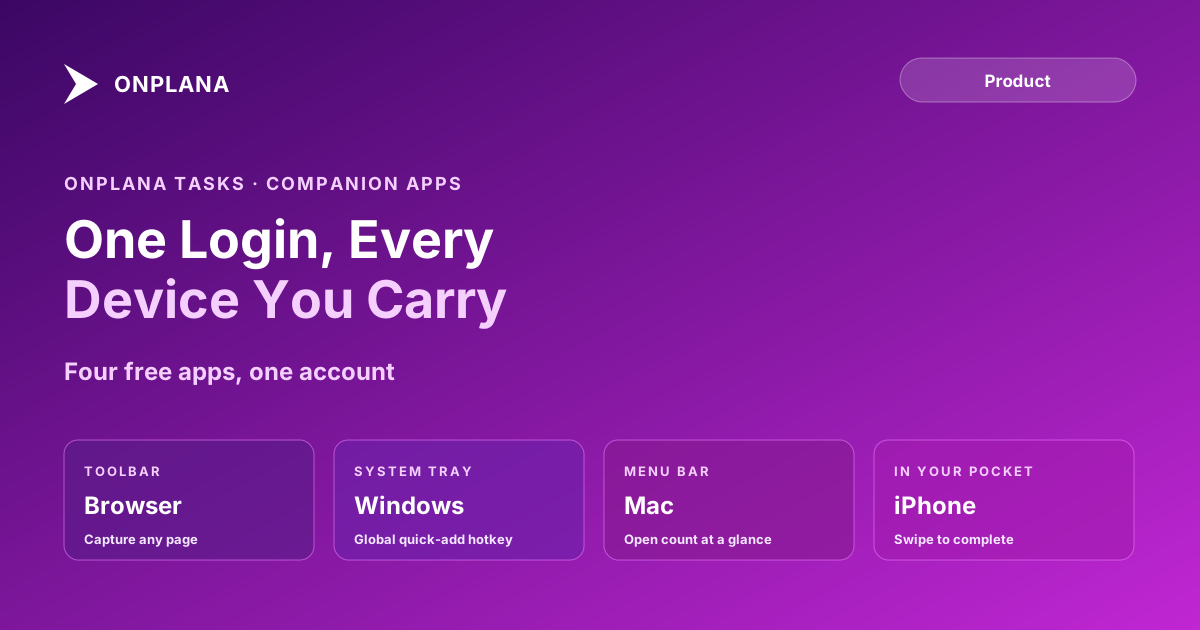
Onplana Tasks Companion Apps: One Login, Four Devices
Onplana Tasks companion apps put assigned work in your browser, system tray, menu bar, and pocket. Four free apps, one login, no separate password.
The work assigned to you does not wait for you to be at a laptop. A task lands while your phone is face-down in a meeting, and by the time you open the project again, half a day has passed for no better reason than that opening it took an extra step.
The direct answer: the Onplana Tasks companion apps put your assigned work one click, one keystroke, or one swipe away on whatever device you already have open, a browser extension for Chrome, Edge, and Firefox, a Windows tray app, a Mac menu-bar app, and an iPhone app, all free on every plan. None of them replace the full web app. Each one exists to shorten the gap between an assignment landing and you actually seeing it.
Four free companion apps cover the moments a full project management tab does not fit: a browser extension for the page you're already reading, a Windows tray app with a global capture hotkey, a Mac menu-bar app that shows your open count beside the clock, and an iPhone app you clear with a swipe. All four sign in through your browser, so no app ever holds your password, and each device is a separate connection you can revoke on its own. The heavy planning, Gantt, dependencies, dashboards, governance, stays in the full web app; the companions exist only to shorten the gap between an assignment landing and you seeing it.
What the Onplana Tasks Companion Apps Cover, Device by Device
Each app is built around one moment rather than trying to be a small version of the whole product.
| App | Lives in | Capture shortcut | Signature feature | Offline |
|---|---|---|---|---|
| Browser extension | Toolbar (Chrome, Edge, Firefox) | Popup quick-add | Turn the page you're reading into a task with its link | No, needs a connection |
| Windows app | System tray | Ctrl+Shift+Space from any app | Notification the moment an agent needs you | Complete, snooze, and reprioritize sync later |
| Mac app | Menu bar | Cmd+Shift+Space from any app | Your open-task count beside the clock | Complete, snooze, and reprioritize sync later |
| iPhone app | Home screen, tab badge | Type it in plain language | Swipe right to complete, left to snooze | Same, plus one optional daily reminder |
The browser extension is for the task that starts as something you were already reading: capture the current page and it keeps the title and link, so context survives instead of being retyped later. The Windows and Mac apps are for the moment you are deep in another application and something needs a decision; a global hotkey opens quick-add without alt-tabbing anywhere, and the Windows app adds a notification the instant an agent finishes something and needs your review. The iPhone app is for everywhere else, a commute, a hallway, a queue, where the interaction has to be a thumb and a few seconds, not a keyboard.
Why Four Apps Instead of One Responsive Page
A responsive web page already works on a phone, so four separate apps has to earn more than screen size. Each surface has a different natural gesture, and routing all of them through one interaction model wastes the advantage that surface actually has: a tray icon is good at a badge and a global hotkey, not a swipe; a phone is good at a swipe, not a hotkey. Building to each platform's strength is why the Windows app offers a shortcut that works from inside any other application, something a browser tab cannot do, while the iPhone app leads with a swipe a browser extension has no equivalent for.
How Sign-In and Device Revocation Work
Every companion app signs in through your browser on onplana.com rather than asking for a username and password inside the app itself, so your credential is never typed into, or stored by, a fourth or fifth piece of software. Each device receives its own scoped access token, not a copy of a shared one, and each appears as a separate row under Connected apps in the full web app. Losing a laptop means revoking one row; your phone and your other devices keep working without a password reset touching any of them.
What Deliberately Stays in the Web App
None of the four apps try to fit a Gantt chart into a menu bar. Dependency scheduling, dashboards, and governance workflows stay in the full web app, one tap away from every companion. A companion app that tried to replicate full planning would be worse at both jobs, a cramped planning tool and a slow capture tool, than two purpose-built surfaces working together. If you are weighing that split against a phone-browser experience that was never redesigned for touch, Project Online mobile vs Onplana covers the field-PM comparison directly.
The diagram below shows the shape of the family: one account, four surfaces, each built around a different moment in your day.
Getting the Right One for Your Day
Most people end up running two: a desktop companion for the hours at a keyboard and the iPhone app for everything else, rather than picking a single favorite. Start with whichever matches where you lose the most work today, a browser tab you keep meaning to turn into a task, a notification you miss, or a commute where a laptop is not an option, and add the second once the first has earned a spot on your device. Every app is a free download and none needs a new account: the download page detects your platform, or install the Windows tray app, the Mac menu-bar app, or the iPhone app directly.
If your team also lives in Microsoft To Do, Microsoft To Do sync with Onplana covers the bi-directional option, and from signup to a running project in two minutes covers the first session if you have not signed up yet. The rest of the Onplana blog covers the product surface beyond the companion family.
Microsoft Project Online™ is a trademark of Microsoft Corporation. Onplana is not affiliated with Microsoft.
Frequently asked questions
What are the Onplana Tasks companion apps?
Four free apps, a browser extension for Chrome, Edge, and Firefox, a Windows tray app, a Mac menu-bar app, and an iPhone app, that put your assigned Onplana work one click, keystroke, or swipe away without opening the full web app.
Do the Onplana Tasks companion apps cost anything?
No. All four are free on every plan, including Free, because each one is a companion to your existing Onplana account rather than a separate product with its own price.
Do I need a companion app to use Onplana?
No. Everything a companion app does, the full web app also does. The companions exist so your assigned work is reachable without opening a browser tab and finding it.
How do the companion apps sign in?
Each app signs in through your browser on onplana.com, so your password is never typed into the app itself. Each device gets its own scoped access token rather than sharing one credential.
Can I revoke access if I lose a device?
Yes. Every companion appears as a separate entry under Connected apps in the web app, so revoking a lost laptop or phone does not touch your other devices or require a password reset.
Do the Windows and Mac apps work without an internet connection?
Completing, reopening, snoozing, and re-prioritizing a task all work offline on both and sync once you reconnect. Creating a brand-new task still needs a connection, since it has to reach the server to exist.
What can the iPhone app do with no signal?
The same four actions, complete, reopen, snooze, and re-prioritize, save on the phone and send once you are back online. Creating a task needs a connection for the same reason it does on desktop.
Ready to make the switch?
Start your free Onplana account and import your existing projects in minutes.