Onplana Windows App: Quick-Add From Any App
The Onplana Windows app lives in the system tray with a global quick-add hotkey, so a task captured mid-meeting never turns into a lost sticky note.
A task lands while you are three screens deep in something else, a spreadsheet, a document, a call with the camera on. Opening a browser tab, finding the project, and clicking into the right task costs maybe twenty seconds. Twenty seconds is exactly long enough for most people to decide they will remember it instead, and exactly long enough for most people to be wrong about that.
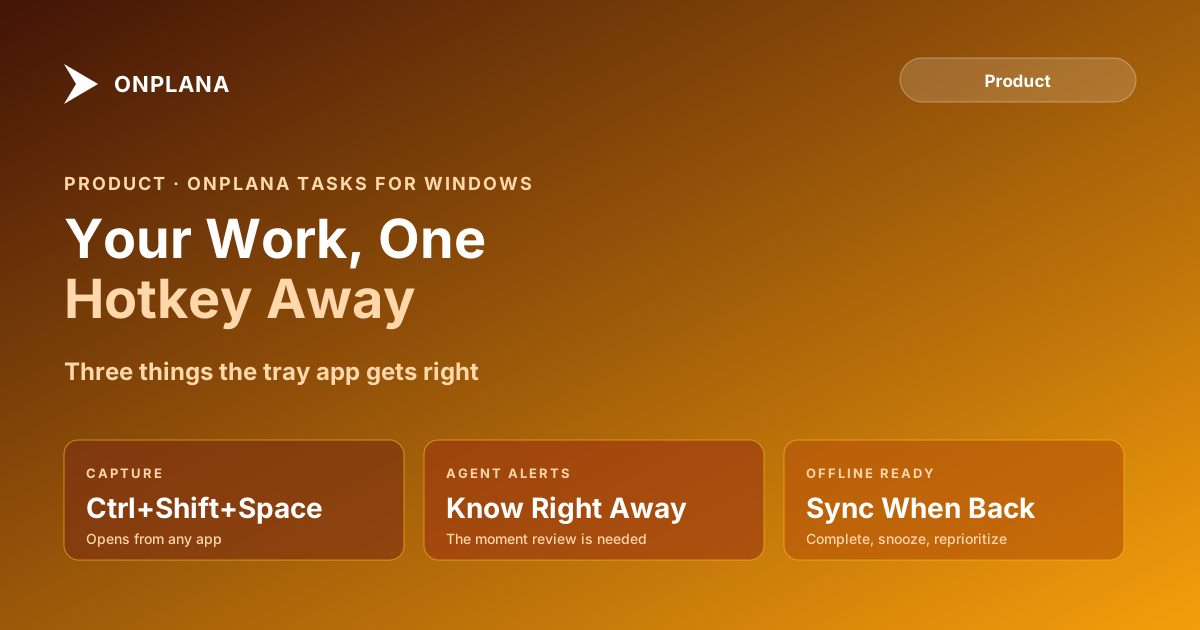
The direct answer: the Onplana Windows app lives in the system tray and gives you a global quick-add hotkey, Ctrl+Shift+Space, that opens from inside any other application. Type the task the way you would say it, press Enter, and it is captured without alt-tabbing anywhere. The same tray icon carries a badge for your open count and a notification the moment an agent finishes something and needs your review, so the app is doing two jobs at once: catching what you would otherwise lose, and telling you the instant something is waiting on you.
The Onplana Windows app is a free system-tray companion with a global quick-add hotkey (Ctrl+Shift+Space) that works from any application, a notification for the moment an agent needs your review, and a tray badge for your open count. Completing, snoozing, and re-prioritizing tasks all work offline and sync when you reconnect; creating a new task needs a connection. It signs in through your browser, so your password is never typed into the app, and it is free on every plan, including Free.
What the Onplana Windows App Does
The Windows app is not a smaller copy of the full Onplana web app squeezed into a tray icon. It is built around one moment: something needs to be captured or reviewed, and opening the full app is more friction than the moment deserves. The tray icon shows your open-item count at a glance, and beyond quick-add, the app has an Agents view that puts a blocked agent task needing your review at the top, an Issues view listing what is open without a trip to the web app, and a task detail pane where an agent's comment sits in the same thread as a colleague's, because the two are answering the same question, not two separate systems that happen to both mention the task.
Planning depth, the Gantt view, dependencies, dashboards, governance, stays in the full web app, one click away. A tray icon that tried to fit a Gantt chart into 320 pixels would be worse at both jobs than a purpose-built capture tool and a purpose-built planning tool working together, which is the same design logic behind Onplana's other companion apps.
How the Quick-Add Task Hotkey Works
- Press Ctrl+Shift+Space from anywhere in Windows, including from inside another application. The quick-add field opens on top of whatever window had focus.
- Type the task in plain language. The same natural-language parsing the web app uses reads a day, a priority marker, or a project name out of what you type.
- Press Enter. The task is created and the field closes; you are back in whatever you were doing with no window to close and no tab to find.
The mechanism that matters is not the parsing, plenty of task tools parse plain language. It is that the hotkey works from inside another application. A browser extension only helps when you are already in the browser; a phone app only helps when your hands are free and the laptop is closed. The Windows app's job is the specific gap those two do not cover: the moment you are deep in a document, a spreadsheet, or a call, and something needs to be written down before it evaporates. If the cost of capturing an idea is lower than the cost of deciding to remember it, you capture it. A sticky note only wins that trade when the alternative takes longer than writing on paper does, and a global hotkey is built to make sure it never does.
The diagram below shows the loop from the moment you press the hotkey to the task showing up everywhere else you work.
What the System Tray Task App Shows at a Glance
Past the hotkey, the tray icon itself does work: a badge for your current open count, so a glance tells you whether anything needs attention before you decide to open the app at all. Inside, the Agents view sorts a blocked agent task needing your review to the top rather than burying it in a general list, which matters because an agent stalled on a question is losing time for every minute it waits unnoticed. The Issues view lists what is open against your name without a detour through the web app, and a task's detail pane shows its full comment thread, an agent's note and a colleague's reply in the same place, because separating them into two systems would just recreate the problem the app exists to solve.
Does It Work Offline?
Completing, reopening, snoozing, and re-prioritizing a task all work with no connection and sync the moment you reconnect, so a flight or a conference room with bad Wi-Fi does not stop you clearing your list. Creating a brand-new task is the one action that needs a connection, since a task has to reach the server to exist anywhere at all. Sign-in works through your browser on onplana.com rather than a password typed into the app itself, and the Windows app appears as its own entry under Connected apps, so losing a laptop means revoking one row rather than resetting a password everywhere.
Installing the Windows Project Management App
The app requires Windows 10 (version 1809) or later, 64-bit, and installs free from the Microsoft Store. It can launch at sign-in if you turn that on in its settings, and it always runs from the tray rather than the taskbar either way. If you also want the work on your phone, the Onplana iPhone app covers the pocket half of the same idea, clearing tasks with a swipe instead of a hotkey, and the companion apps overview covers all four surfaces side by side if you are deciding which to add first.
The rest of the Onplana blog covers the product beyond the companion family, including how the same account plans a full schedule once a captured task turns into real project work.
Frequently asked questions
What is the Onplana Windows app?
A free system-tray companion to your Onplana account. It adds a global quick-add hotkey, notifies you when an agent needs a review, and shows your assigned work without opening a browser tab.
How do I open quick-add from inside another app?
Press Ctrl+Shift+Space from anywhere in Windows, including inside another application. The quick-add field opens on top of whatever you were doing; type the task and press Enter to capture it.
Does the Windows app work without an internet connection?
Completing, reopening, snoozing, and re-prioritizing a task all work offline and sync once you reconnect. Creating a brand-new task still needs a connection, since it has to reach the server to exist.
Does the Onplana Windows app cost anything?
No. It is free on every plan, including Free, because it is a companion to your existing Onplana account rather than a separate product with its own price.
Can the Windows app launch automatically at sign-in?
Yes, as an option in its settings. The app runs from the system tray rather than the taskbar either way, so it stays out of the way whether or not you turn that setting on.
What are the system requirements?
Windows 10 version 1809 or later, 64-bit, and it is free to install from the Microsoft Store.
Ready to make the switch?
Start your free Onplana account and import your existing projects in minutes.