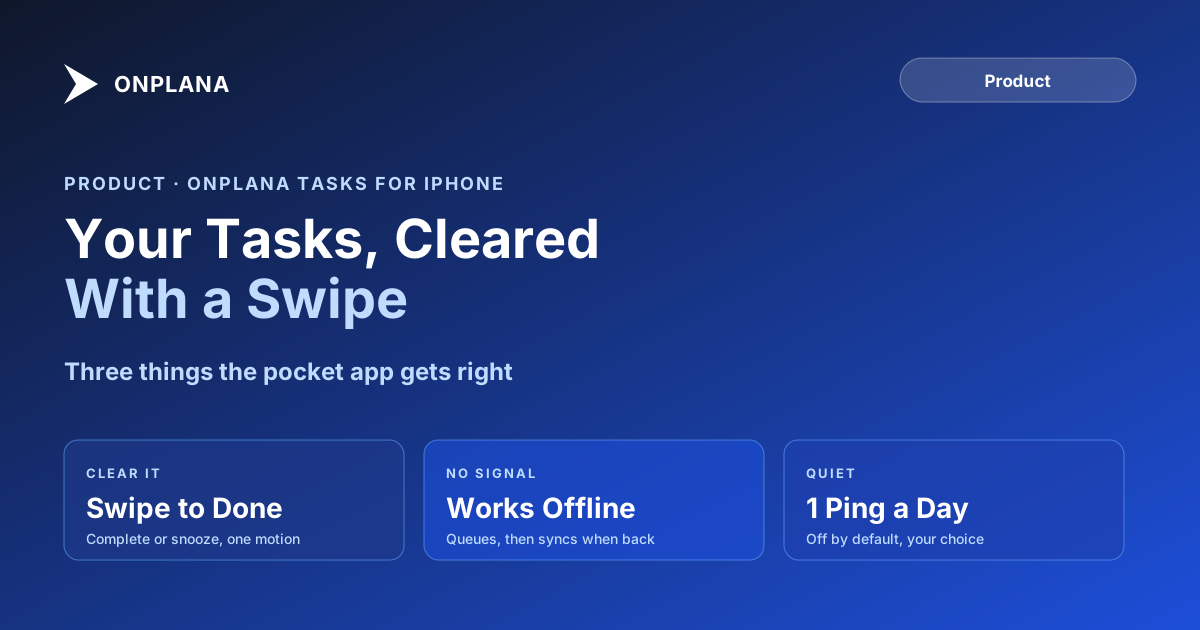
The Onplana iPhone App: Swipe to Clear, Work Offline
The Onplana iPhone app puts your tasks, agents, and issues in your pocket. Swipe to complete, quick-add in plain language, and it works with no signal.
Here's a test. Pull out your phone on your next commute and try to see what's actually due today in whatever project tool your team uses. On most of them that means opening a browser, waiting for a desktop layout to reflow sideways, and pinching to read a page that was never built to fit a six-inch screen.
The direct answer: the Onplana iPhone app skips that entirely. Your assigned tasks, agent updates, and issues open into a list built for a phone, grouped into overdue, today, and this week, and you clear it with a swipe. It's free on every plan, including Free, needs iOS 17.4 or later, and keeps working with no signal, so a tunnel or a flight doesn't stop you working through your list.
The Onplana iPhone app is a pocket-sized companion to the full web app, not a smaller copy of it. Swipe right to complete or reopen a task, swipe left to snooze it, and quick-add a task in plain language. Completing, reopening, snoozing, and re-prioritizing all work offline and sync when you reconnect; creating a new task needs a connection. It sends at most one reminder a day, off by default, and it's free on every plan through the same sign-in as the web app, with no separate password.
What the iPhone App Is Built For (and What It Isn't)
The app has one job: get your assigned work in front of you fast, wherever you are, without opening a laptop. Everything it does, the full web app also does, so the companion never becomes a second source of truth to keep in sync with the first. What it deliberately does not try to do is replace the desktop: dependency scheduling, a Gantt view, resource capacity, and portfolio-level reporting stay in the full web app, because a phone screen is the wrong place to build a schedule, only the wrong place to check one. The wider Onplana Tasks companion family covers the browser extension, the Windows tray app, and the Mac menu-bar app built on the same idea for the devices you sit at instead of carry.
How Offline Mode Actually Works
Most "offline support" claims fall apart under a direct question, so here's the honest version. Four actions work with no connection at all: completing a task, reopening one you finished by mistake, snoozing it to a later day, and re-prioritizing it. Each one saves on the phone and sends the moment you're back online, so a subway ride or a flight with no wifi doesn't block you from clearing your list. Creating a brand-new task is the one exception, and it needs a connection, because a task has to reach the server to exist anywhere at all. That's a narrower claim than "works fully offline," and it's the true one.
Clearing Your List With a Swipe
The list groups into overdue, today, and this week, with the tab badge showing what's overdue so a glance at the home screen tells you whether anything needs attention. Swipe right to complete a task, or to reopen one you swiped by accident. Swipe left to snooze it to a later day instead of leaving it to glare at you from the overdue group. Adding something new uses the same natural-language parsing as the rest of Onplana: type "draft the budget review Friday" and the due date fills itself in, no form, no picker, no deciding which field goes where.
The diagram below shows what happens to an action taken with no signal: it queues on the device, then replays against the server the moment a connection returns.
One Reminder a Day, Not a Notification Flood
Most mobile project tools solve engagement by pushing a notification for every comment, every status change, every mention, until the badge count stops meaning anything and you turn notifications off entirely. The iPhone app sends at most one reminder a day, at a time you pick, telling you what's due, and it's off by default until you turn it on. That's a deliberate trade: less noise, and the one notification that does arrive is worth opening.
Checking on Agents, Issues, and Ideas From Your Pocket
The app isn't only a task list. The Agents tab shows what your agents did while you were away, with anything blocked and waiting on you surfaced first, so reviewing delegated work doesn't require opening a laptop. The Issues tab lets you read and file issues on the move, and Ideas capture works the same way, so something worth writing down doesn't have to wait for you to sit at a desk. The heavy planning stays in the web app; the pocket version exists so nothing you need to see or flag has to wait for it.
Getting the Onplana iPhone App
The app requires iOS 17.4 or later and installs free from the App Store. Sign-in happens through your browser on onplana.com, the same as every other companion, so your password is never typed into the app itself, and each device shows up as its own entry under Connected apps that you can revoke without touching anything else. If you installed the TestFlight beta earlier, install the App Store version now; it replaces the beta, keeps your sign-in, and future updates arrive through the App Store.
If you also carry a Windows laptop or a Mac, the rest of the companion family covers those apps device by device, and the download page lists all six. The rest of the Onplana blog covers the product beyond the companion apps, including how the same account looks on mobile versus what Project Online's mobile experience offers for teams comparing the two.
Frequently asked questions
Is the Onplana iPhone app free?
Yes. It's free on every plan, including Free, because it's a companion to your existing Onplana account rather than a separate product with its own price.
Does the Onplana iPhone app work with no signal?
Completing, reopening, snoozing, and re-prioritizing a task all work offline and sync once you reconnect. Creating a brand-new task still needs a connection, since it has to reach the server to exist.
How many notifications does the app send?
One a day at most, at a time you choose, telling you what's due, and it's off until you turn it on. It doesn't buzz for every comment or status change on every project.
Can I plan a project from the iPhone app?
No, and it isn't meant to. The app is built for checking and clearing assigned work; dependencies, Gantt views, and portfolio planning stay in the full web app, one tap away when you're at a larger screen.
What iOS version does it need?
iPhone with iOS 17.4 or later. It's a free download on the App Store.
I was on the TestFlight beta. Do I need to do anything?
Install the App Store version. It replaces the beta on your phone, keeps your sign-in, and updates arrive through the App Store from now on.
Does it show what my AI agents are doing?
Yes. The Agents tab lists what your agents did while you were away, with anything blocked and waiting on you listed first, so checking on delegated work doesn't require opening a laptop.
Ready to make the switch?
Start your free Onplana account and import your existing projects in minutes.