Collaborating With External Contractors on One Project
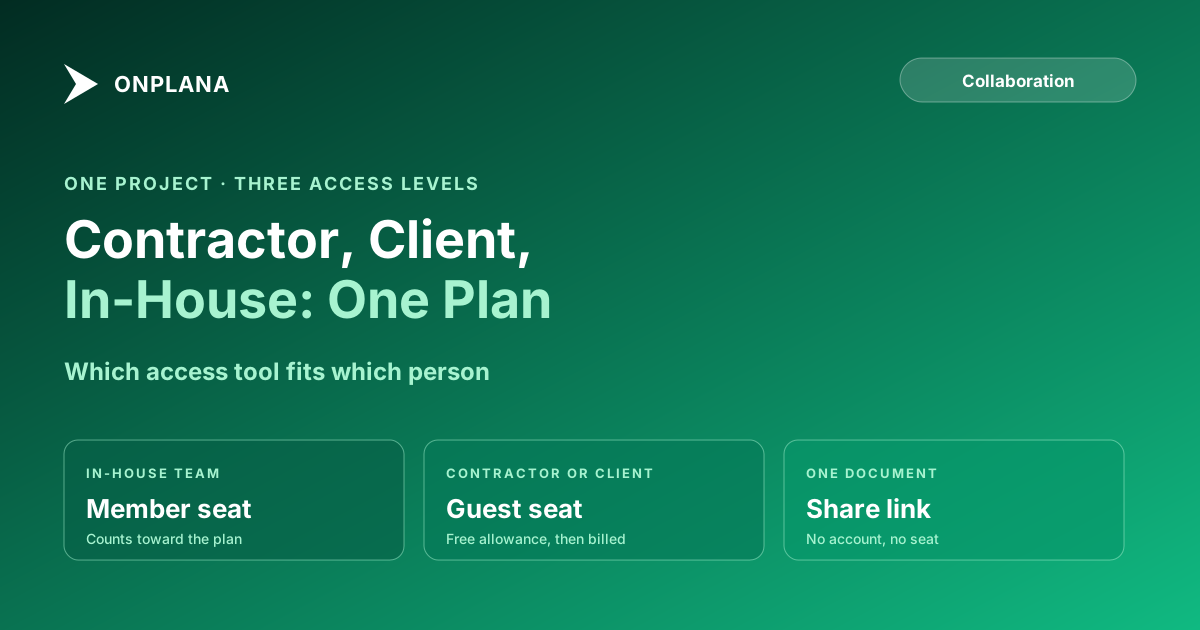
One project, three access levels: an external contractor gets a member seat, a client gets a guest seat, everyone else gets a share link. Pick correctly.
Most teams solve "a contractor needs access" by handing them a seat identical to a full-time employee's, then forget to remove it once the contract ends. Varonis's 2019 Global Data Risk Report found that 22% of a company's folders, on average, were accessible to every employee, and the same reflex that produces that number is the one that gives a six-week contractor the same reach as a ten-year staffer.
The direct answer: a project with a contractor, a client and an in-house team needs three different access tools, not one. The in-house team gets member seats: full, ongoing access that counts against the plan's member limit. The contractor or client gets a guest seat: full participation on that one project, including comments, drawn from a separate free allowance before it is ever billed. Anyone who only needs to see a single file gets a share link: no account, no seat, revocable instantly. Picking the wrong one is how a company ends up either paying for access nobody uses or leaving a door open nobody remembers.
In short. Match the access tool to how long the person stays and how much they need to reach. A member seat is for people who are effectively part of the team, counted against the plan. A guest seat is for a contractor or client who needs full standing access to one project without joining the organization. A share link is for someone who needs a single document, once, with no account at all. Preview what each role can reach before you invite anyone, and remove access the day the engagement ends.
Three audiences, three tools, one project
The mistake is treating "give them access" as a single decision. It is really three separate ones, and each has a different right answer:
- The in-house team is part of the organization already. They get member seats, the plan's standard role assignment, and they show up in every account-wide view.
- The contractor or client is working the project closely, for weeks or months, but is not on payroll and should not see anything outside this engagement. This is what a guest seat is for.
- Anyone who needs one artifact (a budget file, a status export, a single report) doesn't need a login at all. A share link handles that without touching either seat type.
Collapsing all three into "just add them as a member" is the expensive default. Collapsing them into "just email the file" undersells a contractor who is genuinely embedded in the work and needs to comment, not just view.
Member seat, guest seat, or share link: which one fits
| Member seat | Guest seat | Share link | |
|---|---|---|---|
| Who it's for | In-house team, long-term contractors | External contractor or client on one project | Anyone who needs a single document |
| Counts toward | The plan's member limit | A separate free guest allowance, then billed like a member | Nothing; no seat, no account |
| Scope | Account-wide, by role | The specific project(s) they're added to | One file |
| Can comment | Yes | Yes | No, view-only |
| Free allowance | N/A (part of member cap) | 0 (Free), 2 (Pro), 5 (Business), 10 (Enterprise, Enterprise+) | Included on every plan |
| Setup | Invite with a role | Invite as guest to the project | Email address plus a 6-digit code, no signup |
| Revocation | Remove from the org | Remove from the project | Instant; never falls back to a public link |
The diagram below shows the same decision as a branch: what the person actually needs to do decides which of the three tools fits, and only one of them touches a seat count at all.
Does an external contractor need a full member seat?
Usually not. A guest seat, part of Onplana's team collaboration model, gives a contractor everything a member has on that one project: they comment, get @mentioned, and show up in the activity feed exactly like an employee would, without visibility into other projects or the org-wide document workspace. What a guest can and cannot do is worth checking in full before you invite one, since the role's limits are exactly what makes it the right fit here. A full member seat only earns its cost when a contractor is embedded across several projects for six months or longer, deep enough that the guest allowance would be exhausted anyway.
What the permission preview shows before you invite anyone
The step most teams skip is checking what a role actually reaches before sending the invite, not after someone complains they can see too much or too little. Onplana's permission preview shows what the Owner, Admin, Manager, Member or Guest role reaches on your plan, including changes you haven't saved yet, so you catch an over-broad grant before a contractor or client ever opens the link. That matters most for guest roles specifically: a guest who can see more than the one project they're contracted for is exactly the over-provisioned access the Varonis report above keeps finding across ordinary companies, not just ones under attack.
Two other doors handle the cases a seat isn't the right shape for. A teammate already inside the organization who just needs into one more project uses request access instead of a new invite. A client who needs one document, once, uses a share link with no account created rather than either seat type. The security page covers how permissions hold together underneath all four doors.
What this looks like in practice
A consultancy running a project with an in-house PM, a specialist contractor, and the client's own stakeholder typically lands on: member seats for the in-house PM and internal team, part of the plan's member count; one guest seat for the specialist contractor, scoped to this project, commenting like a member without an account-wide grant; and for the client's stakeholder, either a guest seat if they need to comment and follow along daily, or a share link if they mainly want the status report and a handful of deliverables.
Check the permission preview for the guest role before sending either invite, confirm it matches what the engagement calls for, and revoke both the moment the contract closes. That last step is what keeps the Varonis number from becoming your number.
Frequently asked questions
Does an external contractor need a full member seat?
Only if the work is long-running or spans multiple projects. For a single engagement, a guest seat covers full participation, including comments, without counting against the plan's member limit.
How is a guest seat different from a member seat?
A member seat counts toward the plan's member cap and can reach anything that role is granted account-wide. A guest seat is scoped to the specific project it is added to and draws from a separate, smaller allowance before it is billed.
How many free guest seats come with each Onplana plan?
None on Free, two on Pro, five on Business, and ten on Enterprise and Enterprise+. A guest added past that allowance is billed like a regular member.
Can the client or contractor see the permission preview before they accept an invite?
No. The preview is for the person sending the invite. It shows what the Owner, Admin, Manager, Member or Guest role will actually reach on your plan, including changes not yet saved, before anyone outside the organization gets a link.
What if a contractor only needs to see one document, not the whole project?
Skip both seat types. A single document can be shared by email with a 6-digit verification code and no account created, on every plan including Free.
What happens to a contractor's access when the engagement ends?
Remove the guest or member assignment and access stops immediately. A share link revokes the same way and never degrades to a public URL that a former contractor could still open.
Ready to make the switch?
Start your free Onplana account and import your existing projects in minutes.