Share a Gantt Chart With a Client Without Giving a Login
To share a Gantt chart with a client, send a PDF for a one-off look or invite a guest seat for ongoing access. Here is what each shows and what it costs.
A client asking to "see the schedule" almost never wants to learn a project tool. They want to know whether the date holds, and which bar to blame if it does not.
The direct answer: you can share a Gantt chart with a client in two ways without handing over a full login. Send a PDF when they need to look once, or invite them as a guest on that single project when they need to comment or follow progress. Per Onplana's published plan limits (October 2026), a guest seat is free up to the plan allowance: none on Free, 2 on Starter and Pro, 5 on Business, 10 on Enterprise and Enterprise+.
In short. Choose by what the client has to do. Looking once: a PDF, which is a frozen copy with no seat. Commenting or tracking for weeks: a guest seat on one project, free up to the plan allowance. Being assigned work: a member seat. The chart itself is on every Onplana plan; only the guest allowance is plan-gated.
What are the ways to show a client a Gantt chart?
The three routes differ on one axis: how live the client's view is, and what it costs you in access you did not mean to give.
| Guest seat | Member seat | ||
|---|---|---|---|
| Client needs an account | No | Yes, invited by email | Yes |
| Sees updates | No, frozen copy | Yes | Yes |
| Can comment | No | Yes | Yes |
| Can be assigned tasks | No | No | Yes |
| Scope | The pages you export | One invited project | Whatever their role allows |
| Cost | None | Free up to plan allowance | A paid seat |
| Revoke | Cannot recall a sent file | Remove the guest | Remove the member |
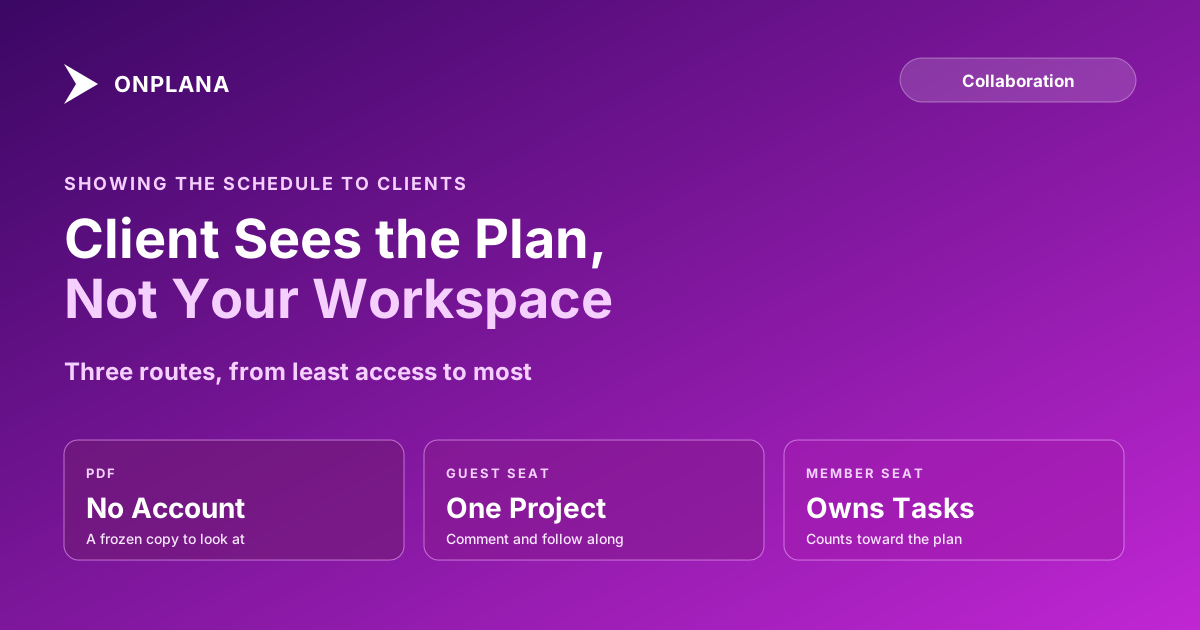
The diagram below puts the same three routes on a line from least access to most, so you can see where the decision tips from "send a file" to "give them a seat".
How do you send a client a Gantt chart as a PDF?
A PDF is the right answer for a review meeting, a sign-off pack or a proposal appendix, because the client sees exactly the dates you chose to show and nothing else.
- Baseline the plan first, so the PDF shows the committed bars under the current ones. See project baseline management for what to freeze.
- Hide or remove anything internal before you export: internal task names, notes, cost columns.
- Export or print the Gantt to PDF. In the desktop app, Onplana Schedule exports a PDF straight from the schedule.
- Date-stamp the file name, for example
delivery-plan-2026-10-20.pdf, so nobody argues about which version they hold.
The cost of this route is staleness. A PDF is a frozen copy and begins ageing when it leaves your outbox; once a client asks for it a second time, they want the guest route below.
When should a client get a guest seat instead?
Invite a guest when the client needs to answer a question on a task, watch a milestone move, or read the thread behind a date change. A guest has standing, invited access to the one project, comments included, and no view of the rest of your workspace. Guest seats explained lists exactly what a guest can and cannot do, and the allowance per plan is on the billing page of the docs.
Two cautions before you invite:
- A guest sees what the project holds. Open the project as a stranger would and check task names, comments and attachments first. Anything you would not forward to the client belongs in a different project or in a PDF.
- A guest comments; a guest does not own work. A client who must be assigned tasks needs a member seat.
Where the client needs only one document rather than the schedule, sharing project documents with clients without a licence is lighter still.
What should a client-facing Gantt leave out?
A client view should answer "will the date hold" and nothing more. Leave out cost and rate columns, internal resource names where they identify people outside the engagement, and tasks that exist only to organise your own team. Keep the milestones, the critical path and the baseline bars, because those are what a client actually reads. Onplana's Gantt with critical path shows all three on every plan, Free included.
Is there a read-only link for the Gantt?
The Onplana docs do not describe a read-only link for a Gantt chart, so this post does not cover one. The PDF and the guest seat are the two routes the docs support. Team collaboration covers how guests, members and document shares fit together.
If the schedule you want to show is still a file on your drive, run it through the free Schedule Health Check first, so the client does not find the broken logic before you do.
Check the schedule before the client sees it The free Schedule Health Check reads an .mpp or XML file and flags broken links, missing logic and constraint problems. No signup required. → Open the Schedule Health Check
Frequently asked questions
How do I share a Gantt chart with a client?
Pick the route that matches what the client needs to do. If they only need to look, send a PDF of the chart; if they need to comment or watch progress over weeks, invite them as a guest on that one project.
Does a client need a paid licence to see my Gantt chart?
No. A guest seat is free up to the plan allowance (2 on Starter and Pro, 5 on Business, 10 on Enterprise and Enterprise+), and a PDF needs no seat at all.
Can a guest see my other projects or my costs?
A guest sees only the project they were invited to, including its tasks and comments, so check what the project holds before inviting. If the plan carries internal cost or rate data, send a PDF instead.
Is a PDF of a Gantt chart always out of date?
Yes, a PDF is a frozen copy and starts ageing the moment you send it. That suits a milestone review or a sign-off pack and does not suit a client who checks progress weekly.
Can I share a Gantt chart on the Free plan?
Yes, as a PDF, because the Gantt itself is on every plan. The Free plan has no guest seats, so a client who needs to comment from inside the project requires Starter or above.
Ready to make the switch?
Start your free Onplana account and import your existing projects in minutes.