How to Decommission Your Project Online Tenant After Cutover
A live Project Online tenant after cutover is a liability, not a safety net. The five-step sequence to decommission Project Online cleanly and on schedule.
Most PMOs treat a still-live Project Online tenant after cutover as a safety net. It is not. It is a liability with a monthly invoice attached, and the fix is to decommission the Project Online tenant deliberately rather than assume the retirement did it for you. Every week it stays open is a week of licensing cost, security surface, and stale data that someone, somewhere, will mistake for current.
The instinct to keep it "just in case" is understandable. It is also backward. The tenant that still has write access, active integrations, and a login page reachable by anyone with a Project Online license is the thing most likely to quietly undermine the migration you just finished, not protect it. If your migration plan ended at cutover weekend without a decommission date attached, that's the gap this post fills.
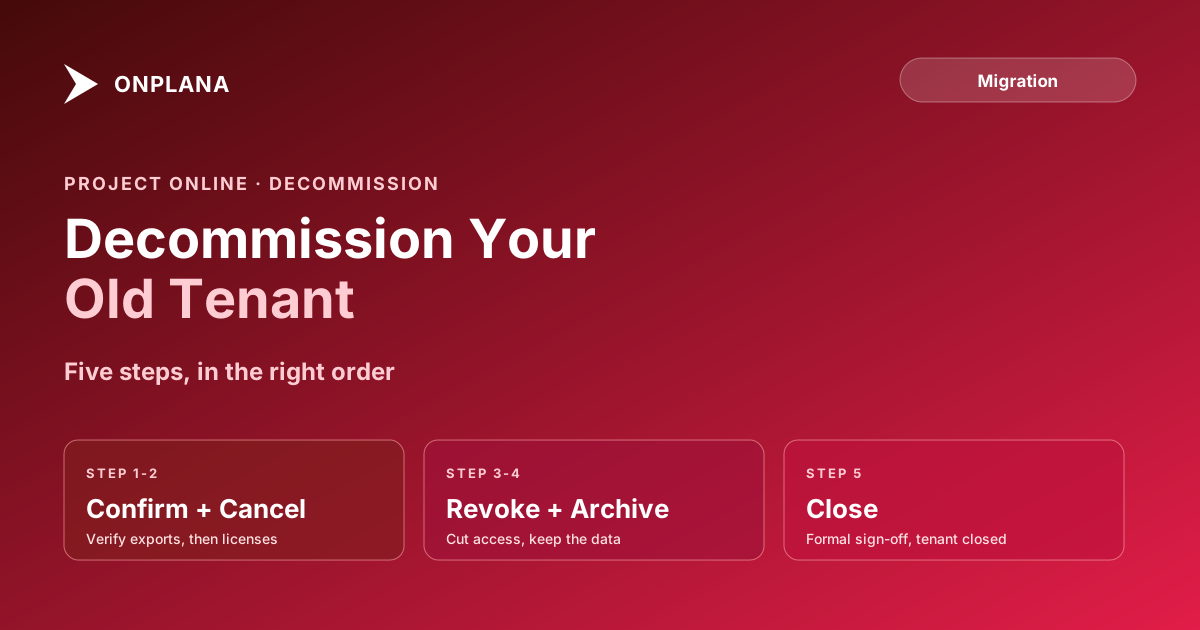
Decommission Project Online in five steps, in order: confirm every export is complete and readable, cancel Project Plan subscriptions, revoke every integration and API connection, move verified data into compliance-grade archive storage, then formally close the tenant. If September 30, 2026 came before you ran this sequence, run it now; once your migrated data has passed validation, it stops the licensing bill and closes the security surface. The order matters: cancel licenses before confirming exports are complete and you may lose the ability to re-pull data that turns out to have a gap.
The diagram below shows the five-step decommission sequence and the gate that has to clear before each step opens.
Why a Live Tenant After Cutover Is a Liability, Not a Safety Net
The instinct to keep Project Online reachable after you've cut over to a new tool is a reasonable-sounding version of "just in case." In practice it produces three concrete costs that grow the longer the tenant stays open.
The first is money. Project Plan 3 and Project Plan 5 licenses don't stop billing because your team stopped using them; someone has to cancel them explicitly, and until that happens the invoice keeps arriving for a service nobody logs into. The second is security surface. Every live tenant is a set of credentials, an OData endpoint, and an admin console that someone can still be phished into, misconfigure, or forget to offboard when they leave the company. The third is data trust. A stakeholder who bookmarks the old Project Online dashboard and doesn't get the memo that the team moved will pull a status number from a tenant that stopped receiving updates weeks ago, and report it as current.
None of these costs are hypothetical. They're the same pattern covered in the hidden costs of staying on Project Online, just applied to the tail end of a migration instead of the decision to migrate at all. A 50-seat PMO on Project Plan 3 that leaves the tenant live for three unnecessary months is paying for a service nobody logs into, while the security and stale-data risks accrue for free on top of it. The fix isn't complicated: decommission the tenant in the right order, and don't assume Microsoft's September 30, 2026 date did it for you.
Ownership matters here as much as sequence. Assign a single named owner for the decommission, ideally the same PMO lead who ran cutover validation, not a new person picking it up cold. A decommission with no owner drifts indefinitely, because "the old tenant is still there" never feels urgent enough to interrupt anyone's actual week until a security review or a budget audit forces the question.
Decommissioning After September 30, 2026
Most Project Online retirement content, including our own 30-day shutdown checklist, was built around the final month before Microsoft's official retirement announcement date. That date has passed. If your team cut over earlier and is still paying for Project Plan subscriptions it doesn't use, the sequence below still applies.
Once your migrated data has passed validation, the decommission sequence below applies whether you closed the tenant in June 2026 or are closing it after the September 30 retirement. Sooner is better: every week you wait is a week of licensing cost for a service you no longer use.
Step 1: Confirm Every Export Is Complete and Readable
This is the gate that everything else depends on, and skipping it is the single most expensive mistake in this sequence. "Exported" and "verified" are not the same claim.
- Re-open a sample of exported .mpp files in Microsoft Project Desktop and confirm they open cleanly, not just that the file exists in storage.
- Query the OData snapshot and confirm row counts match your original tenant inventory for Projects, Tasks, Assignments, Resources, Baselines, and Timesheets.
- Verify custom field values, not just field names, survived the export in a sample of at least five complex projects.
- Confirm timesheet history covers your full compliance retention window, not just the most recent periods.
- Get written sign-off from whoever owns compliance or audit in your organization that the export is sufficient before moving to Step 2.
Run the free Project Online Inventory Checklist to walk this gate systematically; it generates a structured checklist you can hand to IT and compliance as the sign-off artifact for Step 1. This is also where export your Project Online data as a discipline pays off: teams that treated the data extraction window as a first-class workstream during migration usually clear this gate in a day, not a week.
Step 2: Cancel Project Plan Subscriptions in the Right Order
Only after Step 1 is signed off should you touch billing. Cancelling a subscription is effectively irreversible for practical purposes: re-activating a lapsed tenant to re-pull a forgotten export is slow, sometimes requires a Microsoft support ticket, and is not guaranteed to work the same way twice.
- In the Microsoft 365 admin center, go to Billing > Your Products.
- Identify every Project Plan 3, Project Plan 5, and Project Online Desktop Client subscription tied to the tenant.
- For each, choose Cancel subscription and set the effective date to the end of the current billing period to avoid partial-month charges.
- Separately review any Power BI Premium capacity that was dedicated to Project Online reporting; this is billed independently and easy to miss.
- Document the cancellation date and confirmation number for each subscription in your decommission record.
For the specific licensing mechanics and the difference between Plan 3 and Plan 5 termination, see Project Online licensing: what to cancel and when. That post covers the billing detail; this step is about sequencing it correctly relative to the rest of the decommission.
Step 3: Revoke Integrations and API Access
The tenant itself is only part of the surface. Every system that was ever granted access to Project Online's OData feed, SharePoint sites, or Power Automate connectors is still a live credential until you explicitly revoke it.
- Audit Power BI workspace connections for any report still pointed at
/_api/ProjectData. - Deactivate every Power Automate flow that references the Project Online connector.
- Remove Teams tabs and apps surfacing PWA data.
- Revoke service principal and app registration credentials in Azure Active Directory that were scoped to the Project Online tenant.
- Disable single sign-on provisioning for the tenant so departing or role-changed employees don't retain access by inheritance.
Skipping this step is how a tenant that's supposedly "shut down" keeps quietly serving stale data to a dashboard nobody remembered to unplug, which is exactly the failure mode covered in forgetting OData consumers as a migration anti-pattern. The decommission phase is where that same oversight resurfaces if it wasn't caught earlier.
Step 4: Archive for Compliance Retention, Not Habit
Decommissioning is not deletion. Once licenses are cancelled and integrations are revoked, the exported data from Step 1 needs a durable, queryable home for as long as your compliance requirements demand, typically five to seven years for regulated industries.
Three approaches work, and most enterprise PMOs need at least two of them together:
| Archive approach | Best for | What it preserves |
|---|---|---|
| Full export to Azure Blob Storage | Regulated industries, audit response | Complete data fidelity, raw .mpp and OData files |
| OData summary in a BI warehouse | Ongoing historical reporting | Queryable structured data without raw files |
| Project-by-project PDF bundle | Low-infrastructure human reference | Readable record, no query capability |
The full comparison, including retention guidance by industry, is in the Project Online tenant archive strategy guide. The point for this step is narrower: don't skip archiving because decommissioning "feels done" once the licenses are cancelled. A cancelled subscription with no corresponding archive is data loss with extra steps.
Step 5: Formally Close and Decommission the Project Online Tenant
The final step is administrative, but skipping it leaves a PWA site collection and tenant record that outlives every other part of the decommission.
- Confirm with IT that all site collections associated with the Project Online tenant are flagged for closure.
- Get PMO sign-off that steps 1 through 4 are complete, documented, and reviewable.
- Send a single closure notice to the organization: what was decommissioned, where the archive lives, and who to contact for a historical data request.
- Remove the tenant from any internal system inventory or CMDB so it doesn't show up in a future audit as an unaccounted-for asset.
- Set a calendar reminder at your compliance retention boundary to review whether the archive itself can finally be retired.
What to Keep, and For How Long
The decommission sequence above deliberately keeps data alive even after the tenant itself is closed. What to retain, concretely:
- Full OData snapshot and .mpp exports: keep for the full compliance retention window, five to seven years for most regulated industries.
- Custom field and lookup table definitions: keep alongside the data exports; without them, the exported values lose their context.
- Timesheet history: keep for the same retention window; finance and HR audits often need this longer than schedule data.
- Report and dashboard definitions: useful as reference even after reports are rebuilt on the new platform, since they document what the organization used to measure.
Don't let "the tenant is closed" become "the data is gone." Those are two different states, and conflating them is the single hardest mistake to reverse in this entire sequence.
Before and After the Official Retirement Date
For organizations that migrated well ahead of the deadline, running this sequence in June or July 2026 instead of September changed nothing about the five steps themselves. It changed two things about how they executed them: no OData throttling to contend with, because they weren't competing with every other PMO's last-minute export in the final weeks of service, and Microsoft support fully available if a re-export turned out to be necessary. If you are running the sequence now, after the retirement, the five steps are the same: start from what you exported, and treat Step 1 as the gate that decides everything else.
Run the free Project Online Inventory Checklist Walk through what you exported in about 10 minutes and get a sign-off checklist you can hand to IT and compliance before you touch billing. No signup required. → Open the checklist
Microsoft Project Online™ is a trademark of Microsoft Corporation. Onplana is not affiliated with Microsoft.
Frequently asked questions
How do I decommission a Project Online tenant after migration?
Follow a five-step sequence: confirm every export is complete and readable, cancel Project Plan subscriptions in the Microsoft 365 admin center, revoke every integration and API connection, move verified data into compliance-grade archive storage, and formally close the tenant with sign-off from IT and the PMO.
Is it too late to decommission Project Online after September 30, 2026?
No. Project Online retired on September 30, 2026, but Project Plan subscriptions, integrations and app registrations stay in place until someone cancels or revokes them. Once your migrated data has passed validation and your reporting has been rebuilt on the new tool, run the sequence. Many PMOs that cut over in Q2 2026 decommissioned well ahead of the deadline.
What happens if I cancel Project Online licenses too early?
You lose the ability to re-export data if validation later uncovers a gap. That is why cancellation is step two, not step one: confirm every export is complete and independently readable before you touch the Microsoft 365 admin center.
What should I keep from Project Online, and for how long?
Keep the full OData snapshot, .mpp exports, custom field and lookup table definitions, and timesheet history for your compliance retention window, typically five to seven years for regulated industries. Discard nothing until that window closes, and store it somewhere queryable, not just a folder of files.
Why is a still-live Project Online tenant a security risk?
Every additional week a tenant stays live is another week of licensing cost, another surface for credential compromise, and another place stale project data can be mistaken for current data by someone who didn't get the memo that the team migrated.
Does decommissioning replace archiving?
No. Decommissioning is the operational shutdown: cancel licenses, revoke access, close the tenant. Archiving is what makes the data recoverable afterward. Skip the archive step and decommissioning becomes deletion, which is a much harder mistake to undo.
Ready to make the switch?
Start your free Onplana account and import your existing projects in minutes.