MS Project Critical Path: How to Show It and Check It
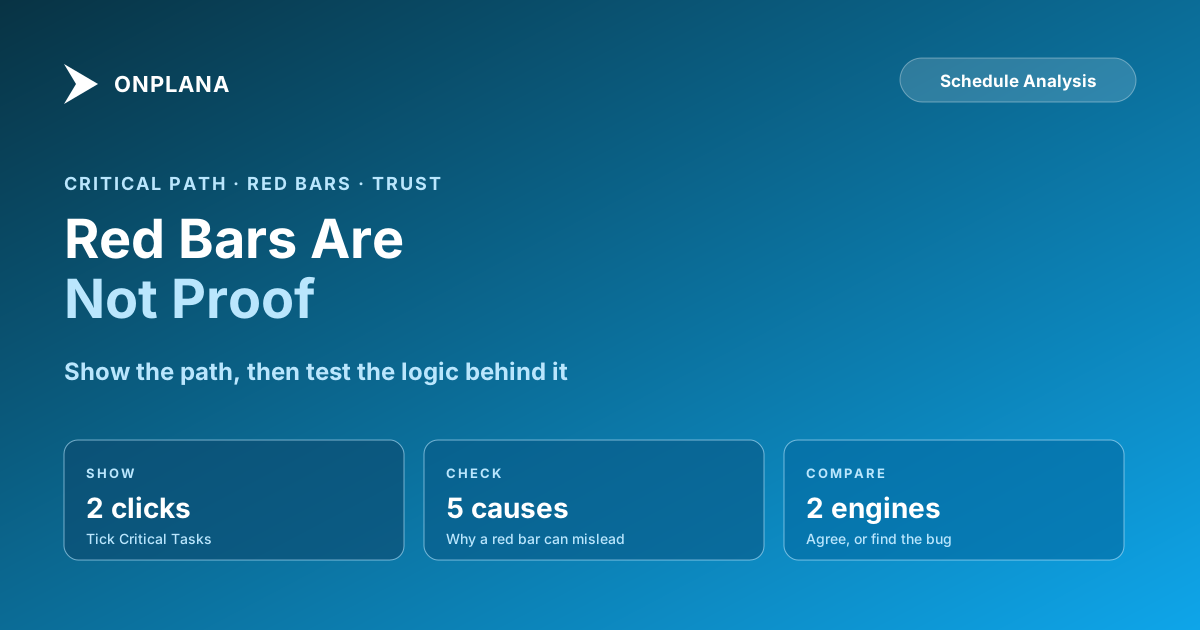
Show the MS Project critical path in two clicks, then check it. Five things make the red bars lie: constraints, open ends, manual tasks, calendars and lag.
Showing the critical path in MS Project takes two clicks. Trusting it takes more. In Onplana's 2026 audit of 500 real Microsoft Project schedules, 83% contained at least one task with no predecessor and no successor, and every one of those can bend the path without any warning (we audited 500 project schedules).
In short. To show the MS Project critical path, open a Gantt view, go to the Gantt Chart Format tab and tick Critical Tasks; tasks with total slack of 0 days or less turn red. Then check it, because hard constraints, tasks with no successor, manually scheduled tasks, calendar mismatches and lag used as a buffer all produce red bars that do not mean what they appear to mean.
How do you show the critical path in MS Project?
Open the schedule in a Gantt view, such as Gantt Chart or Tracking Gantt. On the Gantt Chart Format tab, tick Critical Tasks in the Format group. Critical tasks turn red (Microsoft: show the critical path of your project).
The rule behind the colour sits in File, Options, Advanced, under the calculation options: "Tasks are critical if slack is less than or equal to" a number of days. At 0 days only tasks with no total slack are red. Raising it to 2 also colours the near-critical tasks, which is a cheap way to see what is one bad week from joining the path.
A task view can also use the Highlight list, or the Critical filter, to show only the critical tasks. If nothing turns red, the usual causes are a non-Gantt view, Critical Tasks left unticked, or tasks that are manually scheduled.
Why can the MS Project critical path lie?
Red means the scheduling engine calculated zero slack. It does not mean the logic behind that number is right. Five causes account for most wrong paths:
| Cause | What happens | How to spot it |
|---|---|---|
| Hard constraint | A Must Start On or Must Finish On date overrides the dependency logic, so a task is red or negative for a reason unrelated to its chain | Filter for constraint type other than As Soon As Possible |
| No successor | A task with nothing after it shows slack to the project finish that is not real, so it slips without ever turning red | Look for tasks with no successor in the Successors column |
| Manually scheduled task | The engine does not move it from its links, so it sits outside the path calculation | Check the task mode column for the manual icon |
| Calendar mismatch | Slack is counted in working time, so a task on a different calendar from its successor shows slack that vanishes over a weekend | Compare each task's calendar with the project calendar |
| Lag as buffer | Lag counts as scheduled time, so a padded gap looks like a tight chain | Search the Predecessors column for plus signs |
The first of these is the most damaging. A hard constraint can pin a task to a date, and every task behind it inherits the result. The seven hidden killers covers the wider set of problems that status reports hide.
How do you check the critical path?
Checking means recomputing the path from the dependencies and comparing it with what MS Project shows. The diagram below sets out the loop.
Open the same file in a second engine. Onplana Schedule, the desktop app for Windows and Mac, opens .mpp and Microsoft Project XML files and computes the critical path and total float with its own engine. It counts days inclusively, so a one-day task starts and finishes on the same day. It also warns when a deadline cannot be met and shows a health badge. The Gantt with critical path is available on every Onplana plan, Free included.
If the second engine marks a task critical that MS Project shows as slack, or the reverse, open that task and look at its constraint, successors, calendar and lag. The mismatch is almost always one of the five causes above. For the arithmetic underneath, see critical path method explained and total float vs free float.
What happens to your file when you open it?
The contents of the file decide, not its extension. If the contents are Microsoft Project XML, the file is read on your machine and nothing is uploaded. Everything else, a binary .mpp and a Primavera P6 or Planner XML export alike, is converted on Onplana's servers, and the uploaded copy is deleted within 24 hours.
Onplana Schedule can save back to Microsoft Project XML, writing a new file beside the original and never over it. It does not write the .mpp format. For background on the format itself, see what is an MPP file.
What should you do next?
- Run the free Schedule Health Check on the .mpp, up to 20 MB and 20,000 tasks, to list dangling tasks, constraints and near-critical work before you rely on the red bars.
- Open the file in Onplana Schedule if you keep working the schedule, and compare its critical path with MS Project's.
- Moving a plan? The import guide covers what carries across, and the migration hub covers the wider move.
Run the free Schedule Health Check Upload an .mpp or Microsoft Project XML file and see the dangling tasks, constraints and near-critical work behind your critical path. No signup required. → Open the Schedule Health Check
Microsoft Project™ is a trademark of Microsoft Corporation. Onplana is not affiliated with Microsoft.
Frequently asked questions
How do you show the critical path in MS Project?
Open a Gantt view, go to the Gantt Chart Format tab and tick Critical Tasks. Tasks on the critical path turn red.
Why is the MS Project critical path not showing?
Usually the view is not a Gantt view, Critical Tasks is unticked, or the tasks are manually scheduled. A schedule with no dependencies also has nothing to chain into a path.
What makes a task critical in MS Project?
A task is critical when its total slack is at or below the threshold in File, Options, Advanced, which is 0 days unless someone changed it. Total slack is how far the task can slip before it moves the finish date.
Can the MS Project critical path be wrong?
Yes. The path is only as good as the logic in the file. Hard constraints, tasks with no successor, manually scheduled tasks, calendar mismatches and lag used as a buffer can all make a red bar mean something other than what it appears to.
How do you check a critical path without trusting MS Project?
Recompute it from the dependencies in another tool and compare. Onplana Schedule and the free Schedule Health Check both calculate total float with their own engine, so a task that is red in one and not the other points at a logic problem.
Can Onplana Schedule save a checked schedule back to .mpp?
No. It saves to Microsoft Project XML (MSPDI) as a new file beside the original, which MS Project opens, and it never overwrites the source file.
Ready to make the switch?
Start your free Onplana account and import your existing projects in minutes.