MS Project Constraint Types: All Eight, Ranked by Risk
MS Project constraint types come in eight forms, but only two override dependency logic outright. Here is how to rank all eight by the damage they do.
A hard constraint doesn't fix a broken schedule. It hides the fact that the schedule doesn't work, and it hides it well enough that most reviewers never catch it until the date it was protecting has already passed.
The direct answer: MS Project has eight constraint types, ASAP, ALAP, SNET, SNLT, FNET, FNLT, MSO, and MFO, and only two of them, Must Start On and Must Finish On, pin an exact date regardless of what the dependency chain says. Government auditors running the DCMA 14-Point Schedule Assessment cap hard constraints at 5% of a schedule's total constraints (Deltek, Nov. 19, 2024); most commercial schedules are never checked against that number at all, which is exactly how a handful of Must Start On dates end up quietly driving a plan that looks dependency-driven on the surface.
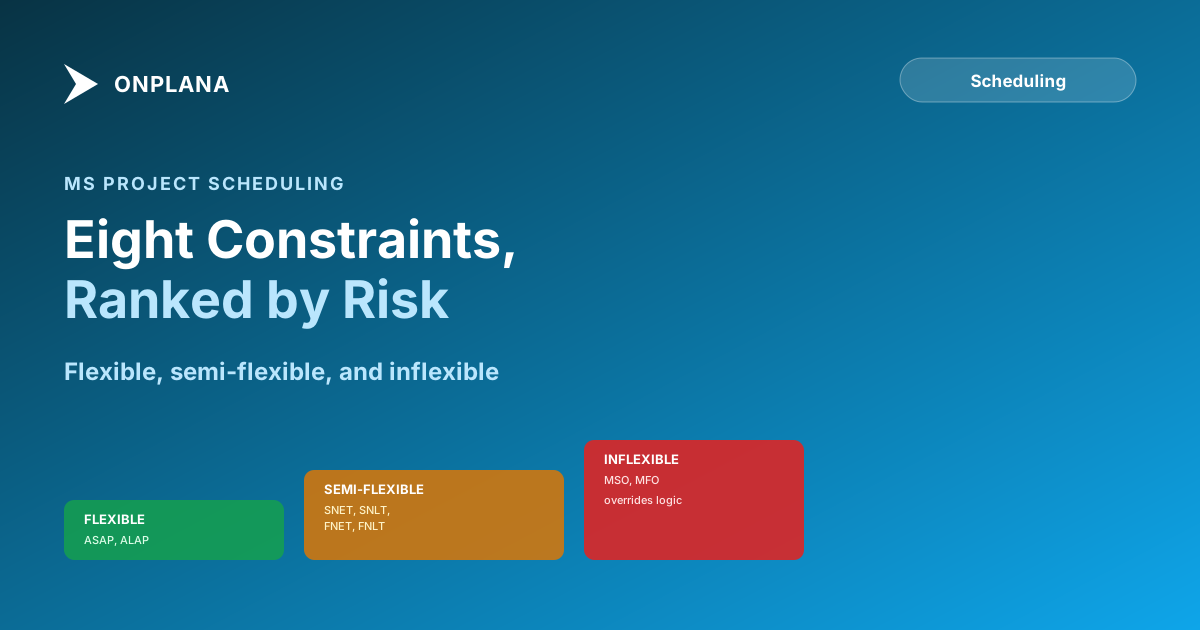
In short. Two of the eight MS Project constraint types, ASAP and ALAP, are flexible: no date is pinned, and the task follows the dependency network. Four, SNET, SNLT, FNET, and FNLT, are semi-flexible: each blocks a date in one direction only. The last two, Must Start On and Must Finish On, are inflexible: they override the dependency logic outright and are the two a planner should almost never set.
The Eight MS Project Constraint Types, Ranked by Flexibility
Every constraint falls into one of three risk bands, and the band matters more than the specific type when you're deciding whether to worry about one you find in a file.
| Constraint | Abbreviation | Category | What it forces | Common misuse |
|---|---|---|---|---|
| As Soon As Possible | ASAP | Flexible | No date; task starts as early as its predecessors allow | Rare; this is the default for a reason |
| As Late As Possible | ALAP | Flexible | No date; task is pushed to the latest point before its successor | Silently eats float the PM didn't know existed |
| Start No Earlier Than | SNET | Semi-flexible | Blocks an earlier start; a slipped predecessor can still push it later | Set once to "lock in" a date that was really a guess |
| Start No Later Than | SNLT | Semi-flexible | Blocks a later start | Left in place after the scope that justified it changed |
| Finish No Earlier Than | FNET | Semi-flexible | Blocks an earlier finish | Uncommon; usually deliberate |
| Finish No Later Than | FNLT | Semi-flexible | Blocks a later finish; can conflict with dependency logic | Used as a stand-in for a hard deadline that isn't actually fixed |
| Must Start On | MSO | Inflexible | Pins the exact start date regardless of dependencies | Set to make an internally-driven date "look achievable" |
| Must Finish On | MFO | Inflexible | Pins the exact finish date regardless of dependencies | Same pattern, on the finish side |
The diagram below places all eight on a single risk spectrum, grouped into the three bands above.
Why Must Start On and Must Finish On Break a Plan
Must Start On and Must Finish On are the only two of the eight that MS Project treats as non-negotiable pins. When a predecessor slips and its successor carries one of these constraints, the schedule engine honors the constraint date over the dependency, which is the opposite of what most planners assume is happening. The task doesn't move to reflect the real delay; it sits at its pinned date with a gap in the logic that nothing on the Gantt chart flags by default.
That gap is exactly what produces negative float: a task's late finish date computed as earlier than its early finish date, a state that is mathematically only possible when a hard constraint or an already-slipped predecessor has broken the schedule's own math. Negative float is one of the clearest single signals that a file's constraints and its dependencies disagree with each other, and it's one of the seven hidden killers that a status report never surfaces on its own, because the rollup still shows a finish date, just not one the logic actually supports.
The Four Semi-Flexible Constraints, and Why They're Easy to Miss
SNET, SNLT, FNET, and FNLT don't override logic the way MSO and MFO do; each blocks a date in one direction only, sitting alongside the four dependency types covered in FS, SS, FF, SF explained as the two halves of a schedule's own math. Start No Earlier Than stops a task from starting before a given date but doesn't stop it from sliding later if a predecessor runs long. Start No Later Than does the reverse: it caps how late a task can start but doesn't touch how early it can begin.
The risk with this middle band isn't that any single one causes a dramatic break. It's that they accumulate quietly. A schedule with a dozen SNET constraints set months ago, each one reasonable in isolation, can behave like a schedule full of soft tripwires: the critical path calculation treats each one as a legitimate boundary, so the "critical" path MS Project displays can be following a chain of stale assumptions rather than the schedule's actual current logic.
The Audit: Finding Every Hard Constraint Someone Set to Hit a Date
Run this whenever you inherit a schedule or before a milestone review, not just when something has already slipped.
- Filter the task list by Constraint Type not equal to "As Soon As Possible." This surfaces every task carrying one of the other seven types in one pass.
- For each result, compare the constraint date to the current forecast finish of its predecessor, not the original baseline finish.
- Flag any task where the constraint date is earlier than what the predecessor's finish would otherwise allow. That's a live conflict, whether or not the schedule is currently showing negative float.
- Pull the Must Start On and Must Finish On tasks into a separate list and ask, for each one, whether the date is genuinely external (a contract term, a regulatory window) or whether it's standing in for a scope or resourcing decision nobody wants to revisit.
- Cross-check the manual list against an automated pass before presenting findings; a second method catching the same tasks is what makes an audit result defensible in a review.
The free Schedule Health Check runs step five in under a minute: upload a .mpp or MSPDI XML export and it flags constraint conflicts, negative float, and the real critical path directly from the file's own fields, the same categories this audit checks by hand.
What Onplana Does With Constraints on Import
All eight constraint types travel intact through Onplana's importer, alongside all four dependency types with their lag, from a .mpp binary, MSPDI XML export, Primavera .xer file, or an Excel/CSV work breakdown structure. The Gantt view with critical path and baselines with variance are available on every plan including Free, so a constraint audit doesn't require an upgrade to run once the schedule is imported. Either export format also opens directly in Onplana Schedule, the desktop app, if the goal is to keep working the file locally rather than importing it into a shared plan right away.
What the import doesn't decide for you is whether the constraint date itself is still correct. A Must Start On date that made sense against last quarter's resourcing plan doesn't stop being a hard pin just because it moved to a new tool; the audit above is worth running again on the destination file, not only the source. The same status-date discipline that keeps original and remaining duration honest is what eventually surfaces a stale constraint in the first place: a task whose remaining duration keeps growing against a fixed Must Finish On date is telling you which one has to give.
The consequence of a pinned date is covered in full in negative float explained, including how to fix it without simply deleting the constraint.
Run the free Schedule Health Check Upload your .mpp or MSPDI XML file and get a per-finding breakdown of constraint conflicts, negative float, and the real critical path, computed from the file's own fields. No signup, no credit card. → Run the Schedule Health Check
Microsoft Project Online™ is a trademark of Microsoft Corporation. Onplana is not affiliated with Microsoft.
Frequently asked questions
What are the eight MS Project constraint types?
As Soon As Possible (ASAP), As Late As Possible (ALAP), Start No Earlier Than (SNET), Start No Later Than (SNLT), Finish No Earlier Than (FNET), Finish No Later Than (FNLT), Must Start On (MSO), and Must Finish On (MFO).
Which MS Project constraint types are considered flexible?
ASAP and ALAP. Neither pins a date; both let the task's schedule follow the dependency network, which is why they cause the least risk of the eight.
What's the difference between Start No Earlier Than and Must Start On?
Start No Earlier Than only blocks an earlier start; the task can still slide later if a predecessor runs long. Must Start On pins the exact date regardless of what the dependency chain says, which is what makes it one of the two inflexible types.
Can a constraint create negative float in MS Project?
Yes. Negative float shows up when a hard constraint's date conflicts with what the dependency logic would otherwise compute, a mathematical sign that the file disagrees with itself rather than a normal scheduling outcome.
Should a hard constraint ever be used?
Rarely, and only for a genuinely fixed external date: a contractual delivery date, a regulatory submission window, a permit date. Used to make an internally-driven date look achievable, it hides the schedule risk instead of resolving it.
Do all eight constraint types survive a migration into another tool?
Onplana's importer preserves all eight constraint types, along with all four dependency types with their lag, from a .mpp, MSPDI XML, .xer, or Excel/CSV source. What still needs a manual check is whether the constraint date itself is still the right one to keep.
Ready to make the switch?
Start your free Onplana account and import your existing projects in minutes.