Project Document Management: Folders, Versions, Sharing
Project document management comes down to four rules: one library per project, versions on re-upload, client email sharing, and restricted folders.
Open any project folder in month six and count the files called "final". Nobody decided to lose track of the current version; the structure never told them where it lived. Project document management is that structure, and it needs four rules, not a system.
The short answer. Keep one library per project, one organization-wide library for what spans projects, and a single version history per file. Share a file with a client by email instead of copying it out. Restrict the few folders that are sensitive. As of October 2026, every Onplana plan includes document folders with version history, files up to 100 MB, and the organization Workspace; the Free plan holds up to 500 documents per project (source: Onplana pricing).
What does project document management need?
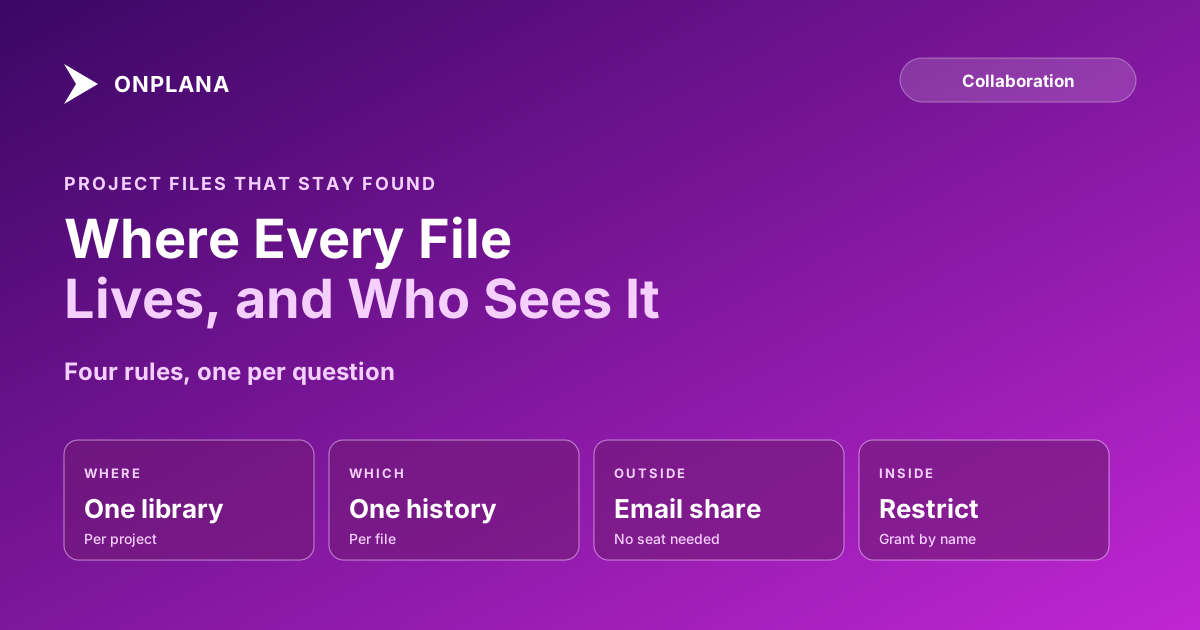
Project document management needs one answer to each of four questions: where does this file live, which copy is current, who can open it, and who sees it outside the team. The diagram below maps each question to the rule that answers it.
Where should project documents live?
Project documents live in the project's own Documents tab, and files that belong to the company live in the organization Workspace. The split is by owner: a signed statement of work belongs to one engagement, while a rate card template belongs to everyone.
| File | Home | Why |
|---|---|---|
| Statement of work, specs, meeting notes | Project Documents tab | Members of that project find it where the work is |
| Policies, templates, brand assets | Organization Workspace | Visible to every member, guests excluded |
| Client-facing report | Project Documents tab, shared by email | The client sees one file, not the project |
| Compensation or legal-hold list | Restricted folder | Only named people and teams |
The organization-wide document workspace explains the default visibility and the grant levels in full. Inside a project, keep the folder tree shallow: three or four folders named for how your team searches, such as contracts, specs and reports, beat a tree mirroring the org chart.
How do you keep one current version?
You keep one current version by never adding a second file. Re-upload under the same name and Onplana asks whether to save it as a new version, keep both, or cancel; choosing a new version leaves one file with a history you can open and restore from, per the Onplana documentation. Word, Excel and PowerPoint files can also be edited in the browser, saved as real Office files with version history, which removes the download, edit, re-upload loop that creates "final-v2".
Three habits keep this true:
- Name the file for what it is, not its state. "Cutover plan" with a history beats "Cutover plan FINAL".
- Link, do not attach. Point a task or comment at the file instead of sending a copy.
- Review the tree monthly. Delete or merge the folder nobody opened.
How do you share a document with a client?
You share a single document with a client by sending it to their email address. They enter a 6-digit code sent to that inbox, then see the file view-only, with no account and no paid seat, on every plan including Free. Revoking the share stops access immediately. The mechanics are in sharing project documents with clients without a licence.
When the client needs the whole project and not one file, that is a guest seat, which guest seats explained covers, and which starts on the paid plans.
How do you protect a sensitive folder?
You protect a sensitive folder by restricting it. Turn on Restrict access under Manage access, then grant named people or teams Can view, Can contribute or Can manage. Organization Owners, Admins and the item's creator always keep access, so restriction can never strand a file. For documents that need a named approver before a version counts, approval workflows are available on Business and above.
Where several people shape the same text rather than pass a file around, a shared page is a better home than a document; two people, one wiki page covers when. The wider picture of members, guests and shared files is on the team collaboration page.
See how the pieces fit together Members, guests, document shares and agents all work from one plan. The team collaboration page shows each audience and what it can open. → Explore team collaboration
Frequently asked questions
What is project document management?
Project document management is the set of rules that decide where project files live, which version is current, and who can open them. It matters most in month six, when the person who saved the file has moved on.
How should project documents be organised?
Give each project one library with a few folders named for how the team looks things up (contracts, specs, reports), and keep company-wide files such as policies and templates in a separate organization library. One home per file stops copies from drifting.
How do you keep track of document versions?
Re-upload a file under the same name and save it as a new version rather than adding a second copy called final-v2. The file keeps one history, and you can restore an earlier version from it.
Can a client see project documents without a licence?
Yes, one document at a time. You send a file to their email address, they enter a 6-digit code sent to the same inbox, and they see it view-only with no account and no seat, on every plan including Free.
Can I lock a sensitive document to a few people?
Yes. Restrict the folder or list, then grant named people or teams view, contribute or manage access. Organization Owners, Admins and the item's creator keep access, so a restricted folder cannot be orphaned.
Does a restricted folder stop an admin from seeing it?
No, and that is deliberate. Owners and Admins always keep access to a restricted item, so restriction narrows who else can open it rather than hiding it from the people responsible for the workspace.
Where does a document approval fit?
Document approval workflows start when a new document or version is added, and the version stays locked until a named approver decides. They are available on Business and above, so smaller plans handle sign-off in a comment thread.
Ready to make the switch?
Start your free Onplana account and import your existing projects in minutes.