Project Schedule Example: A 20-Task Plan, Step by Step
A project schedule example you can copy: 20 tasks, four link types, two milestones and a baseline, with the dates, float and critical path worked out.
Most schedule examples online are a screenshot of a finished chart, which shows you what a plan looks like and nothing about how it got that way. Of the roughly 500 files the free Schedule Health Check processed in the first quarter of 2026, 83% had dangling tasks and only 27% had a baseline (source: our audit of 500 project schedules). Both are decisions made, or skipped, while the plan is being built.
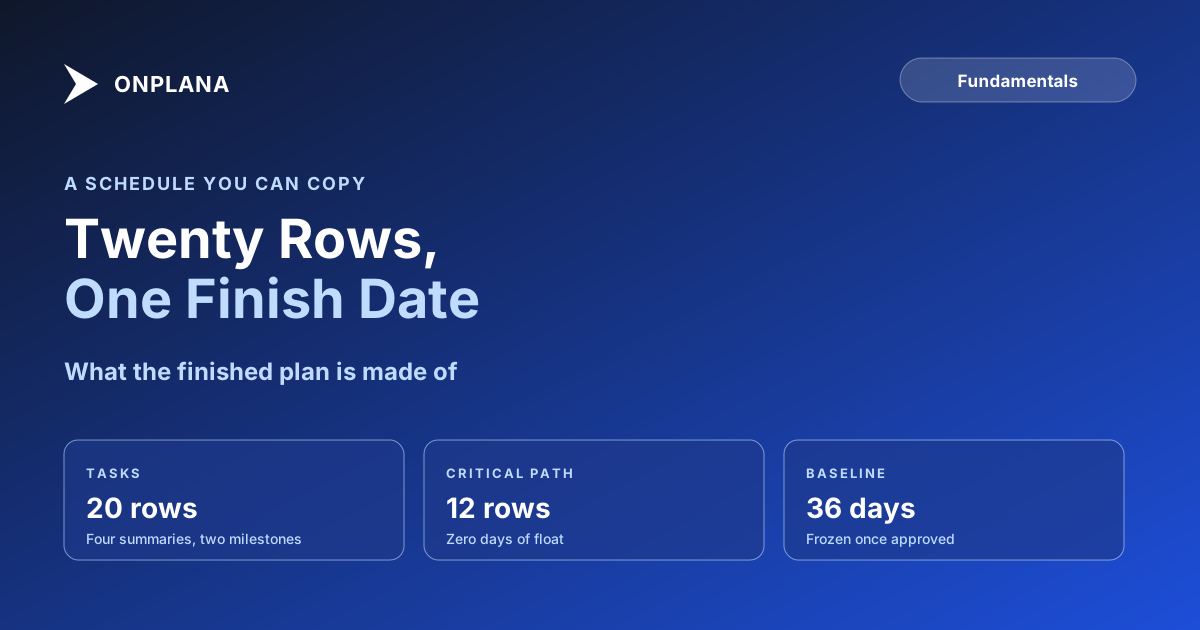
The short answer. A project schedule example worth copying is a work breakdown of 15 to 25 tasks with a duration on each, a predecessor link on every task but the first, one or two milestones, a working calendar and a saved baseline. The plan below is a six-week website relaunch: 20 rows, 36 working days, starting Monday March 1, 2027 and finishing Tuesday April 20, with a 12-row critical path.
What does a complete project schedule example look like?
A complete example is the finished chart plus the table behind it. The chart below draws all 20 rows on a standard Monday-to-Friday calendar with no holidays; add yours to the calendar before you trust a date. Red bars are the critical path, blue bars have float, and the dark bars are summary tasks that roll up their children.
The chart is a picture of the table, so keep the table. Durations are working days, counted inclusively: a one-day task starts and finishes on the same day.
| # | Task | Duration | Predecessors | Start | Finish | Float |
|---|---|---|---|---|---|---|
| 2 | Kickoff and scope sign-off | 3d | none | Mar 1 | Mar 3 | 0 |
| 3 | Content audit | 4d | 2 FS | Mar 4 | Mar 9 | 12 |
| 5 | Sitemap and wireframes | 5d | 2 FS | Mar 4 | Mar 10 | 0 |
| 6 | Visual design | 6d | 5 FS | Mar 11 | Mar 18 | 0 |
| 7 | Design approved (milestone) | 0d | 6 FS | Mar 18 | Mar 18 | 0 |
| 9 | Page templates | 8d | 7 FS | Mar 19 | Mar 30 | 0 |
| 10 | Content load | 7d | 3 FS, 9 SS+3d | Mar 24 | Apr 1 | 2 |
| 11 | Forms and integrations | 4d | 9 FS | Mar 31 | Apr 5 | 0 |
| 12 | Redirect map | 2d | 3 FS | Mar 10 | Mar 11 | 26 |
| 13 | Editor training | 3d | 10 FS | Apr 2 | Apr 6 | 10 |
| 15 | Cross-browser and device testing | 4d | 10 FS, 11 FS | Apr 6 | Apr 9 | 0 |
| 16 | Fix defects | 3d | 15 FS | Apr 12 | Apr 14 | 0 |
| 17 | Stakeholder review | 2d | 16 FS | Apr 15 | Apr 16 | 0 |
| 18 | Go-live rehearsal | 1d | 17 FS, 12 FS | Apr 19 | Apr 19 | 0 |
| 19 | Cutover | 1d | 18 FS | Apr 20 | Apr 20 | 0 |
| 20 | Site live (milestone) | 0d | 19 FS | Apr 20 | Apr 20 | 0 |
Rows 1, 4, 8 and 14 are summary tasks (Plan, Design, Build, Test and launch) and carry no links of their own.
How do you build a project schedule step by step?
Build in this order, because each step gives the next one something to work on.
- Break the work down. List the deliverables first, then the tasks that produce them. The work breakdown structure guide covers the rules; here the four phases are the summary tasks and the 14 work rows sit under them.
- Estimate each task in working days. Put a number on every row, and write down who gave it. A round 5 or 10 with no owner behind it is a placeholder.
- Link every task to what it waits for. Use finish-to-start unless the work genuinely overlaps. Row 10 is the exception: content loading can start 3 days after page templates start (start-to-start with 3 days of lag), because the first templates exist by then. Row 12 hangs off the content audit and nothing else needs it until the rehearsal, which is why it has 26 days of float. The four dependency types and lead and lag explain when each link fits.
- Add the milestones. Row 7 gates the build, and row 20 is the finish. A milestone has no duration and marks a decision or a date; see milestones, deliverables and tasks.
- Read the critical path and the float. Twelve rows have zero float, so they decide April 20. Row 10 has 2 days of float, which means a 2-day overrun there changes nothing and a 3-day overrun moves the launch by a day. The critical path method shows the forward and backward pass behind these numbers.
- Save the baseline. Once the plan is approved and the logic is clean, freeze it. If visual design takes 8 days instead of 6, the variance reads +2 days on every critical row after it, and the baseline is how the report says so. What to freeze is in schedule baseline: what to freeze.
What does a schedule health check flag in a plan like this?
A health check reads the plan for structure, not for opinion. For this plan the questions are: does every task except the first have a predecessor and every task except the last have a successor, are there hard constraints forcing dates, are any durations round placeholders, and is a baseline saved. Row 12 is the one to look at twice, since 26 days of float can mean the task is genuinely unhurried or that its link to the rehearsal is missing a real dependency. Run the free Schedule Health Check on a file of yours (up to 20 MB and 20,000 tasks) before you commit to it.
How do you build this schedule in Onplana?
The Gantt chart, the critical path, baselines with schedule variance, milestones and all four dependency types (finish-to-start, start-to-start, finish-to-finish, start-to-finish, each with lag) are available on every Onplana plan, including Free, as listed on the pricing page. Add the 20 rows in the Gantt, link them as in the table, and Onplana calculates the dates, float and critical path itself. If the plan already exists in a Microsoft Project file, import the .mpp or XML instead of retyping it; the import guide lists what comes across. To keep working a file on your own machine, Onplana Schedule is the desktop app for Windows and Mac.
If you want a starting structure rather than a blank page, the project templates include ready-made plans for common jobs; start from the closest one and change the rows. Link task dependencies in the Onplana docs shows the link dialog step by step.
For the wider method, how to create a project plan covers what comes before the schedule: scope, owners and the approval that makes a baseline worth saving.
Run the free Schedule Health Check Upload your .mpp, XML or .xer file and see dangling tasks, hard constraints, placeholder durations and a missing baseline flagged in one pass. No signup required. → Open the Schedule Health Check
Frequently asked questions
What does a good project schedule example include?
A good example has summary tasks, durations, predecessor links, at least one milestone, a working calendar and a saved baseline. The 20-task plan below has all six, and it finishes on April 20, 2027.
How many tasks should a project schedule have?
As many as it takes for every task to be one person's work for a few days, and no more. Twenty tasks suits a six-week website relaunch; a plan with 200 tasks for the same job is usually tracking activity rather than deliverables.
Which tasks are on the critical path in this example?
Twelve of the 20 rows: kickoff, wireframes, visual design, the design-approved milestone, page templates, forms and integrations, testing, defect fixes, stakeholder review, the go-live rehearsal, cutover and the launch milestone. A one-day slip on any of them moves the April 20 finish.
What is float in a project schedule?
Float is how many working days a task can slip before it delays the finish date. In this plan the content load has 2 days of float, so it can run late by 2 days and nothing moves; the third day pushes the launch.
Do I need a baseline on a small schedule?
Yes, because a baseline is the only way to tell a slip from a re-plan. Save it once the plan is approved and the logic is clean; without it, a status report can only say where you are, not how far you have drifted.
Can I open this kind of schedule in Onplana?
Yes. Build it in the Gantt, or import an .mpp, Microsoft Project XML, .xer or Excel file, and the tasks and links come across (and the baseline too, from .mpp or Project XML). The Gantt, critical path, baselines and all four link types are on every plan, including Free.
Ready to make the switch?
Start your free Onplana account and import your existing projects in minutes.