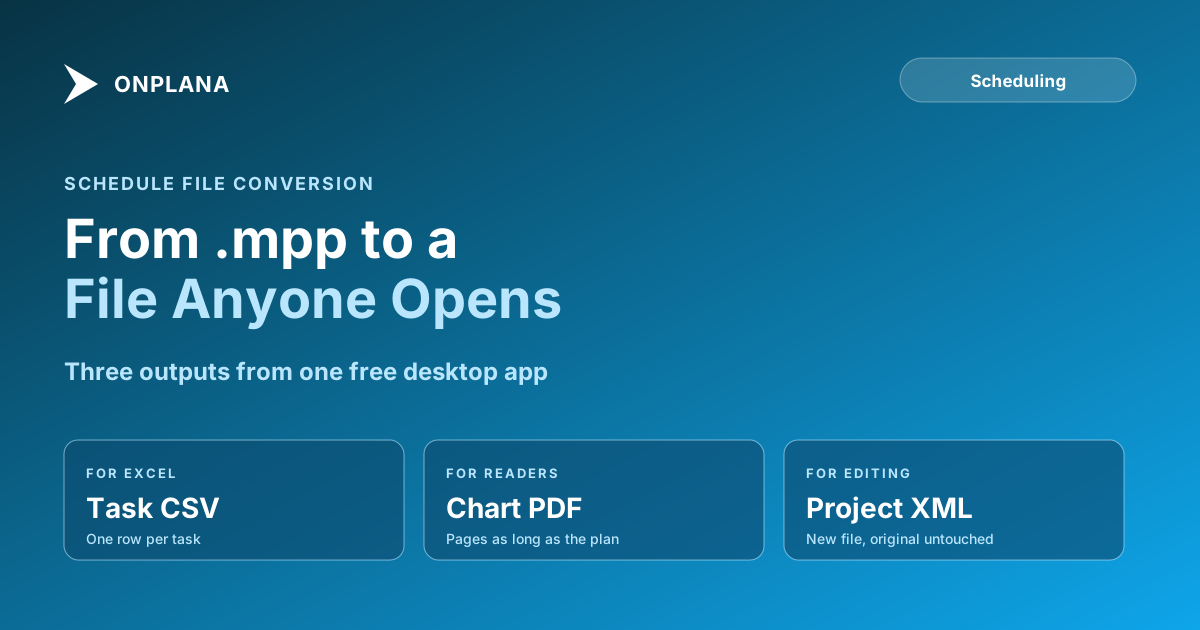
Convert MPP to Excel or PDF Without Microsoft Project
Convert MPP to Excel or PDF without Microsoft Project: open the file in free Onplana Schedule, export a CSV for Excel or a PDF of the Gantt. What each keeps.
An .mpp file will not open in Excel, and the usual advice, ask the sender to export it, is the one you cannot take when the sender has left or never answers. In the first quarter of 2026 the free Schedule Health Check processed about 500 real schedules, and 83% held tasks with no predecessor or successor (source: our audit of 500 project schedules); a spreadsheet hides exactly that kind of gap, which matters when you convert.
The short answer. To convert an MPP file to Excel or PDF without Microsoft Project, open it in Onplana Schedule, a free desktop app for Windows and Mac. Use File, Export to save the task table as CSV, which Excel opens, or the chart as a PDF. Microsoft Project itself does both if you already own it.
What are the ways to convert MPP to Excel?
There are three honest routes, and the right one depends on whether you need the numbers, the picture or the plan. The table compares them; the diagram after it shows the same choice as a short decision path.
| Route | Excel output | PDF output | Cost | Good for |
|---|---|---|---|---|
| Microsoft Project | Yes, exports to a workbook | Yes | Needs a Project licence | Owners who already have the desktop app |
| Onplana Schedule | Yes, task table as CSV | Yes, chart as PDF | Free | Anyone holding a file and no licence |
| Opening the file in Excel | No | No | n/a | Nothing; it fails |
How do you export an MPP file to Excel with Onplana Schedule?
Open the file in Onplana Schedule, then export the task table as CSV and open that in Excel. The steps:
- Download Onplana Schedule; one page carries the Windows and the Mac build, and it needs no Microsoft Project licence.
- Open the .mpp by double-clicking it or from inside the app.
- Choose File, Export, Task table as CSV.
- Open the CSV in Excel. Every task is a row with its dates, duration and predecessors.
If you would rather audit the file before converting it, the free Schedule Health Check reads it in the browser. For the app in more detail, the guide to opening an MPP file without Microsoft Project covers the app in more detail.
How do you convert an MPP file to PDF?
Open the file in Onplana Schedule and choose File, Export, Chart as PDF or picture. The PDF runs onto as many pages as the plan needs, so a long plan prints as a sequence of pages rather than one shrunken sheet. It is the right output for someone who will read the plan but never edit it.
What does each conversion keep and lose?
A conversion keeps what a flat file can hold and loses what depends on the schedule engine. The CSV keeps the rows, dates, durations and predecessors as text. It cannot keep the dependency network as a live structure, so the critical path and float do not recalculate in Excel, and a change to one date will not move its successors. Check the columns you need before you rely on it; what carries across from an MPP file lists the fields Onplana reads. The PDF keeps the picture and nothing editable.
If you need the schedule to stay a schedule, do not convert it at all. Import the plan, or edit it in the app and save it as Project XML, which Microsoft Project opens; Onplana Schedule writes a new file beside the original and never over it, and it does not write the .mpp format. Moving a plan for good is covered in moving from MS Project to a shared plan and on the migration page.
What happens to the file when you convert it?
What decides it is the contents of the file, not its extension. If the contents are Microsoft Project XML, the file is read on your machine and nothing is uploaded. Everything else, a binary .mpp or a Primavera P6 export, is converted on Onplana's servers and the uploaded copy is deleted within 24 hours. Neither path produces an online viewer; Onplana does not offer one.
Audit the file before you convert it The free Schedule Health Check reads an .mpp, Project XML or .xer file in the browser, up to 20 MB and 20,000 tasks, and lists what is wrong with the schedule. No signup required. → Open the Schedule Health Check
Microsoft Project™ is a trademark of Microsoft Corporation. Onplana is not affiliated with Microsoft.
Frequently asked questions
How do I convert an MPP file to Excel?
Open the .mpp in Onplana Schedule, the free desktop app for Windows and Mac, and export the task table as CSV from File, Export. Excel opens the CSV with every task as a row, including its dates, duration and predecessors.
How do I convert an MPP file to PDF without Microsoft Project?
Open the file in Onplana Schedule and choose File, Export, Chart as PDF or picture. The PDF runs onto as many pages as the plan needs.
Can Excel open an MPP file directly?
No. Excel has no importer for the .mpp format, so renaming the file or forcing it open gives an error or binary noise. The file holds a dependency graph, not a grid of cells.
Does the conversion upload my file anywhere?
It depends on what is inside the file, not its extension. A binary .mpp is converted on Onplana's servers and the uploaded copy is deleted within 24 hours; a file whose contents are Microsoft Project XML is read on your own machine and nothing is uploaded.
What gets lost when an MPP becomes a spreadsheet?
The logic. A flat table cannot hold the dependency network, so links survive only as text in a predecessors column, and anything that depends on the schedule engine, such as the critical path, does not recalculate in Excel.
Is there an online MPP to Excel converter?
Onplana does not offer a browser converter or an online .mpp viewer. The free Schedule Health Check reads a file in the browser to audit it, but it does not hand back an Excel file.
Ready to make the switch?
Start your free Onplana account and import your existing projects in minutes.