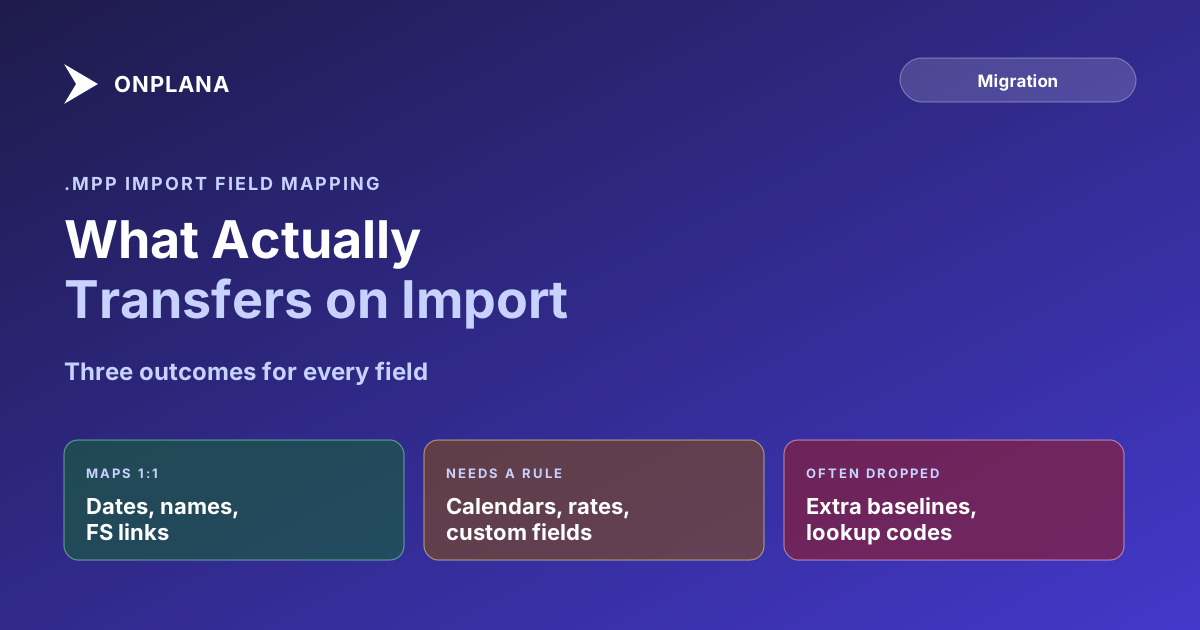
How .mpp Import Field Mapping Works
mpp import field mapping decides what survives migration: dates and dependencies map cleanly, calendars and custom fields need an explicit rule first.
Every .mpp import demo looks the same. Upload the file, watch a progress bar, land on a fully populated schedule. The demo is real. What it skips is the fifteen minutes later when three finish dates have quietly moved, because a constraint type had nowhere to go in the destination tool's data model, and nothing in the interface said so before the schedule went live.
That silent decision is what mpp import field mapping actually is: for every field in a .mpp file, an import tool decides whether it transfers as-is, needs a conversion rule, or has no home in the destination model and gets dropped. Task names, durations, and finish-to-start dependencies almost always survive untouched. Calendars, non-default constraints, resource cost rate tables, and custom fields need an explicit rule, and if the tool doesn't have one, the data goes quietly instead of loudly.
The direct answer: mpp import field mapping is the process of converting Microsoft Project's native .mpp fields into a destination tool's own data model. Task names, durations, percent complete, and standard finish-to-start dependencies map one to one almost everywhere. Calendars, non-default constraints, resource rate tables, and custom field types need an explicit rule, and the first place to check when a date lands wrong is whichever of those four categories the affected task touches. One importer's full rule set is written out below, field by field, as a template for the list you should ask any vendor to produce.
What a .mpp File Actually Holds
A .mpp file is Microsoft Project's proprietary binary format, and it stores considerably more than a task list: dependency types and lag, up to 11 baselines, resource assignments with work-hours and rate tables, project and resource calendars with their working-time exceptions, and Enterprise Custom Field (ECF) values with their original data types. Microsoft's own documentation on Project Online's software boundaries confirms how much of this structure lives only in the file itself, not in a flat export. An import tool has to read every one of those categories and decide what happens to it.
The Fields That Map One to One
A small set of fields are simple because almost every scheduling tool models them the same way Microsoft Project does. Task name, task ID, duration, calculated start and finish dates, percent complete, the milestone flag, and finish-to-start (FS) dependencies transfer with no interpretation required. If your schedule is small and uses only FS logic with no custom fields, the import is close to a formality.
Most real schedules are not that simple, which is where field mapping stops being automatic and starts being a set of judgment calls the import tool has to make on your behalf.
The Fields That Need an Explicit Rule
Four categories carry the most risk, because each one requires the destination tool to translate a Microsoft Project concept into its own equivalent rather than copy a value directly.
Non-FS dependency types and lag. Start-to-start (SS), finish-to-finish (FF), and start-to-finish (SF) links, plus any lag or lead value, need a destination field built to hold that exact relationship. A tool that only models finish-to-start has nowhere to put an SS link and typically drops it or silently converts it to FS, changing the schedule's math with no warning in the import log. Even a tool that supports all four types faithfully can still surprise you here: a lead value frequently imports as a negative lag number rather than being relabeled, which is exactly the kind of thing worth checking for deliberately once the import finishes rather than assuming the Gantt rendering correctly means the dependencies came through clean.
Constraints beyond As Soon As Possible. Microsoft Project has eight constraint types. Must Start On, Must Finish On, Start No Earlier Than, and Start No Later Than most often conflict with dependency logic after import, because the destination has to decide which wins when a constraint date and a predecessor's finish date disagree.
Resource cost rate tables. Project Online supports up to five rate tables (A through E) per resource, letting the same person bill differently by assignment. Tools that model a single rate per resource collapse this to one number, usually Table A, and the rest need manual reconciliation.
Custom field types. A Number, Date, or Cost custom field maps cleanly if the destination has a matching type. Lookup fields are the highest-risk case: Project Online stores a code behind the display text, and a naive import keeps only the visible text, losing whatever formulas or reports referenced the code.
| Field category | Native form in .mpp | What typically happens on import | What to check afterward |
|---|---|---|---|
| Task name, duration, FS dependency | Standard scheduling fields | Maps one to one | Nothing, this is the safe case |
| SS, FF, SF dependencies and lag | Relationship type + lag value | Needs an explicit rule, or gets flattened to FS | Compare dependency type and lag on a sample of linked tasks |
| Non-ASAP constraints (MSO, MFO, SNET, SNLT) | Constraint type + date | Needs a rule for which wins against dependency logic | Compare constraint date to predecessor finish date |
| Base calendar and exceptions | Calendar with working-time exceptions | Needs a rule, exceptions are the most commonly dropped part | Spot-check a holiday or non-working exception carried over |
| Resource cost rate tables (A-E) | Up to 5 rates per resource | Often collapsed to a single rate | Confirm which table maps to the destination's rate field |
| Custom field, Lookup type | Display text plus a code | Code is frequently lost, text usually survives | Confirm the underlying value, not just the label, is correct |
| Baselines beyond Baseline 0 | Up to 11 numbered baselines | Often no destination at all | Check whether variance reporting still has data to compare against |
The diagram below shows how a single field works through that decision at import time.
A Worked Example: One Task Through the Mapping Pipeline
Take a task called "Vendor Contract Signature." In Project Online it carries a Start No Earlier Than constraint of October 15, a finish-to-start predecessor with a 3-day lag, and a Lookup-type custom field called Contract Type set to "Fixed Price."
The name, duration, and FS relationship map one to one. The 3-day lag needs the destination's model to support lag at all, or the successor's start date silently shifts three days earlier than intended. The SNET constraint needs a rule for whether the October 15 floor or the (now-earlier) dependency wins, and those two answers produce different dates. Contract Type needs a rule mapping "Fixed Price" to an equivalent lookup value, or every report filtering on contract type stops working downstream.
Three fields, three outcomes, one task. Multiply that across a portfolio and the aggregate risk is why a validation step before commit matters more than import speed.
What Actually Survives: One Importer's Rules, Named
Generic advice only goes so far, because "it depends on the tool" is the answer that sends you back to the vendor. So here is one importer's rules written out, using Onplana's, which you can check against your own file. Ask any vendor for the same list; a tool that cannot produce one has not decided what it does with these fields.
| Field | The rule | Lossy? |
|---|---|---|
| Dependencies | All four types (FS, SS, FF, SF). MSPDI stores lag in tenths of a minute; 4,800 of them is one 8-hour working day, and it converts to days | No |
| Constraints | All eight types carry across one to one, with their dates: As Soon As Possible, As Late As Possible, Must Start On, Must Finish On, Start No Earlier Than, Start No Later Than, Finish No Earlier Than and Finish No Later Than | No |
| Priority | Project's 0 to 1000 scale becomes four levels: 875+ critical, 625+ high, 250+ medium | Banded |
| Planned, fixed and baseline cost | Cost, FixedCost and BaselineCost each land on the task |
No |
| Actual cost | Deliberately not imported | Yes, by design |
| Custom fields | Text, Number, Date, Flag and Cost types each map to a native equivalent; Duration has no native type and is kept as its formatted string | Partly |
| Resources | Matched to existing members by email address. No match means a warning, never a new account | No, by design |
| Project currency | Read from the file, applied to new projects only, never overwriting a currency you set | No |
| Baseline dates | Imported into a new project, the file's baseline 0 becomes a baseline in Onplana. Adding the file to an existing project keeps each task's baseline dates but creates no baseline | No for baseline 0; Baselines 1 to 10 are dropped |
| Working and resource calendars | Not imported. The project uses the organization's working calendar | Yes, dropped |
| Resource rate tables A-E | No destination | Yes, dropped |
Four of those deserve the reasoning, because the reasoning is what tells you whether the rule is right for your schedule.
Priority 500 is medium, not high. Microsoft Project's default priority is 500. Put that on a naive four-band scale and it sits at the midpoint, which flags every untouched task in the file as high priority and makes the whole column meaningless on arrival. The bands are deliberately set so an untouched 500 lands as medium and only a genuinely raised 625 or above reads as high.
Actual cost is left behind on purpose. Onplana derives actual cost from timesheet entries against rate cards, which is a live figure. Project's stored ActualCost is a snapshot that is frequently stale by the time anyone exports. Importing it would overwrite something true with something older, so planned, fixed and baseline costs come across and actuals rebuild from the work people log.
A zero cost means "not configured", not "confirmed zero". Project writes <Cost>0</Cost> for tasks nobody has costed, so treating that as a real zero would fill a budget rollup with false precision. Zero, negative and unparseable values all arrive as empty.
Over-allocation is clamped, and says so. Assignments above 100% in the source are clamped to 100% and counted in a warning, rather than importing an allocation the capacity planner cannot represent.
That last point generalises into the thing worth asking any vendor about: the warning list is the real contract. A good import tells you how many descriptions carried rich-text markup that had to be flattened, how many tasks could not be re-parented, how many predecessor links failed, and how many resources it could not match. Counts you can act on beat a success message that hides them.
Where a Date Lands Wrong: A Four-Step Check
When a task's date doesn't match what the source schedule showed, work through these in order rather than guessing:
- Check the dependency type first. Confirm the link is still SS, FF, or SF if it was in the source, not silently flattened to FS.
- Check the lag value on that dependency. A missing or zero lag where the source had one explains most small, consistent date shifts.
- Check for a non-default constraint on the task. Compare the constraint date against the predecessor's actual finish date; if they disagree, the destination tool's rule for which one wins is the answer.
- Check the calendar and its exceptions. A working-time exception that didn't carry over changes duration math even when every dependency and constraint mapped correctly.
Running this sequence on a handful of affected tasks usually identifies the mapping gap faster than re-running the whole import and hoping the second attempt behaves differently.
Onplana's Migration Preview tool runs this comparison automatically: upload a .mpp file and it generates a report showing which fields mapped cleanly, which needed a rule, and which had no destination at all, before any data enters a live environment. That's a faster way to find a mapping gap than opening the schedule after commit and reverse-engineering which of the four categories above moved.
If you only need the rows in a spreadsheet and not a migration, converting an MPP file to Excel or PDF is the shorter route.
Getting Ahead of mpp Import Field Mapping Before Migration
Field mapping problems are cheapest to fix before cutover. Run the Project Online Inventory Checklist first, to know which projects use non-default constraints, multiple rate tables, or Lookup-type custom fields, since those are the ones most likely to need manual review after import.
This sits inside the broader Project Online migration: field mapping is one piece of the data extraction and import work that decides whether a migrated schedule computes the same finish date the source did. The step-by-step .mpp export guide covers getting a clean file out in the first place, and what actually transfers when moving to Planner Premium walks through the same mapping questions for that destination.
Run the free Migration Preview Upload a .mpp file and see exactly how each field maps: dependency types, lag values, constraints, calendars, and custom fields, with every mismatch flagged before any data enters your live environment. No signup required. → Open Migration Preview
Microsoft Project Online™ is a trademark of Microsoft Corporation. Onplana is not affiliated with Microsoft.
Frequently asked questions
What does field mapping mean when importing a .mpp file?
It's the set of rules an import tool applies to convert each native Microsoft Project field into its own data model. Some fields transfer unchanged, some need an explicit conversion rule, and some have no equivalent in the destination tool at all.
Which .mpp fields import without any changes?
Task names, IDs, durations, start and finish dates, percent complete, milestone flags, and standard finish-to-start dependencies almost always map one to one, because nearly every scheduling tool models these the same way Microsoft Project does.
Why did a task's date change after I imported a .mpp file?
Check four places first: the dependency type (start-to-start, finish-to-finish, and start-to-finish links are the most commonly mis-mapped), the lag value on that dependency, any non-default constraint on the task, and whether the task's calendar or exceptions carried over.
Do custom fields survive a .mpp import?
The value usually survives; the type is what's at risk. A Number or Date custom field maps cleanly if the destination has a matching type. A Lookup field is the highest-risk case, because Project Online stores a code behind the display text, and a naive import keeps only the text.
Does importing MSPDI XML map fields differently than importing .mpp?
The underlying data is the same, since MSPDI is Microsoft's XML interchange format for the same schedule model .mpp stores in binary. The practical difference is that MSPDI's schema is human-readable, so you can open the file and check a field's raw value directly instead of trusting the import tool's interpretation.
Will importing a file with 200 resources create 200 user accounts and bill me for them?
It should not, and in Onplana it does not: resources are matched to people who are already members of your organization by email address, and anyone who does not match is listed as a warning instead of being created. Ask any vendor this directly, because an importer that auto-creates accounts turns a schedule import into a seat-count event.
Do actual costs come across when I import a .mpp file?
In Onplana they deliberately do not, while planned, fixed and baseline costs all do. Actual cost is derived from timesheet entries against rate cards, which stays current, whereas Microsoft Project's stored ActualCost is a snapshot that is usually stale by export time, so importing it would overwrite a live figure with an older one.
What happens to a Must Finish On constraint after import?
It stays a Must Finish On constraint, with its date. Onplana's importer carries all eight Microsoft Project constraint types one to one, and the scheduler honours each of them. Still check any task where the constraint date and the predecessor's finish date disagree, because that is where a hard constraint overrides the dependency logic.
Ready to make the switch?
Start your free Onplana account and import your existing projects in minutes.