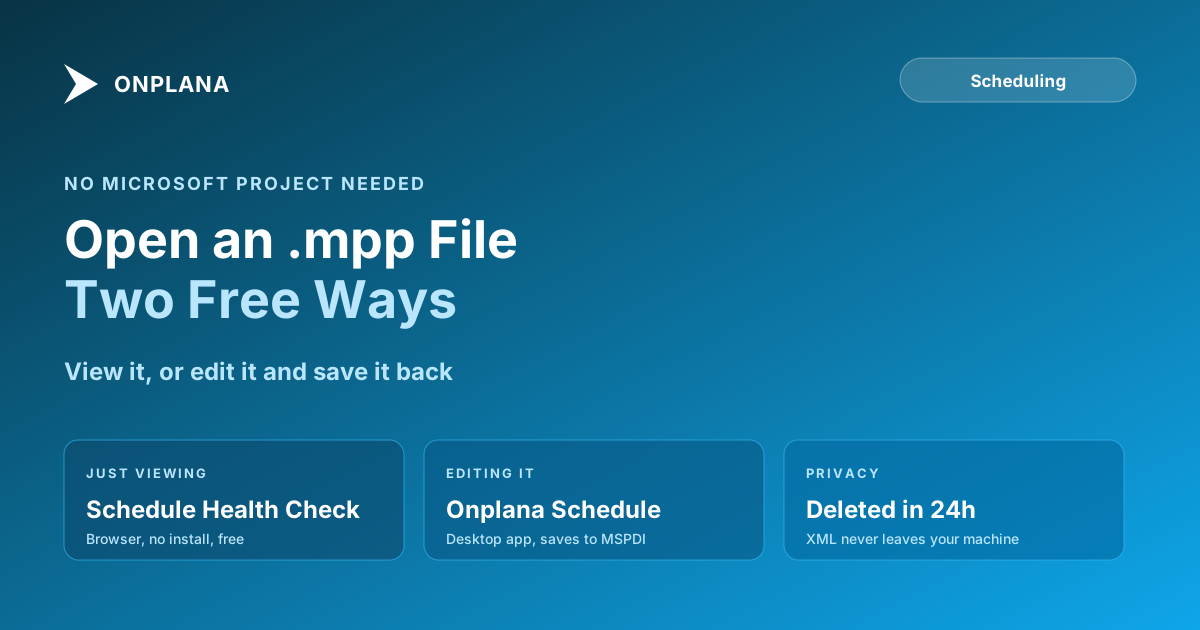
How to Open an MPP File (With or Without Microsoft Project)
How to open an MPP file without Microsoft Project: Onplana Schedule, free on Windows and Mac, opens and edits it, and an online viewer reads it in a browser.
How to open an MPP file: install Onplana Schedule, a free MPP viewer and editor for Windows and Mac, and open the file in it. You get the full Gantt with the critical path and float, and you can edit the plan and save it. If you would rather install nothing, the online MPP viewer opens the same file read-only in your browser. Neither route needs Microsoft Project, so you can open a Microsoft Project .mpp file without owning Microsoft Project.
The rest of this post is the detail: which route fits what you need to do with the file, how to do it on a Mac, why Excel is not the route people expect, and what happens to the file when you open it. If the format itself is new to you, what an MPP file is explains where it comes from and what it holds. The alternative has a real price tag: Microsoft's own pricing lists Planner and Project Plan 3, the tier that includes the desktop Project client, at $30 per user per month, just to open a file someone else built.
In short. You do not need a Microsoft Project licence to open a
.mppfile. Download Onplana Schedule, free for Windows and Mac, and open the file: full Gantt, critical path, float, editing, and a save as Project XML that Microsoft Project reads. To read the file once and install nothing, open it in the online MPP viewer in your browser. On privacy, what decides it is the contents of the file rather than its extension: Microsoft Project XML is read on your own machine, while every other format, a binary.mppincluded, is converted on Onplana servers with the uploaded copy deleted within 24 hours.
Three ways to open an MPP file, and which one you need
What you actually need to do with the file decides which route is right:
- You need to keep working on it. You're taking over a schedule, correcting it, or building on it. Use Onplana Schedule, free for Windows and Mac: it opens the file on your desktop, lets you edit the Gantt and the grid, and saves the result as Project XML, which the original owner's Microsoft Project still opens. It reads
.mpp,.mpt,.mpxand Project XML, and also Primavera P6.xer(see what an XER file holds), ProjectLibre.podand GanttProject.ganfiles. - You just need to look at it. Someone sent you a schedule and you need to check dates, dependencies, or whether the plan is realistic before a meeting, and you would rather not install anything. Open it in the online MPP viewer: the Gantt chart, the task table and the critical path in a browser tab, with no account, and nothing left behind when you close it.
- You already have Microsoft Project. Double-click the file. The section on Microsoft Project below covers which licence includes the desktop client.
None of the three is the right move if the schedule is going to keep running as a team plan rather than a file passed around by email. Then import the .mpp into a live plan instead: the import keeps the tasks, the outline, all four dependency types with lag, the constraints, custom fields, milestones and costs, so nothing has to be rebuilt by hand.
How to open an MPP file in Onplana Schedule, step by step
Onplana Schedule is the route that opens the file and lets you change it, on Windows or on a Mac, with no Microsoft Project licence and no account until you choose to publish a copy.
- Download the free Onplana Schedule app and install it. The page lists the Windows download, the Microsoft Store, the Mac download and the Mac App Store. It runs on Windows 10 (version 1809) or later and on macOS 13 or later.
- Open the file: file associations let you double-click a
.mppdirectly, or open it from inside the app. It reads.mpp,.mpxand Project XML, and also Primavera P6.xer, ProjectLibre.podand GanttProject.gan. - Review the Gantt and grid: name, duration, start, finish, predecessors, resources, percent complete, outline level, critical path, float, milestones, and baseline bars if the file carries them.
- Edit what needs correcting. Every change (cells, insert, delete, indent, outdent, links dragged with type and lag, all eight constraint types) supports undo, and the schedule reschedules automatically as you go.
- Save the result as Project XML, which opens cleanly in Microsoft Project for whoever sent the file to you. Two things worth knowing before you do: Schedule does not write the
.mppformat itself, and it never overwrites what you started from. The save creates a new file beside the original, so the.mppin your inbox stays exactly as it arrived. - Export a PDF (File, Export, Chart as PDF or picture) if you need to hand the plan to somebody who will not install anything, or the task table as CSV for a spreadsheet.
- If you want the schedule working as a shared plan rather than a file passed around by email, use Publish to create the project in Onplana directly from the desktop app. Sharing an MS Project plan with the team this way walks through that step in full, including what the rest of the team can see once it's published.
How to open an MPP file in a browser
The online MPP viewer opens a Microsoft Project file in a browser tab, with nothing to install and no account. It runs the same viewer as Onplana Schedule, read-only, so the chart looks the way it does in the desktop app.
- Go to the online MPP viewer and choose Open a file, or drop the file onto the viewer.
- A Project XML file opens straight away. For a
.mpp, the viewer asks before it sends a copy to be converted. - Read the plan: switch between the Gantt chart and the task table, show the critical path and the baseline, and open the Resource usage view to see each resource's work by month. A free schedule health check scores the plan from the same screen if you want to know what to fix.
- Export the chart as a PDF or a picture, or the task table as CSV, if someone else needs to see it.
The viewer is read-only. The moment you need to change a date or a link and save the result, the desktop app is the one to download. A file that is converted on the server can be up to 20 MB; a Project XML file read in your browser has no limit beyond what the browser can hold.
How to open an MPP file on a Mac
Microsoft Project's desktop application runs on Windows, not macOS, which is why a .mpp file landing on a Mac has nothing to open it. Install Onplana Schedule for Mac from the Mac App Store or as a direct download from its page, open the file, and you have the whole plan: the Gantt, the critical path, float, and the same editing as the Windows build. It is free, it does not ask for a Microsoft Project licence, and it needs macOS 13 or later on either Apple silicon or Intel. If you are weighing up the Mac options more broadly, Microsoft Project for Mac sets them side by side.
If you only need to read the file and would rather install nothing, the online MPP viewer runs in Safari or any other browser on macOS, exactly as it does on Windows. It is read-only, so the moment you need to change a date or a link, the desktop app is the one to download.
How to open an MPP file in Excel
You cannot. Excel has no importer for the .mpp format, so renaming the file to .xlsx or forcing it open with Open With gets you either an error or a screen of binary noise. That is not Excel being awkward: .mpp is a binary format holding a dependency graph, not a grid of cells, and there is nothing sensible for a spreadsheet to map it onto.
What does work is two steps (the full walk-through, with what each route keeps and loses, is in how to convert an MPP file to Excel or PDF). Open the file in Onplana Schedule, then choose File, Export, Task table as CSV, and open that CSV in Excel: every task arrives as a row with its dates, duration and predecessors. With nothing installed, the online MPP viewer exports the same task table as CSV from the browser. If the person you are sending it to wants a picture of the plan rather than rows, export a PDF from the same menu instead.
If you have Microsoft Project
Double-click the file, or open it from File, Open inside Microsoft Project. The desktop application comes with Planner and Project Plan 3, or as a one-time Project 2024 licence, and what each option costs is set out side by side. If the only reason to buy a seat is to open files other people send you, Onplana Schedule does that for free, and its saves open in Microsoft Project for whoever sent the file.
Online MPP viewer vs Onplana Schedule, side by side
The two free routes differ on one thing above all: the viewer reads a plan, and the desktop app also changes it.
| Online MPP viewer | Onplana Schedule | |
|---|---|---|
| Cost | Free, no account | Free, no account until you publish |
| Install required | No, runs in the browser | Yes, desktop app for Windows and Mac |
| What it shows | Gantt chart, task table, critical path, baseline, resource usage | Full Gantt and grid: name, duration, dates, predecessors, resources, percent complete, outline, float, milestones, resource usage |
| Can you edit the file | No, read-only | Yes, with undo on every change |
| Saves the edited plan | No | Yes, as Project XML, which Microsoft Project opens. It does not write .mpp, and never overwrites your original |
| Exports | Chart as PDF or picture, task table as CSV | Chart as PDF or picture, task table as CSV |
| Schedule health check | Yes, free | Yes, free |
| File size limit | 20 MB for a file converted on the server | No published cap; opens what a desktop machine can hold in memory |
What happens to your file when you open it
The privacy answer turns on the contents of the file, not its extension. Microsoft Project XML (File, Save As, XML inside Microsoft Project) is read on your own machine by both Onplana Schedule and the online MPP viewer, and it leaves your machine only if you run a health check on it or publish a copy. Every other format is converted on Onplana's servers, and the uploaded copy is deleted within 24 hours: a binary .mpp, and also a Primavera P6 or Planner XML export, which is an .xml too. Both tools ask before they upload a file, until you tell them to stop asking. If keeping the file entirely local matters more than convenience, ask whoever sent it for the Project XML export rather than the binary .mpp.
What is an MPP file?
.mpp is the file format Microsoft Project saves a plan in. One file carries the whole schedule: tasks and their outline structure, durations, start and finish dates, dependencies with their type and lag, constraints, resources and assignments. It is binary rather than text, which is why a text editor or a spreadsheet shows nothing useful when you open one, and why reading it needs a tool that understands the format. The full explanation of the MPP format covers the version history and what each one holds.
Once the file is open, reading the Microsoft Project Gantt chart tells you what the red bars, grey baseline bars and link lines mean.
When you still need Microsoft Project itself
Onplana Schedule is not a full replacement for every Microsoft Project workflow, and it's worth saying where it stops. If your plans depend on Project Server enterprise resource pools, enterprise custom fields defined centrally on that server, or macros built in VBA, those depend on the server or the desktop client directly and won't travel through a .mpp file on their own. For the common case, someone emailed you a schedule and you need to read it, correct it, or hand it back, opening it without a Microsoft Project license is the faster and cheaper path both ways. If you need a tool to keep working in rather than one file to read, a free Microsoft Project alternative to work in every day is a different choice, and that list says where each one stops.
The diagram below shows the decision in one branch: what you need to do with the file determines which free route to use, and the privacy handling depends on the file format you start with.
Related reading: 7 hidden killers in your MS Project schedule covers what to actually look for once the file is open, MSPDI XML explained walks through what the XML export format contains if you want the local path, and importing the schedule without losing dependencies covers the checks worth running once you're bringing the file into a shared project rather than just opening it to look.
Open the file in the online MPP viewer Choose a
.mppor Project XML file and read the Gantt chart, the task table and the critical path in your browser. No install, no account. When you need to edit the plan, the same screen runs in Onplana Schedule, free for Windows and Mac. → Open the online MPP viewer
Microsoft Project Online™ is a trademark of Microsoft Corporation. Onplana is not affiliated with Microsoft.
Frequently asked questions
How do I open an MPP file?
Download Onplana Schedule, a free desktop app for Windows and Mac, and open the file in it. You get the full Gantt with critical path and float, and you can edit the plan. If you only need to look at the file once, the online MPP viewer on onplana.com opens it read-only in your browser with no install.
Can I open an MPP file without Microsoft Project?
Yes, and you do not need a Microsoft Project licence at any point. Onplana Schedule, a free desktop app, opens and edits .mpp files, and the online MPP viewer reads one in the browser for a read-only view.
How do I open an MPP file on a Mac?
Install Onplana Schedule from the Mac App Store or from onplana.com/schedule, which has the Mac and Windows downloads. It is free, it opens the .mpp file directly, and it shows the same Gantt, critical path and float as the Windows version. The online MPP viewer also works in a Mac browser if you only need to read the file.
What is an MPP file?
It is the file format Microsoft Project saves a plan in. One file holds the whole schedule: tasks and their outline structure, durations, dates, dependencies, constraints, resources and assignments. It is binary rather than text, which is why a text editor or a spreadsheet shows nothing useful when you open one.
Can I open an MPP file in Excel?
Not directly. Excel has no importer for the .mpp format. Open the file in Onplana Schedule, the free desktop app, and export the task table as CSV from File, Export: Excel opens the CSV with every task as a row. The online MPP viewer exports the same CSV with nothing installed.
Is it safe to upload a binary .mpp file to open it?
What decides where the work happens is the contents of the file, not its extension. Microsoft Project XML is read on your own machine, and it is uploaded only if you run a health check on it or publish a copy. Every other format, a binary .mpp included, is converted on Onplana servers and the uploaded copy is deleted within 24 hours. If you would rather nothing left your machine, ask whoever sent the file for a Project XML export instead.
Can I edit an MPP file and save it back?
You can edit it in Onplana Schedule, then save the result as Project XML, which Microsoft Project opens natively. It does not write the .mpp format itself, and it never overwrites the file you started from: the save creates a new file beside the original.
Can I open an MPP file for free?
Yes. Onplana Schedule is a free desktop app for Windows and Mac that opens .mpp files and also lets you edit them, and the online MPP viewer reads a file in the browser with nothing to install. Neither needs a Microsoft Project licence.
Can I open an MPP file online?
Yes, read-only. Open it in the online MPP viewer on onplana.com, with no account and no install: it shows the Gantt chart, the task table and the critical path, for files up to 20 MB when the file is converted on the server. To edit the plan you need the desktop app, Onplana Schedule, which is also free.
How do I convert an MPP file to PDF?
Open the file in Onplana Schedule, free for Windows and Mac, and choose File, Export, Chart as PDF or picture. The PDF runs onto as many pages as the plan needs. The online MPP viewer exports the chart as a PDF from the browser too.
Do the dependencies and constraints survive opening the file this way?
Yes. All four dependency types with lag, all eight Microsoft Project constraint types, custom fields, milestones, and costs come through intact, since the file is being read and edited rather than rebuilt from scratch.
Ready to make the switch?
Start your free Onplana account and import your existing projects in minutes.