Approval Workflow for Project Work: Gates, Changes, Agents
An approval workflow for project work needs four approvals: gate review, change request, access request and agent review. Who decides, and where it is recorded.
Ask a project team where approvals happen and the answer is usually "in email, mostly." StrongDM's 2022 Access-Productivity Gap Report found that 57% of organizations say a routine access request takes days or weeks to resolve, and the cause is rarely the decision itself. It is that nobody knew whose decision it was.
The short answer. An approval workflow for project work is the route a request takes to a named decision-maker, with what they see and where the answer is recorded. Projects need four: a gate review before the next phase, a change request against the baseline, a request for access, and a review of what an AI agent produced. Keep each one on the work it concerns, not in a separate approval tool.
What approvals does a project actually need?
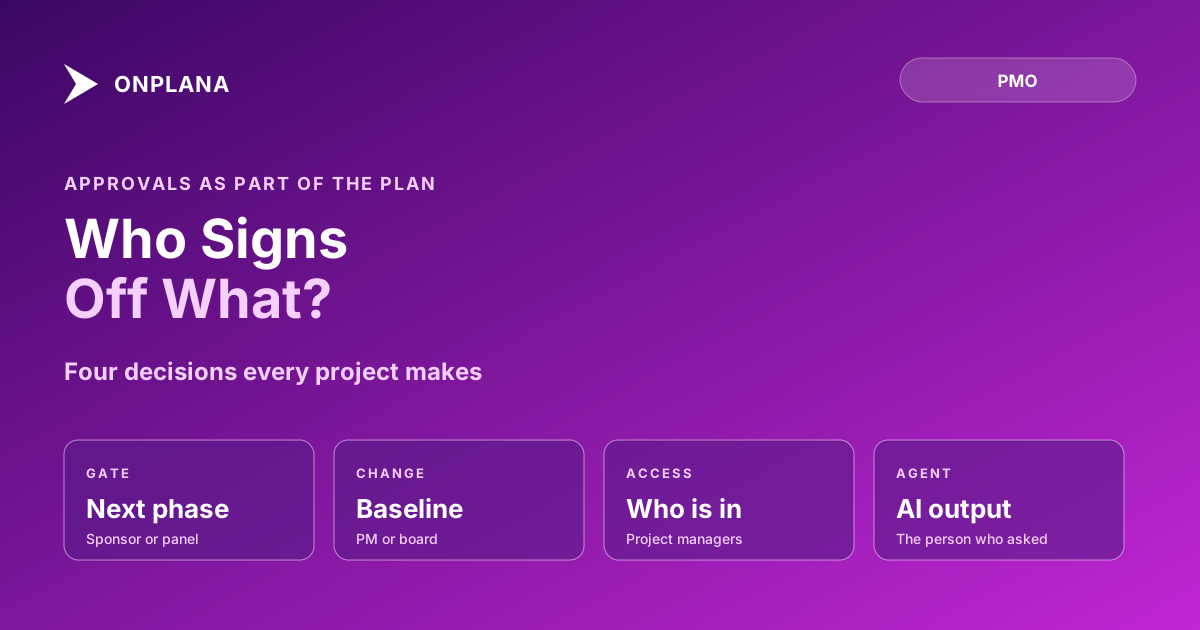
Four, and none of them is an invoice. The table gives the minimum for each: who decides, what they must see, and where the record lives.
| Approval | Who decides | What they see | Where it is recorded |
|---|---|---|---|
| Gate review | Sponsor or a reviewer panel | Gate criteria, status, risks | On the gate, with the decision |
| Change request | Project manager, or a change control board above a threshold | Impact on scope, schedule and budget | On the change, against the baseline |
| Access request | The people who manage the project | Who is asking and for what | In the project's activity history |
| Agent review | The person who delegated the task | The agent's draft, before it goes anywhere | In the audit trail, under their name |
The diagram below shows the four as parallel routes into the same plan, each ending in a recorded decision rather than a forwarded email.
How should a gate review be approved?
A gate review is approved by the sponsor, or by a reviewer panel for larger work, against criteria written before the gate. The panel needs one rule stated up front: in Onplana's gate reviews any rejection rejects the gate and all approvals advance it. Multi-reviewer gate reviews, scoring and the gate inbox are on Enterprise and above. The phase gate review process covers writing the criteria, and the enterprise project governance page shows the whole pipeline.
Who approves a change request?
The project manager approves changes under a threshold; a change control board decides above it. The threshold, the three artifacts a request must carry and the meeting cadence are in what a change control board should actually decide. A formal change request workflow with board membership is on Enterprise and above in Onplana. Below that tier the same discipline works with a change log and a comment thread on the affected tasks.
How do you handle a request for access?
Let the person ask from the link they opened, and let the people who manage the project decide from one inbox. In Onplana a member who opens a project they cannot see asks from that same page; approval grants access through the normal permission model, and someone outside the workspace gets a plain not-found. The flow is described in requesting access to a project without an add-me email.
How do you approve what an AI agent produced?
Review the draft before anything leaves the inbox, and put one person's name on the approval. When you delegate a task to an agent, its output lands in the Agent review inbox; nothing is sent or published until a person approves, and an agent never sends email on its own. Approving agent work without reading everything covers reviewing at volume.
Where do document and timesheet approvals fit?
They are the same pattern applied to files and hours. Document approval workflows lock a new version until a named approver decides and record who approved which version; they start on Business. Workflow automation rules with approval steps, and the approval inbox for them, start on Professional. This is where a SharePoint or Power Automate approval belongs, as plumbing for a file or a form. The four approvals above are the ones that belong on the work itself.
Keep a record of what was decided and why next to the approval; a project decision log is the lightweight way to do it. For the wider picture of teams, clients and agents on one plan, see team collaboration in Onplana. To see whether your approvals are where a mature PMO would put them, run the free PMO Maturity Assessment.
Check how mature your governance is The free PMO Maturity Assessment scores approvals, ownership and reporting habits in a few minutes and shows where to start. No signup required. → Open the assessment
Frequently asked questions
What is an approval workflow?
An approval workflow is a defined route a request takes to a named decision-maker: who must approve, what they see when they decide, and where the decision is recorded. For project work it usually covers four things: phase gates, changes to the baseline, access requests and AI agent output.
How many approvers should a project approval have?
As few as the risk allows. One named approver is enough for access and for most agent output; a gate or a baseline change that moves money or the finish date justifies a panel, and a panel needs a rule for what counts as approval.
Is an approval workflow the same as a Power Automate flow or a SharePoint approval?
No. Those are general-purpose tools for routing a form or a file. A project approval is tied to the work: the baseline it changes, the gate it opens or the task an agent finished, so the decision is recorded beside the thing it decided.
Can an AI agent approve its own work?
No. In Onplana an agent's output lands in the Agent review inbox and nothing is sent or published until a person approves it. Approval records a sign-off under that person's name, so a human always answers for what shipped.
Do approvals slow the project down?
Yes, when they are routed to a person who is not watching. The fix is a short list of approvers, a visible queue and a decision threshold, so small items clear fast and only large ones wait for a panel.
Where does this approach fall short?
A workflow makes the decision visible; it does not make it good. An approver who rubber-stamps everything gives you a record of agreement, not control, so review the rejection rate as well as the queue length.
Ready to make the switch?
Start your free Onplana account and import your existing projects in minutes.