How to Manage Team Workload Across Several Projects
To manage team workload, read each person's hours across every project by week, catch the two early signals, then re-sequence, reassign or move the date.
Workload goes wrong between projects, not inside one. Each project lead looks at their own plan, sees a task assigned to Priya for 20 hours in week 12, and calls it reasonable. Nobody sees that Priya has two other projects asking for 30 more hours in the same week. To manage team workload, you need one view of each person's hours across every project, week by week, and a rule for what you do when a week runs over.
In short. Managing team workload means comparing each person's committed hours with their available hours, per week, across all projects. Two signals come before a missed date: one person over capacity on overlapping tasks, and time off that nobody planned around. Three moves fix it, in order of cost: re-sequence, reassign, or move the date and say so.
Gallup's study of nearly 7,500 full-time employees (published July 2018) found that 23% felt burned out at work very often or always, and it named an unmanageable workload as one of the five main causes (Gallup, Employee Burnout, Part 1). Workload is a delivery risk and a retention risk at the same time.
How do you see team workload across projects?
You read it per person and per week, not per project. A project view answers "is this plan feasible?" A person view answers "can this human do all of it?" Only the second catches a double booking.
The diagram below shows the gap. Three projects each assign a reasonable amount of work to the same person, and the week still overflows.
What signals come before a missed date?
Two signals show up weeks before a date moves, and both are visible in the plan if you look at the right level.
- One person over capacity on overlapping tasks. Two tasks assigned to the same person that overlap in time cannot both finish on schedule unless the hours genuinely fit. Sort the week's load largest first and look at the top three people.
- Time off nobody planned around. Booked leave removes hours from a week that the plan still treats as full. A person with a holiday week and a delivery in it is over capacity before anyone writes a line of code.
A third, softer sign is tasks that start late without a stated reason. It usually means the owner is finishing something else first, which is a queue you cannot see from the plan.
How do you fix an overloaded week?
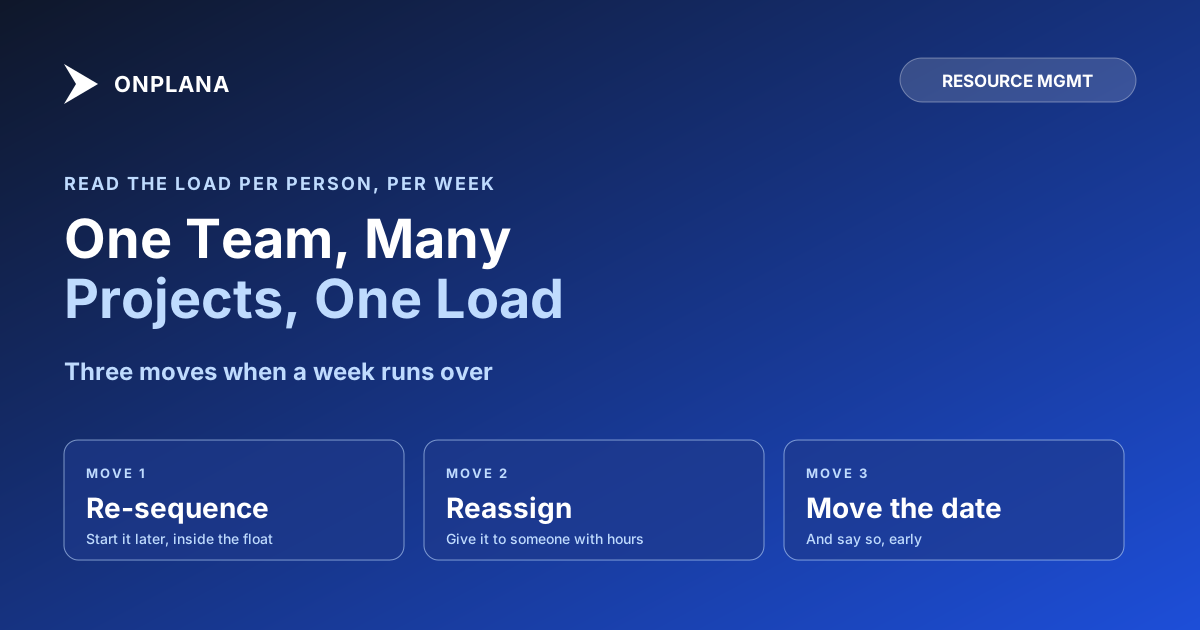
Use the cheapest move that works, and say out loud which one you picked. There are three, in order of cost:
| Move | What you do | Cost | Use it when |
|---|---|---|---|
| Re-sequence | Start the lower priority task later, inside its float | Lowest | The task has float and nothing downstream depends on its start |
| Reassign | Give part of the work to someone with spare hours that week | Medium | A teammate with the right skills is under capacity |
| Move the date | Tell the sponsor the date moves and by how much | Highest | Neither of the other moves fits without breaking something |
Moving the date is the move people avoid, and it is the honest one when the hours do not exist. A date you keep by quietly overloading the same person is a date you will miss later and with less warning. For the float arithmetic behind re-sequencing, see total float vs free float.
How does Onplana show team workload?
Onplana reads the hours, assignments and schedule from the same records, so the workload view is not a second copy of your projects. What is available depends on the plan, so read the plan row before you promise a team a feature.
- Team workload and utilization views are part of team management, on every plan, including Free.
- Capacity across every project starts on Professional: each person's weekly hours against everything they are committed to, with booked time off taken out of the hours they have. If you set an explicit capacity for a person and week, your figure wins and time off is not deducted again.
- Load shown when you assign (Professional and above): pick an assignee and see what that person already has on in those weeks before the work lands on them.
- Leveling on the Gantt finds the over-allocated weeks in one schedule and proposes later starts for medium and low priority work. Critical and high priority tasks stay where they are, and you choose which moves to apply.
Two honest limits. Capacity reads every project, but leveling runs on one schedule at a time, so Onplana will show you the clash between your projects and leave the decision about which one gives way to you. And nothing rebalances work automatically; every move is yours to apply. The details are in the resource management guide, and the team collaboration hub covers how comments and mentions keep the conversation on the task.
How often should you review team workload?
Weekly for the next four weeks, monthly for the quarter. The weekly pass is the project manager's job and is about who is over this week and next. The monthly pass belongs to whoever owns portfolio capacity and asks whether the quarter has headroom at all; capacity planning vs resource planning draws that line. For the arithmetic of why a levelled-looking plan still overloads people, read resource over-allocation and its invisible math, and for the leveling method itself, resource leveling explained.
Before you change anything, find out where you stand. Upload your schedule to the free Resource Allocation Heatmap and it reports per-person weekly utilization and the worst hotspots.
Run the free Resource Allocation Heatmap Upload a Microsoft Project file and see who is over-allocated, and in which weeks, before you move a single task. No signup required. → Open the heatmap
Frequently asked questions
How do you manage team workload?
Add up each person's committed hours across every project, compare them with their available hours week by week, and act on the weeks that run over. The fix is one of three moves: re-sequence the work, reassign it, or move the date and say so.
What is the best way to see team workload across projects?
Use one view that reads every project at once, because each project lead only sees their own plan. A per-project view cannot show that one person is carrying three plans in the same week.
How do you know a team member is overloaded?
Their committed hours exceed their available hours in a given week, after time off is taken out. Early signs are overlapping tasks on one person and tasks that start late for no stated reason.
Does resource leveling fix team workload automatically?
No. In Onplana, leveling runs on one schedule at a time and proposes later starts for medium and low priority tasks; you choose which moves to apply. It does not decide which of your projects gives way.
Can I check team workload for free?
Yes. The free Resource Allocation Heatmap reads an uploaded .mpp or Project XML file and shows per-person weekly utilization, with no account. Team workload and utilization views are also in Onplana on every plan.
Which Onplana plan includes capacity planning?
Capacity planning across every project, with time off and the load shown when you assign, starts on Professional. Check the pricing page for the current plan, since tiers change.
Ready to make the switch?
Start your free Onplana account and import your existing projects in minutes.