Project Working Time Calendar: The Four Layers, Ranked
A project working time calendar sets which days count toward duration. Four layers combine to decide that, and the wrong one silently shifts dates for weeks.
The most common assumption when a schedule's dates look wrong is that a dependency broke. Often the dependency is fine, and the calendar underneath it is not.
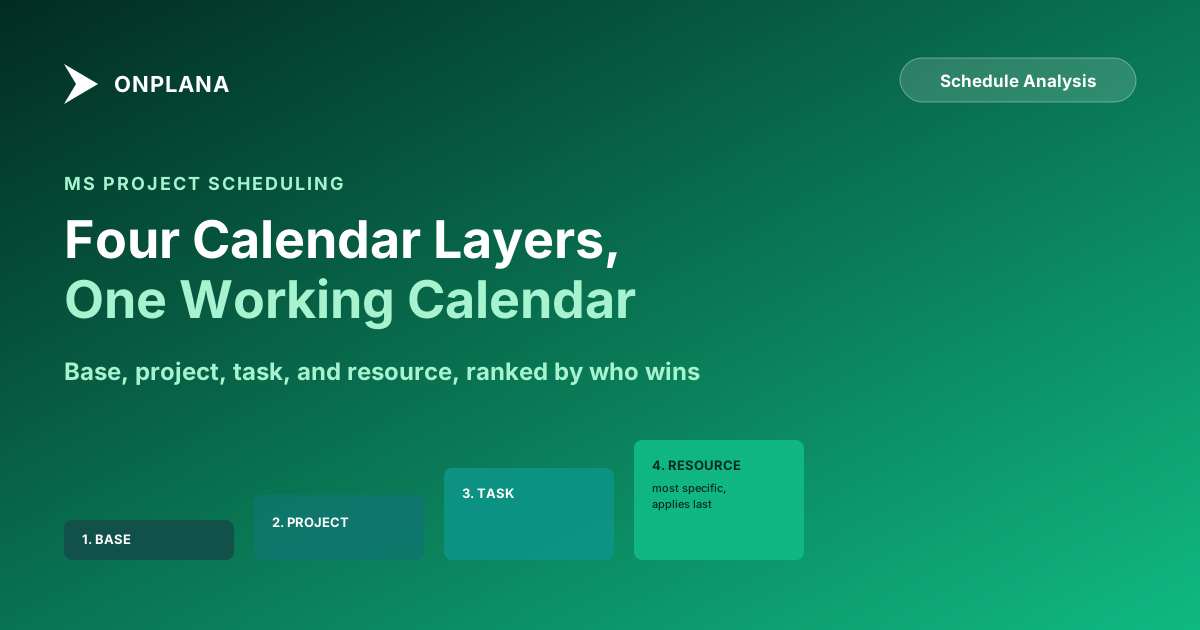
The direct answer: a project working time calendar is not one setting but four stacked layers, base, project, task, and resource, and each one narrows the last. The base calendar sets an organization-wide default work week. The project calendar picks one of those defaults (or a variant) for the whole schedule. A task calendar, when someone sets one, overrides the project calendar for that task alone. A resource calendar carries one person's own exceptions and, by default, Project schedules that person's assignments on the overlap between their calendar and the task's. Get the order wrong and a task's dates move by days or weeks with nothing else in the file looking broken.
In short. Four calendar layers stack in one schedule: base (org default), project (schedule default), task (optional, per-task override), and resource (per-person exceptions). The task calendar beats the project calendar when both apply. The resource calendar combines with whichever of those is in force, unless "Scheduling ignores resource calendars" is checked, in which case the resource's own days off stop mattering to that one task.
What a Project Working Time Calendar Actually Controls
Duration alone doesn't produce a date. A five-day task needs a calendar to say which five days those are before it can compute a start and finish. That calendar comes from whichever of the four layers is in force for that specific task, and it decides three things at once: which days count as working time, how many hours a working day holds, and which specific calendar dates get skipped as holidays or exceptions. Change any of the three and every downstream date recalculates, dependency logic untouched.
The Four Layers, From Broadest to Most Specific
Each layer is optional except the base and project calendar; most schedules never touch a task or resource calendar and run fine on the project default alone. The ones that don't are the ones worth auditing.
| Layer | Sets | Typical use | Common miss |
|---|---|---|---|
| Base calendar | An org-wide template: Standard, 24 Hours, Night Shift, or a custom variant | The raw material every project and resource calendar is built from | Nobody owns it, so it drifts out of date with the org's actual holidays |
| Project calendar | The default work week and holidays for one schedule | Almost every task inherits this by default | Left on "Standard" for a schedule that actually runs a 6-day week |
| Task calendar | An override for one task's working time | A task that runs on a machine's own uptime, not the team's hours | Set once for a special case, then forgotten when the case ends |
| Resource calendar | One person's own exceptions: leave, part-time, local holidays | Booked time off, a 4-day work week, a regional holiday set | Never updated after someone moves to a different office or schedule |
The diagram below shows how the four nest, and where the override checkbox sits.
Three Calendar Errors That Quietly Shift Dates
A wrong base work week compresses or stretches every duration on the schedule. A schedule built for a six-day work week that gets imported or rebuilt against a five-day default doesn't error out; it just compresses roughly 17% of calendar time out of every task, because five working days now takes seven calendar days to reach instead of six. Nothing on the Gantt looks broken. The finish date is just wrong, quietly, from the first task onward.
A regional holiday exists on the base calendar but not on the resource calendar it should reach. Exceptions set on a base calendar flow down into any project or resource calendar built from it, but a holiday specific to one office, a local public holiday the org-wide template never carried, has to be added to that resource's own calendar directly. Skip that and the resource shows as available on a day nobody in that office is actually working, and their tasks schedule straight through it.
A resource calendar is never updated after a life change. Parental leave, a move to part-time, a transfer to a different office with a different work week: any of these should update the resource's calendar the same day they take effect. When they don't, every task assigned to that person schedules against availability that no longer exists, and the first sign is usually a status report claiming a task is on track that the assigned person hasn't touched in weeks.
All three errors get worse, not better, the moment a schedule moves between tools. Migrating a Project Online calendar means carrying all four layers across deliberately, since a destination tool that defaults every imported project to its own global calendar reproduces exactly the wrong-work-week error above, silently, for every task in the file.
The DCMA's 14-Point Schedule Assessment sets a zero-tolerance threshold for invalid dates, forecast dates that land in the past or actual dates that land in the future, precisely because a schedule that disagrees with its own calendar produces exactly that kind of date. A calendar error rarely announces itself as a calendar error; it shows up as a date that doesn't add up, and the audit has to work backward from there.
Auditing Calendars Before You Trust the Critical Path
- Open Project Information and confirm the calendar name and work week. If it doesn't match how the team actually works, every downstream date is suspect before you look at a single task.
- Check every resource's calendar against the region they sit in, not the region the schedule was originally built for. A team that grew a second office rarely goes back and re-checks calendars for the first one.
- Filter for any task carrying its own task calendar, per Microsoft's documentation on working with calendars in Project. A task calendar set for a one-off case months ago and never removed keeps overriding the project default long after the case that justified it ended.
- Check for the "Scheduling ignores resource calendars" flag on any task where a specific resource's exceptions seem to have no effect. It's an easy setting to trip by accident and a hard one to notice once it's set.
- Re-run the critical path and baseline variance after fixing any of the above. A calendar fix changes dates without changing a single dependency, which means the critical path and any constraint conflicts need recomputing, not just re-reading.
Calendar errors and constraint errors both produce dates that don't match the dependency logic, which is why an audit that only checks one of the two misses half the problem. Once the calendars are right, the free Schedule Health Check is worth running to confirm the critical path and baseline variance it computes now match what the fixed calendars actually produce, rather than the stale math from before. The same discipline applies to resource capacity forecasting: a capacity model built on a resource's wrong calendar overstates or understates their real availability by exactly the amount the calendar error introduced.
The rest of the Schedule Analysis series on the blog covers the surrounding mechanics, constraints, dependencies, baselines, that a calendar audit usually turns up alongside the calendar problem itself.
Run the free Schedule Health Check Upload your .mpp or MSPDI XML file and get the real critical path and baseline variance, computed from the file's own calendar and dependency data rather than what the last status report assumed. No signup, no credit card. → Run the Schedule Health Check
Microsoft Project Online™ is a trademark of Microsoft Corporation. Onplana is not affiliated with Microsoft.
Frequently asked questions
What is a project working time calendar?
It's the definition of which days and hours count as working time for scheduling math. A task with a 5-day duration takes five working days on that calendar to complete, whatever the calendar says those days are, so the calendar decides the dates before duration even enters the calculation.
What's the difference between a project calendar and a resource calendar?
The project calendar sets the default working days and hours for the whole schedule. A resource calendar overrides that default for one person: their own days off, a part-time pattern, or a leave block. Both can be in force on the same task at once.
Which calendar wins when a task calendar and a resource calendar disagree?
By default, Project schedules the task on the overlap between the two: hours where both the task calendar and the assigned resource's calendar say working time. Checking "Scheduling ignores resource calendars" on the task drops the resource calendar from that overlap entirely.
Why do task dates shift after I change a project's base calendar?
Because every duration on that calendar gets re-walked against the new working days. A task with a 5-day duration that used to land on five weekdays can land on five different calendar dates once the base calendar's work week changes, even though nothing about the task itself moved.
Do holidays need to be added to every calendar separately?
Exceptions set on a base calendar flow down to any project or resource calendar built from it, but a resource-specific holiday, a regional public holiday the base calendar doesn't carry, has to be added to that resource's own calendar directly. Assuming the base calendar covers everyone is how regional holidays go quietly unscheduled.
How do I audit calendars in a schedule I inherited?
Open Project Information and confirm the project calendar's name and work week, then check every resource's calendar for exceptions against the region they actually sit in, then check for any task carrying its own task calendar or the ignores-resource-calendars flag. Those three checks catch the errors that duration and dependency review alone miss.
Ready to make the switch?
Start your free Onplana account and import your existing projects in minutes.