Effort Driven Scheduling: What Adding a Resource Really Does
Effort driven scheduling decides whether adding a resource shortens duration, doubles work, or does nothing. The task type setting behind it, with a table.
Add a second developer to a task that's running late, and one of three things happens to the schedule: the duration halves, the total work doubles, or nothing changes at all. Which one happens has nothing to do with the task itself and everything to do with a setting most PMs never open.
The direct answer: effort-driven scheduling is a per-task checkbox that only recalculates when you add or remove resources from a task that already has at least one assignment, and combined with the task's Type field, Fixed Units, Fixed Work, or Fixed Duration, it decides which of the three outcomes above happens. In our own audit of 500 real Microsoft Project files in Q1 2026, 62% carried at least one round-number placeholder duration nobody had revisited since (our findings), and those are exactly the durations most likely to move in a direction the PM didn't expect the first time someone tries to compress one by adding a person.
In short. Effort-driven scheduling only fires when the resource count on an already-assigned task changes. Fixed Units with it on (the common default) and Fixed Work both shorten duration while holding total work constant. Fixed Duration protects the calendar span instead, so adding a resource increases total work and leaves the timeline exactly where it was. Check the Type field before assuming a resource addition will compress anything.
What Effort-Driven Scheduling Actually Does
Every scheduled task runs on one equation: Work = Duration × Units. The Type field decides which of those three variables Project protects when you change one of the other two. Effort-driven scheduling is a layer on top of that equation that applies specifically when the number of assigned resources changes: it keeps total work fixed and lets duration absorb the change, redistributing the same work across however many people are now on the task.
Two conditions have to both be true for it to do anything. The task needs at least one resource already assigned, since effort-driven scheduling has nothing to redistribute on an unassigned task. And the change has to be a resource count change specifically, adding or removing a person, not a duration typed directly into the field or a percent-complete update. Microsoft's own description of the field confirms the scope: it keeps total task work at its current value when the number of assigned resources changes, and nothing else. Typing a new duration on an effort-driven task changes work, not the resource count, so it doesn't trigger the same recalculation at all.
The Three Task Types, Crossed With the Setting
The Type field and the effort-driven checkbox interact rather than duplicate each other, which is where most of the confusion comes from.
| Task type | What's held constant | Add a second resource at 100% | 12-day, 96-hour task becomes |
|---|---|---|---|
| Fixed Units, effort-driven on (the common default) | Units (allocation %) per resource | Duration shortens; total work unchanged | 6 days, 96 hours total, 48 each |
| Fixed Work | Total work | Duration shortens; work splits across resources | 6 days, 96 hours total, 48 each |
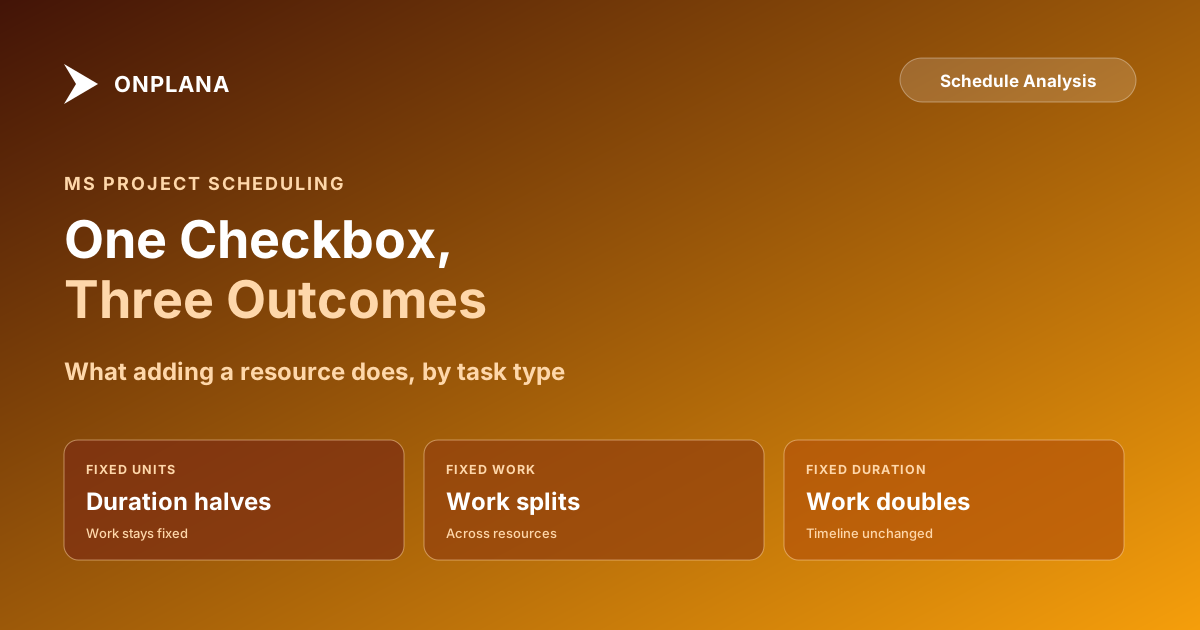
| Fixed Duration | Duration | Duration unchanged; total work increases | 12 days, 192 hours total, 96 each |
The first two rows produce the same visible result through different mechanisms; a PM watching the Gantt chart can't tell them apart without opening the Type field. The third row is the one that surprises people, because it's the only one where "add a resource" doesn't mean "finish sooner."
Why the Setting Surprises PMs Mid-Project
The trap isn't the mechanic itself; it's that the Type field is easy to set once, early, and never revisit. A task authored as Fixed Duration because it modeled a fixed-length training session or a vendor's fixed delivery window keeps that type for the rest of the schedule's life, including the day a PM adds a second developer to it hoping to pull the finish date in. Nothing in the interface warns that this particular task won't respond the way the last five did.
The same failure pattern shows up in Project Online migrations: most destination tools default to a simpler duration model that doesn't carry the Type and effort-driven fields at all, so a Fixed Work task that used to compress when staffed up stops compressing the moment the file lands somewhere else, with no error and no visible change to the task itself. That post covers the migration-specific risk in depth; this one covers the underlying mechanic that makes it a risk in the first place, on any tool, migrated or not.
It's the same shape of trap as a hard constraint set once and never revisited: a field that's easy to check early and easy to forget, until a resource change or a date slip exposes what it was quietly protecting.
Checking and Setting It Right
- Add the Type and Effort Driven columns to any sheet view before assuming a resource addition will do what the last task did. They're not shown by default.
- For a task where compression is genuinely wanted, confirm Type is Fixed Units or Fixed Work and Effort Driven is checked, rather than assuming the default is still in force.
- For a task with a genuinely fixed calendar span, a training session, a vendor delivery window, leave it Fixed Duration deliberately and staff it for capacity, not for speed.
- Before a migration or tool change, run the free Schedule Health Check to pull the critical path and flag which of those tasks are effort-driven; those are the ones where losing the behavior does the most damage to the finish date, since a critical-path task that stops compressing when staffed keeps the whole project at the length it would have had anyway.
- Re-check Type after any bulk edit or template reuse. A task copied from a Fixed Duration template into a schedule where the surrounding tasks are all Fixed Units inherits the wrong type silently, and nothing flags the mismatch.
Effort-driven scheduling is one of the scheduling-engine details that most modern PM tools, including Onplana's own simpler duration model, don't reproduce after an import; the task structure and assignments carry across, but the specific recalculation behavior doesn't. That is a reasonable trade for most schedules and a real one for tasks that depend on it, which is exactly why step 4 above matters more than it looks like it should.
The rest of the Schedule Analysis series on the blog covers the other fields that behave the same way, easy to set once and easy to forget, until a resource change or a migration exposes the assumption.
Run the free Schedule Health Check Upload your .mpp or MSPDI XML file and get the real critical path computed from the file's own dependency graph, so you know exactly which tasks would lose the most if effort-driven behavior didn't carry over. No signup, no credit card. → Run the Schedule Health Check
Microsoft Project Online™ is a trademark of Microsoft Corporation. Onplana is not affiliated with Microsoft.
Frequently asked questions
What is effort-driven scheduling in Microsoft Project?
A per-task setting that keeps total work constant when you change the number of assigned resources. With it on, adding a second person shortens duration because the same fixed amount of work now splits across more people. With it off, or on a Fixed Duration task, adding a person can increase total work instead.
What are the three task types crossed with effort-driven scheduling?
Fixed Units, Fixed Work, and Fixed Duration. Fixed Units with effort-driven on is the default for most tasks and shortens duration when a resource is added. Fixed Work always behaves the same way, since the work itself is what's locked. Fixed Duration locks the calendar span instead, so adding a resource raises total work rather than shortening the timeline.
Does effort-driven scheduling apply to a task with only one resource?
No. Effort-driven scheduling only recalculates when the number of assigned resources changes on a task that already has at least one assignment. A single-resource task with no assignment changes ignores the setting entirely, whichever way it's checked.
What happens if I add a resource to a Fixed Duration task?
The calendar span stays exactly the same, and total work increases because both resources are now working the same span at once. This surprises PMs who expected the timeline to shorten; it doesn't, because duration is the field Fixed Duration protects, not work.
Why didn't adding a resource change my task's duration?
Check the task's Type field first. If it's set to Fixed Duration, duration is protected by design, and the resource addition changed total work instead. If it's Fixed Units or Fixed Work and duration still didn't move, effort-driven scheduling is probably turned off for that task.
Do modern PM tools replicate effort-driven scheduling after a migration?
Most default to a simpler duration model and don't reproduce the recalculation, which means a task that used to compress when you added a resource stops compressing after migration even though the task and resource fields look the same. Audit which tasks depend on the behavior, especially anything on the critical path, before assuming the move is safe.
Ready to make the switch?
Start your free Onplana account and import your existing projects in minutes.